This guide explains how to import and manage custom field values in bulk.
Adding and updating custom field values
To improve filtering, categorization, and reporting across your Payhawk account when importing custom field values, refer to the information in the following table.
Column name | Description | Notes |
Custom field name | The name of the custom field for which you're adding or updating values. |
|
Custom field value | The value to be added to the specified custom field. |
|
Value external ID | The ID used in your external systems to reference the custom field value. | (Optional) It's useful for the integration with external systems such as ERP or HR platforms. |
Custom field manager | The list of already existing users in the Payhawk system. |
|
Custom field values ID (do not change) | The unique ID generated by Payhawk when custom field values are initially created. |
|
Full path (auto-generated) | You can ignore this column; it's auto-generated. |
Adding and updating custom field values on a group level
If your group includes multiple entities and your custom field values are managed on a group level, the following column is also applicable.
Column name | Description | Notes |
Entity | The specific entity within your group where the value of this custom field will be visible. |
|
Bulk import and export of custom field values
As a Payhawk Administrator, you can import your custom fields in bulk in the following way:
In the Payhawk Web Portal, go to Settings > Fields library > Projects.
Under Values, click on the three-dot menu and select Import.
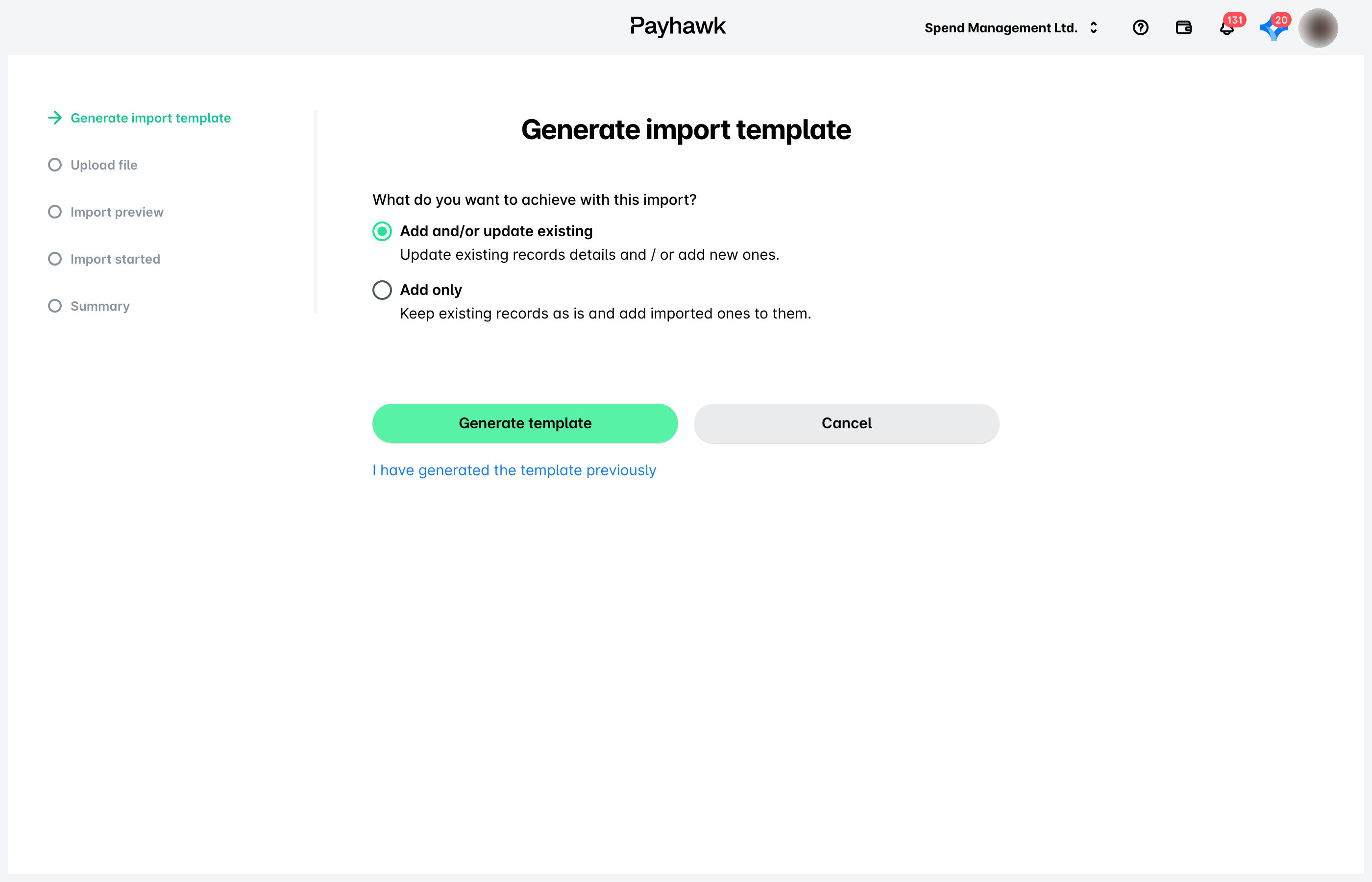
On the next screen, select either of the following options:
To update existing data and add new one, select Add and/or update existing.
To keep existing data while adding new one, select Add only.
Click on Generate template to download the template file.
Enter the required data in the template file, then return to the wizard and upload the file. Click on Upload.
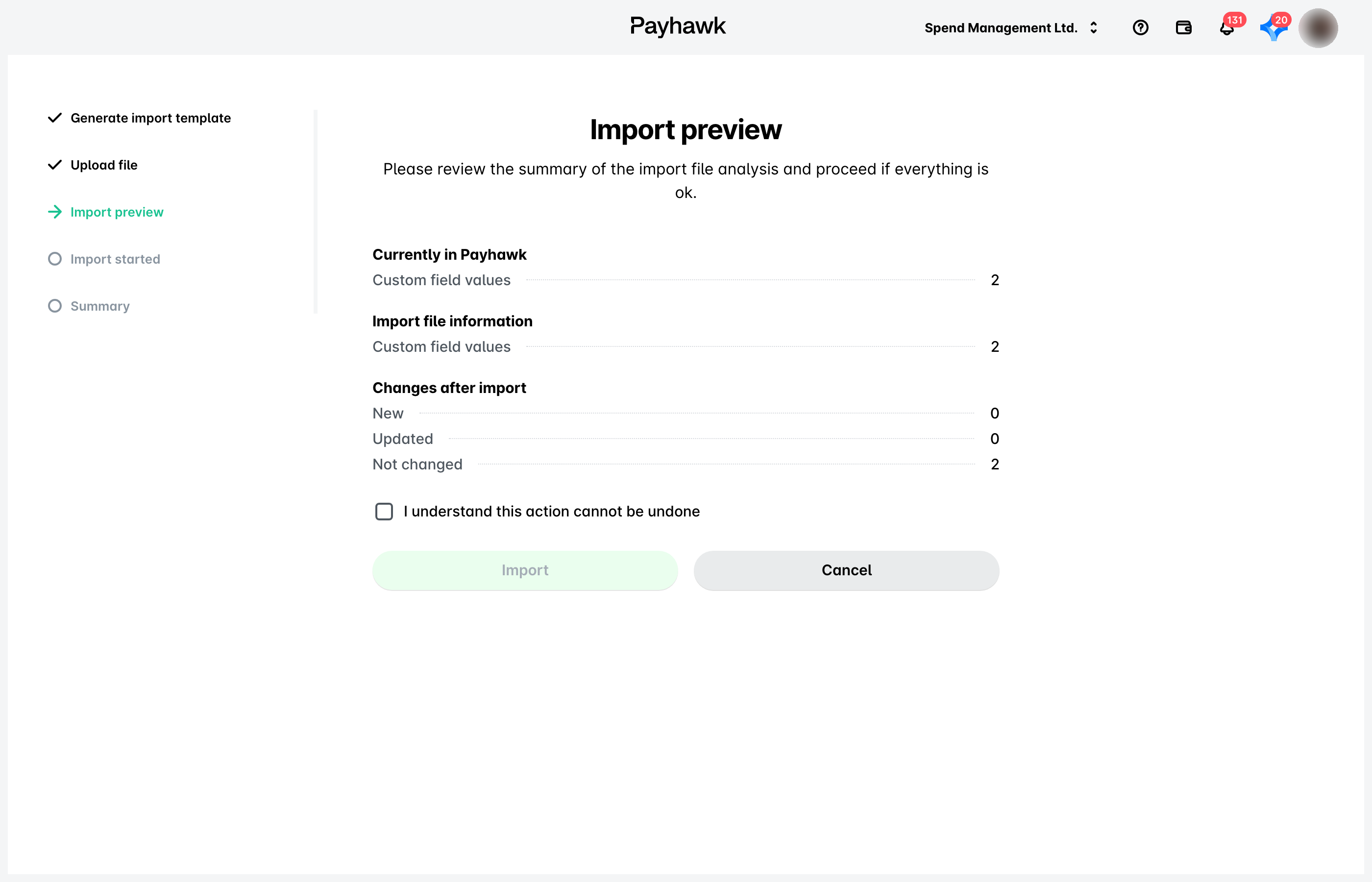
On the Import preview screen:
Review the data to be added or updated.
From the Import options drop-down menu, choose the way you want the system to add the new data.
Select the confirmation checkbox.
Click on Import.
On the success screen, click on Done.
To export your custom fields data and download it as a ZIP folder, select the Export option from the three-dot menu.
Notes on importing custom field values
If you use a file from another custom field and overwrite its data, the import will not proceed, as the template contains hidden built-in validation for each custom field.
Do not use the same generated template from one custom field to import values from another custom field.
Make sure Custom field name matches an existing custom field.