For each request type, you can define roles or specific employees who can review, approve, and close requests and purchase orders (if enabled for your company). You can also define that an approval step in the lifecycle is not relevant or needed for the company, for example, the review one.
The configured request type approval workflows can be flexible and based on the hierarchy levels at your company (for example, Second level manager), specific people (for example, budget owners of cost centers and defined managers of expense categories), or Payhawk roles (Payhawk accountants and Payhawk administrators).
Lifecycle of workflows for requests and purchase orders
The approval workflows for requests and purchase orders have the following steps and specifics:
The Submit step is always visible.
The Review and Approve steps are optional for you to define. If any or both steps are irrelevant to your internal processes, you may skip them.
The Create purchase order step will be visible if purchase orders have been enabled for your company's Payhawk account. You can add this step to a request type's workflow so that Payhawk automatically creates a PO document and assigns a PO number whenever a request of that type is approved. If you leave the step out, no purchase order or PO number is created for that request type, even if purchase orders are enabled for your account. To set up PO numbering and other settings, see the article on configuring purchase orders.
The Receive step can be added, removed, and configured for the specific approval workflow.
Enable the Require for specific categories only toggle button to make the receipt note a requirement for certain expense categories only.
Select the checkboxes for the expense categories and sub-categories you want to require a receipt note for.
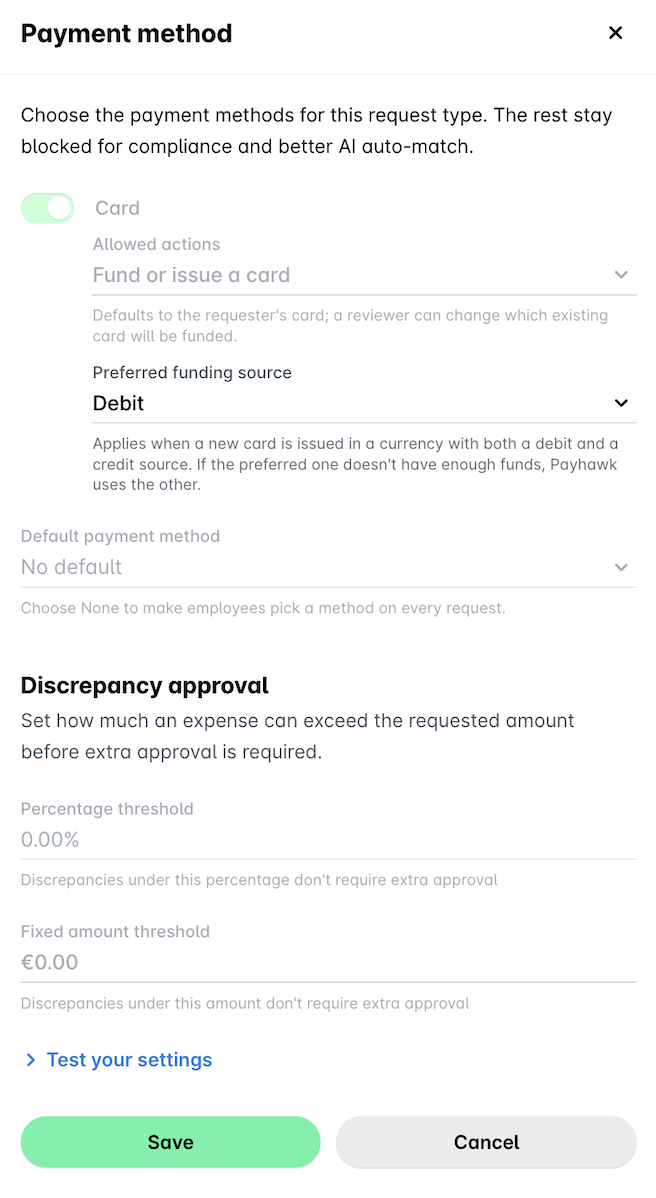
The Pay step allows you to configure the available payment methods for a specific request type, as well as enable an automatic discrepancy detection functionality.
You can choose to enable payment options, allowing employees to pay for their submitted request by card, by bank transfer, or select No payment needed.
If you enable the Bill option:
Employees will be allowed to select bank transfer as the payment method for submitted requests of this type.
The approval workflow for the Bill expense type will be updated accordingly to support the following approval scenarios: No request, Matched request, or Request with discrepancy.
Under the Request with discrepancy, you can add the new Amount difference condition to route bill approvals based on the size of the discrepancy between the request and the bill.
If an employee chooses the Bill option, the request can only be linked to a bill expense later on.
If you enable the Card option:
Employees will be allowed to choose card payment for submitted requests of this type. If the Card option is selected, the request can only be linked to a card expense afterwards.
The approval workflow for the Card expense type will be updated accordingly to support the following approval scenarios: No request, Matched request, or Request with discrepancy.
If an employee chooses the Card option, they can choose from cards assigned to them or request a single-use card. If a single-use card is selected, it will be automatically issued in the requester's name upon approval of the request.
Here you can change the funding source of any single-use cards that will be issued. New virtual cards will use the debit funding source by default. If your company has both a credit and a debit Payhawk account in the same currency, you can select a preferred funding source, so that a new virtual card can be issued in that currency with either funding source. Payhawk will always use the preferred card when it holds enough funds. If the funds are not enough, the system will use the card with the other funding source instead.
If you enable the No payment needed option:
This option provides flexibility for cases where a payment is not required. The requester or reviewer can decide whether the request will be paid by card, by bank transfer, or not at all.
For example, a request may not need payment if the items have already been purchased or are in stock.
Under Discrepancy approval, you can set how much an expense can exceed the requested amount before extra approval is required. Only if you choose a percentage and/or specific amount as the acceptable threshold, the system will trigger a discrepancy workflow for the related expenses when the spend amount is more than the requested amount.
You can also test your settings by entering example values to see if a discrepancy approval will be triggered.
The Close step is always visible. It allows you to enable and configure the rules for the auto-close option of requests.
Whenever you need to set a workflow for a request lifecycle step, you can apply the steps for defining custom workflows. Alternatively, if any of the steps that can be skipped are unnecessary, you can remove them by clicking their three-dot menu and selecting Delete.
Updating workflows for requests and purchase orders
You can configure an approval workflow for a request type either from the Settings > Request types > Workflow tab of the request type or from Settings > Workflows > Requests.
To update the workflow for a specific request type:
From the Payhawk Web Portal, navigate to Settings > Request types.
Select the desired request type.
Go to its Workflows tab and click on Edit workflow.
Alternatively, click on Go to workflows and you'll be redirected to the Settings > Workflows > Requests screen.
Create an approval workflow that suits your requirements by following the steps for defining custom workflows.
Click on Publish workflow to apply all the changes you've made.