Once the delivery of items or services is confirmed, a request can be automatically closed by the system or manually closed by a Payhawk Accountant or Payhawk Administrator.
Auto-closing requests
To enable the automatic closure of requests, you must enable the feature in the Settings app. The default auto-close option triggers when the linked invoices have been fully paid, meaning that the following conditions are met:
The status of the received quantity is FULL.
The status of the invoiced amount is MATCHED.
When enabled, the auto-close option will apply whether the invoiced amount is settled over a bank transfer or marked as paid manually.
If an expense is marked as unpaid or a bank transfer is reversed after settlement, the request cannot be reopened.
To enable the auto-closing option for requests:
In the Payhawk Web Portal, go to Settings > Workflows > Requests tab, select [Request type], then click on Edit workflow.
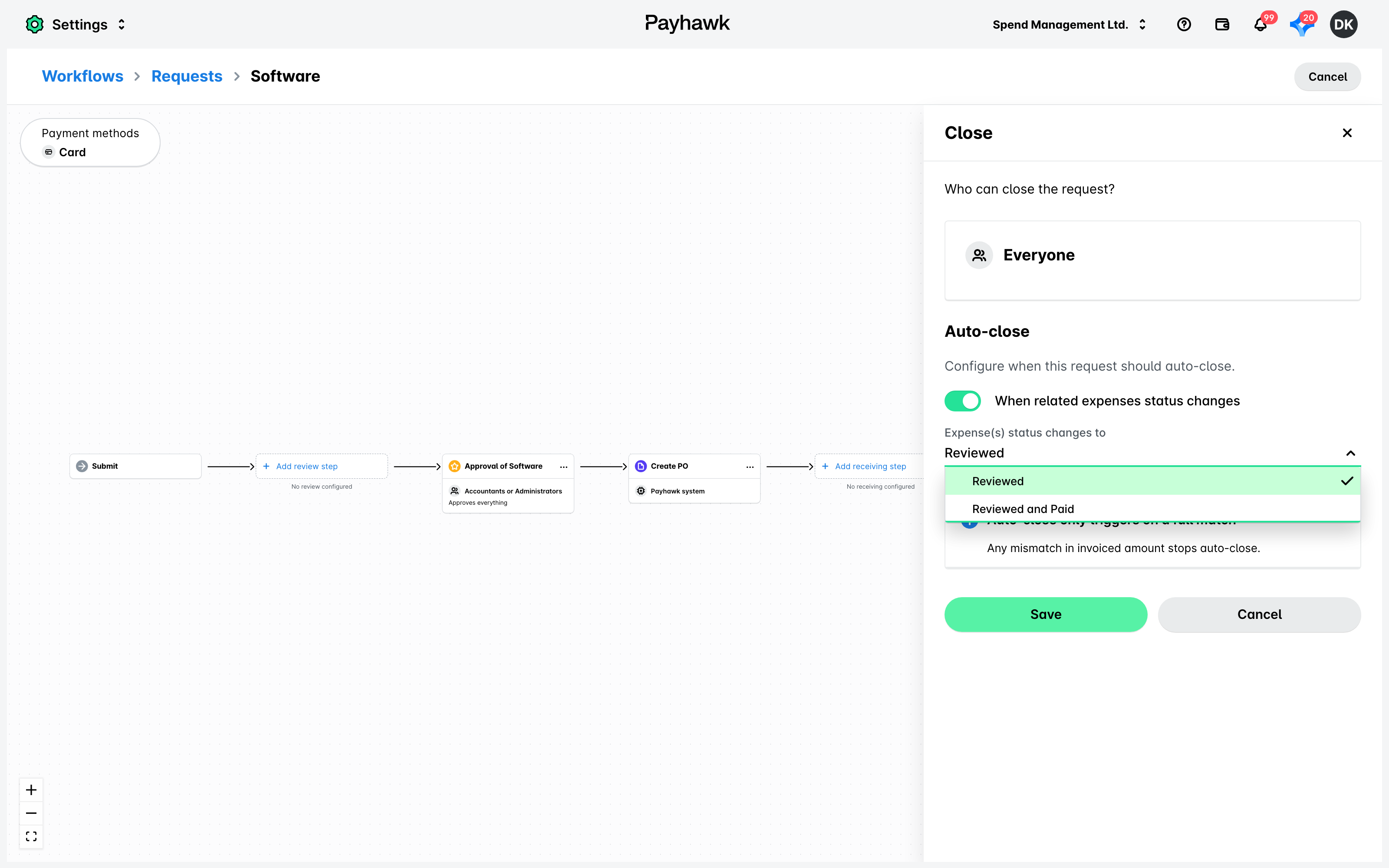
Open its Close step, under Auto-close, enable the When related expenses status changes toggle button to configure when this request must auto-close. If enabled, from the drop-down menu, select:
Reviewed option for the request to auto-close once it’s reviewed.
Reviewed and Paid option for the request to auto-close once it’s reviewed and paid.
Click on Save.
Click on Publish workflow.
Closing requests manually
To manually close a request:
Go to Requests > Close and select the desired request.
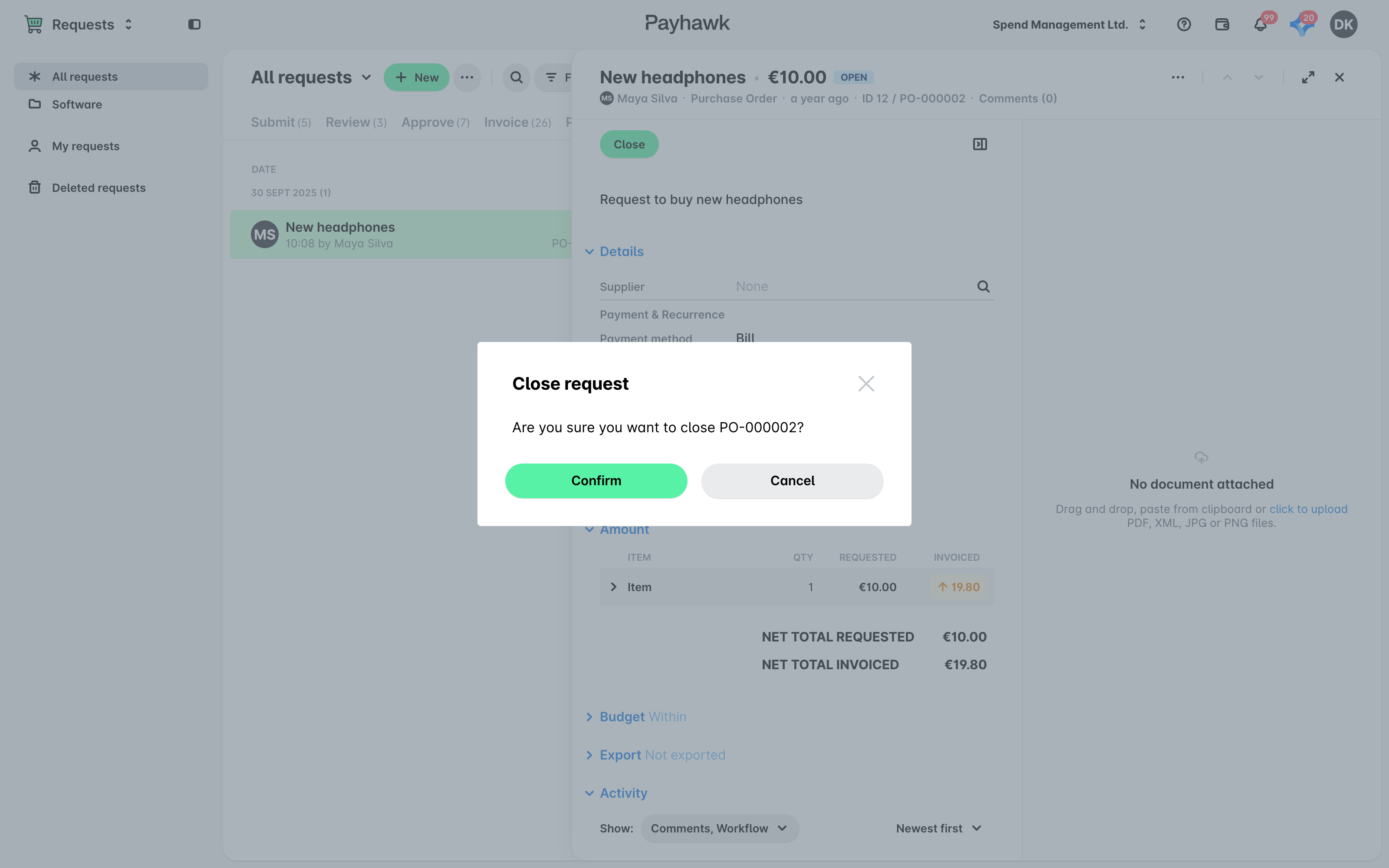
Click on Close.
In the dialog that opens, click on Confirm.
Alternatively, you can close a request at an earlier step of its lifecycle:
Go to Requests and select the desired request.
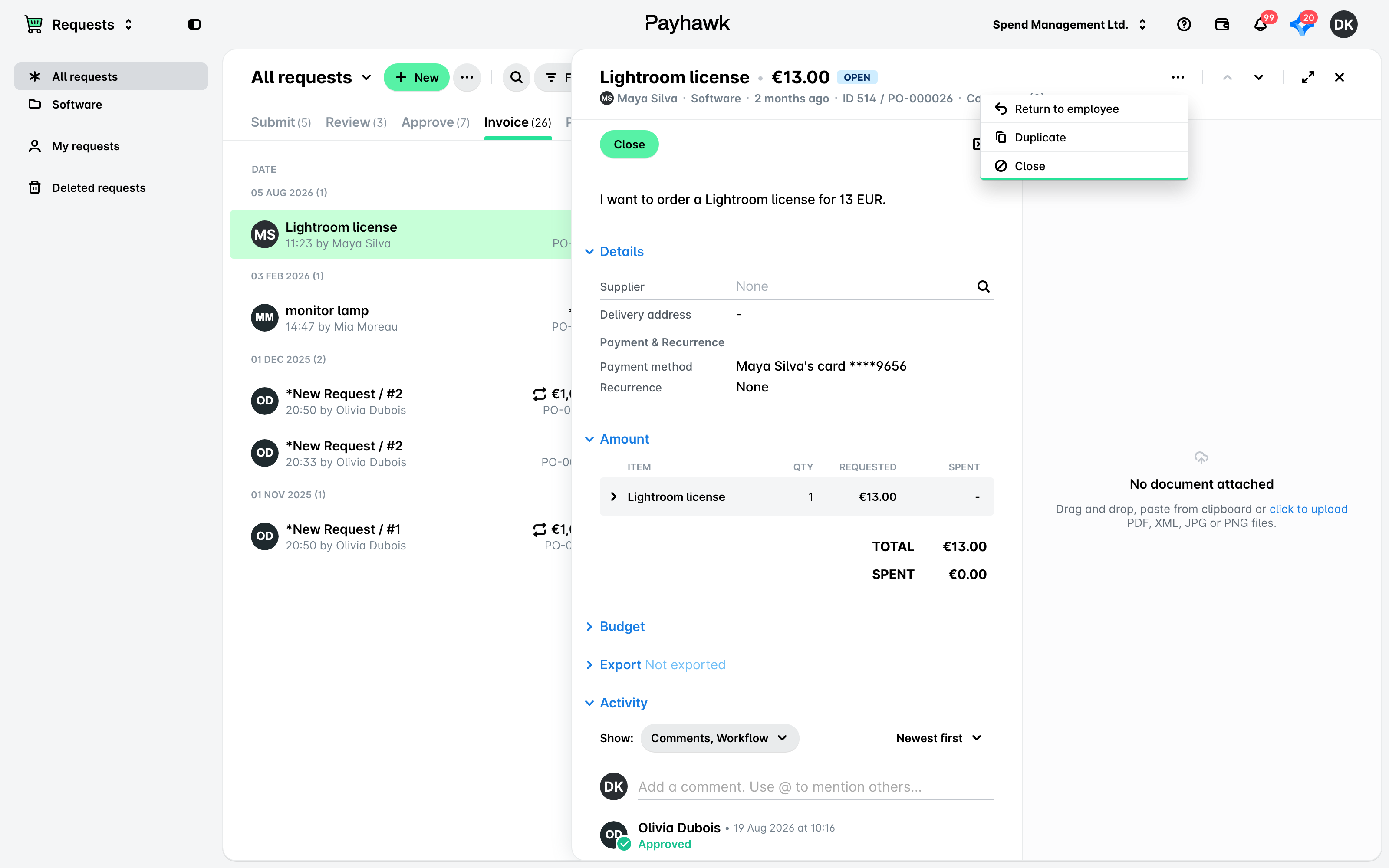
Click on its three-dot menu and select Close.
In the dialog that opens, click on Confirm.
Reopening requests
Once a request has been closed, you can still reopen it:
Go to Requests > All requests and select the desired request.
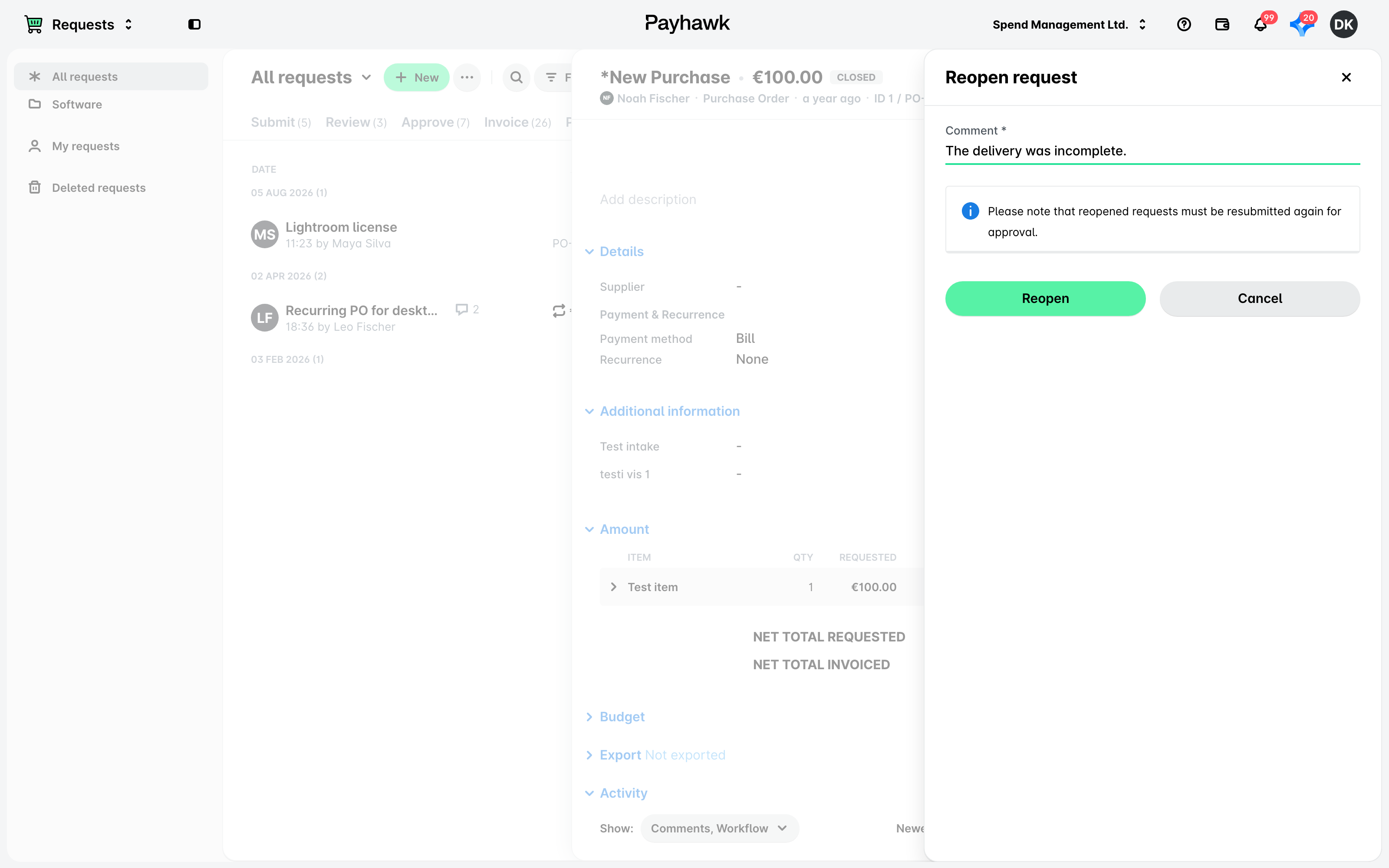
From its three-dot menu, select Reopen.
In the dialog that opens, enter the reason for reopening it and click on Reopen.
As a result, the reopened request will move to the Submit tab and has to be resubmitted according to the approval workflow defined for your company.
Useful resources