You can import requests and purchase orders in bulk by using an Excel template that is generated by the system based on the desired request type. This import is useful for companies migrating to Payhawk, integrating with external systems, or creating multiple similar requests or purchase orders at scale.
Notes on request and purchase order import
For each different request type, the system will generate a different import template to match the required fields.
Imported requests and purchase orders will always have their payment method set to None. Except for these specifics, all fields that can be created in the Payhawk Web Portal or by using Payhawk's Developer API can be generated as a template and then imported back.
The request and purchase order import capability is accessible for Payhawk Administrators who can import requests directly in an Open state and on behalf of any employee. Payhawk Employees also have access to import, but can only create requests in a Draft state and only on their own behalf.
You have to use a template that you generated and downloaded yourself. If you upload a template that another employee generated, the import fails with a TemplateActorMismatch error. To resolve it, generate and download a new template under your own account, add your data to that file, and upload it.
To import requests, you need the Create and edit requests permission. To import requests directly in an Open state, you also need the Import requests in open status policy enabled for your role. This policy is on by default for Payhawk Administrators.
Importing requests and purchase orders
To import requests and purchase orders:
In the Payhawk Web Portal, go to Requests.
Select the All requests view.
Click on the three-dot menu and select Import.

On the next screen:
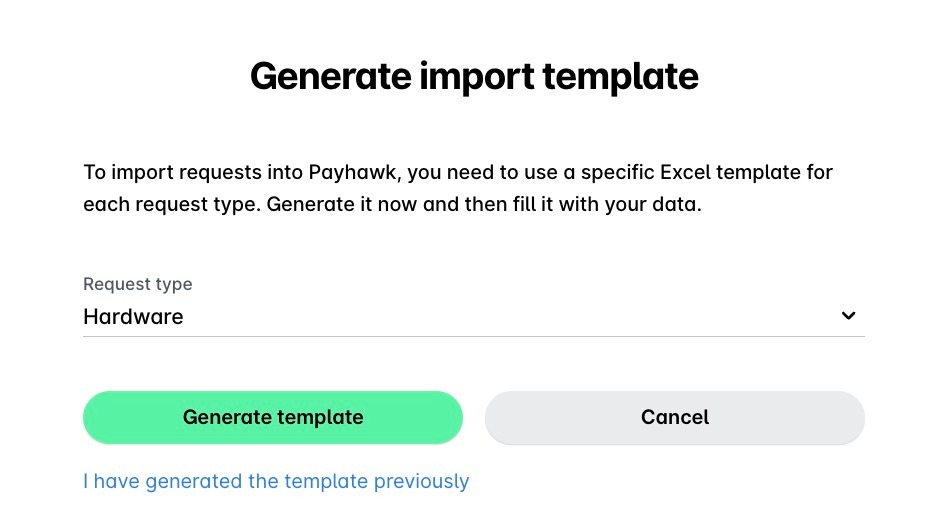
Select the request type for the import template that will be generated by the system and click on Generate template.
Alternatively, if you already have the template previously generated, click on I have generated the template previously.
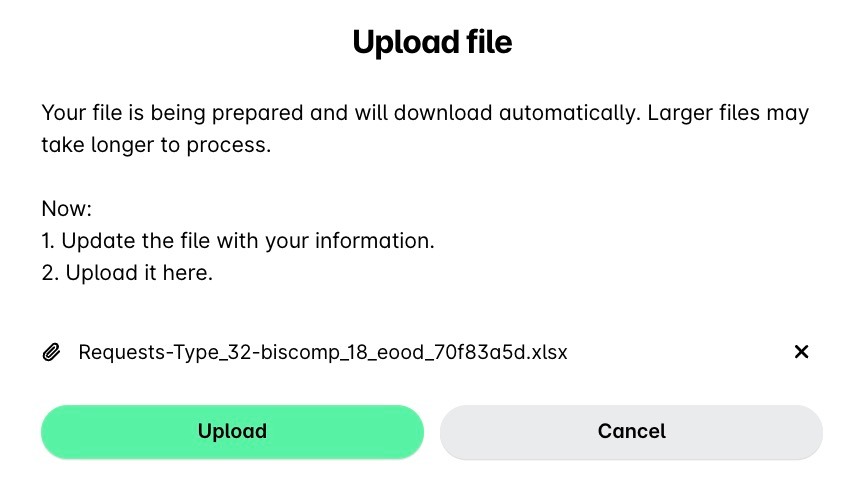
As a result, the generated template is downloaded locally in the Downloads folder of your machine.
Fill in your data in the required format in the generated file. Then, go back to the Payhawk Web Portal, upload the modified file, and click on Upload.
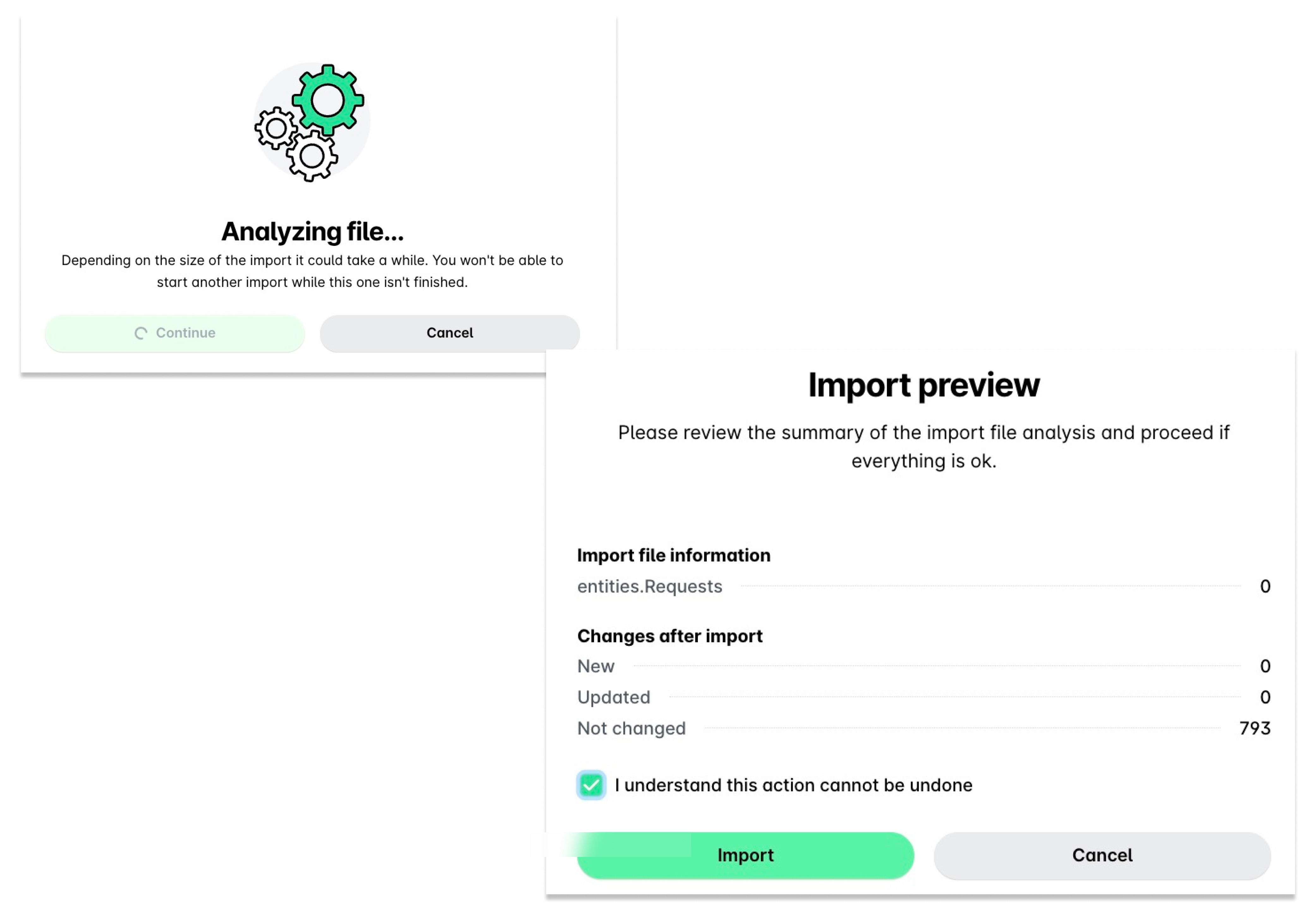
After the system analyzes the data in import, select the checkbox and click on Import.
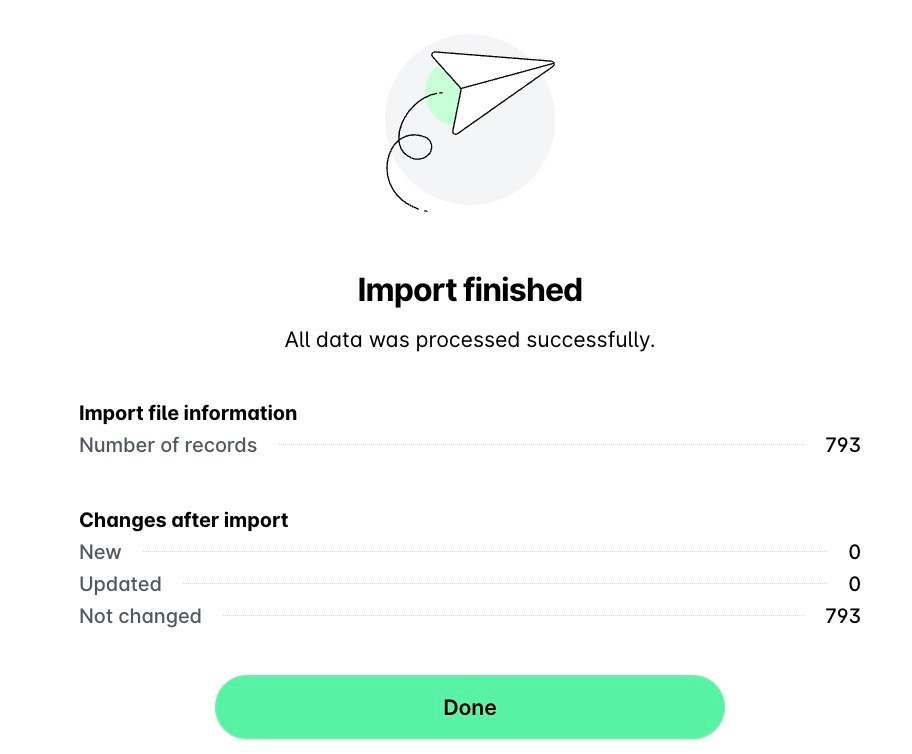
Once the import is ready, the success screen will load. Click on Done.
The template file
When importing requests or purchase orders into Payhawk, the system generates an import template that corresponds to your company's configuration for the specific request type you select. The template file includes only the fields defined in your setup in Payhawk, such as any custom or intake fields associated with that request type. Fields marked as required in Payhawk for that request type will also be mandatory to complete in the Excel template.
The import data you need to provide is located in the Requests sheet of the template and, for example, may include the Group ID and PO Number columns:
The Group ID field allows you to group multiple rows into a single request or purchase order. When several rows share the same Group ID value (for example, 1234), Payhawk creates one request or purchase order containing multiple line items. If you leave the Group ID empty, each row is imported as a separate request.
The PO Number field serves as an identifier for purchase orders with an open status. You can fill it in if you want to reference or update an existing purchase order. If you leave it blank, Payhawk will automatically generate a PO number based on your company's configured prefix.
Because each request type can contain different fields, the template structure varies depending on the type you select before starting the import. To understand what fields will appear in the file, you can review the settings for the request type in the Payhawk Web Portal.
The import template acts as an alternative interface for creating requests in bulk, following the same data structure used in the Payhawk Web Portal. If any errors occur during the import process, Payhawk will automatically record details of the issues in the template file so you can review them at the end of each affected row, make corrections, and re-upload the data.