Before you connect Payhawk and Sage Intacct, the ERP’s Accounts Payable application must be set up as the Payhawk-Sage Intacct integration requires it and the export of vendor bills does not work without it.
Step 1: Enable Accounts Payable in Sage Intacct
To configure the Accounts Payable in Sage Intacct:
Go to Company > Subscriptions.
On the Applications tab, find Accounts Payable and turn it on.
Next to Accounts Payable, click on Configure.
Under Enable functionality, select Enable Accounts Payable GL account override in AP purchase invoice and adjustment entry.
Click on Save.

Step 2: Set the GL account alternative on the Accounts Payable account
The general ledger account used for accounts payable must have a GL account alternative set, so that Payhawk can post vendor bills to it:
In Sage Intacct, go to General Ledger > General Ledger accounts.
Open your accounts payable account (for example, account number 20100, Accounts Payable).
Set GL account alternative to Payables account.
Make sure the account Status is Active, then save.

Step 3: Select the accounts payable account in Payhawk
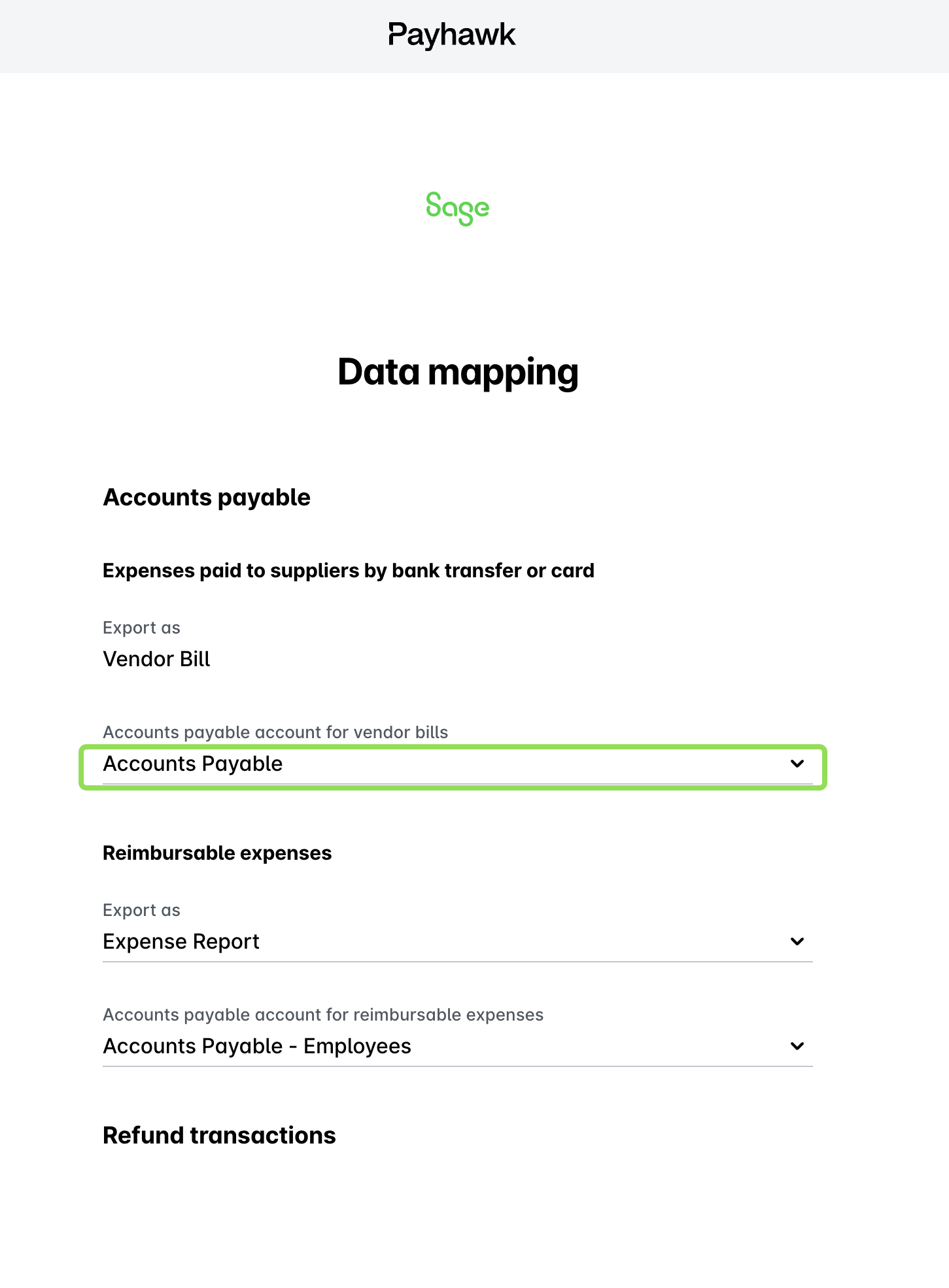
When you start setting up the Sage Intacct integration in Payhawk, open Data mapping > Accounts payable and select your accounts payable account:
For expenses paid to suppliers by bank transfer or card (exported as Vendor Bill), set the Accounts payable account for vendor bills.
For reimbursable expenses (exported as Expense Report), set the Accounts payable account for reimbursable expenses.