If a Payhawk Administrator at your company has enabled the Payhawk-Slack connection, you will see the Payhawk app in your company's Slack workspace.
The Payhawk application, called Financial Controller Agent, can be found in your Apps section and appears as shown in the following image.
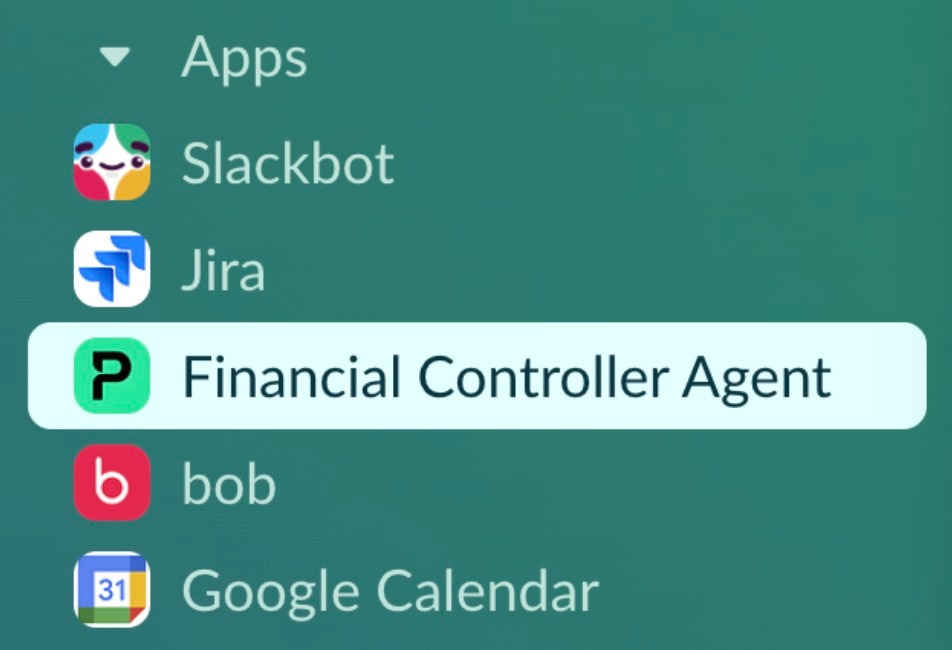
This integration allows Payhawk to send you consolidated smart reminders about all expenses that need your attention, submit expenses directly within Slack, and approve or decline expenses if you're part of an approval workflow.
To fully utilize the Payhawk-Slack integration, you must authenticate, granting Slack access to your Payhawk data.
When you are on the go, you can use the Payhawk application from the Slack mobile app or use the Payhawk Mobile app.
Authenticating in Slack
Before you can use Slack to submit documents and expenses, you must first authenticate to grant Slack access to your expense data.
This Slack authentication is separate from how you sign in to Payhawk itself. Enabling SSO for your company's Payhawk login does not remove the need to authenticate in Slack. You still need to complete the steps below - or have matching Slack and Payhawk email addresses - to receive smart reminders and take actions.
If your Slack and Payhawk emails match but you haven't authenticated, you will still see the Payhawk app in Slack and receive smart reminders, but you won't be able to take any actions, such as uploading expense documents or submitting expenses.
If your Slack and Payhawk emails don't match or you have multiple Slack accounts, you will see the Payhawk app in Slack but won't receive smart reminders or be able to take any actions until you authenticate.
As an employee, you can authenticate to Slack in the following way:
Go to Slack and select Financial Controller Agent. If the Payhawk app is not visible in the list, click on Add apps and search for Financial Controller Agent.
On the next screen, click on Allow.
Alternatively, you will be prompted to authenticate to Slack by the Financial Controller AI Agent once you try to do your first action.
Submitting documents and expenses via Slack
As an employee, you'll receive consolidated reminders in Slack listing all expenses that need your attention, such as missing documents or pending submissions. From there, you can select an expense to act on, and the AI Agent will guide you through the required fields for submission, automatically suggesting relevant information based on the document and transaction data.
It feels like chatting with ChatGPT to effortlessly submit your expenses to Payhawk:
Go to Slack and select the Payhawk app.
Open the reminder you received in the Chat or History tab. The reminder lists all expenses currently awaiting your action.
Select the expense you want to work on, or click on the Submit expense button. You can also just drop a document in the chat. You can attach several receipts or invoices in a single message, and the AI Agent matches each one to the right expense and flags any it cannot match.
Upload the expense document (if required for submission).
Select or add any required expense data, such as expense category.
Once all of the required fields are collected and have values, the AI Agent will summarise the expense state.
Confirm the submission to the AI Agent in any of the following ways:
Click on Confirm, Submit, or Okay.
React with an emoji.
Explain your confirmation as you wish.
Repeat for any remaining expenses from the reminder.
If a receipt does not match an existing expense, the AI Agent offers to create a new reimbursable or bill expense from it, so nothing is left unrecorded.
You can also act on several expenses in one request instead of handling them one at a time. Tell the AI Agent what you want to do, and it will apply the action across the expenses you specify.
Approving requests in Slack
As an approver included in the company workflow, you'll receive a consolidated smart reminder in Slack listing all pending approvals that need your attention. You will be able to approve expenses, purchase orders, cards, and funds depending on the workflow you are part of.
To approve, decline, or comment on the request:
Go to Slack and select the Payhawk app.
Click on the respective action - in this case, Approve.
Reviewing expenses in Slack
If you are a reviewer in the company workflow, you receive a consolidated reminder in Slack listing all expenses that need your review.
To review an expense:
Go to Slack and select the Payhawk app.
Open the reminder and select the expense you want to review.
Confirm your review, or return or reject the expense with a comment.
Updating the language preferences for Slack smart reminders
You can change the language of the smart reminders you receive in Slack from your profile settings.
The change will only apply to new messages; previously sent smart reminders will remain in the original language.