On the submit, approve, and review steps of the expense lifecycle, you can merge expenses in Payhawk as long as the desired ones meet a set of requirements.
Requirements for expense merge
You can merge expenses in Payhawk that meet the following requirements:
Have not been reviewed.
Have the same expense currency.
Are of the same spend type.
Are not mileage or per diem.
Have no line items.
Are not subscriptions.
(For card expenses) Have the same payment currency.
(For card expenses) The sum of their total is not zero.
(For bills and reimbursable expenses) Have not been paid.
Expense merge and expense split
You can merge expenses as a way to reverse an expense split operation. However, you cannot merge expenses that are split from other expenses.
For example, if you have an Expense A that was split into Expenses A1 and A2, an Expense B that was split into Expenses B1 and B2, and an Expense C, you cannot merge Expenses A1 and B1, or A1 and C, or A1 and A2 and B1.
Expense merge output
After the merging, the resulting expense will have the following characteristics:
Its expense amount will be the sum of all selected expenses.
It will display all expense documents of the merged expenses.
Regardless of possible previous approvals of any merged expense, the approval status of the resulting expense will always be not submitted, that is, it will be located under the Submit tab (if the submit option has been enabled).
Its expense data, created date, and other details will be inherited from the topmost expense, which was displayed in the dialog to the right when you selected the expenses for merging.
Merging eligible expenses
To merge expenses that meet the requirements mentioned above:
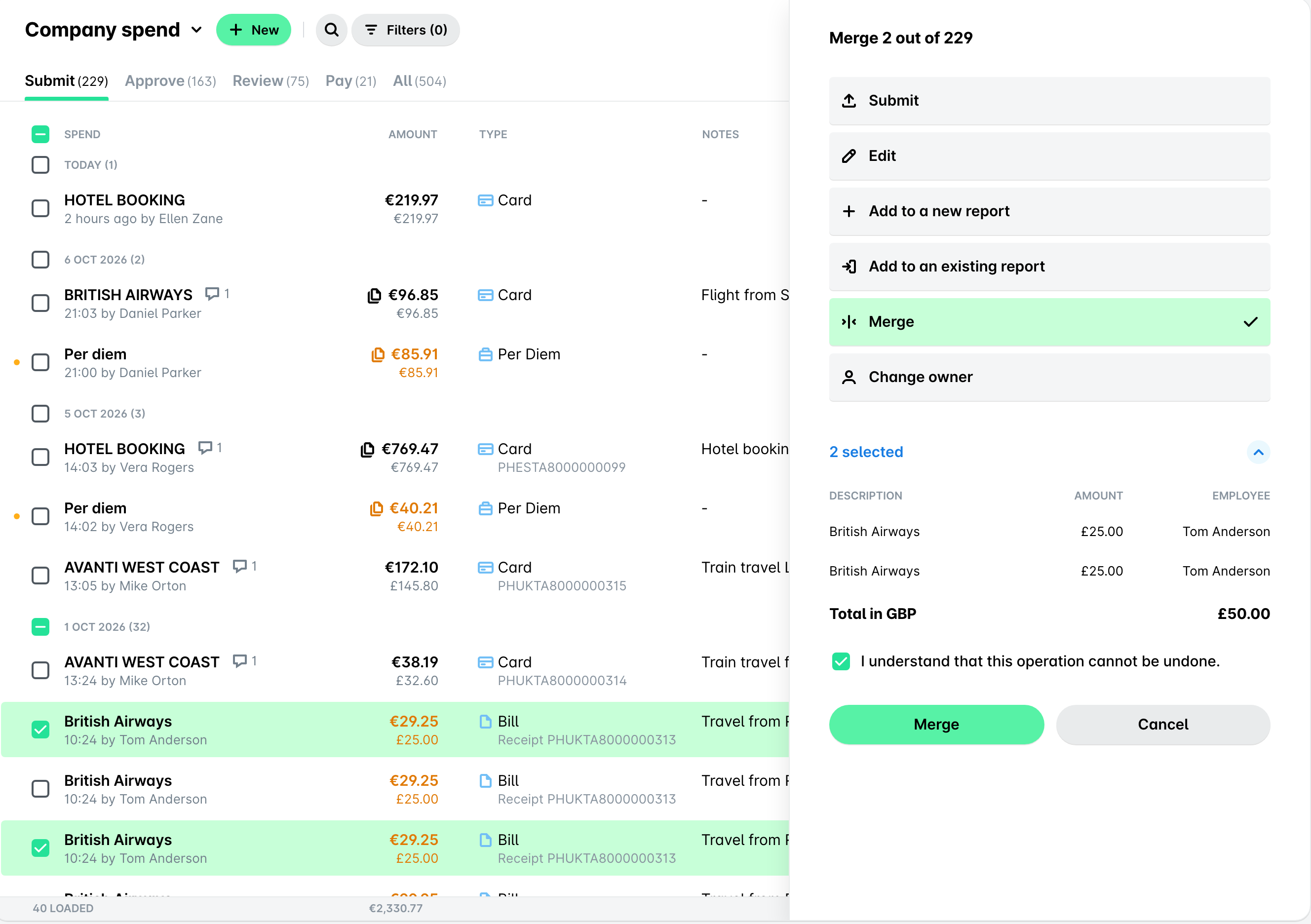
In the Payhawk Web Portal, go to Spend > Company spend > Submit (Approve or Review) tab.
Hover over the desired expenses and select their checkboxes.
In the dialog that opens to the right, select Merge and select the checkbox to confirm that you understand that this operation cannot be undone.
Click on Merge.
Exporting merged expenses to your ERP system
You can export merged card expenses to your ERP system through the Payhawk direct integrations. When you merge card expenses to the same supplier, the merged expense is exported as a single bill with multiple payments, for example, in Oracle NetSuite.
Merging card expenses is useful when a supplier issues one monthly invoice that covers multiple card payments from the same period, for example, several same-amount pay-as-you-go charges. In such cases, you can merge the card expenses, attach the monthly invoice as the expense document, and review the expense to export it as one bill.
When exporting merged card expenses, note the following:
Payhawk exports only settled payments. After the merged expense is reviewed, each payment is exported to the ERP system as soon as it settles without waiting for the settlement of the other payments.
Merging a large number of card expenses (more than 50) can cause the export to time out and return an error. In this case, merge the card expenses in smaller groups.
Useful resources