Можете да промените адреса за доставка по подразбиране на компанията ви и да получавате там всички нови или преиздадени физически карти Payhawk.
Актуализираният адрес за доставка по подразбиране ще се прилага за карти, които все още не са издадени към момента на актуализацията.
Картите, издадени преди актуализацията, ще бъдат доставени на предишния адрес.
За да получите на новия адрес за доставка карта, издадена преди актуализацията, но все още неизпратена, свържете се с екипа за поддръжка на Payhawk.
За да актуализирате информацията за доставка на компанията си:
В уеб портала на Payhawk отидете на Настройки > Карти > раздел Адрес за доставка.
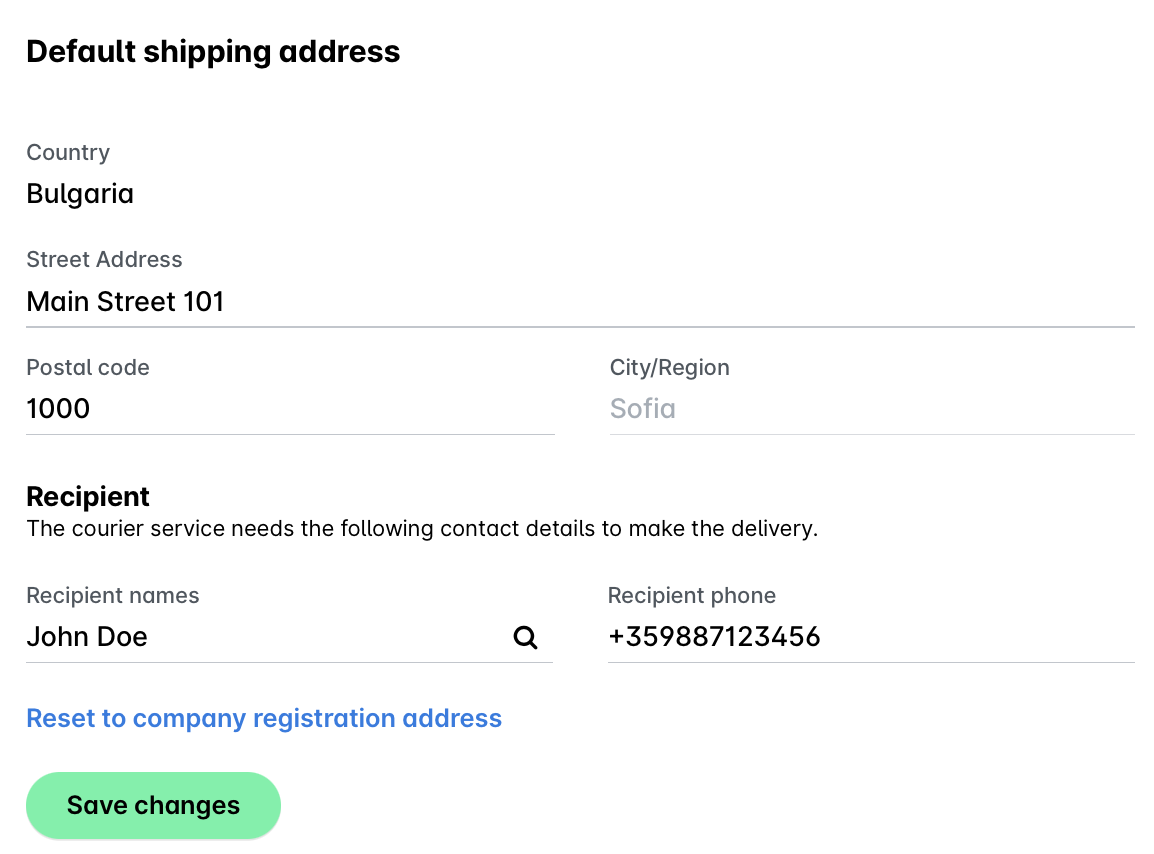
Попълнете улицата, града и пощенския код. Полето за държава е попълнено предварително и не може да се промени, тъй като отразява държавата на регистрираното дружество.
Въведете данните за контакт на служителя, упълномощен от компанията ви да получава картите.
Кликнете върху Запазване на промените.
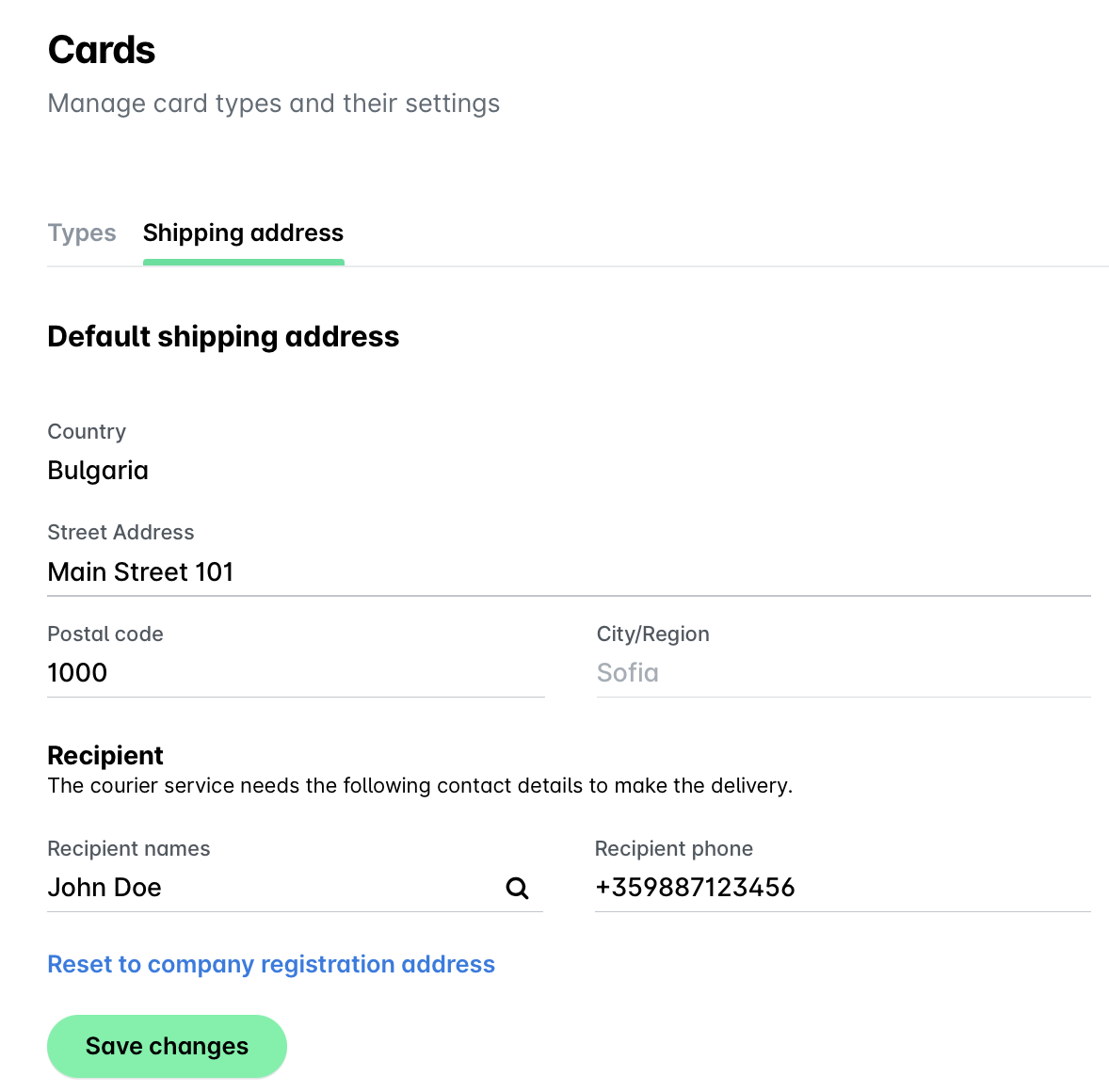
За да върнете адреса за доставка към адреса на регистрация на компанията, кликнете върху Връщане към адреса на регистрация на компанията.
Полезни ресурси