When you connect your Payhawk account to MS Business Central, your available MS Business Central tracking categories are automatically imported.
If you update your MS Business Central tracking categories after the connection between the two systems has been established, you have to manually update that data in Payhawk.
Specifics
When syncing your MS Business Central tracking categories, note the following:
Payhawk syncs all global and shortcut MS Business Central tracking categories.
Payhawk filters out all blocked tracking categories, meaning that Payhawk won't fetch that blocked data.
Payhawk syncs only active tracking categories from MS Business Central. You can then manually deactivate any of these categories in Payhawk, if needed.
Updating MS Business Central categories in Payhawk
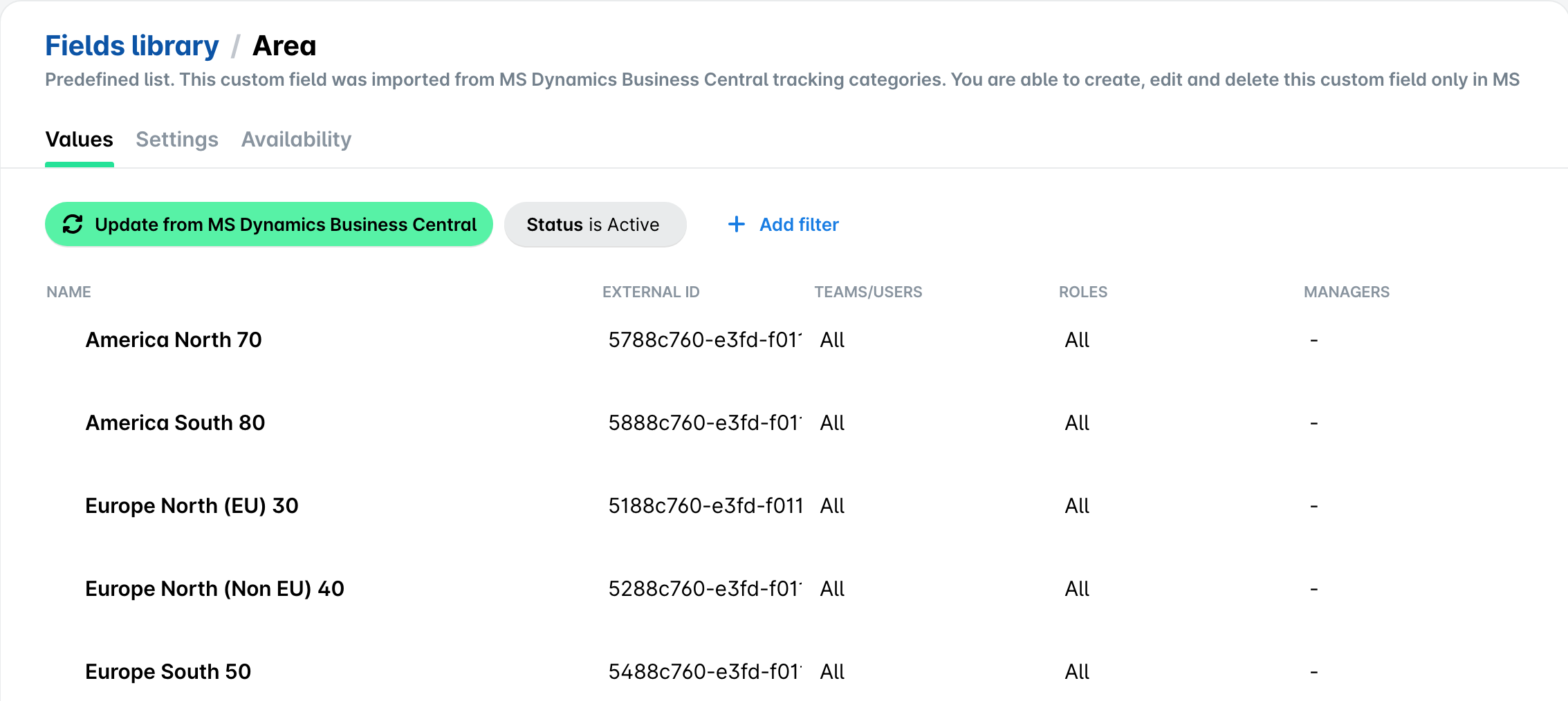
To manually update your tracking categories in Payhawk:
In the Payhawk Web Portal, go to Settings > Fields library.
Select the desired tracking category by clicking on it.
Click on Update from MS Dynamics Business Central.
Next steps