Documentation Index

Fetch the complete documentation index at: https://payhawk.document360.io/llms.txt

Use this file to discover all available pages before exploring further.

Payhawk документацията е в процес на превод. Докато той тече, част от статиите и свързаните ресурси ще са на български, а други на английски. Благодарим за търпението!

Updating VAT rates from Xero

Prev Next
This content is currently unavailable in Bulgarian. You are viewing the default (English) version.

When you connect your Payhawk account to Xero, your available Xero VAT rates are automatically imported.

If you update your Xero VAT rates after the connection between the two systems has been established, you have to manually update that data in Payhawk.

To manually update your VAT rates in Payhawk:

  1. In the Payhawk Web Portal, go to Settings > Fields library.

  2. Click on Tax rate.

  3. Click on Update from Xero. As a result, Payhawk will show the VAT rates that are applicable to the specific expense.
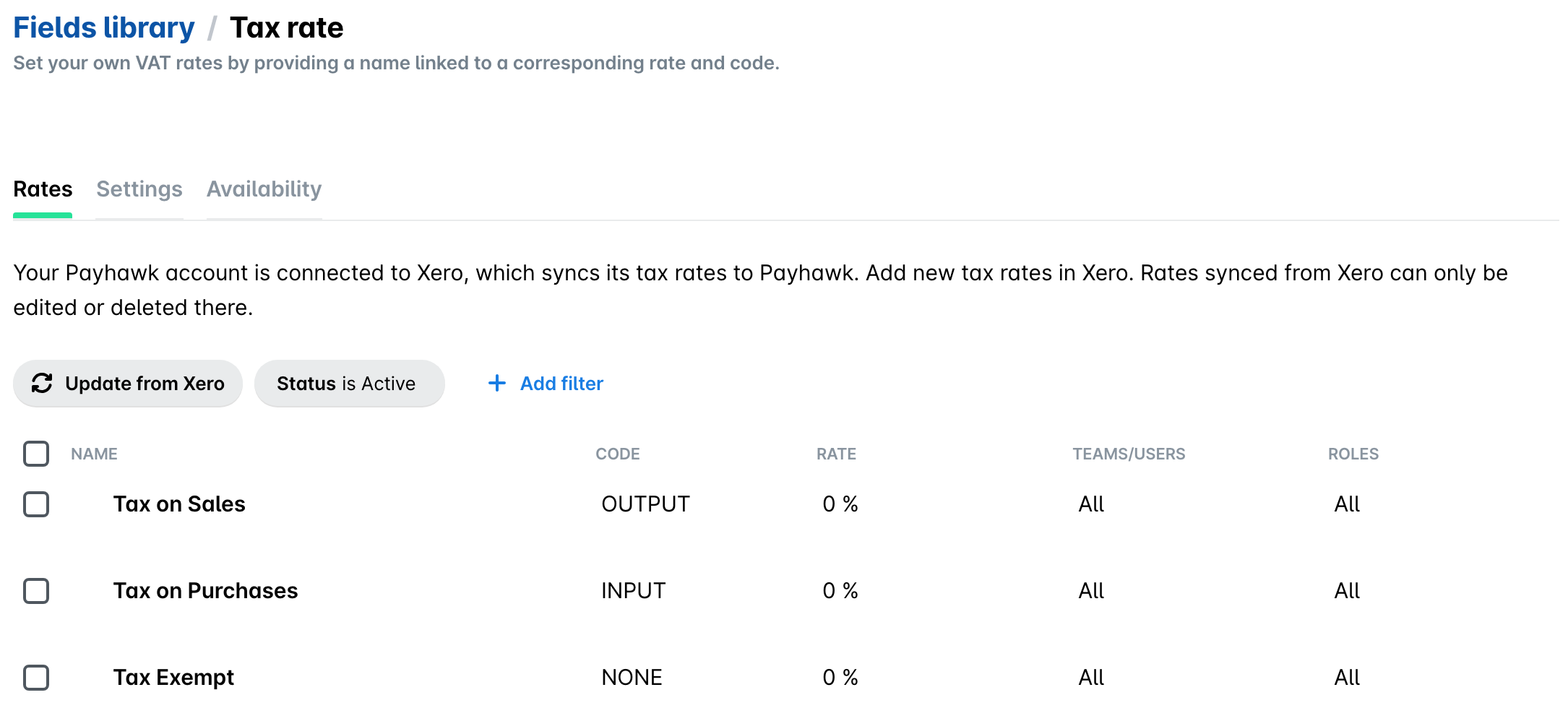
    Tax rate field in the Payhawk Fields library with the Update from Xero button