AI token spend shows what your company spends on AI tools, such as Anthropic, OpenAI, and Google, by provider, model, project, person, and API key. It forecasts where the month is heading and lists ways to spend less, each with the sum behind it.
AI token spend is an Open Beta feature in Payhawk Labs and is available at no extra cost. To use it, a Payhawk Administrator at your company needs to enable it first from Settings > Payhawk Labs.
What AI token spend shows
The main AI token spend page is Spend overview where you can find the relevant information distributed across the following sections and pages:
Spend overview
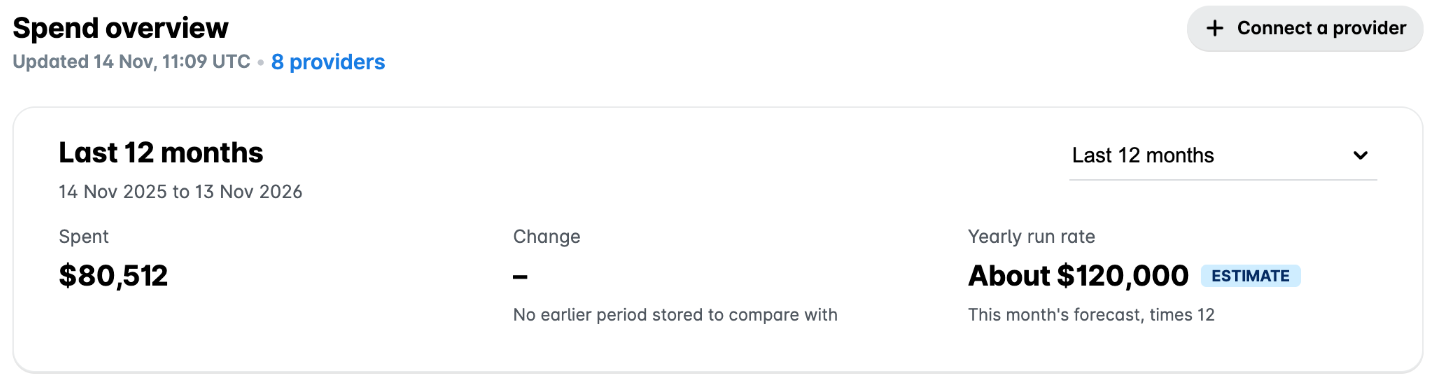
Spend overview is the page that opens when you select AI token spend. There you can view spend information for your company, such as the date of the latest update, number of connected providers, and your company’s spend data as of the current period. You can also view the data for another period by selecting the option from the drop-down list from the current month up to 12 months back.
Spend over time
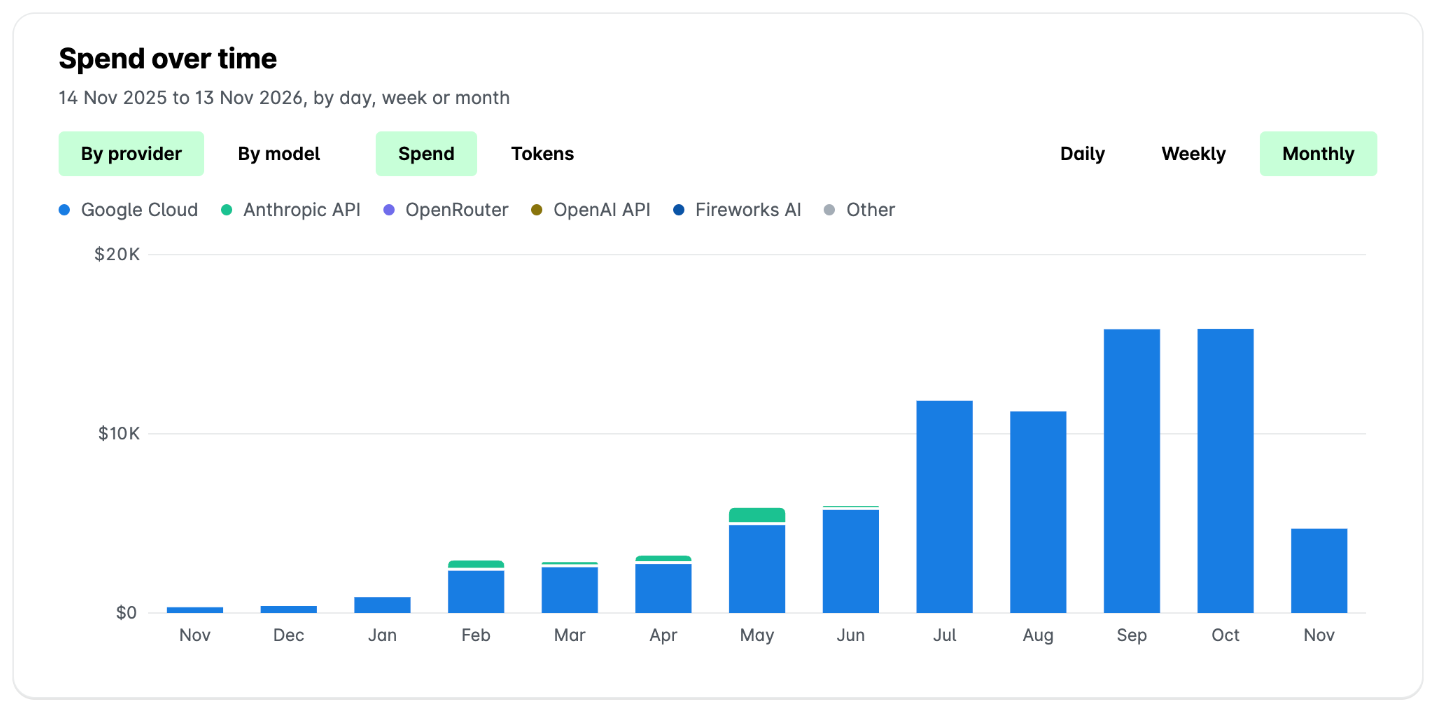
The Spend over time section displays a chart of the spend for the period, for example, by day. You can also split the bars based on the provider or model, as well as view the number of tokens instead of the amounts.
Where the money went
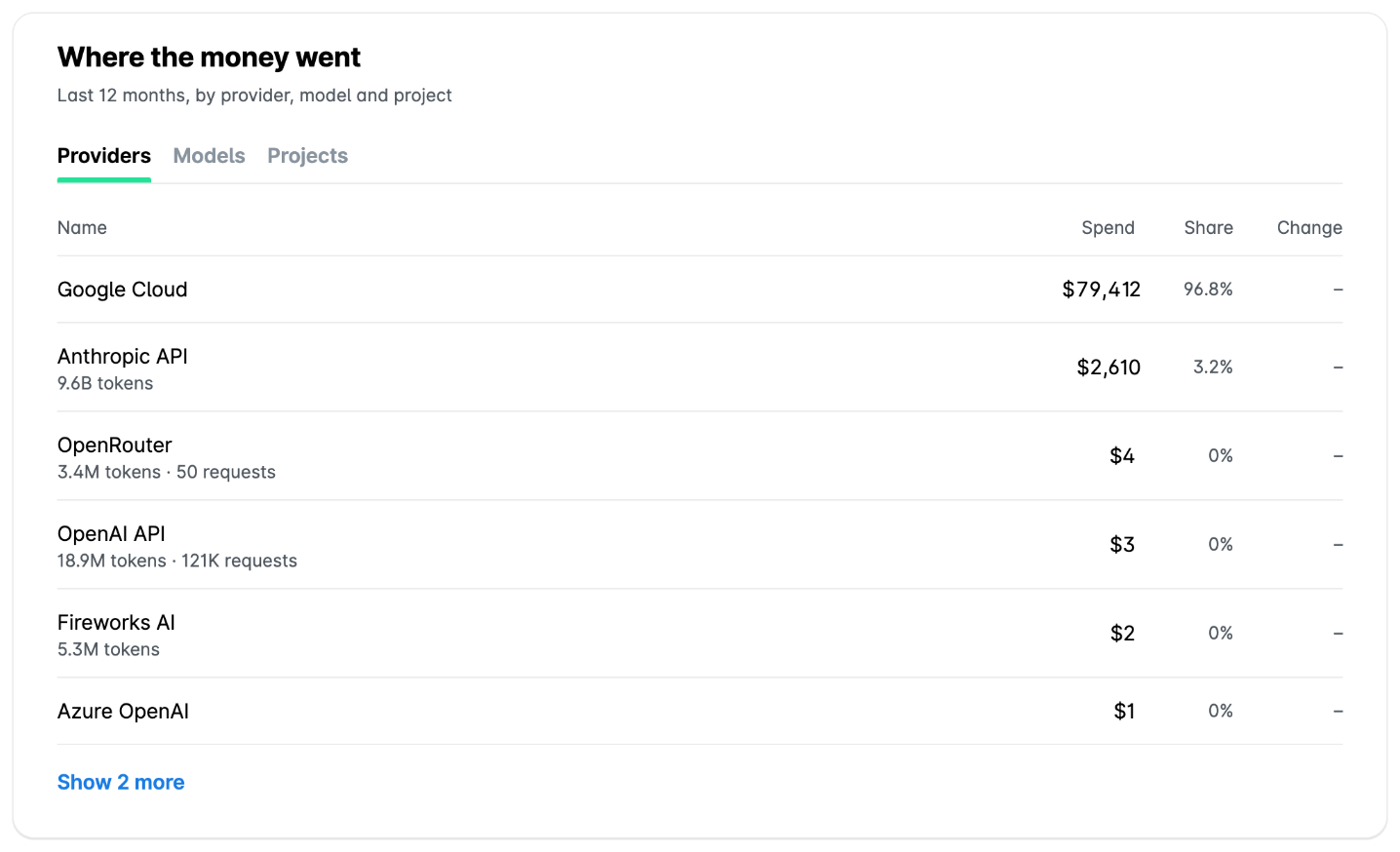
The Where the money went section shows the spend for the period by provider, model, and project, with the share and the change of each. You can switch the list by selecting any of the Providers, Models, or Projects options.
By people and API key
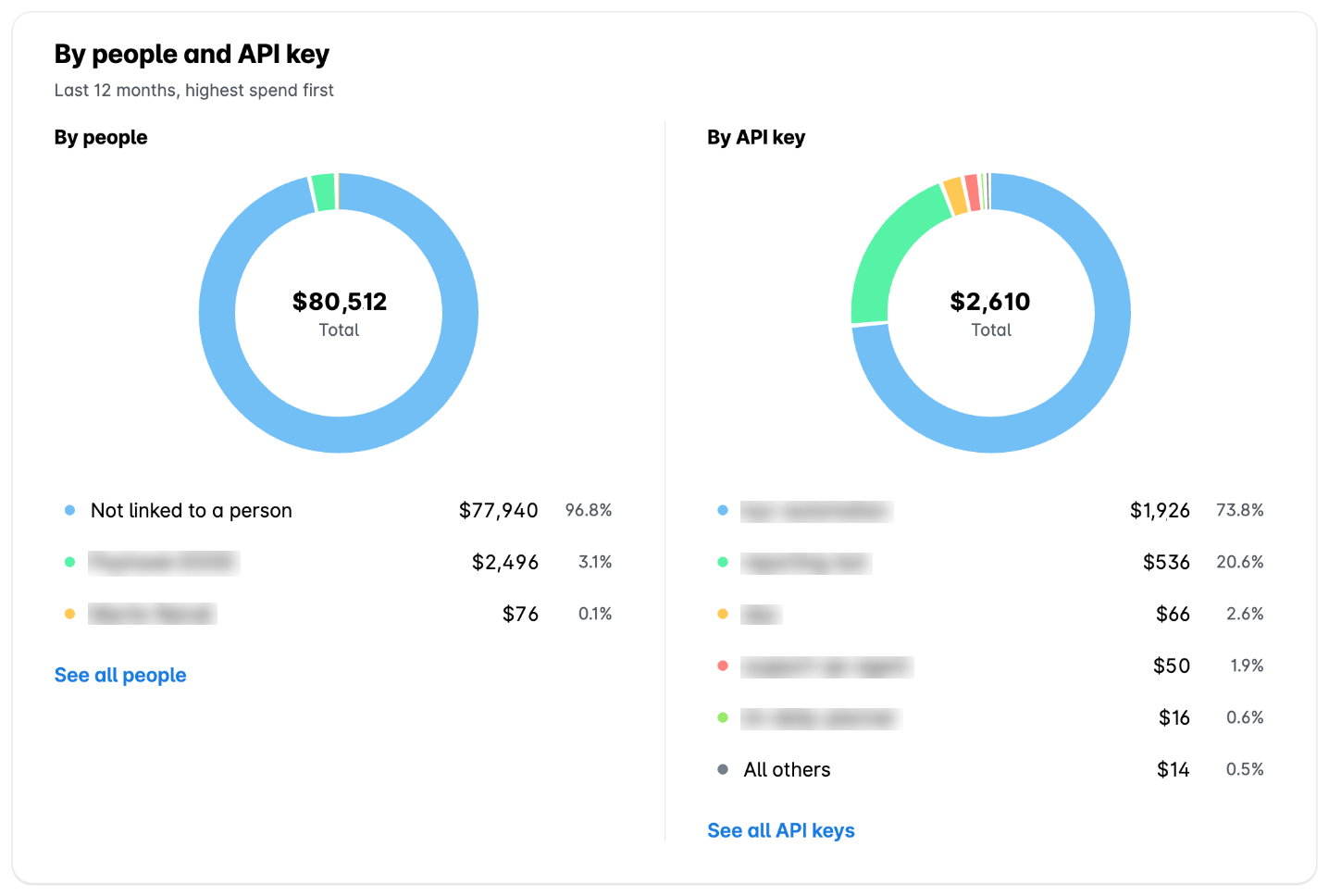
The By people and API key section shows the spend for the period by person and by API key, highest spend first. To see the full people or API key list, click on See all people or See all API keys respectively.
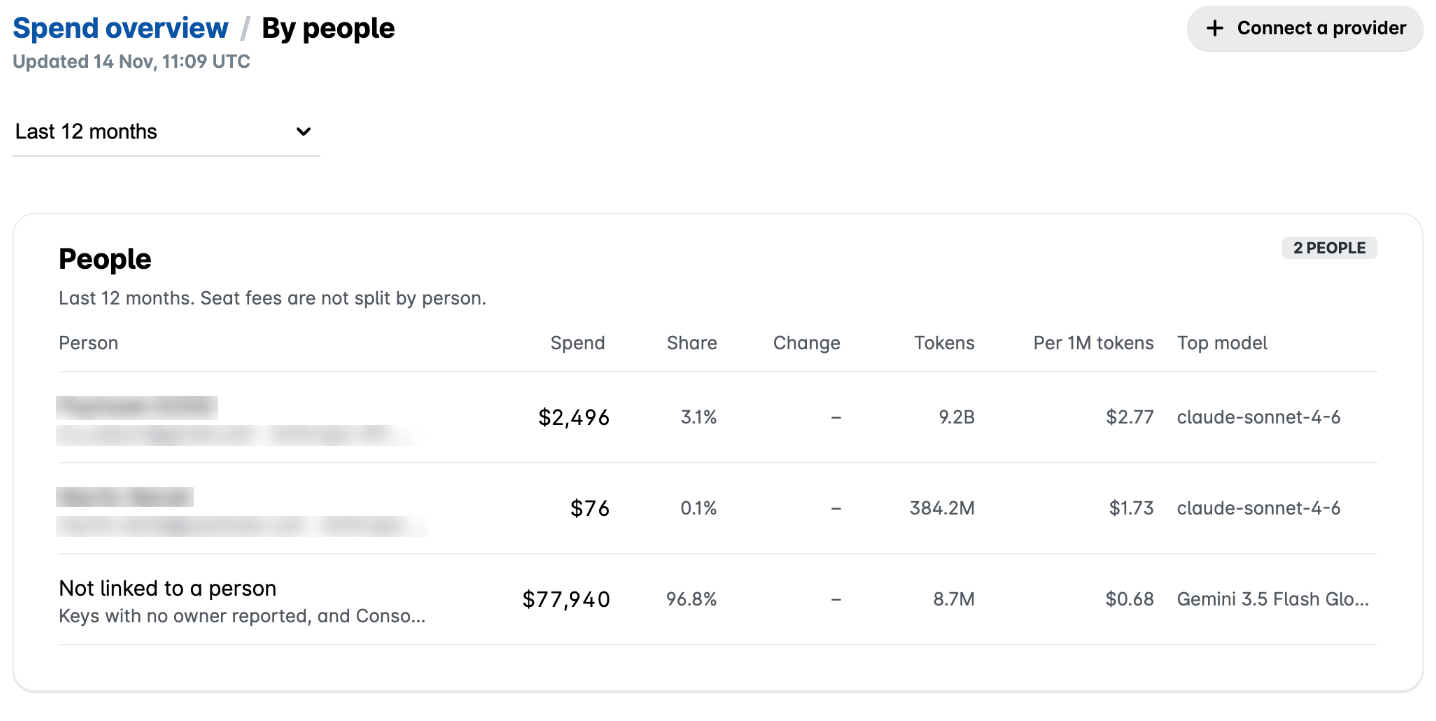
By people
Depending on the selected period, the By people list shows the spend, share, change, tokens, cost per 1M tokens, and the top model of each person. Seat fees aren't split by person.
Only Payhawk Administrators see this page. All other employees see My AI spend, with their own spend.
By API key
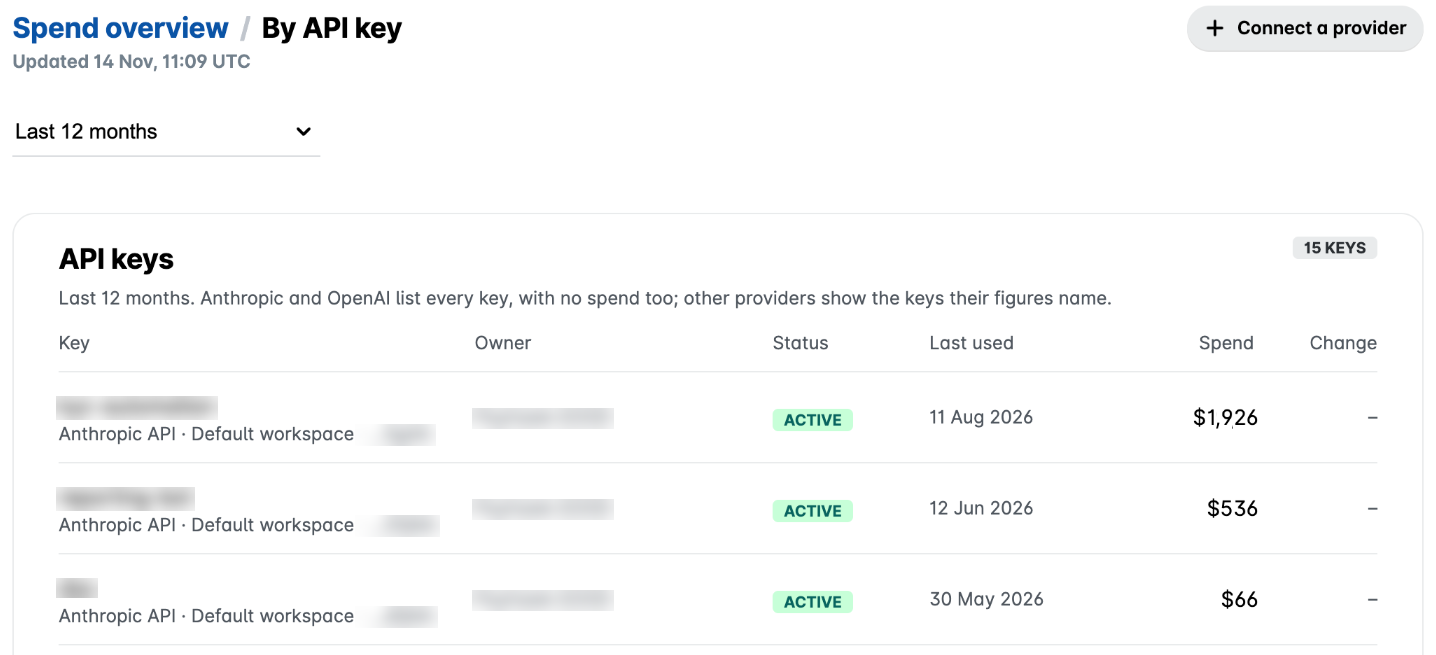
Depending on the selected period, the By API key list shows the provider, owner, status, last use, spend, and change of each API key that your company's own apps use.
This page is a report and you cannot add an API key.
Ways to spend less
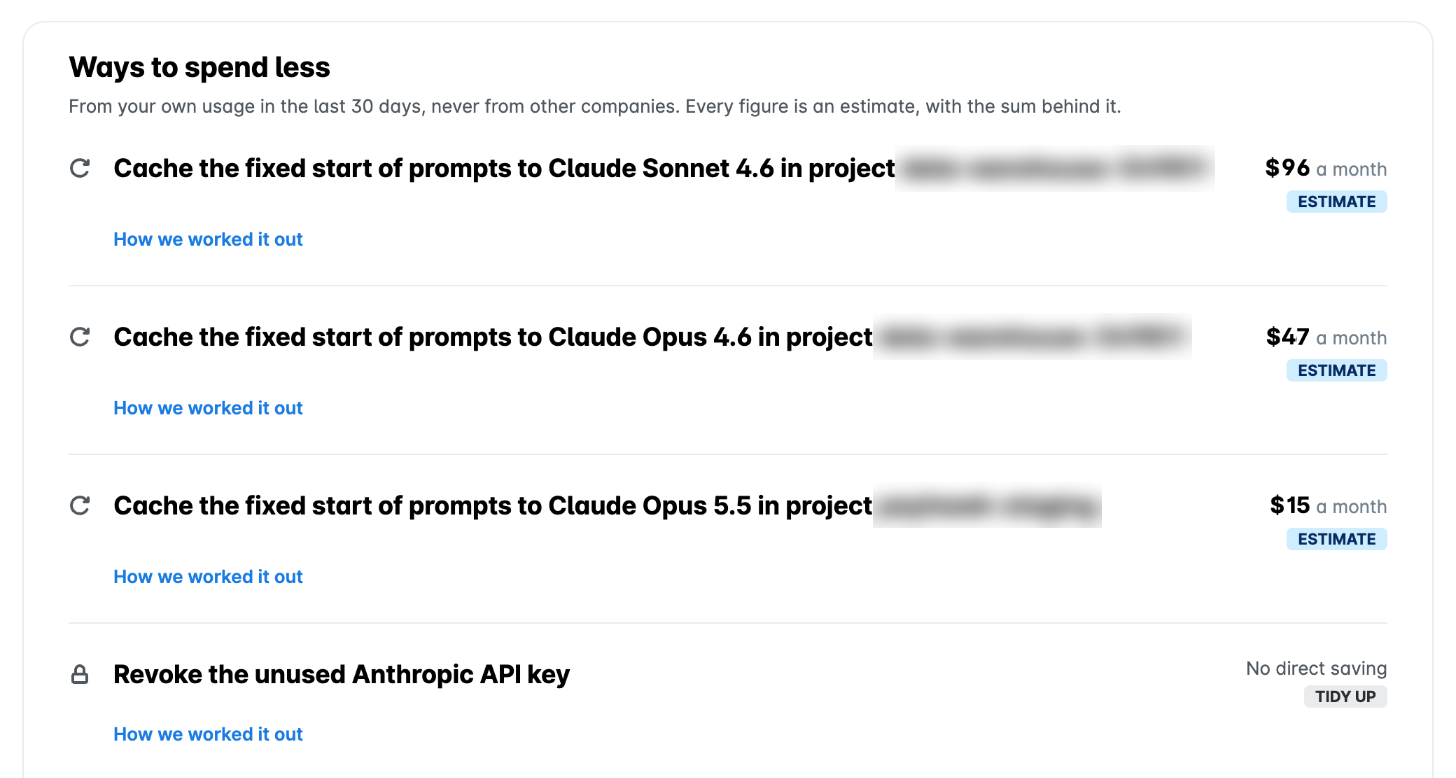
Payhawk also provides you with insights in the Ways to spend less section. There you can find information about unused seats, more than one coding assistant or chat plans for the same people, a cheaper model for short requests, prompt caching, long answers, the Batch API, spend spikes, unused keys, and personal AI plans paid with company cards. To see how a saving was calculated, click on How we worked it out.
The savings are estimates from your company's own usage during the last 30 days.
Put limits in place in Payhawk
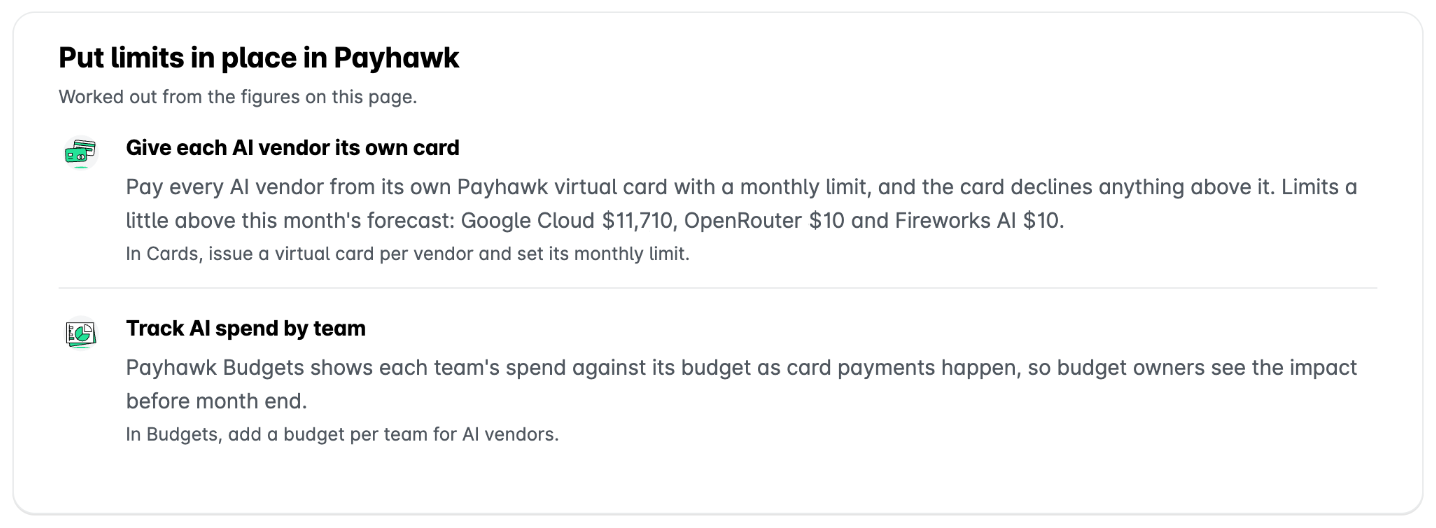
The Put limits in place in Payhawk section shows suggestions for controlling AI spend with Payhawk, worked out from the figures on the page, such as giving each AI vendor its own virtual card with a monthly limit a little above this month's forecast.
Share with your CFO
The Share with your CFO section is a one-page summary of this month's spend, forecast, and savings, to print or forward. You can view and download it.

Providers
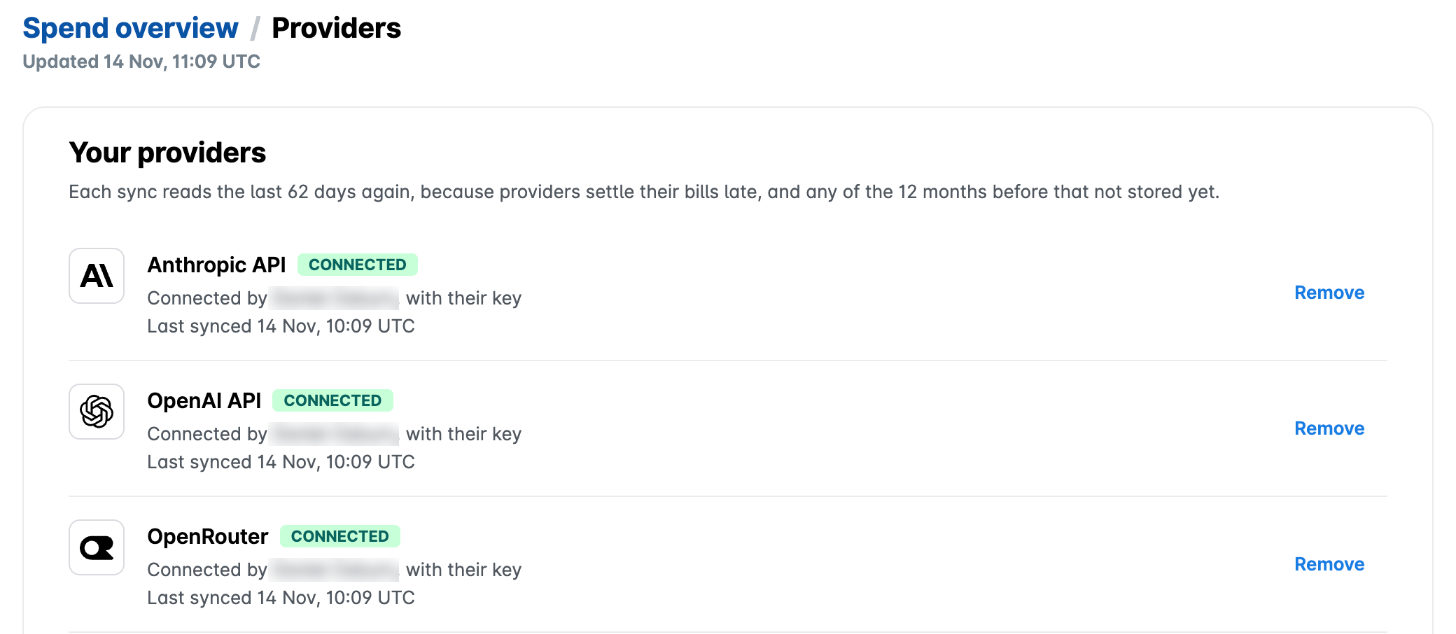
The Providers page shows your connected providers, the providers available to connect, and who sees the figures. You can access it by clicking on the number of providers at the top of the Spend overview page. To connect a new provider, see the the article on connecting your AI providers to AI token spend.
Where the figures come from
AI token spend combines the following sources:
Payhawk payments - AI token spend reads your company's Payhawk expenses with AI vendors for the last 12 months (no need for you to set up anything). It covers Claude, ChatGPT and OpenAI, Cursor, Perplexity, OpenRouter, Grok, Mistral, Midjourney, ElevenLabs, Lovable, Replit, Windsurf, and DeepSeek. These payments show with the vendor name, for example, Claude (Payhawk payments), and each one links to its expense. Seat plans without a usage report, such as Claude Team and ChatGPT Plus, show only this way.
Connected providers - You can connect 11 AI providers, each with a read-only Administrator key from that provider. They add the details a payment can't show, such as models, tokens, projects, API keys, and people. For the steps, see the article on connecting your AI providers to AI token spend.
If both sources report the same spend, AI token spend counts it once.
What to know about the figures
Keep the following in mind when you read the figures:
The figures are not real time. They update when the person who connected a provider clicks on Sync.
All amounts are in US dollars. Payhawk payments in other currencies are converted.
The forecast and the savings are estimates based on your company's own usage, not comparisons with other companies.
AI token spend shows spend but doesn't limit or block it. To set limits, use Payhawk cards, Budgets, or the provider's own settings.
Spend per person shows only where the provider reports it. Seat fees aren't split by person.
Only Anthropic and OpenAI list every API key, including unused ones.
Payhawk payments show only to people who can see every expense in the account.
GitHub Copilot and Google One payments aren't read from Payhawk, because their AI part can't be separated on the payment.
When AI token spend is enabled for a group, it shows in the group view only, not in the group's entities.
Protecting your data and keys
AI token spend uses the keys you connect only to read cost and usage:
AI token spend reads cost and usage reports only, for up to the last 12 months. It never reads prompts or answers.
Keys are stored encrypted. Only the person who connected a key can use it, nobody can read it back, and AI token spend shows only its last 4 characters.
By default, each person sees only the providers they connected. A Payhawk Administrator can share the figures with the whole company. Spend per person and key owners stay visible to Payhawk Administrators only.
Only the person who connected a provider can sync it. That person or a Payhawk Administrator can remove it.
Removing a provider deletes its key and its figures, and can't be undone. Delete my data removes all of your keys and figures.
For more information about how Payhawk applies AI and protects your data, see the article on how Payhawk uses AI.
Accessing AI token spend
Once AI token spend is enabled, the following roles can open it:
Payhawk Administrator
IT Administrator
Payhawk Accountant
Senior AP Specialist
Auditor
Employees don't see AI token spend.
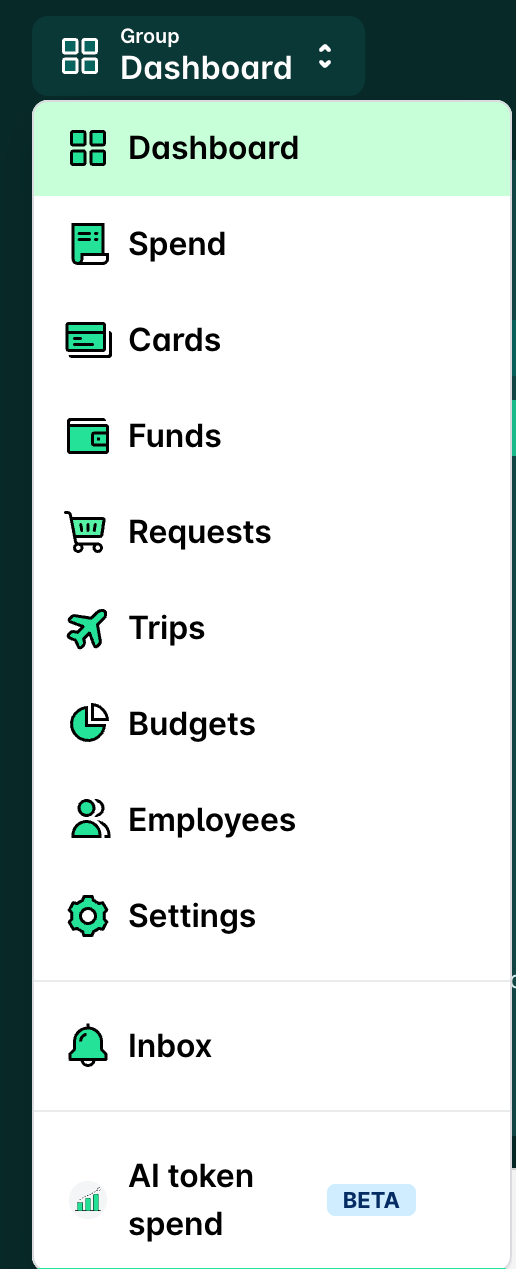
AI token spend is available only in the Payhawk Web Portal. To open it, click on the app switcher.
Useful resources