In Payhawk, expense owners can create subscriptions from the expenses they have submitted, and then edit, archive, or delete them. They can also add existing expenses to a subscription as well as remove expenses from existing subscriptions.
Payhawk Administrators and authorized Payhawk roles and role extensions with the respective permissions enabled can also manage employees’ subscriptions.
When the subscription is no longer needed, you can delete it. Subscriptions can also be archived when a contract with a supplier, for example, has been cancelled but future payments are still due.
Conditions for subscriptions
In order to have the option to mark an expense as a subscription, the following conditions need to be met:
The expense:
Must have a supplier defined.
Must not be archived.
Must not be split into line items.
Must have a total amount and currency specified.
Cannot be linked to another subscription.
For card transactions:
The payment must be made from a Payhawk card, or for US-based companies, from a linked card.
The transaction must be authorized or settled before it can be used to create or manage a subscription.
For bill payments, the expense must represent a balance payment or be paid from an external bank account, such as Plaid for US-based companies.
The person managing the subscription must be any of the following:
The expense owner.
A Payhawk Administrator.
Someone with a role or role extension that grants permission to update other employees’ subscriptions.
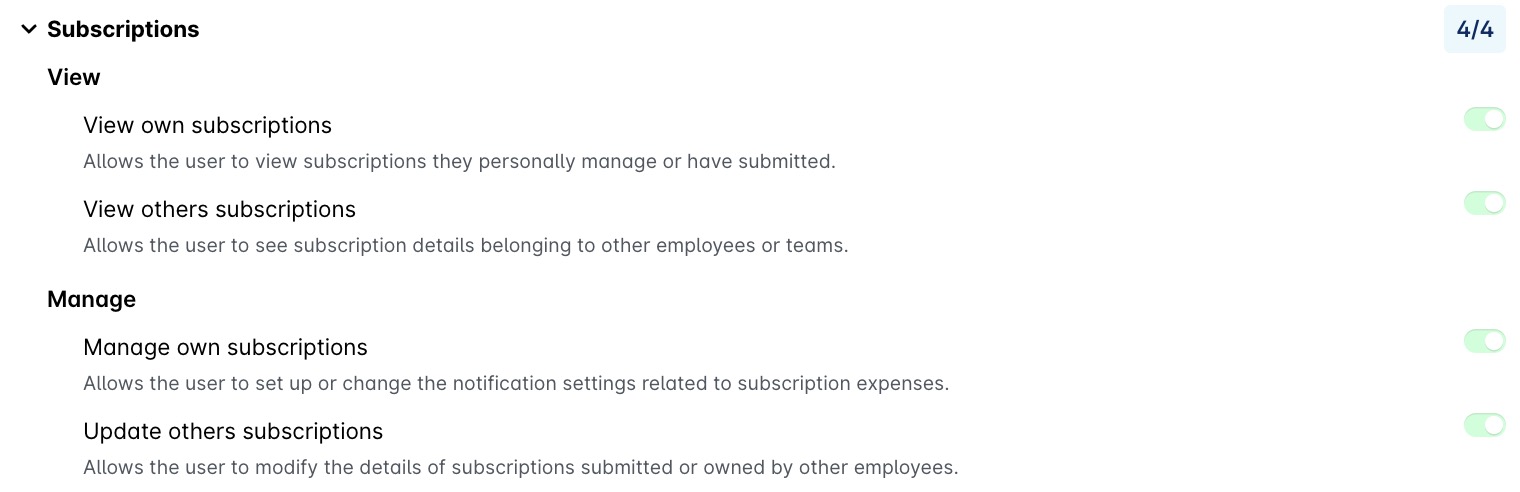
As an example, the following image shows the permissions of Payhawk Administrators in terms of subscriptions.
Creating subscriptions
To create a new subscription:
In the Payhawk web portal, go to Expenses and select the desired expense.
Click on its three-dot menu and select Mark as subscription.
In the dialog that opens, select the period and the day on which the payment will repeat.
Click on Create subscription.

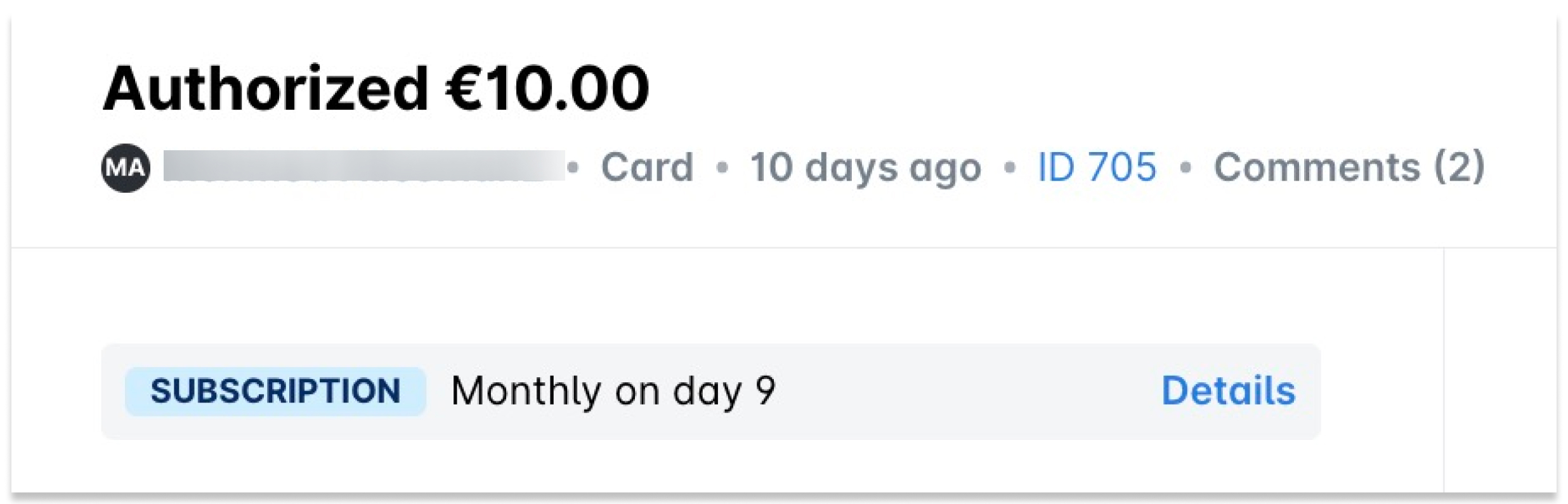
Once the dialog closes, you can view the details of the subscription by clicking on the Details link of the expense - this will open the Subscriptions app.
Managing employees’ subscriptions
You can manage employee subscriptions in the same way expense owners can: