If you are assigned as a reviewer under your company's defined workflows, you can review expenses individually or select multiple expenses to review them in bulk with a single click.
Specifics
You can review both approved and unapproved expenses individually.
Bulk review is available only for approved expenses.
If your company has a live integration with an accounting software (ERP) system, expenses will be exported automatically upon review.
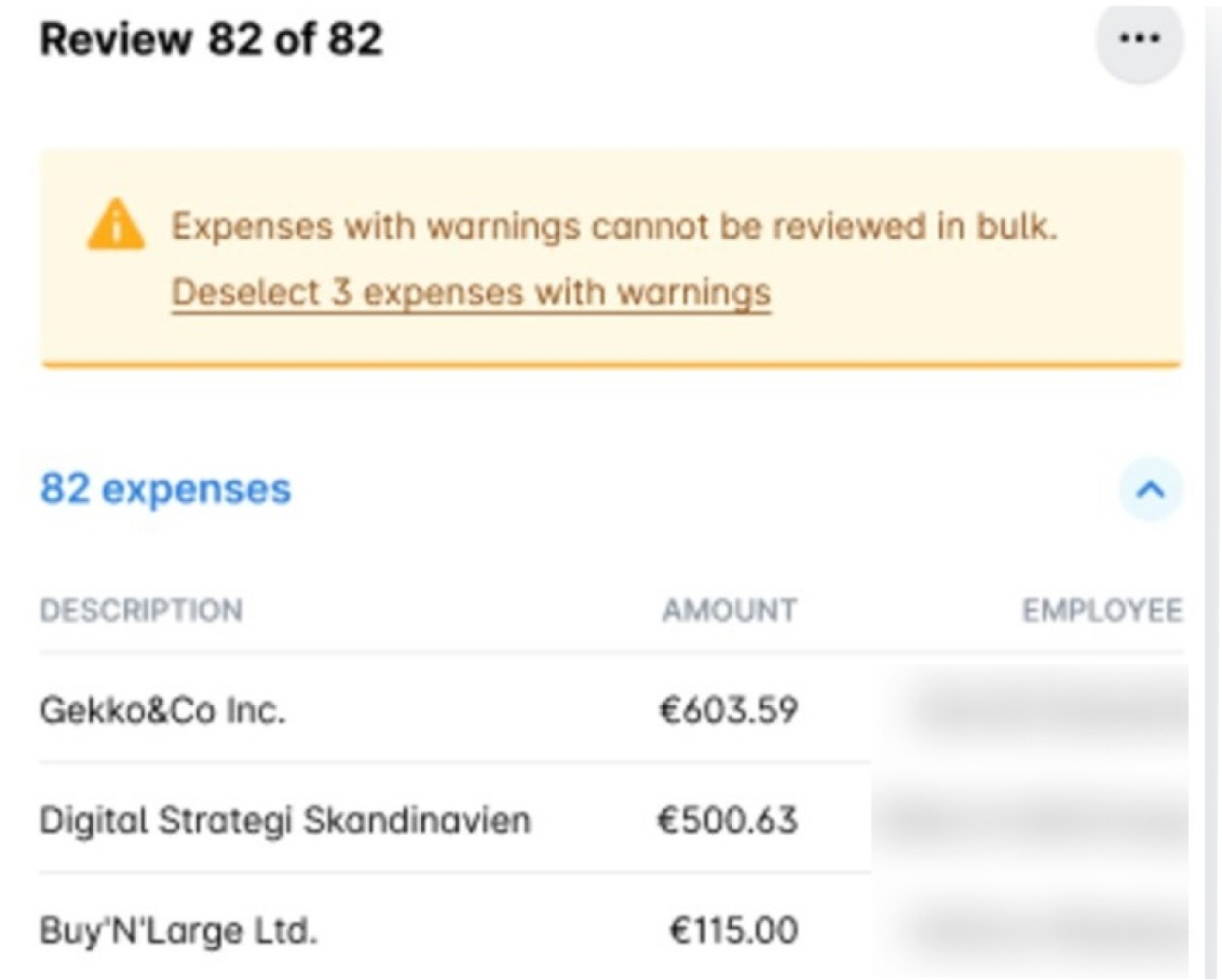
Expenses with warnings cannot be reviewed in bulk. To proceed with bulk review, deselect any expenses with warnings and review them individually.
Reviewing expenses associated with budgets
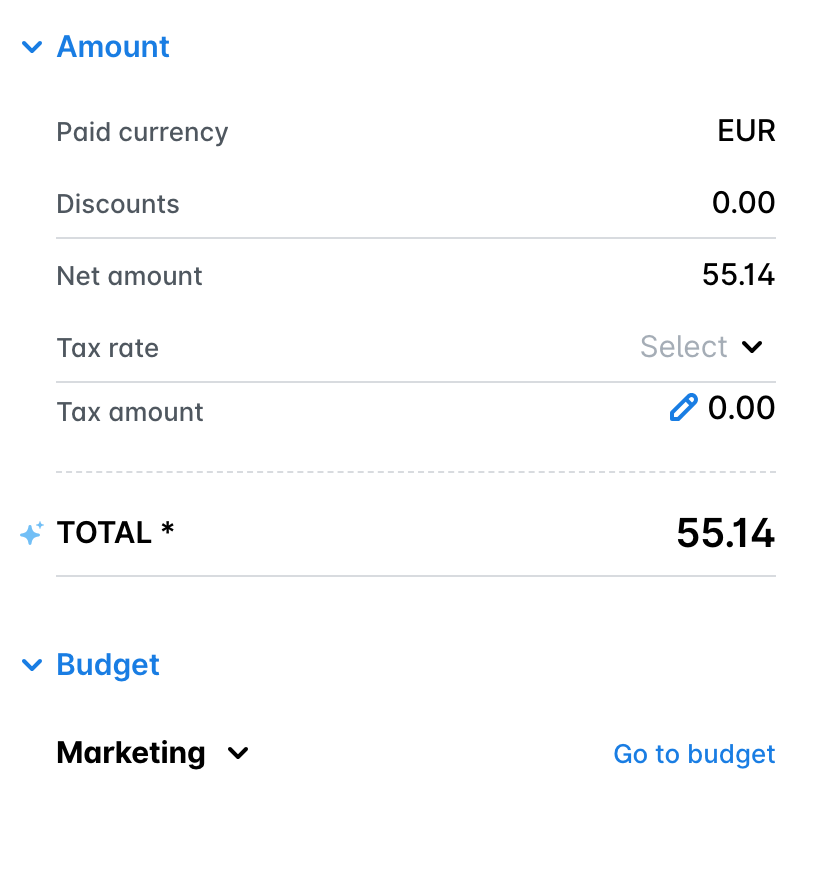
If you are a Budget Owner or a reviewer for budgeted expenses, you can access detailed budget information by navigating to the Budget section of the expense.
Reviewing expenses individually
To review unapproved expenses one by one in the Payhawk Web Portal:
Go to Spend > Submit and select the desired expense.
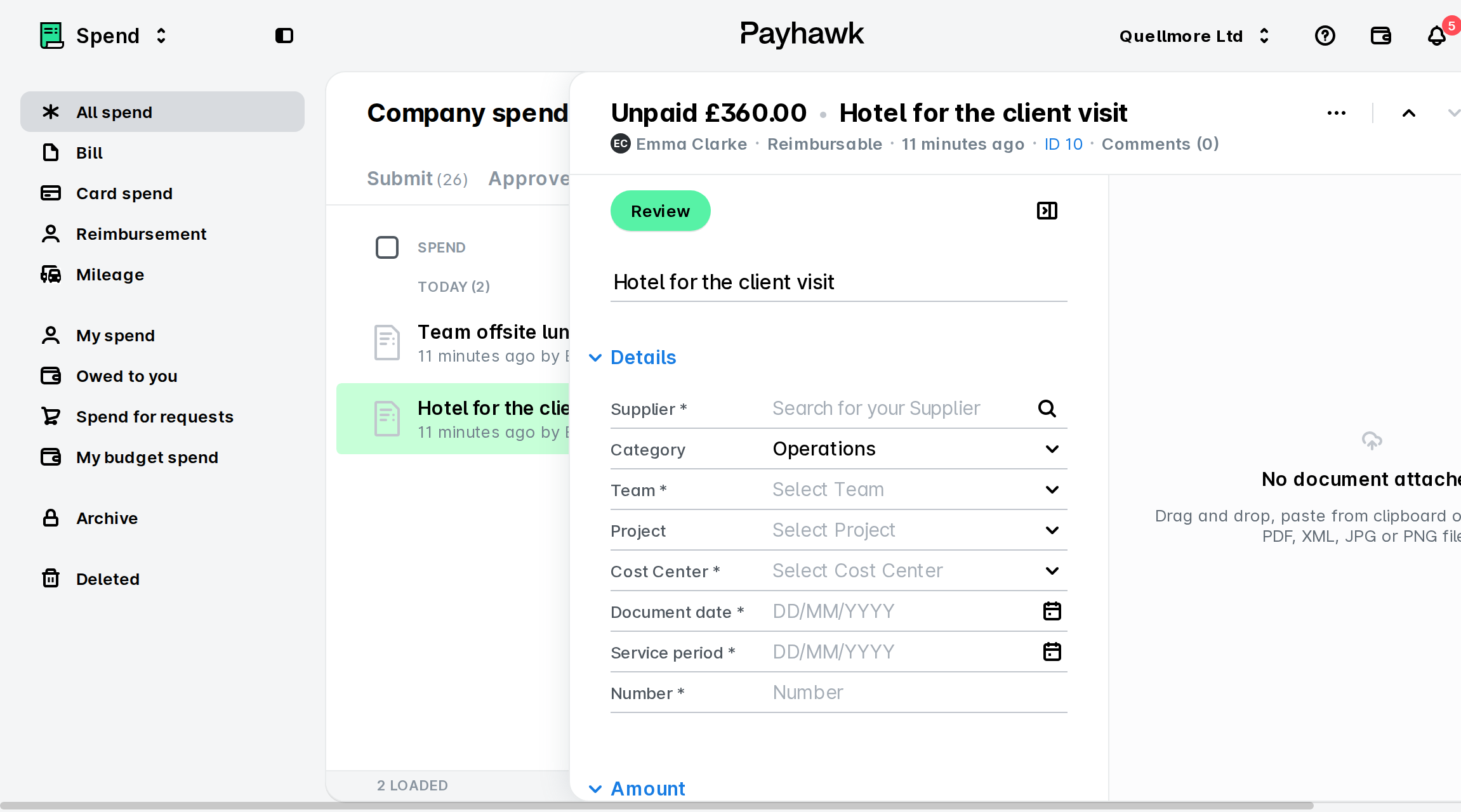
Click on its three-dot menu and select Review.
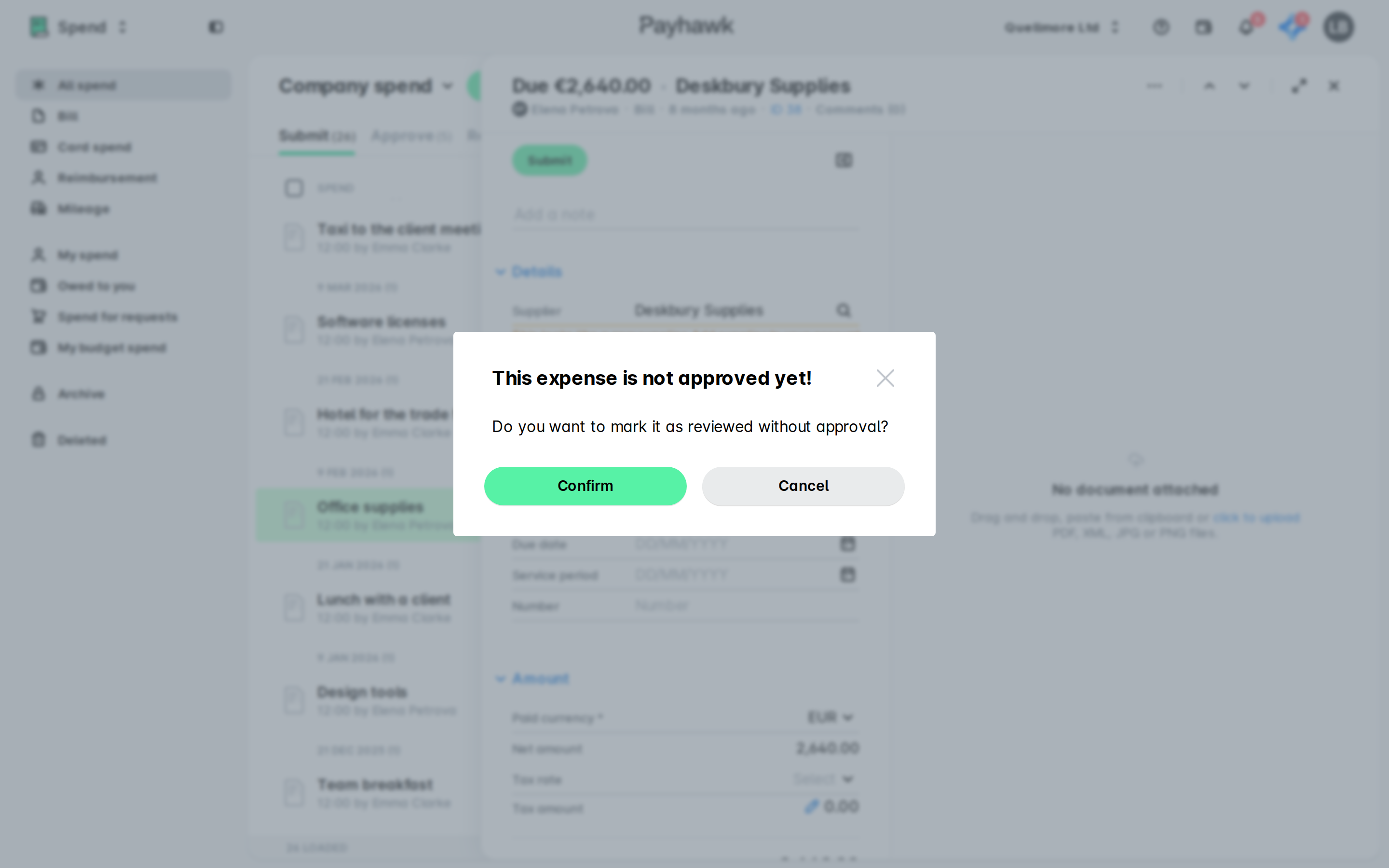
In the dialog that opens, click on Confirm. As a result, the expense will move under the Pay > Confirm details tab.
To review approved expenses one by one in the Payhawk Web Portal:
Go to Spend > Review and select the desired expense.
Click on Review. As a result, the expense will move under the Pay > Confirm details tab.
Reviewing expenses in bulk
To review your expenses in bulk:
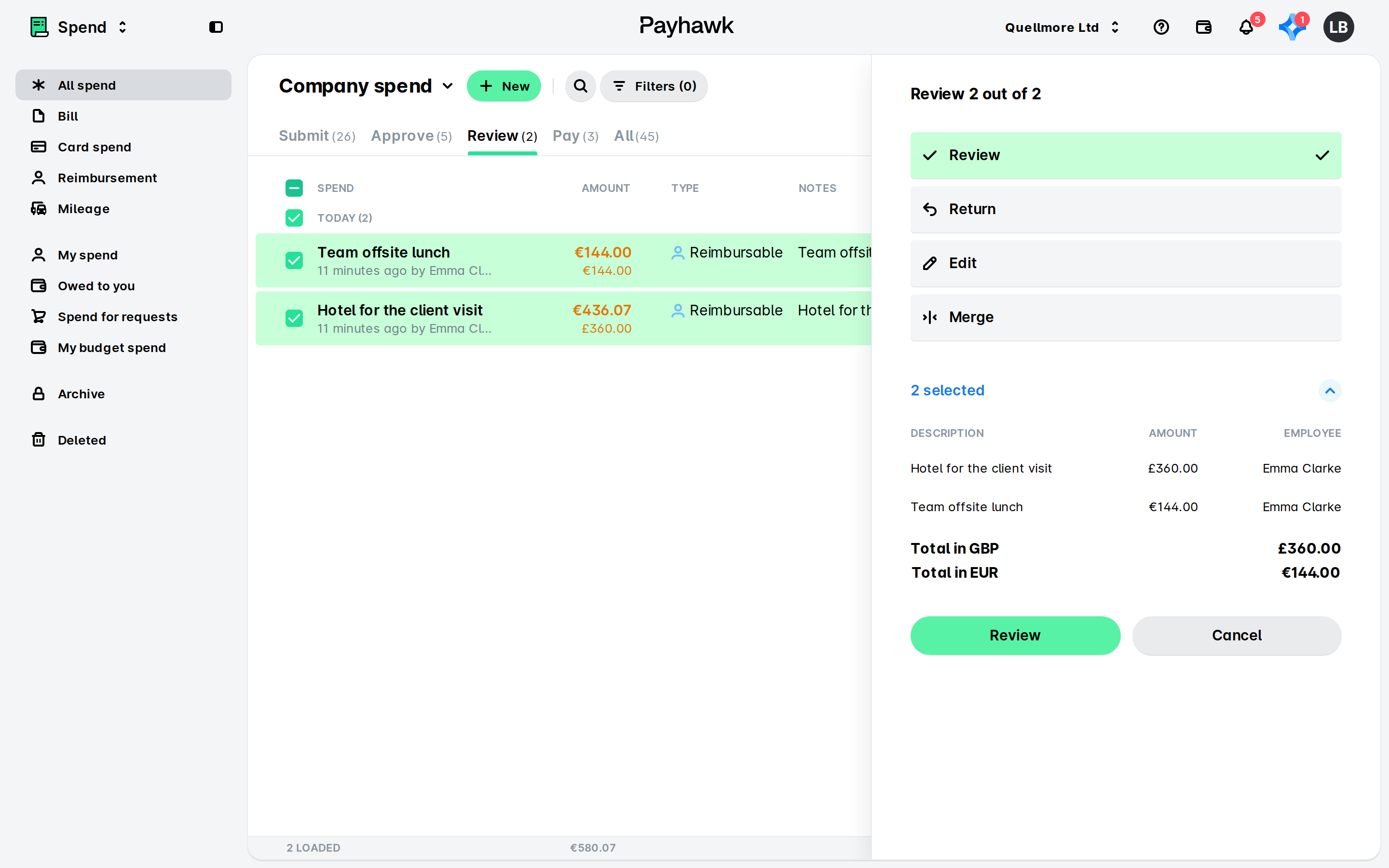
Go to Spend > Review.
To select multiple expenses for bulk review, check the SPEND checkbox. Selecting the SPEND checkbox marks only the visible expenses on the screen. To select more expenses, scroll down the page. Alternatively, hover over a specific expense and select its checkbox.
Either way, in the dialog that loads, select Review and review the summary of all selected expenses.
Click on Review.
Useful resources