When you connect Payhawk to SAP S/4HANA®, your chart of accounts (GL accounts) is automatically pulled into Payhawk as expense categories. Later, you can manually update them at any time.
Your employees can select a category when submitting an expense, and that maps directly to the correct GL account when the expense is exported to SAP S/4HANA.
Payhawk pulls GL accounts from your SAP S/4HANA chart of accounts for the selected company code. Accounts that are blocked for posting in SAP S/4HANA are excluded automatically.
Each sync replaces the previous list, so Payhawk always reflects your current SAP S/4HANA setup.
To synchronize your expense categories from SAP S/4HANA with the corresponding Payhawk categories, follow the steps:
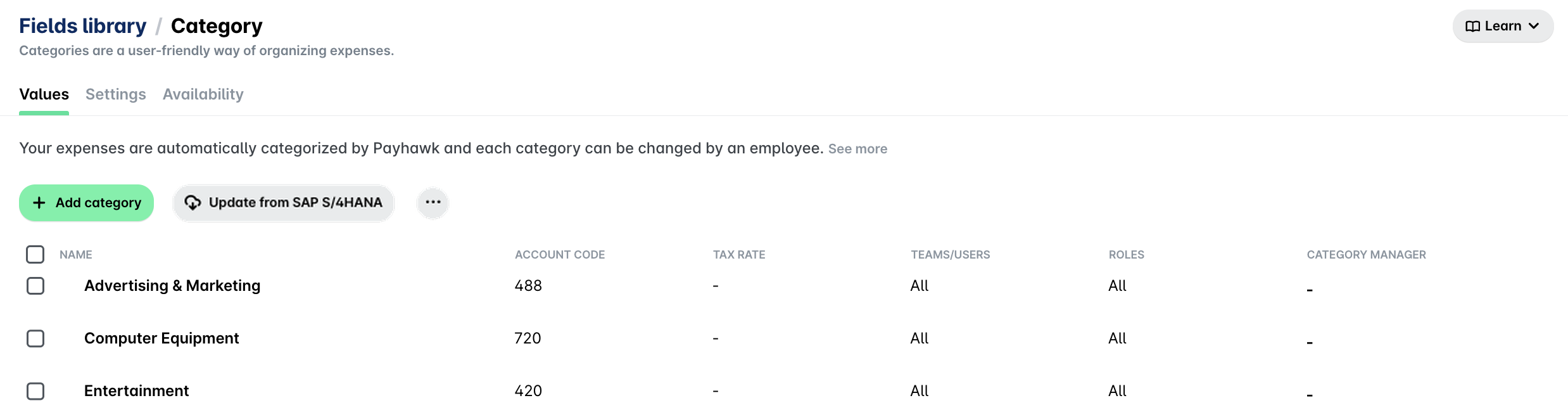
In the Payhawk Web Portal, go to Settings > Fields library.
Click on Category.
Click on the Update from SAP S/4HANA.
Map your existing Payhawk categories with the corresponding SAP S/4HANA's GL accounts by hovering over the desired category, clicking on the Edit icon, and selecting from the drop-down list with available options. Then, click on Save.
Alternatively, you can delete a category by clicking on the Delete icon. You can also create your category by clicking on the + Add category button.
Notes on multi-entity accounts
In a group setup:
The parent account pulls the full chart of accounts from SAP S/4HANA.
All child accounts share the same underlying SAP S/4HANA data.
Each child account can have different visibility settings such as showing or hiding specific categories.