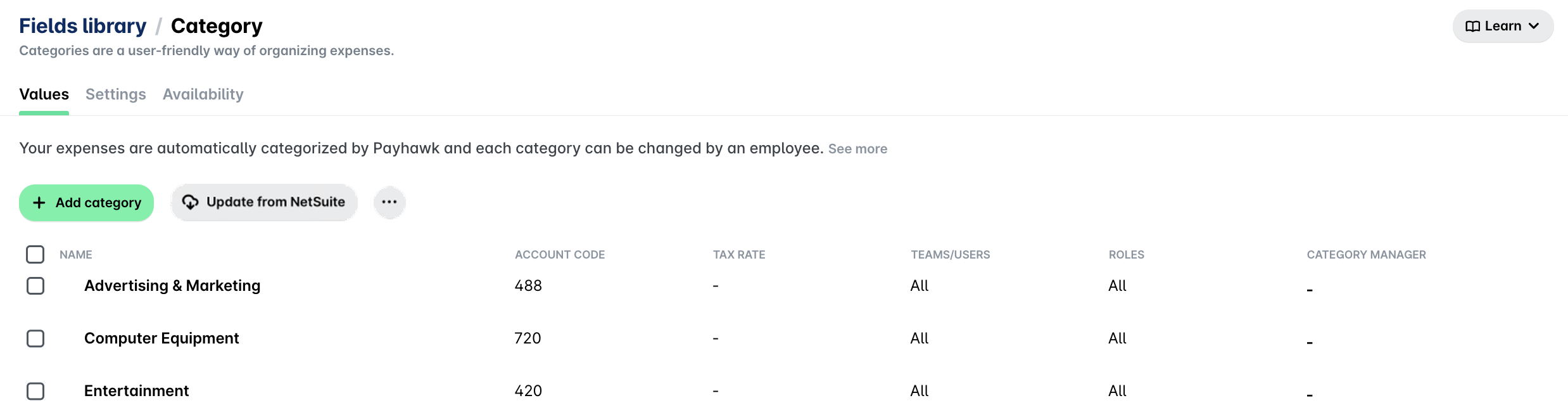
Payhawk supports user-friendly options for mapping the chart of accounts and items synced from Oracle NetSuite with the respective accounting categories in Payhawk.
When you connect to your Oracle NetSuite organization for the first time, Payhawk automatically pulls the available chart of accounts, items, or both, depending on the integration setup. Later, you can manually update them at any time.
Expenses with categories that are not mapped to the Oracle NetSuite chart of accounts and items will be automatically mapped to the Payhawk General expense account which Payhawk creates in Oracle NetSuite.
To synchronize your categories from Oracle NetSuite with the corresponding Payhawk categories, follow the steps:
In the Payhawk Web Portal, go to Settings > Fields library.
Click on Category.
Click on the Update from NetSuite button.
Click on the desired category to map your existing Payhawk categories with the corresponding Oracle NetSuite chart of accounts and/or items.
In the dialog that opens, under Account code, select from the drop-down list with available options. Note that the Account code in Payhawk corresponds to the Internal ID in Oracle NetSuite.
Click on Save.
Alternatively, you can delete a category by clicking on the Delete icon. You can also create your own category by clicking on the + Add category button.