You can select your outstanding company expenses and save time and effort by paying them in bulk.
To be able to pay an expense through Payhawk, the currency of the supplier's bank account currency must match the currency stated on the invoice.
Notes on bulk payments
Bulk reimbursable payments, including FX payments, are grouped in a single bank transfer.
Bulk payments to suppliers are settled separately. FX payments to suppliers are also settled separately and each has its own transfer fee and FX rate applied individually.
If your bulk EUR payment via SEPA Instant fails, you can choose to process it using SEPA Standard instead. SEPA Standard payments may take up to 2 business days.

If the Segregation of duties setting has been enabled for the expense payment authorization workflow, employees who confirm the payment details of expenses will not be permitted to authorize their payment, even if they have the necessary permissions. This restriction supports the four-eyes principle and helps prevent potential fraud.
Confirming payment details for expenses in bulk
Before expenses can be scheduled for a future date or processed for immediate payment, employees with the appropriate permissions or roles must review the payment details and ensure all required information has been provided.
When confirming FX payment details in bulk (whether individually or together with same-currency payments), note the following:
You can confirm FX payment details together with payment details for same-currency expenses when processing them in bulk.
FX reimbursements are combined into one payment, with a single transfer fee and exchange rate applied.
If the destination bank requirements aren’t met, Payhawk will show a warning or an error message. You can override it and confirm the payment details in case of VoP (EEA) or CoP (UK) mismatches, but such payments may be rejected or returned by the receiving bank.
FX payments cannot be scheduled and are executed immediately after authorization.
To confirm the payment details for expenses in bulk:
In the Payhaw Web Portal, go to the Expenses > Pay > Confirm details tab.
Select the expenses and make sure the default Confirm option is selected.
Review the payment details of the selected expenses and click on Confirm.

Making bulk payments
To pay your suppliers and invoices in bulk:
In the Payhawk Web Portal, go to Expenses > Pay > Authorize.
Hover over the icons of the required expenses, one at a time, and select the checkbox for each expense to select it for the bulk payment.
In the dialog that opens on the right, select Authorize and review the summary of all selected expenses with their details and the final amount for the bulk payment.
Check the details if needed, and when ready to pay the bulk amount, click on the Authorize button.

If Segregation of duties is configured for your company’s Payhawk account and you confirmed details for some of the expenses you want to pay in bulk, click on Deselect [number] items to remove them and continue with the remaining payments.

As a result, you will receive a push notification on your mobile phone.
You may be required to enter your Payhawk security code or authenticate through Face ID or Touch ID if they have been enabled for the Payhawk Mobile App.
Then, you will see an overview of the payments about to be executed waiting for your confirmation. To authorize the bulk payment, click on Approve.
Payment confirmation and authorization warnings and error messages
If transfer details are missing or mismatched during payment confirmation or authorization, Payhawk will display warnings or error messages with information about the issue and hints about fixing it.
The following table provides a non-exhaustive list of warnings and error messages you may get.
Message | Type | Expected user action |
|---|---|---|
(UK) Confirmation of Payee: Unable to check the name. | Warning | Review the supplier’s name and account details. |
(EEA) Verification of Payee: The account is not verified. | Warning | Verify that the supplier’s bank account details are accurate. |
The supplier payment details do not match the currency of this expense. | Error | Update the supplier’s bank account so its currency matches the expense or invoice currency. |
No balance found for executing this payment, hence, the payment details cannot be confirmed. | Error | Check your Payhawk currency or funding account to ensure sufficient balance is available before confirming the payment. |
Missing supplier payment details. | Error | Add or update the supplier’s bank account information so the payment can be processed correctly. |
You can override VoP (EEA) and CoP (UK) warnings when confirming payment details and authorizing payments. However, the risk ofsuch payments being returned by the destination bank is higher due to local compliance reasons.
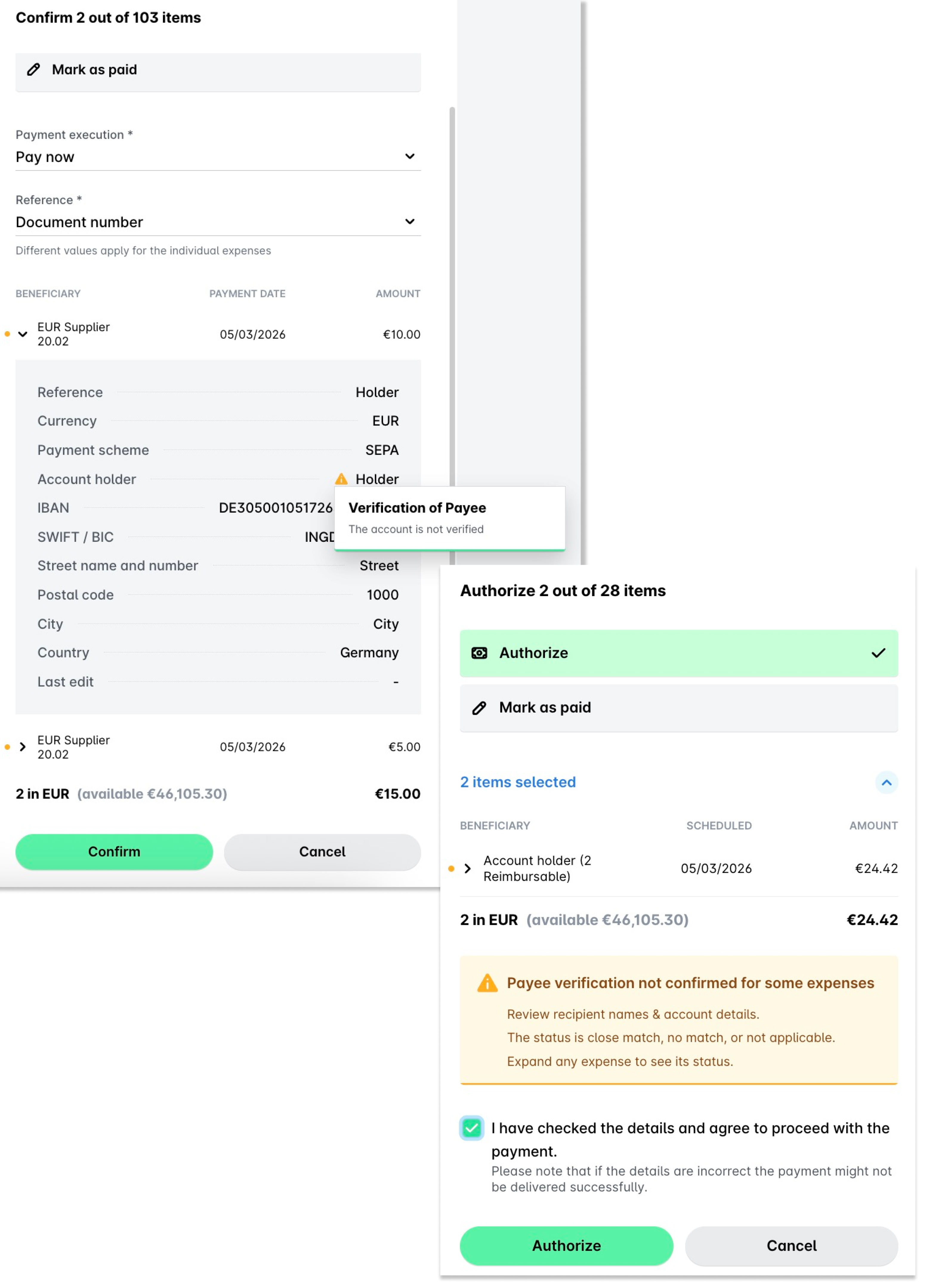
If a payment shows a warning when you confirm details or authorize payments, hover over the orange indicator next to that payment to open a tooltip explaining why. For example, the warning can indicate that you are not allowed to authorize this type of expense under your company's workflow. In that case, an authorizer with the right permissions for that expense type needs to authorize the payment.