When an employee leaves your organization or moves to another department within the same entity, you can reassign their physical or virtual card to another employee instead of closing the card.
This ensures that active subscriptions, recurring vendor payments, and advertising spend continue uninterrupted, without the need to close the old card, issue a new one, and manually update every vendor portal. As a result, you avoid service disruptions and manual log-ins and updates to various portals.
You can reassign both physical and virtual cards if the card has an active subscription or at least two transactions to the same online merchant.
You cannot reassign linked cards or single-use cards.
You can reassign the card to any active employee whose role allows them to be a cardholder, including employees with a custom role.
Reassigning cards of employees
To reassign an employee’s card on an entity level:
In the Payhawk Web Portal, go to Cards.
Select the desired card by clicking on it.
Click on its three-dot menu and select the Reassign card option.
If the card is eligible for reassignment, in the flyout that opens:
From the drop-down lists, choose the user to whom the card will be reassigned and the reason for reassignment.
Section Subscriptions displays merchants where the card is used to pay for subscriptions.
Section Other recurring payments displays online merchants where at least two payments were previously made, suggesting these may be subscriptions.
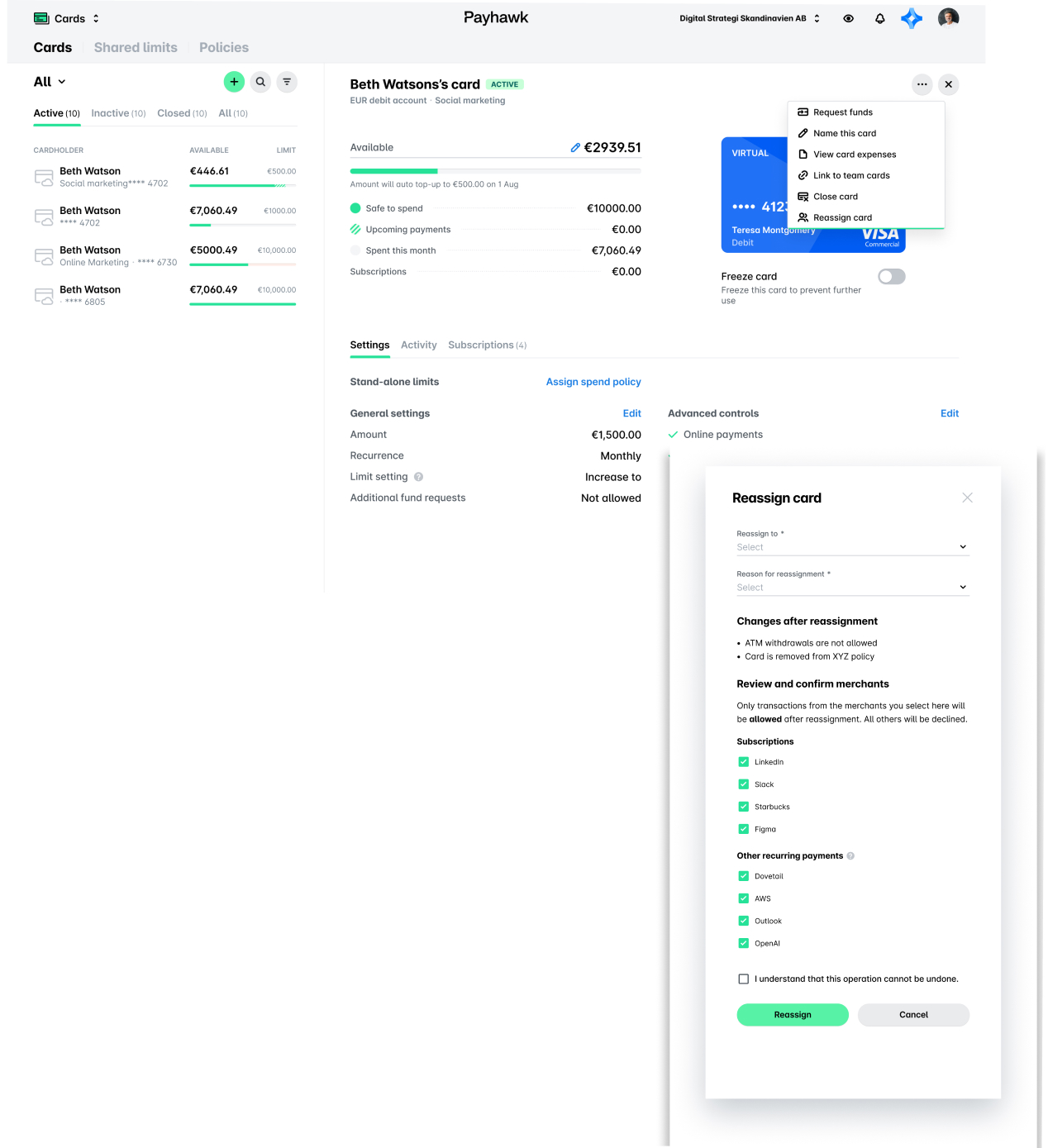
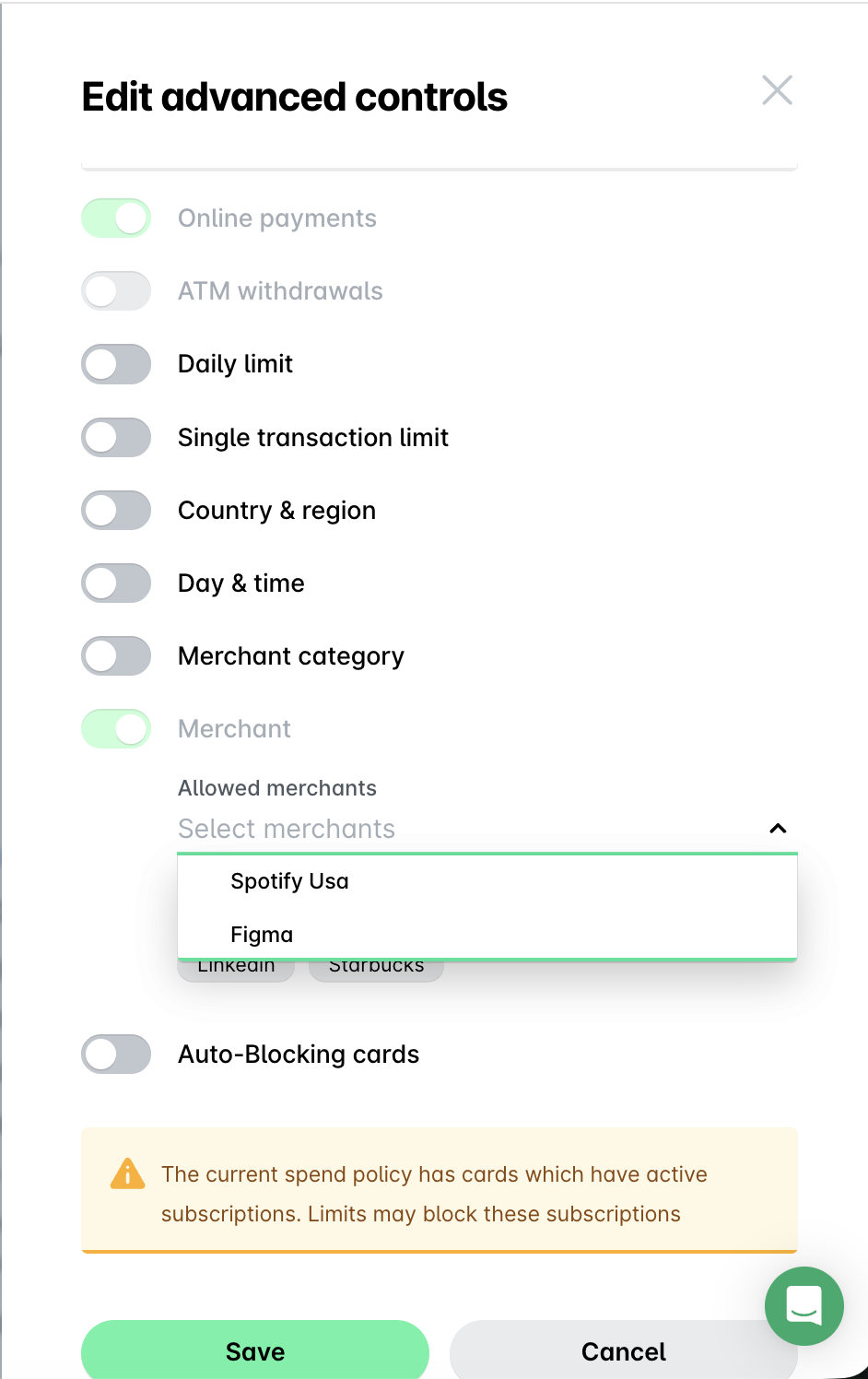
Note that all eligible merchants are selected by default. You can deselect merchants for which you don’t want this card to be used after the reassignment. You can later reenable merchants from this list from the Advance controls settings of the card.
Select the checkbox to confirm you understand that this operation cannot be undone.
Click on Reassign. As a result, the new cardholder will be notified via an email and push notification in the Payhawk Mobile App.
Reassigning cards of removed employees after an HR-sync
If an employee is deactivated through an HR system integration, their cards automatically get blocked. You will receive an email notification informing you the employee was deactivated, displaying also the cards that have to be either reassigned or closed where reassignment is not allowed.
You can then manage these cards through the pending task Reassign or close cards in your Dashboard.
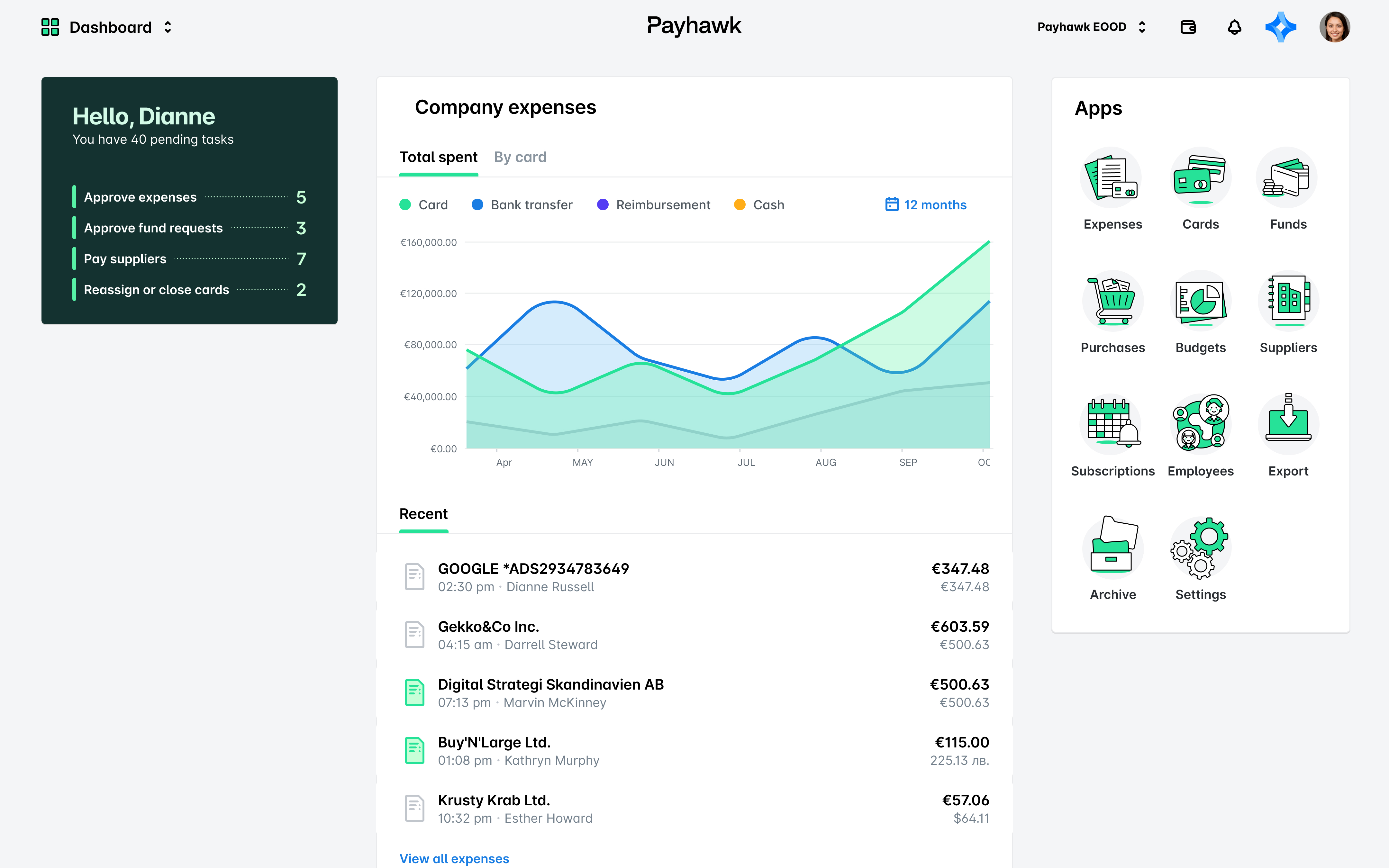
After clicking on the pending task you will get redirected to the Cards app with all cards that need to be either reassigned or closed. You can manage the cards one by one.
Reassigning cards when manually removing employees
For reassigning cards when an employee is manually removed from entity level, see article Inviting and deleting employees.
For reassigning cards when an employee is manually removed from group level, see article Managing employees on a group level.
Reassigned cards
Once reassigned, the card appears in the new cardholder's card list.
Note that after card reassignment:
The card gets detached from any existing spend policy. If needed, Payhawk Administrators can review and adjust the spend controls after the reassignment.
The previous cardholder digital wallet tokens are removed.
Online payments are enabled.
ATM withdrawals are disabled.
The card gets locked to the merchants selected during reassignment, which means that transactions to other merchants will be declined.
Reassigned cards cannot be added to digital wallets such as Apple Pay and Google Wallet.
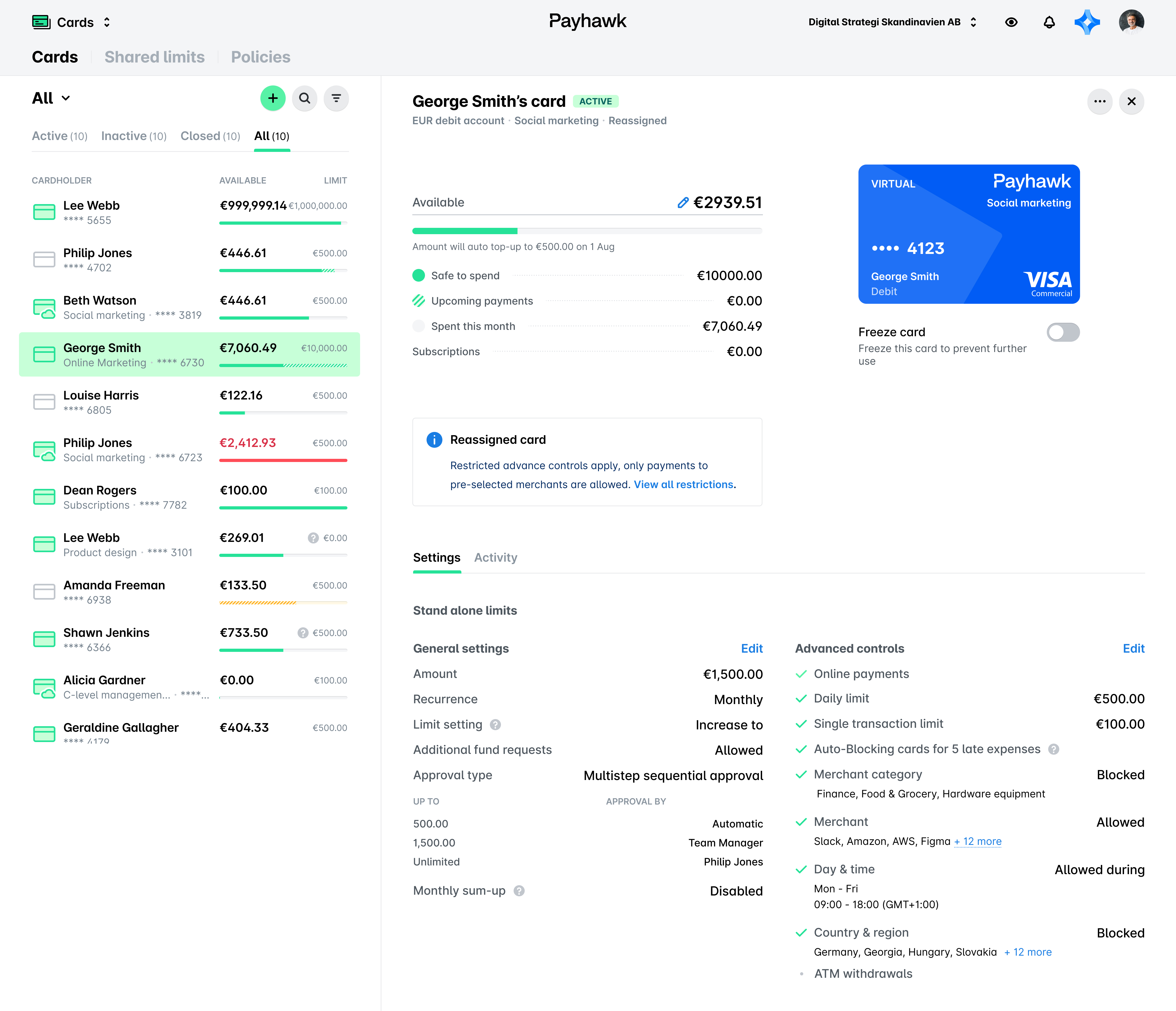
Notes on reassigned cards
If the previous cardholder's card was compromised or a fraudulent transaction occurred, instead of reassigning the card, close it and issue a new one to the new cardholder.
It’s recommended to dispose of the physical card after reassignment as it cannot be used for POS terminal payments.
After the card is reassigned, Payhawk attributes all future transactions to the new cardholder.
Historical transactions from before the reassignment remain linked to the original cardholder for audit purposes. A complete audit trail is available in the card's activity log, including who initiated the reassignment, when it happened, and which recurring payments were transferred.
The original cardholder can no longer see or use the card. Any unsubmitted expenses on the reassigned card must be handled before you remove the previous cardholder.
Any open recurring requests linked to the reassigned card will be automatically transferred to the new cardholder to ensure approved card top-ups are not interrupted.