If you're assigned as a reviewer in your company's workflow, you can review expense reports with a single click.
To review an expense report:
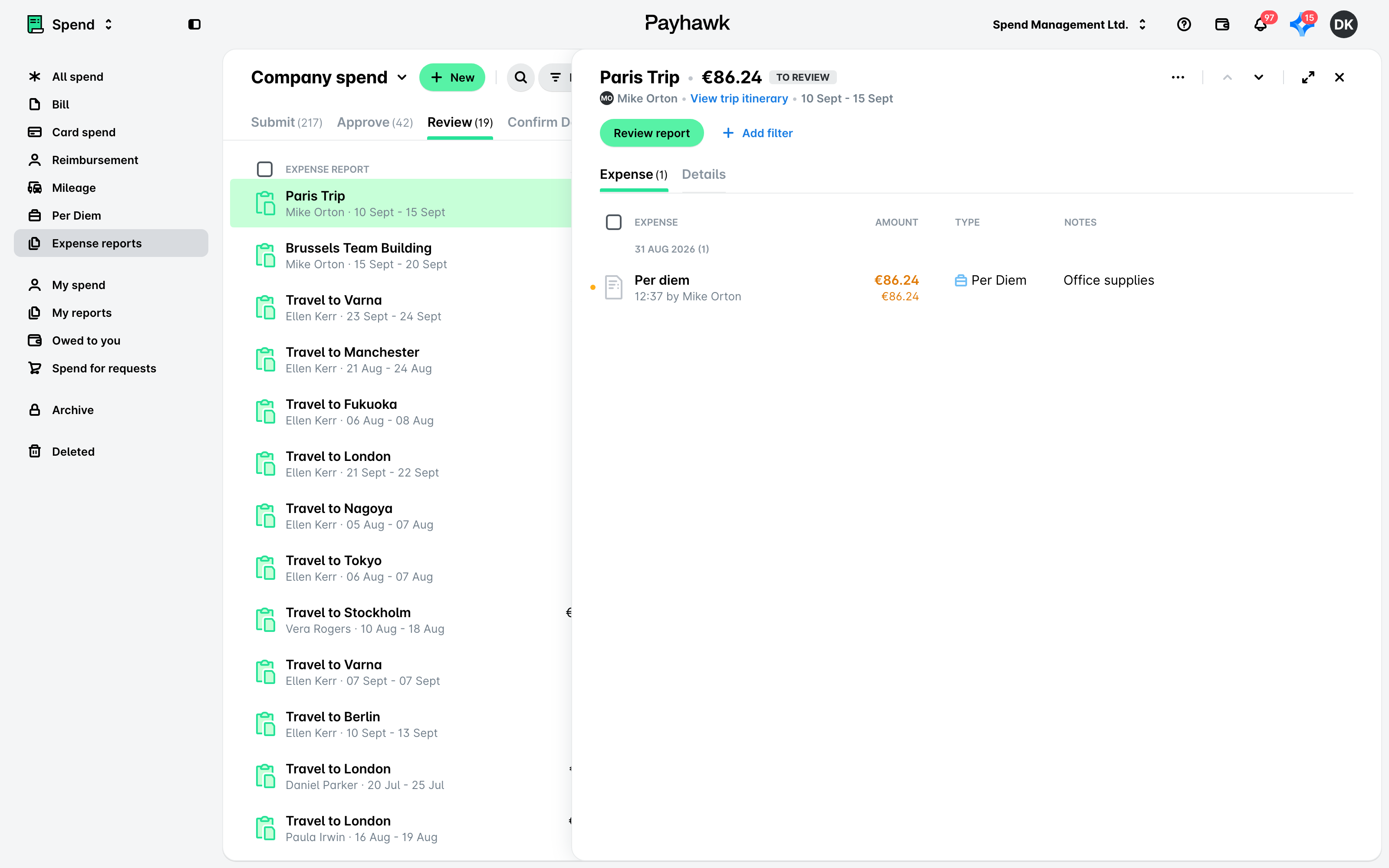
In the Payhawk Web Portal, open the app switcher in the top-left corner and go to Spend > Expense reports, then select the Review tab.
Select the desired report.
Click on Review report.
If there are any issues, such as missing required fields, Payhawk will display an error message and prevent the report from being reviewed until the errors are resolved.
Useful resources