To set up an existing active card as a billing card, you need to add its payment details and register it as a payment method for paying the Payhawk subscription.
Accessing the Manage subscriptions options
To change the billing card for subscription payments or update its details:
Log in to the Payhawk Web Portal.
Hover over the entity's name.
Select the Manage subscription option.
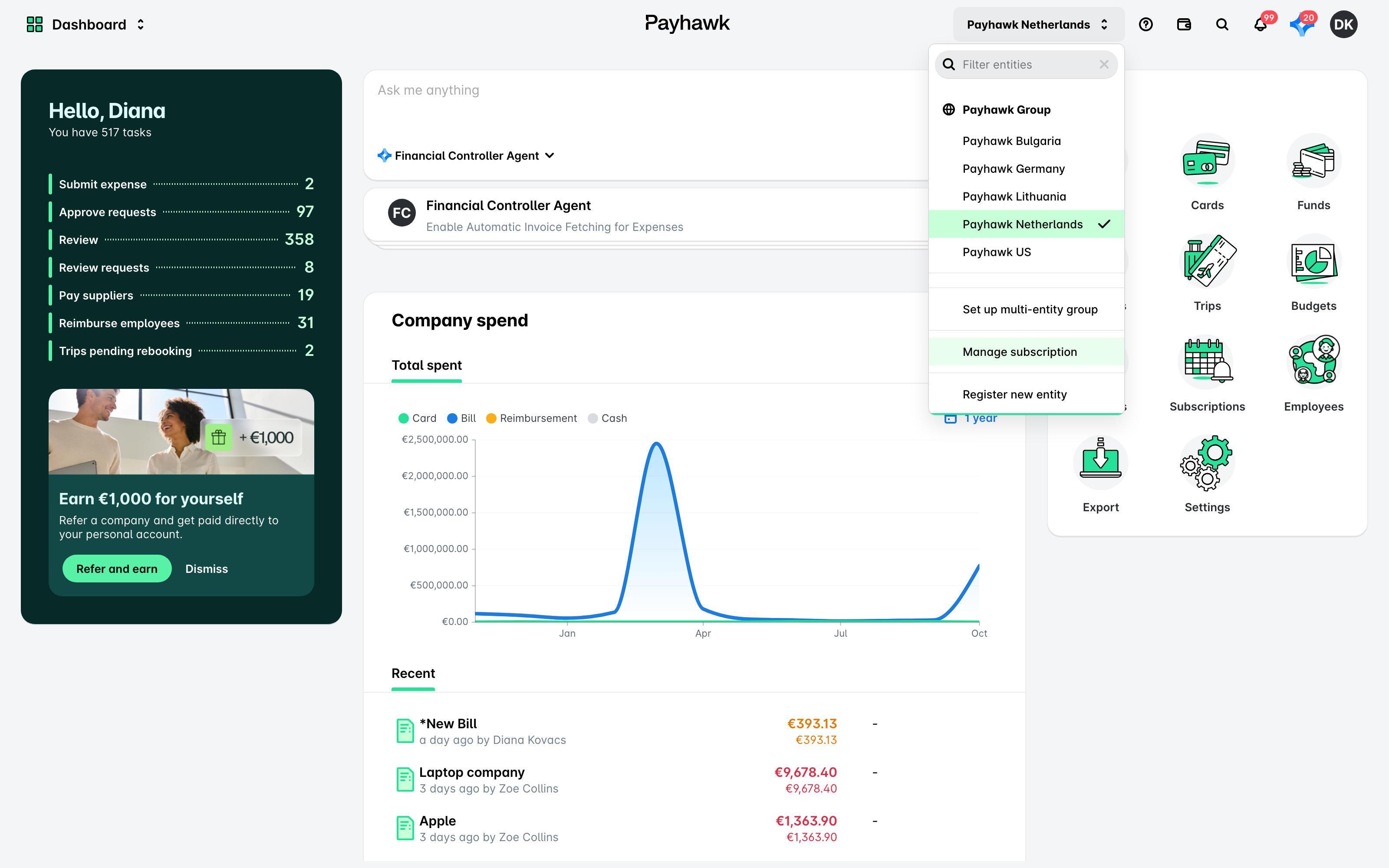
From the Manage subscriptions dialog, you can also perform any of the following actions.
Adding new cards as payment methods
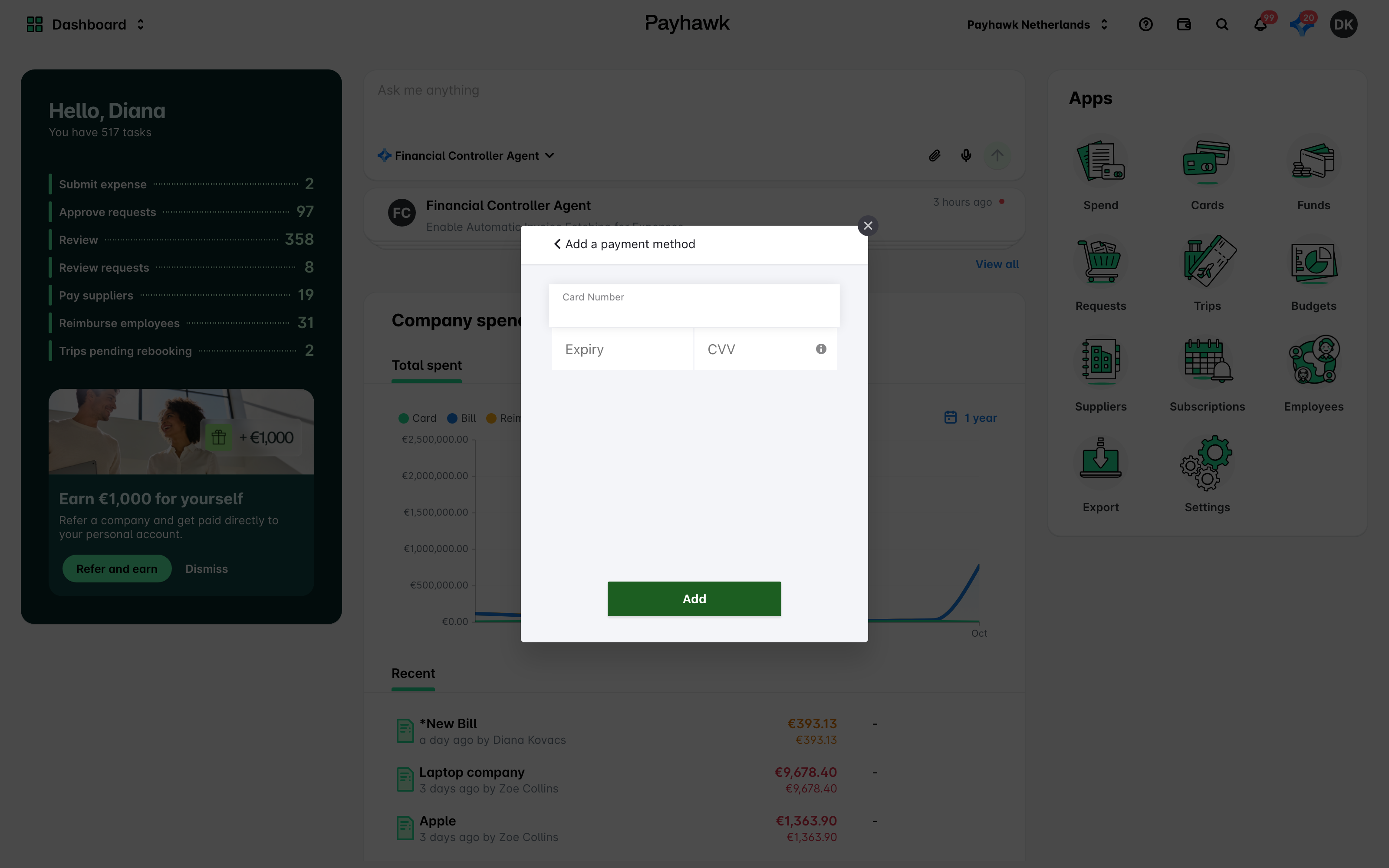
To add a card as a payment method for your Payhawk subscription:
Click on Payment methods.
Fill in your card details.
Click on Add.
Editing the details of your primary card
In Payhawk, a primary card is the card that is currently used by Payhawk for billing purposes, and a backup card is the card that would be used if the payment from the primary card fails.
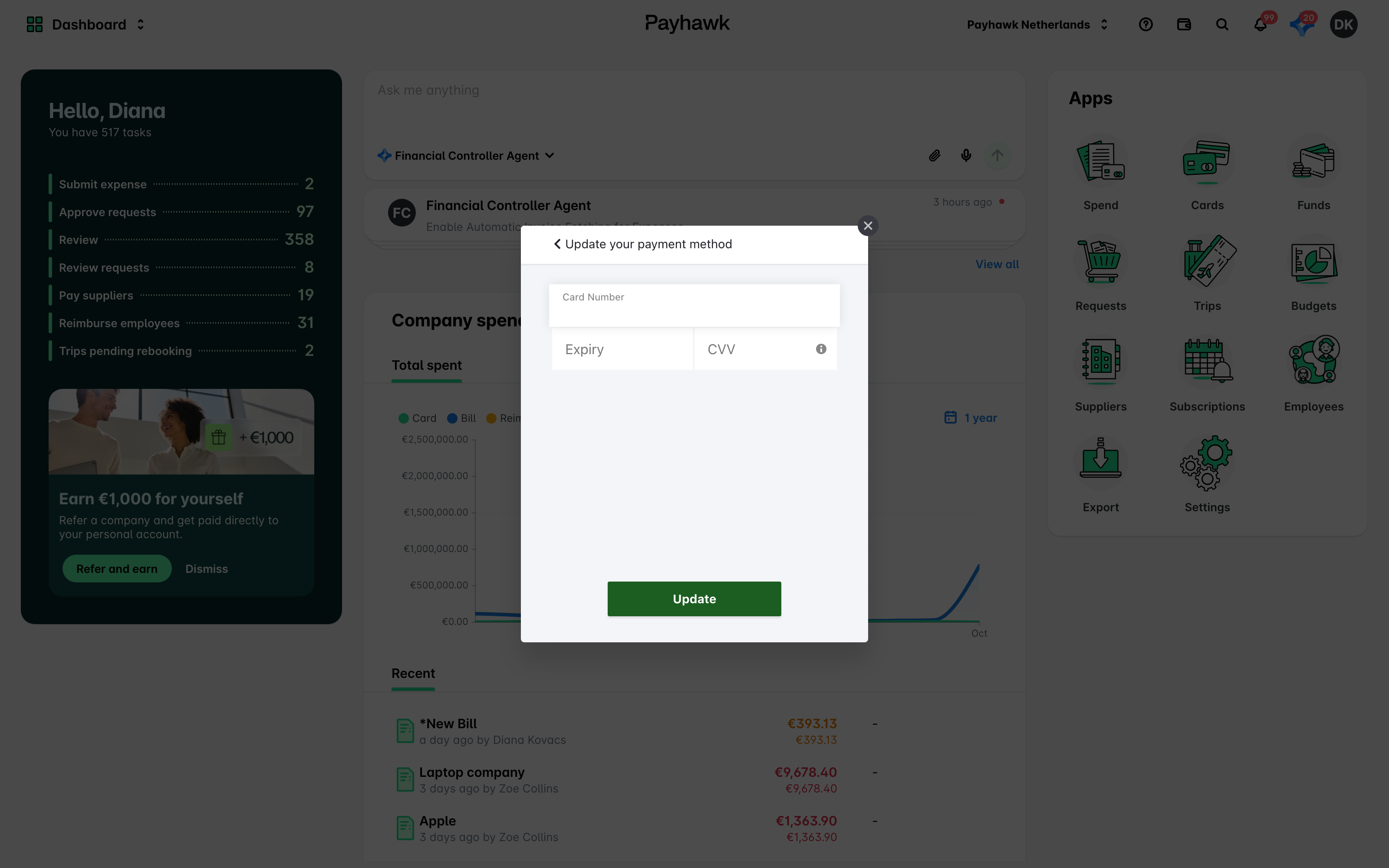
To edit the details of your primary card:
Click on Payment methods and select the card tagged as PRIMARY.
On the next screen:
Click on Edit Payment Method.
Fill in the data you want to modify.
Click on Update.
Setting cards as primary
You may choose to set another card as your primary payment method for the Payhawk subscription.
Click on Payment methods and select the desired card:
If the card is neither primary nor backup:
Click on Set as primary or backup.
On the next screen, select Primary and click on Update.
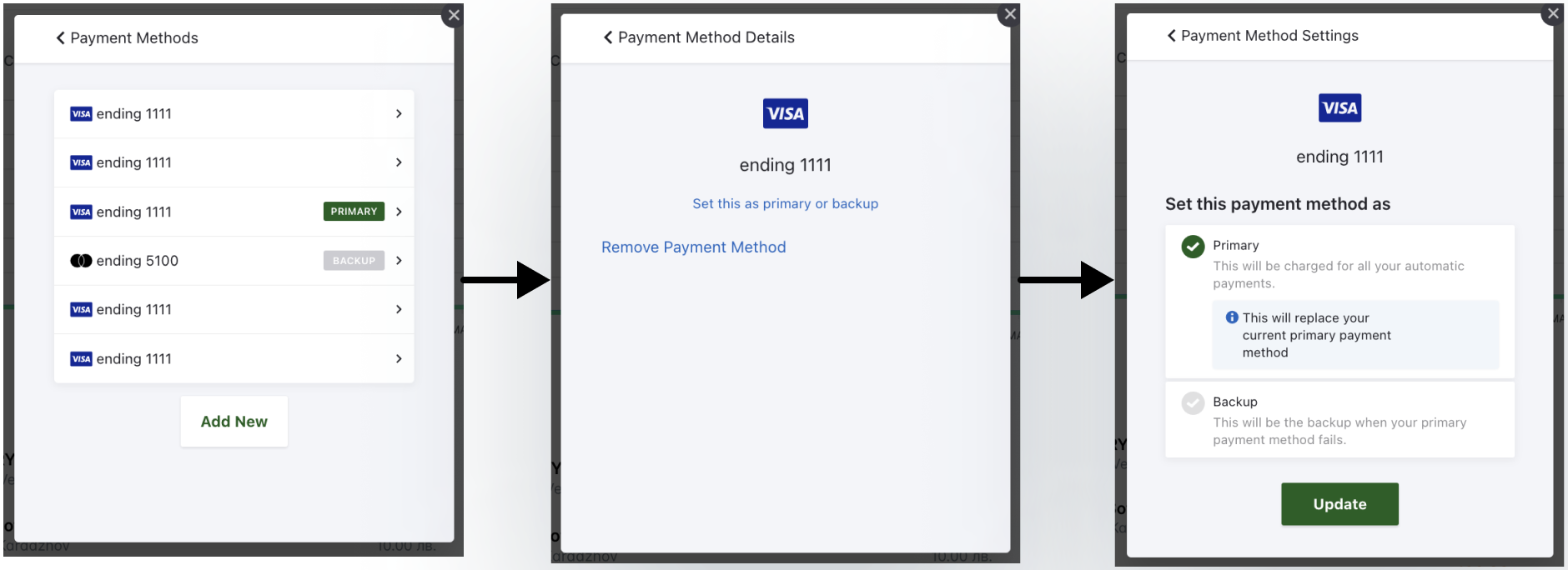
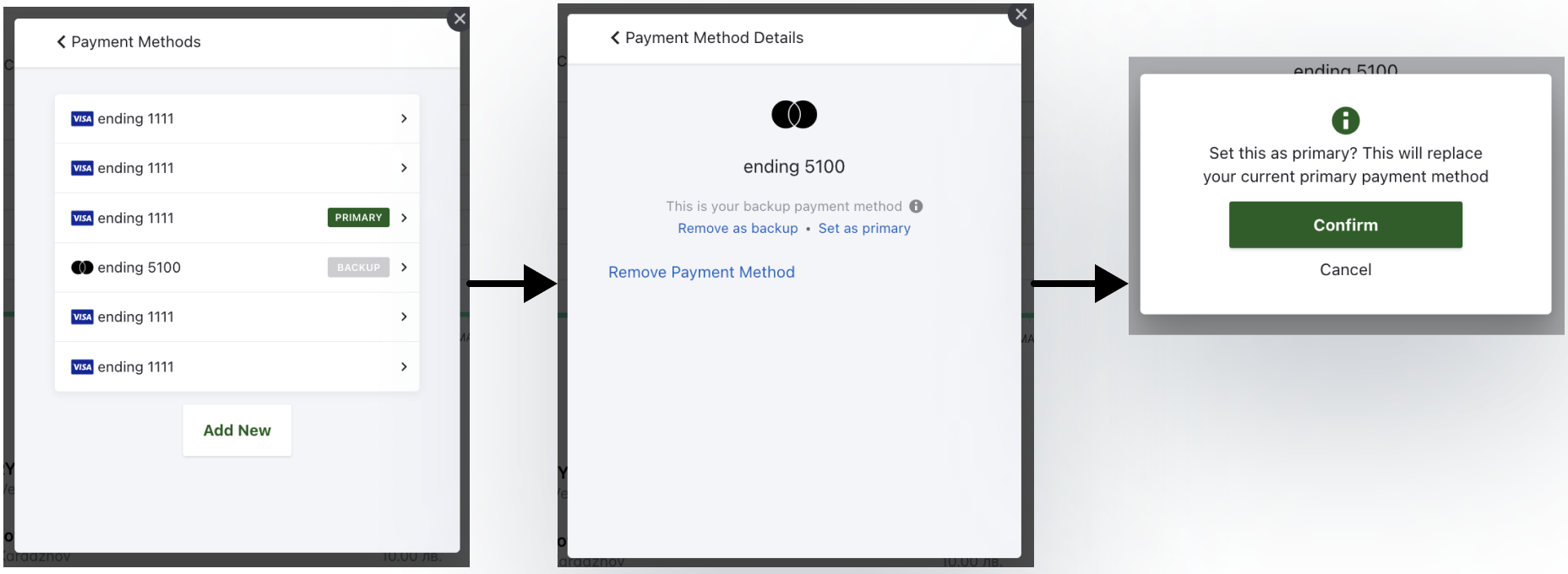
If the card is backup and you want to set it as a primary payment method:
Click on Set as primary.
On the next screen, click on Confirm.
Setting cards as backup
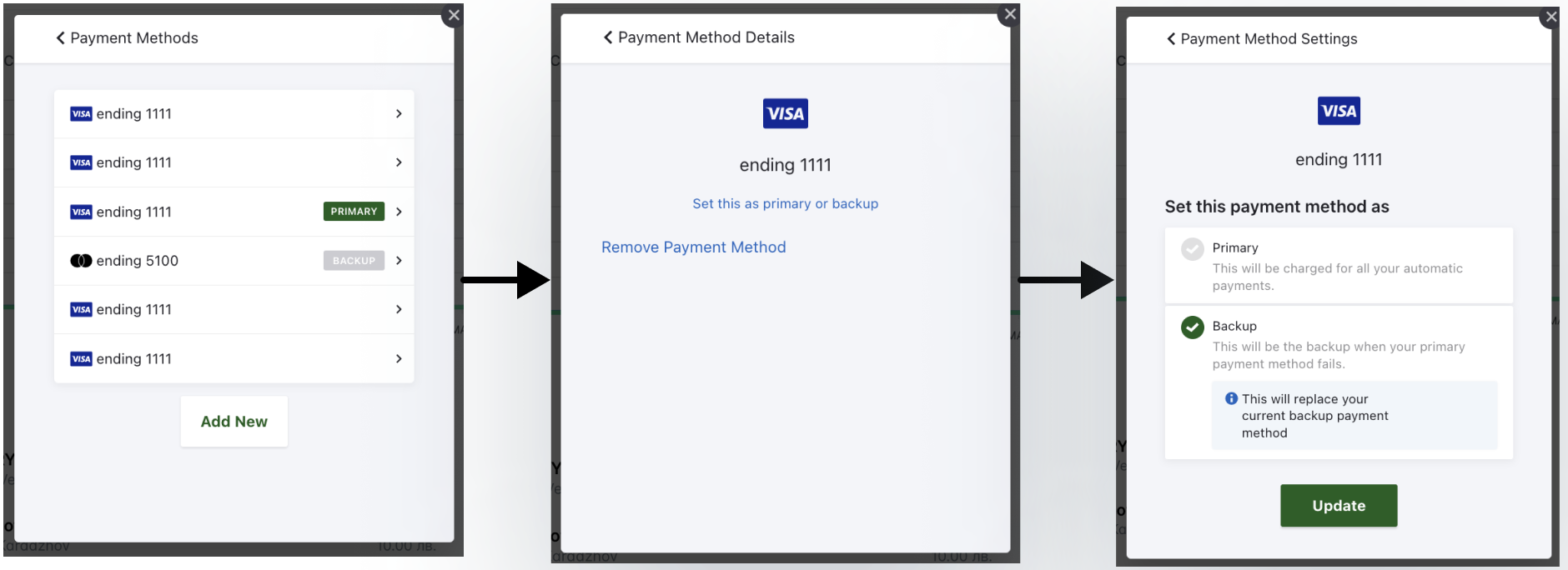
You may choose to set another card as your backup payment method for the Payhawk subscription.
Click on Payment methods and select the desired card.
Click on Set as primary or backup and select Backup > Update.
Removing cards as payment methods
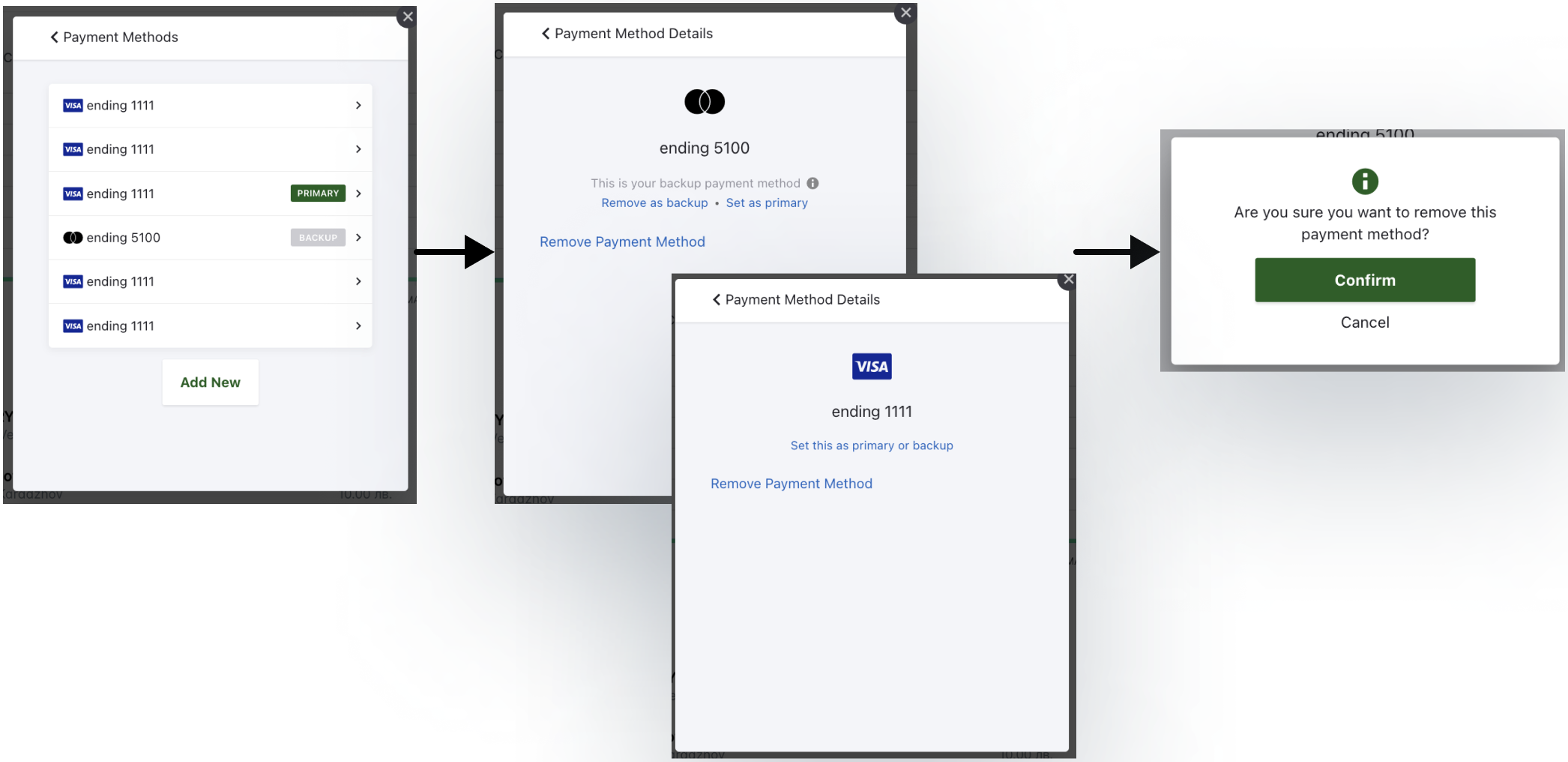
Cards that are not primary can be removed from the list of payment methods altogether:
Click on Payment methods and select the desired card.
Click on Remove payment method, and then on Confirm. As a result, the card will be removed from the list of payment methods.
Viewing your billing history with Payhawk
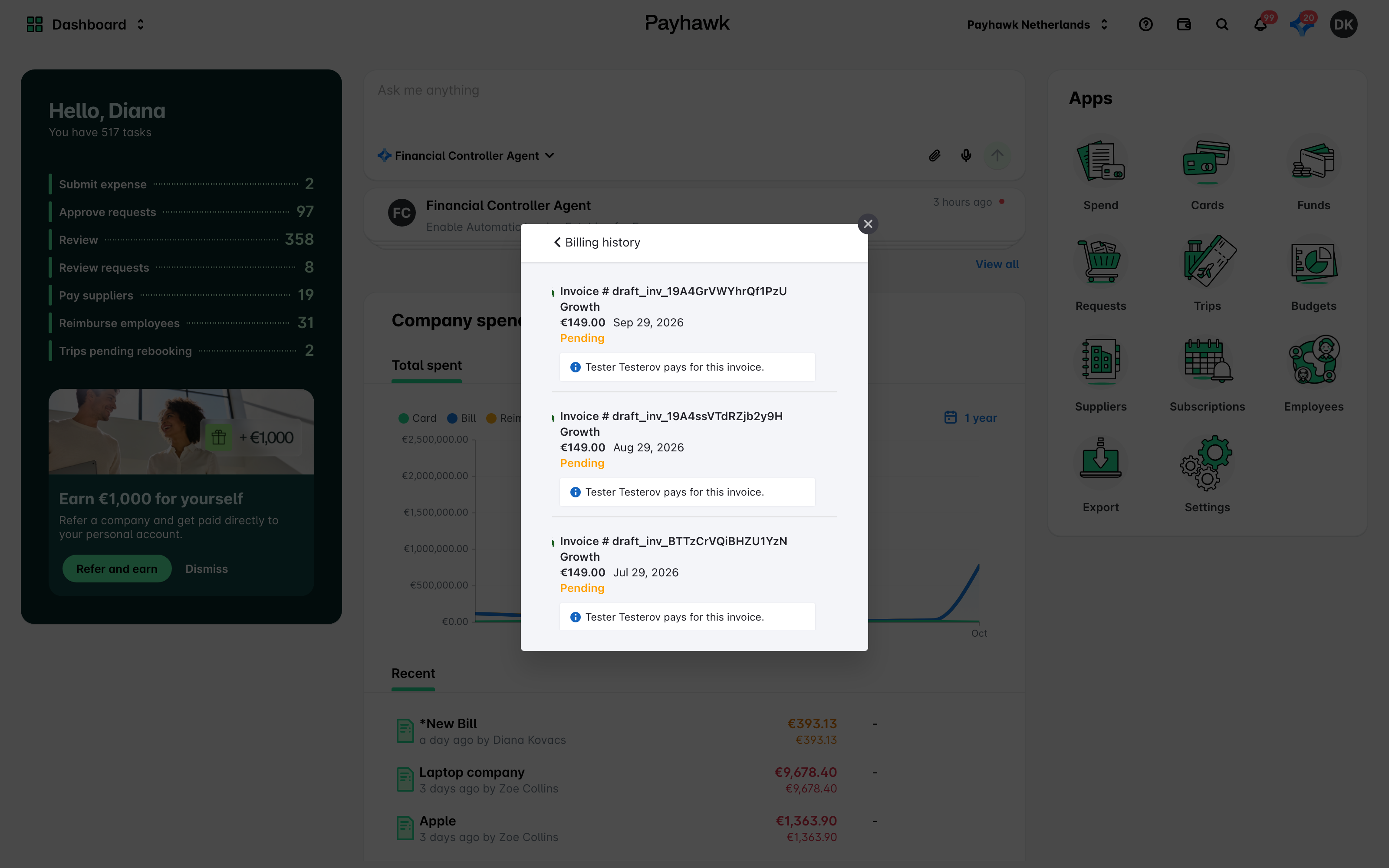
To view your card payment history with Payhawk, click on Billing history. In the dialog that opens, any pending and previously paid invoices by Payhawk will be loaded. You can also download any of them by clicking on the Download link next to each.
Managing subscriptions for the group
If your organization operates multiple entities under a group Payhawk account, all subscription charges and billing responsibilities (including the management of payment cards) are handled exclusively by the main account. Therefore, make sure Payhawk administrators of the main account properly configure and manage all billing-related tasks.
Useful resources