This feature is currently in a gradual rollout and is available for all clients from the EU, who are yet to begin the onboarding of their entity.
Before the Payhawk Compliance team can give final approval to your application, a director has to declare that the information you submitted is accurate. The declaration is part of the due diligence audit trail and is required for regulatory record-keeping.
Adding a signatory
To add a signatory to the application:
In the Payhawk Web Portal, go to Settings > Compliance center.
Under the Sign-off section, select:
The Director signs directly option, if you want a director to verify their identity and sign off themselves and choose a director from the list. If your entity is managed by another company, the list also shows the people who direct that company. When you choose one of them, Payhawk also adds them as a director of your entity under Management and ownership.
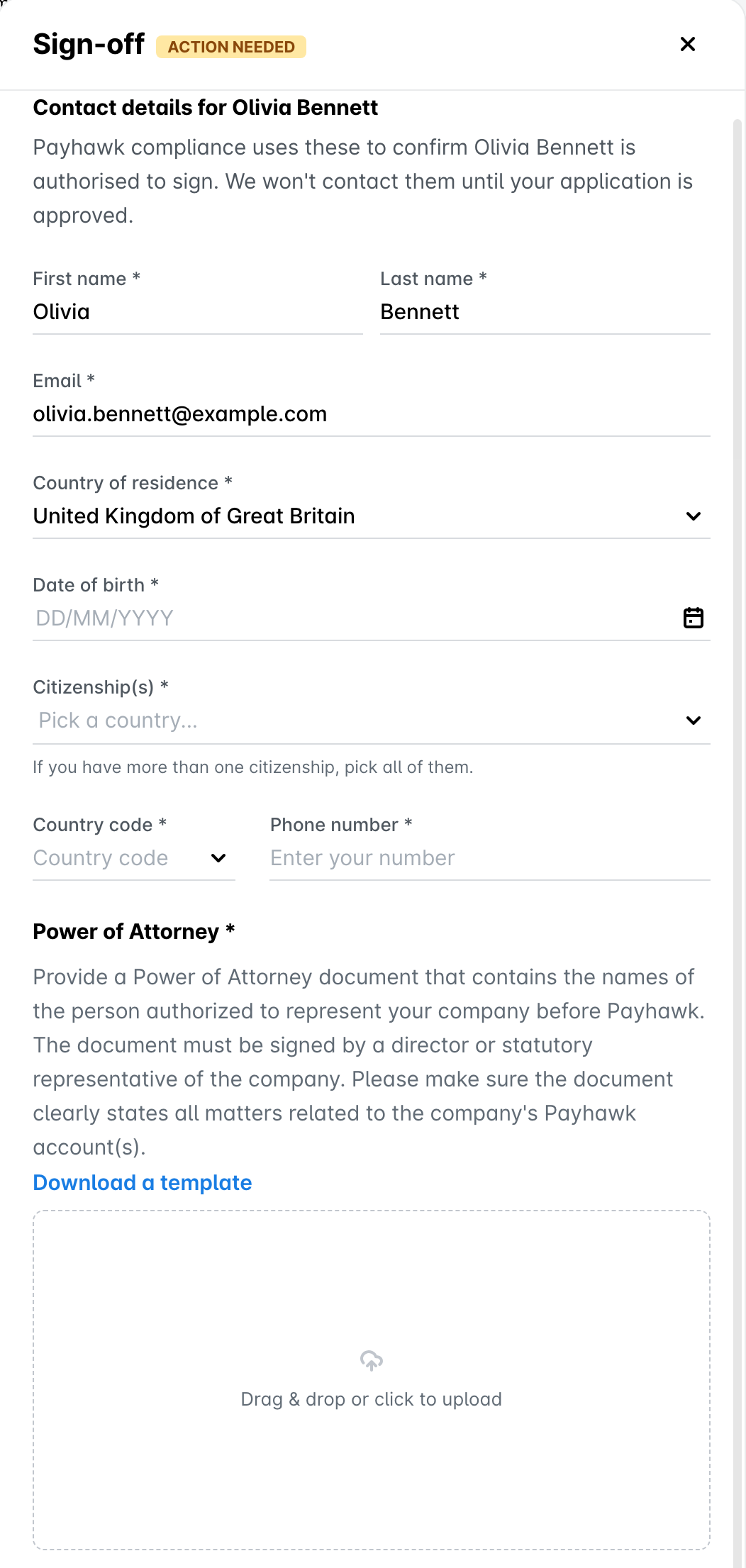
The Director authorizes a representative option, if you want a director to authorize someone else to sign on their behalf and choose a representative. For a representative, you also need to upload a Power of Attorney document signed by a director or a statutory representative of the company. To use the Payhawk template, click on Download a template.
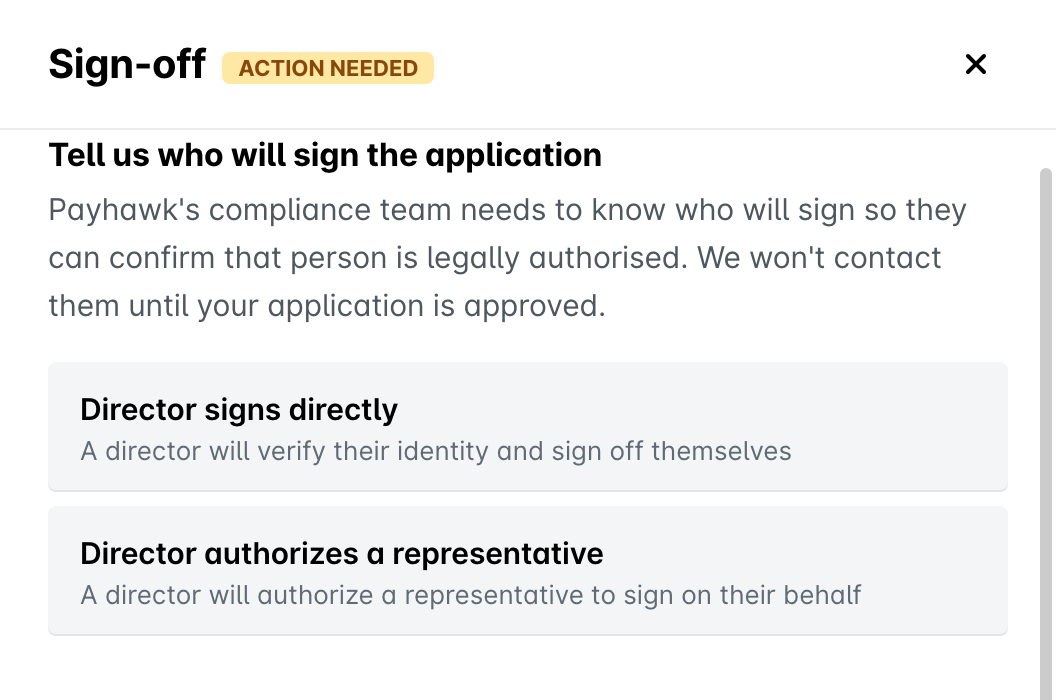
In the Contact details dialog that opens, fill in the contact details of the signatory:
First name and last name.
Date of birth.
Every citizenship they hold.
Country of residence.
Email address and phone number.
Whether they are a politically exposed person (only when you add a new director).
If you choose a director who is already listed under Management and ownership, most of these details are already filled in, and you only need to add their email address and phone number. For a representative, you also provide their date of birth, citizenship, and phone number, together with the Power of Attorney document.
Click on Save signatory details. The name of the signatory then appears under the entity in the Sign-off section.
For companies registered in the UK, you upload the government-issued ID and the proof of address of the signatory directly in the Sign-off section. Payhawk checks each file as you upload it.
Saving the signatory details does not send anything to the signatory. Payhawk contacts the signatory only after the Payhawk Compliance team has verified the rest of your application. The signatory then verifies their identity and signs the declaration.
Changing a signatory
To change a signatory for the application:
In the Payhawk Web Portal, go to Settings > Compliance center.
Open the Sign-off section.
Click on Choose a different signatory. You can then select one of the two options again and enter the details of the new signatory.
Submitting your application for review
After you complete every task in all four sections, the Submit for review button becomes available at the top of the page. Click on it to send your application to the Payhawk Compliance team. The button stays unavailable while Payhawk is collecting your company information or reading documents that you uploaded.
While the Compliance team checks your application, the submitted items show the status Pending verification. The team then marks each accepted item as Complete. Accepted items become read-only, and a document that has been accepted cannot be replaced.
The Compliance team can also add requirements after reviewing your application. When more information is needed, new items appear in the Compliance center. Check the page for items marked with the status Action needed.
Editing compliance tasks needs a specific permission. If the sections open as read-only, ask a Payhawk Administrator at your organization to give you access to the compliance tasks or to assign you the Authorized Representative role.