You can use the Payhawk Procurement AI Agent to create and submit requests, in addition to manually creating and submitting them through the Requests app. Depending on your company’s workflow setup, you may also be assigned as an approver for requests submitted by your teammates.
When using the Procurement AI Agent, you can both submit and approve requests directly in the Payhawk Web Portal or the Mobile App. If you prefer, you can also approve requests in the standard way via your Payhawk Inbox.
Submitting requests in the Portal
To create and submit a request from the Payhawk Web Portal by using the Procurement AI Agent:
Go to AI Office (either start chatting with the AI Agents directly from the Dashboard or click on the AI Office icon to enter the conversational interface).
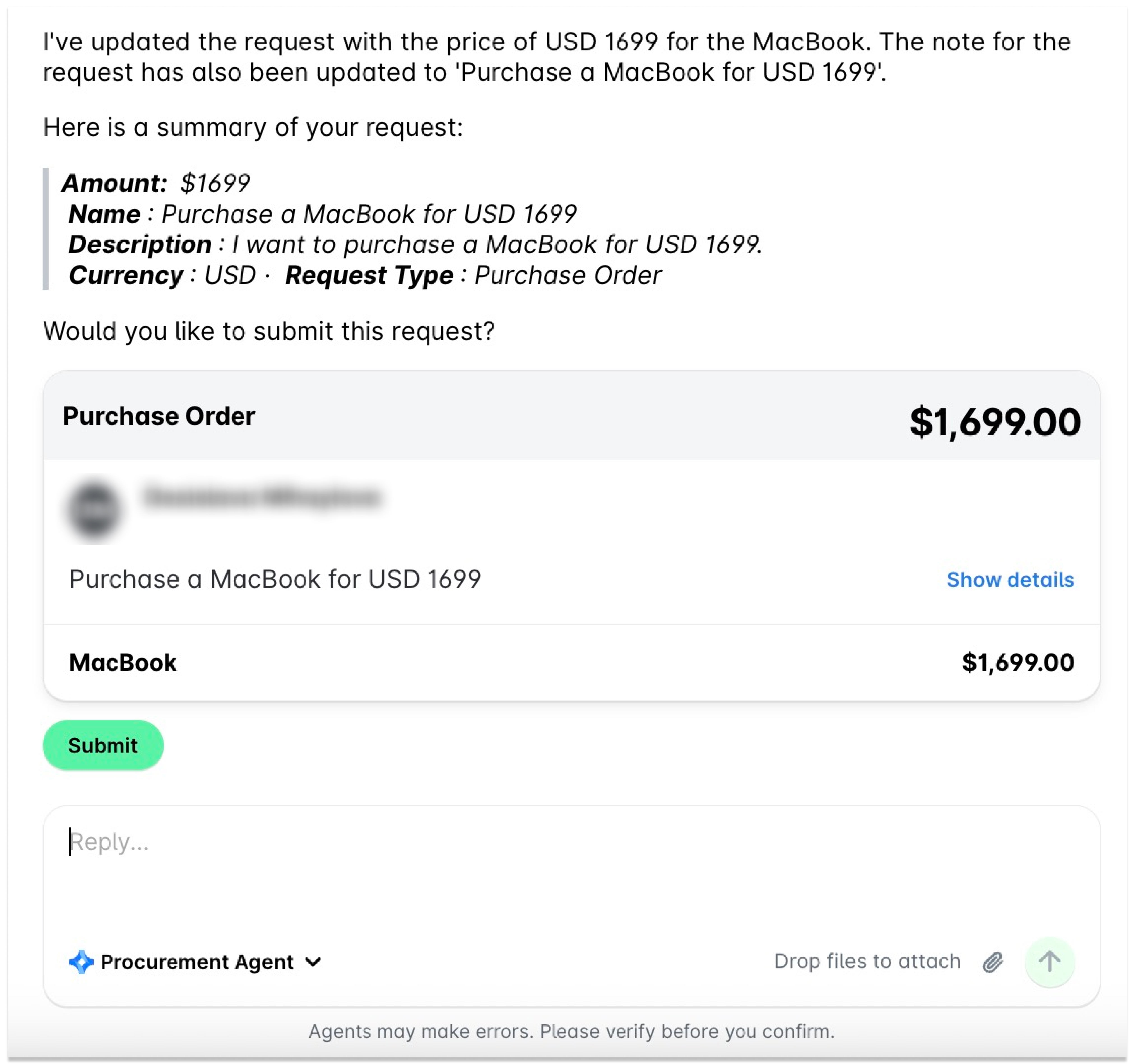
Start chatting with the Agent. It will ask you to provide the required information to create the request, so it fills it in.
Once the required information is collected, either ask the Agent to submit the request or click on the Submit button to do it yourself.
Submitting requests in the App
To create and submit a request from the Payhawk Mobile App by using the Procurement AI Agent:
Tap the AI Office icon.
Start chatting with the Agent. It will ask you to provide the required information to create the request, so it fills it in.
Once the required information is collected, click on Submit to submit it.

Approving requests in the Portal
To approve a request from the Payhawk Web Portal, go to AI Office and click on Approve..jpg)
Approving requests in the App
To approve a request from the Payhawk Web Portal, go to AI Office and tap Approve.