Ако Администратор на Payhawk в компанията ви е активирал AI агента за пътувания, той ще бъде достъпен в уеб портала на Payhawk и в мобилното приложение Payhawk.
AI агентът за пътувания ви позволява да резервирате полети и настаняване за командировки директно в платформата Payhawk и гарантира, че те съответстват на политиката за пътувания на компанията ви.
Ако компанията ви използва повече от един тип пътуване, AI агентът за пътувания пита за целта на пътуването в началото на разговора, избира съответния тип и ви уведомява кой е избрал. Можете да промените типа по всяко време, преди да подадете заявката, като изберете бутона за тип пътуване и посочите на агента кой тип да използва.
Избор на полети и хотели
Служителите могат да търсят полети и хотели директно в уеб портала на Payhawk и мобилното приложение Payhawk, като използват AI агента за пътувания:
Можете да търсите полети в свободен разговорен формат, като предоставите необходимите подробности за дестинацията и датите. Например ако искате да пътувате от Берлин до Лондон на конкретна дата, можете да попитате агента директно:
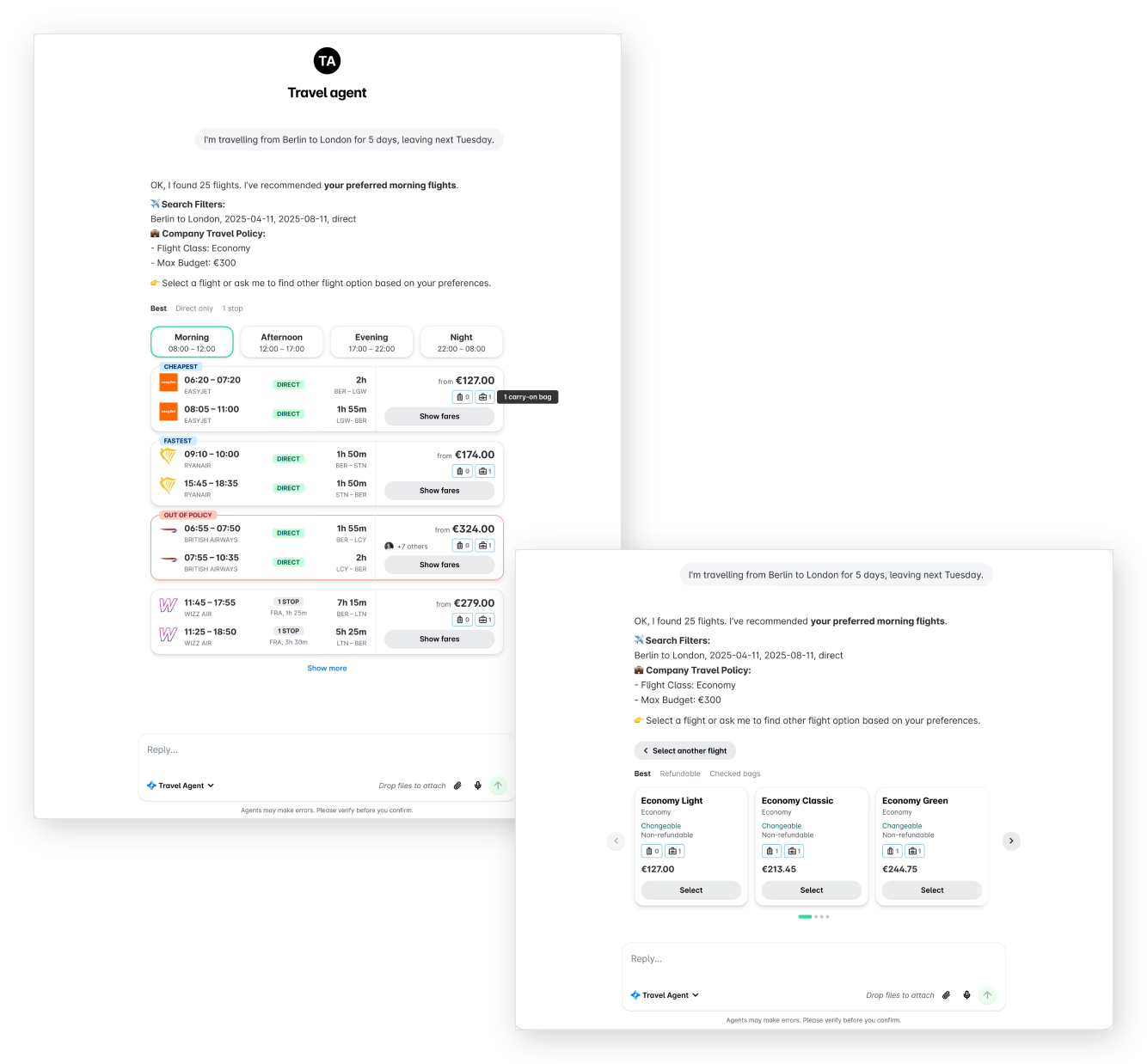
Можете също да търсите хотели в свободен разговорен формат, като предоставите необходимите подробности за дестинацията и датите на престоя. Например ако искате да отседнете в Лондон на конкретни дати, можете да попитате агента директно:

Избор на двупосочни полети
При резервация на двупосочен полет AI агентът за пътувания обработва всяка отсечка поотделно – първо заминаването, след това връщането. За всяка отсечка можете да сортирате резултатите, да филтрирате по време от деня и да сравнявате цени, показани като сума „от“. Със знака В ПОЛИТИКАТА се маркират опциите, съответстващи на политиката, а със знака Предпочитана авиокомпания се маркират препоръчаните превозвачи.
Можете да изберете различна авиокомпания за всяка отсечка. Изборът ви определя как ще бъде остойностено пътуването, как ще се извърши плащането и как ще се отчете разходът:
Ако сте избрали една и съща авиокомпания и за двете отсечки, AI агентът ще обедини полетите в една цена на двупосочен билет с едно плащане и един разход. Тази обединена тарифа може да излезе по-евтина от сбора на двете единични цени „от“.
Ако сте избрали различни авиокомпании за всяка отсечка, AI агентът ще резервира два отделни билета, всеки с отделно плащане и отделен разход.
След като изберете полет за всяка отсечка, кликнете върху „Потвърждаване на тарифите“, за да финализирате цените и съответствието с политиката. След това продължете през процеса на заявка за пътуване и кликнете върху „Подаване“.

Избор на пътувания с няколко дестинации
Когато резервирате пътуване с няколко дестинации, AI агентът за пътувания обработва всяка отсечка поотделно – първо първия град дестинация, след това следващия и т.н.
За всеки полет можете да сортирате резултатите, да филтрирате по време от деня и да сравнявате цени, показани като сума „от“. Със знака В ПОЛИТИКАТА се маркират опциите, съответстващи на политиката, а със знака Предпочитана авиокомпания се маркират препоръчаните превозвачи. Можете да изберете различна авиокомпания за всяка отсечка. След като изберете полет за всяка отсечка, кликнете върху Потвърждаване на тарифите, за да финализирате цените и съответствието с политиката.
След това можете да продължите процеса на заявка за пътуване и да изберете хотели, като кликнете върху Добавяне на хотели. За всеки град виждате препоръчаните опции, най-близо до предпочитаното от вас местоположение. В секция ПОЛИТИКА виждате максималната цена на хотел за нощувка и категорията на хотела според политиката за пътувания на организацията ви. След като изберете хотел за всяка отсечка, кликнете върху Подаване.
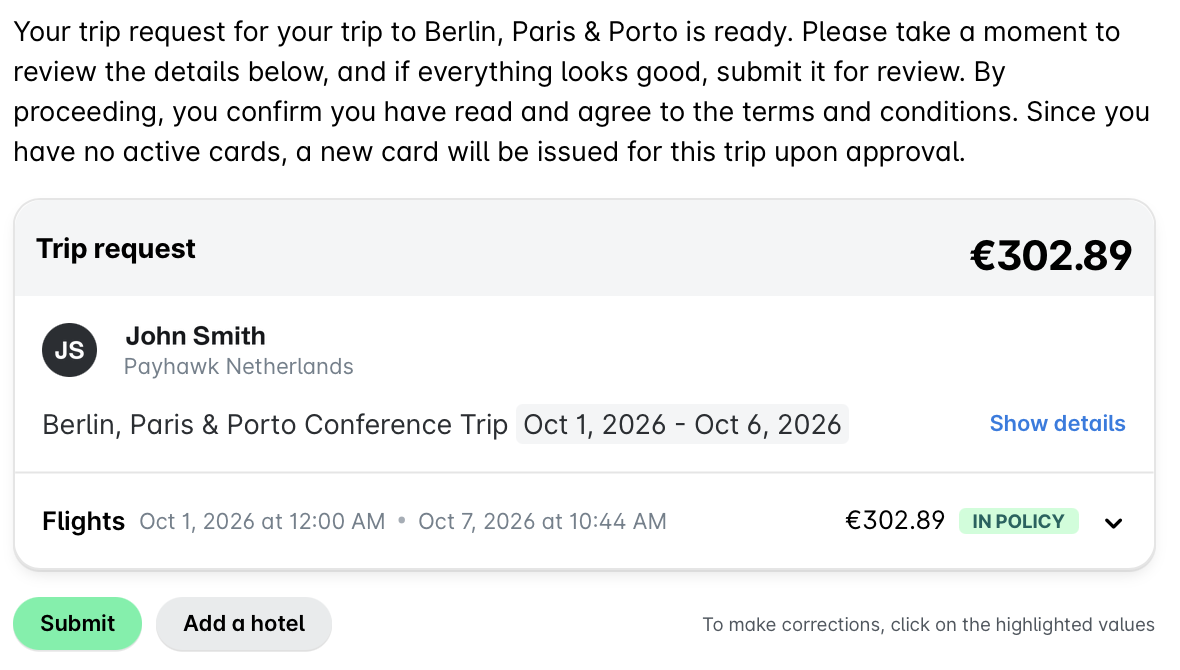
Подаване на заявки за пътуване в уеб портала
AI агентът за пътувания е разговорен инструмент, което означава, че можете да му предоставите необходимата информация за подаване на заявка за пътуване в разговорен формат:
В уеб портала на Payhawk навигирайте до AI екип.
Кажете на агента къде искате да пътувате и на кои дати.
Предоставете исканата от AI агента информация в разговорен формат, за да попълни заявката ви за пътуване. Например посочете дали имате нужда от по-малко или повече отпуснати суми от предвидените в политиката на компанията. След като бъдат събрани всички необходими данни, AI агентът обобщава заявката за пътуване преди подаването ѝ.
Кликнете върху бутона Подаване.
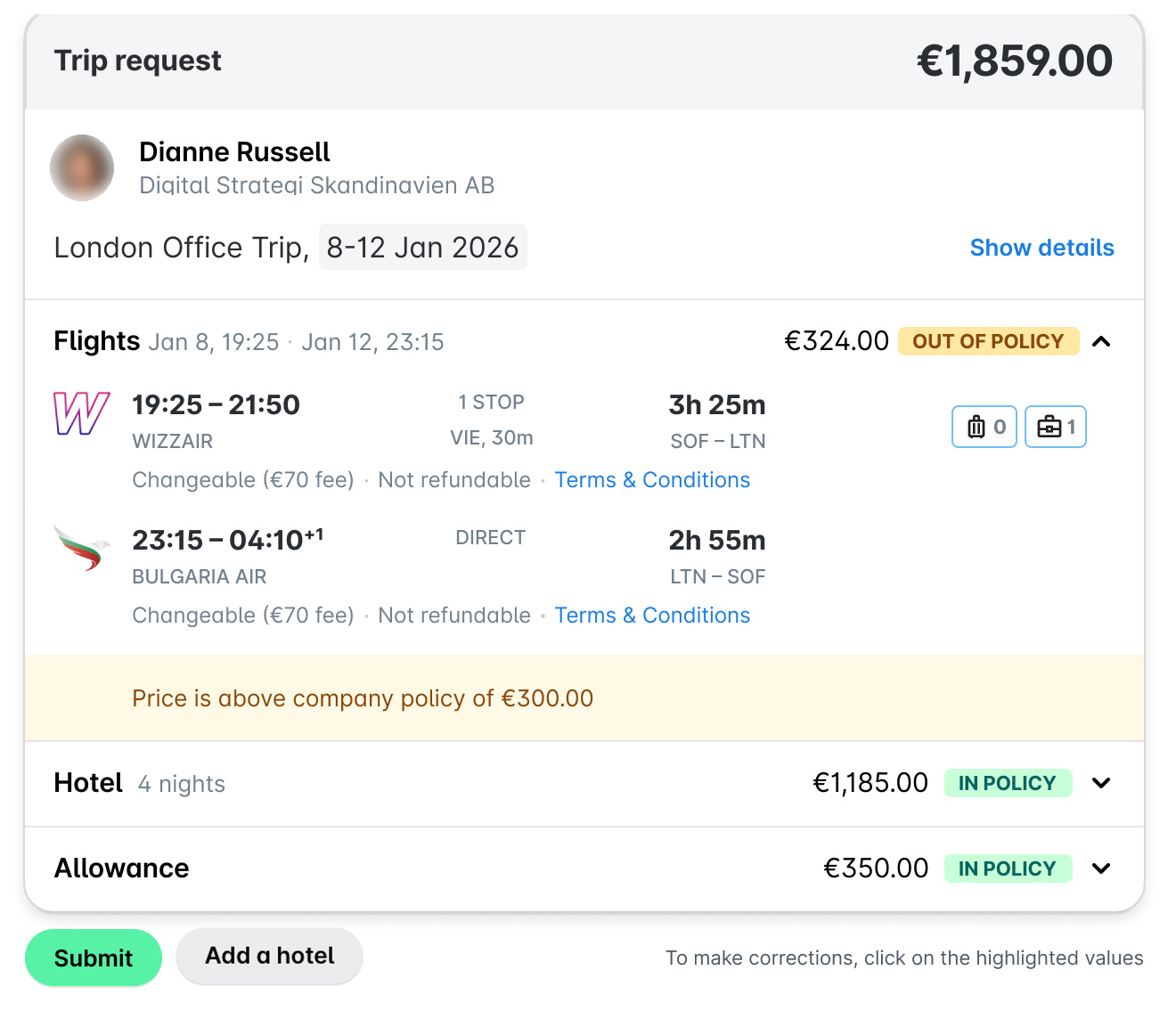
Подаване на заявки за пътуване в мобилното приложение
Можете също да подавате заявки за пътуване за одобрение директно в мобилното приложение Payhawk, като използвате AI агента за пътувания.
За да подадете заявка за пътуване в мобилното приложение:
В мобилното приложение Payhawk навигирайте до AI екип.
Кажете на агента къде искате да пътувате и на кои дати.
Предоставете на агента необходимата информация в разговорен формат, за да може да попълни данните за заявката за пътуване, необходими за подаването ѝ. След като бъдат събрани необходимите данни, агентът ще обобщи състоянието на заявката ви за пътуване.
Натиснете Подаване.
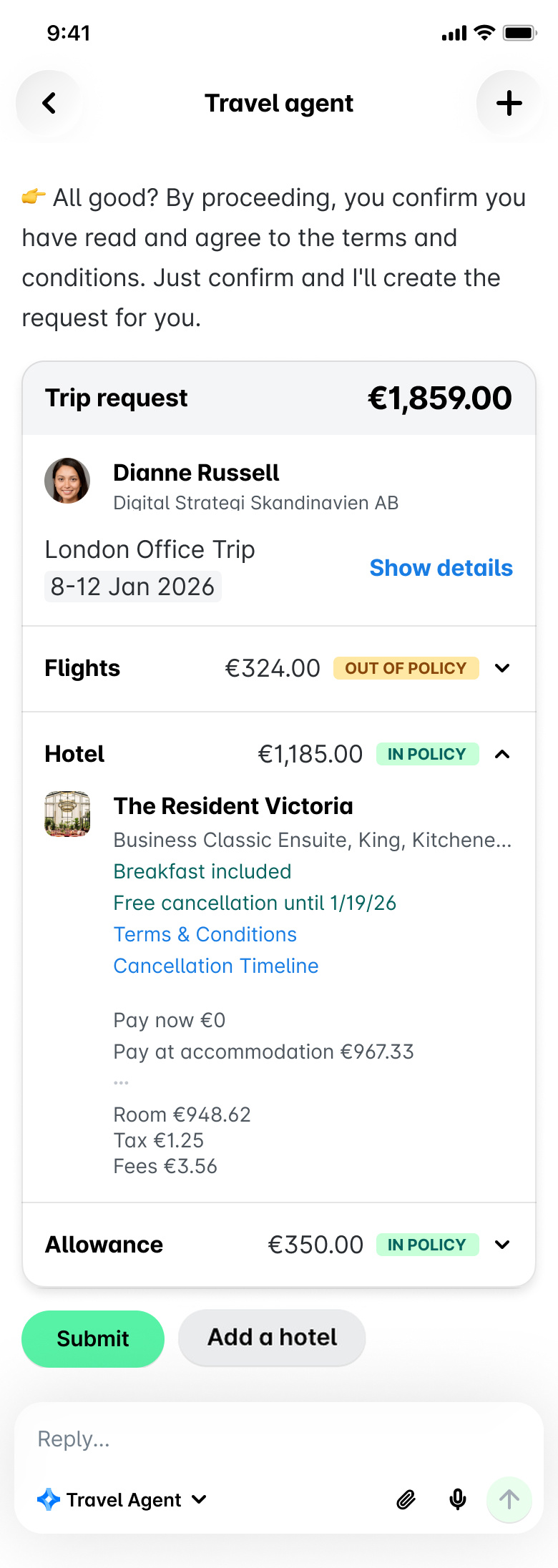
След като подадете заявката за пътуване в мобилното приложение Payhawk, можете да следите статуса на одобрението ѝ и да прегледате маршрута от раздел Пътувания в AI екип. За подробности вижте статията за преглед и актуализиране на съществуващи пътувания.
Дневни разходи по заявка за пътуване
В зависимост от политиката за пътувания на компанията едно пътуване може да включва дневни разходи в допълнение към полетите и престоите в хотели. Те може да представляват отпусната сума по карта или дневни, като AI агентът за пътувания ги добавя автоматично към заявката ви. В обобщението на заявката се показва сумата, за да можете да я проверите преди подаването.
Отпусната сума по карта – Компанията добавя парична сума към картата ви за пътуването, одобрена заедно със заявката. Можете да я изразходвате от момента на одобрение до последния ден на пътуването, а неизразходваната сума се премахва при приключването му.
Дневни – Не е необходимо да попълвате искане за дневни. В обобщението на заявката се показват дневните като обща сума с по един ред за всеки ден от пътуването. Payhawk възстановява дневните след пътуването, а след одобрение на заявката системата създава чернова на разход за дневни и ви известява да я проверите и подадете.
Възстановяване след неуспешно плащане
Повечето заявки за пътуване се одобряват и заплащат без проблем. При неуспешно плащане след одобрение AI агентът за пътувания ви показва коя част от пътуването изисква внимание и ви дава възможност да я коригирате, без да подавате нова заявка или да чакате ново одобрение.
При неуспешно плащане ще видите съобщение, че някои от резервациите изискват вниманието ви, и AI агентът ще ви попита дали искате да потърсите алтернативи.
Начинът на възстановяване зависи от това коя отсечка е пропаднала:
Ако плащането за полета на отиване е успешно, но това за полета на връщане е неуспешно, полетът на отиване се запазва и трябва да изберете само нов полет на връщане. В този случай избирате, потвърждавате и подавате полета на връщане отделно.
Ако плащането за полета на отиване е неуспешно, трябва да започнете избора на полети отначало – и за двата. Така се избягва ситуация, в която е платен полет на връщане без наличен полет на отиване.
При комбинирана цена за двупосочен билет (една авиокомпания и за двата полета) плащането е успешно или неуспешно за целия маршрут – частична резервация не е възможна. При неуспех трябва да започнете избора на полети отначало – и за отиване, и за връщане.
За заместващите полети важи същото правило за бюджет като при първоначалната заявка: Можете да направите нова резервация в рамките на одобрения бюджет плюс буфер от 10%, без да е необходимо ново одобрение. Всичко над тази граница изисква повторно одобрение. Тъй като при рестартиране заявката за пътуване остава същата, първоначалното одобрение остава в сила, стига новите полети да влизат в бюджета плюс 10%.
Бележки за резервирането на полети и престои в хотели с AI агента за пътувания
Администратори и служители на Payhawk с необходимите права могат да резервират полети и престои в хотели от името на други служители. Процесът на резервация е същият като при резервация за себе си – AI агентът за пътувания прилага политиката и предпочитанията на командирования на всяка стъпка. За подробности вижте статията за резервиране на пътувания от името на други служители.
Можете да промените или анулирате резервацията си за полет или престой в хотел директно чрез AI агента за пътувания. AI агентът показва тарифните условия, изчислява разходите и обработва одобренията за промени на полети, а при повторна резервация на престой в хотел – извлича актуалните условия за анулиране, показва сумата за възстановяване и обработва одобренията. За подробности вижте статията за промяна и анулиране на резервации за пътувания.
Можете да добавите багаж към резервацията си директно по време на процеса на резервиране. Когато избраната тарифа не включва опция за багаж, AI агентът за пътувания автоматично предлага подходящ пакет. В някои случаи за добавянето или промяната на багаж след резервацията може да е необходима директна уговорка с авиокомпанията.
Когато добавяте нова заявка към съществуващо пътуване, двете заявки трябва да са от един и същи тип пътуване. Ако започнете заявка от различен тип и след това поискате да я добавите към съществуващо пътуване, AI агентът за пътувания променя типа, така че да съвпадат.
Полезни ресурси