Можете бързо да се ориентирате в експортите на компанията чрез изгледите на експорт по подразбиране и да преглеждате статуса на експорт на даден разход в дневника с историята му и в раздел Експорт.
Изгледи на експорт
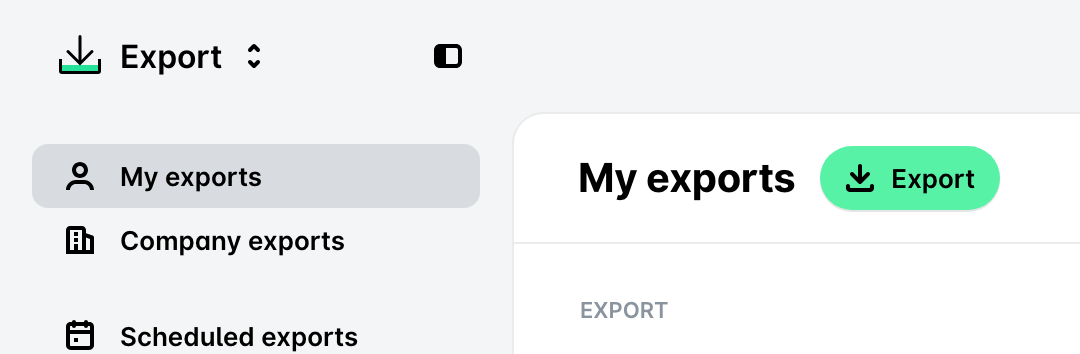
За бърз достъп до отчети с данни можете да използвате изгледите по подразбиране, достъпни за счетоводители и администратори на Payhawk от приложението Експорт:
Моите експорти – Показва инициираните от вас експорти.
Експорти на компанията – Показва всички експорти, инициирани от вас и от останалите служители в компанията.
Статуси на експорт
В следващата таблица са обобщени наличните статуси на експорт за разходи и плащания в Payhawk.
Статус на експорт | Определение |
Експортиран | Разходът или плащането е успешно експортирано от системата. |
Няма налични данни | Статусът на експорт на разхода или плащането не може да бъде определен, тъй като функцията за история на експорта не е съществувала преди 1.02.2024 г. |
Ненапълно експортиран | В раздела има поне два обекта (разход и плащане). Единият е успешно експортиран (статус Експортиран), но другият все още не е експортиран (статус Неекспортиран), експортът е бил неуспешен (статус Неуспешен) или статусът на експорт е неизвестен, тъй като разходът или плащането може да са били експортирани преди активирането на функцията за история на експорта (статус Няма налични данни). |
Неуспешен | Експортът на разхода или плащането е неуспешен поради някаква причина – например ако отчетният период в Oracle NetSuite е заключен. |
Неекспортиран | Разходът или плащането все още не е експортирано. |
За специфичното поведение на филтрите за експорт Експортирани и Неуспешни вижте бележката за филтрите за експорт.
Преглед на статуса и данните на експорт
Можете да прегледате статуса и данните на експорт на даден разход в раздел Експорт. Кратък преглед на статуса на експорт се показва за избран разход, когато разделът му Експорт е свит.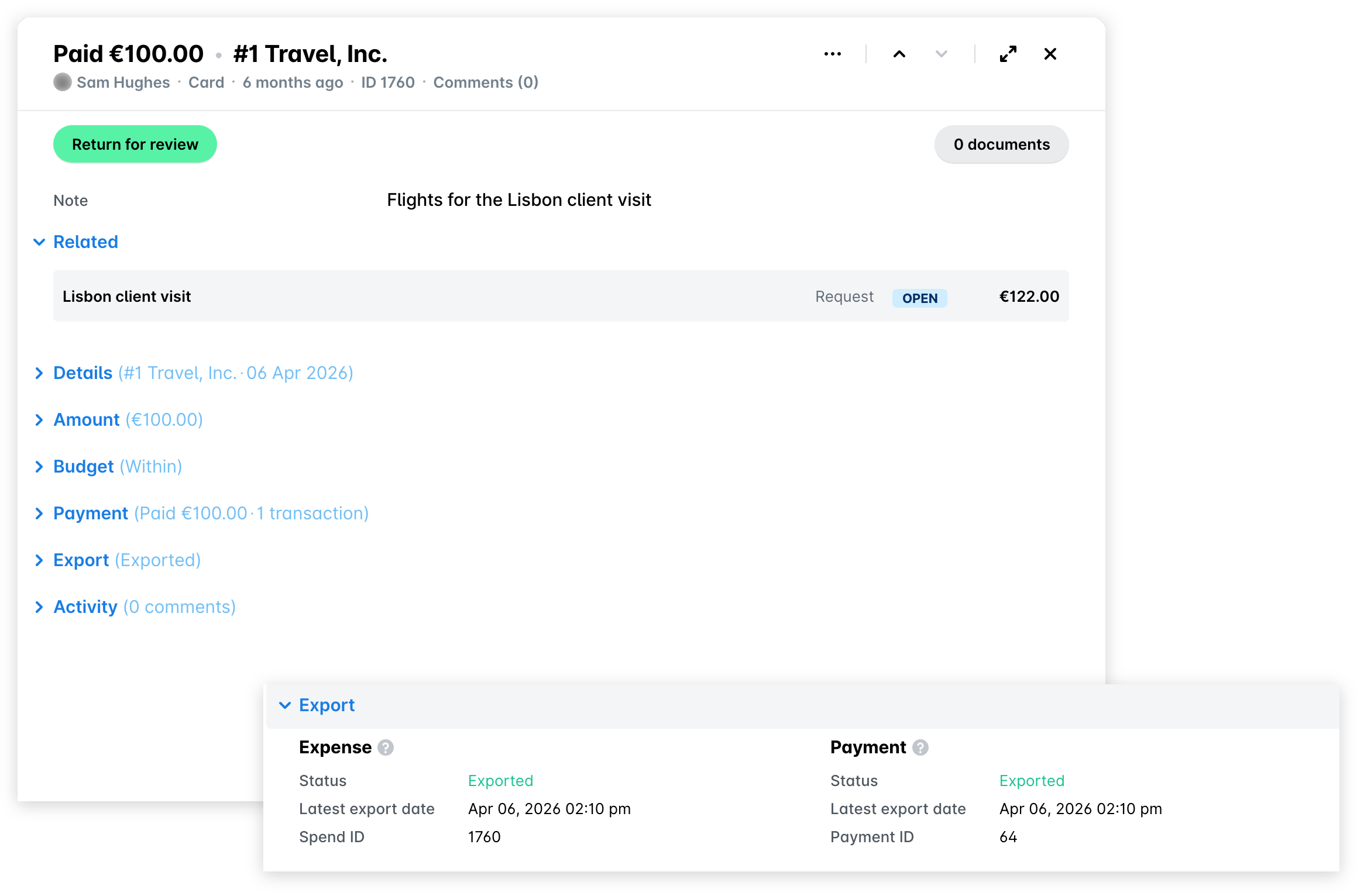
За да прегледате допълнителните данни на експорт – като ERP (счетоводната) система, в която са експортирани данните, външни идентификатори на разхода и плащането, и хипервръзки към експортираните плащания и свързаните такси – задръжте курсора върху иконата ? (въпросителен знак) на разхода.
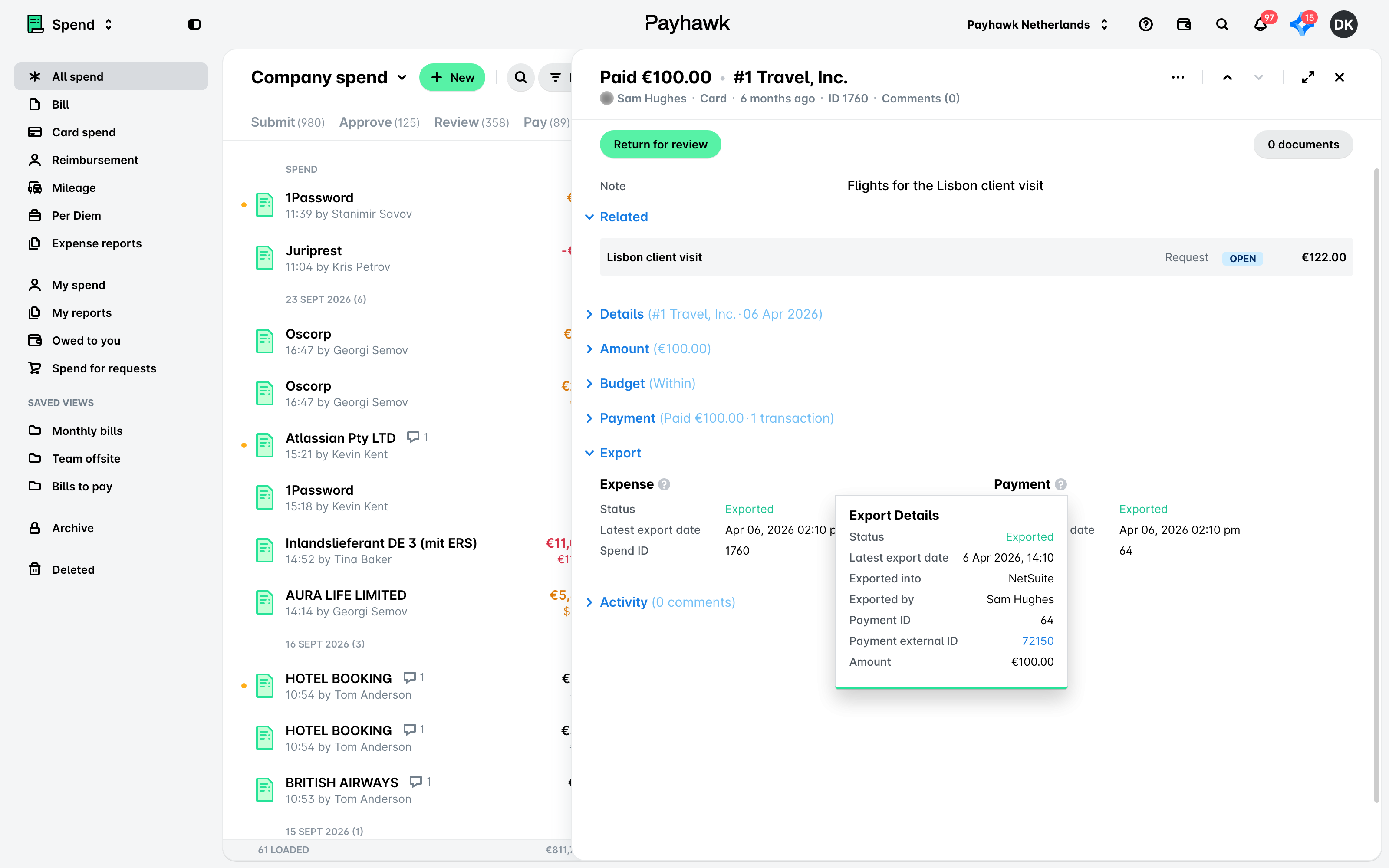
Можете също да прегледате данни за експорта на даден разход – като кога и от кого е бил експортиран – от дневника с историята на разхода.
Полезни ресурси