Администраторите на Payhawk в компанията ви може да са решили да ви поканят в Payhawk чрез SMS.
В такъв случай трябва да изтеглите мобилното приложение на Payhawk на устройството си и след това да следвате стъпките:
Отворете SMS съобщението и натиснете връзката за регистрация. Ще бъдете пренасочени към мобилното приложение на Payhawk (ако вече е инсталирано) или ще бъдете подканени да го инсталирате (ако все още не е).
Създайте парола за акаунта си и натиснете Продължаване. Вижте изискванията за паролата.
Потвърдете (повторете) паролата за акаунта си и натиснете Потвърждаване.
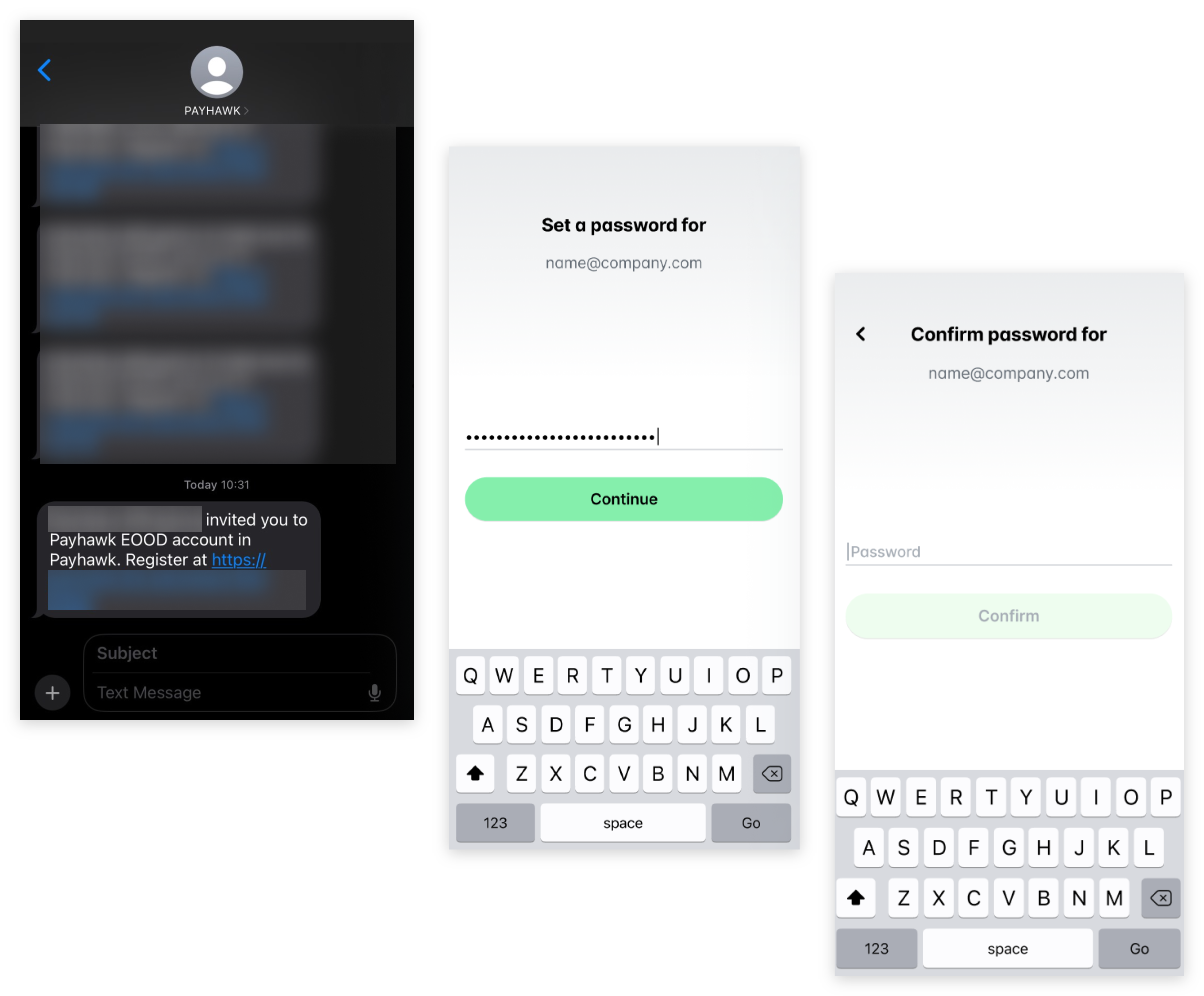
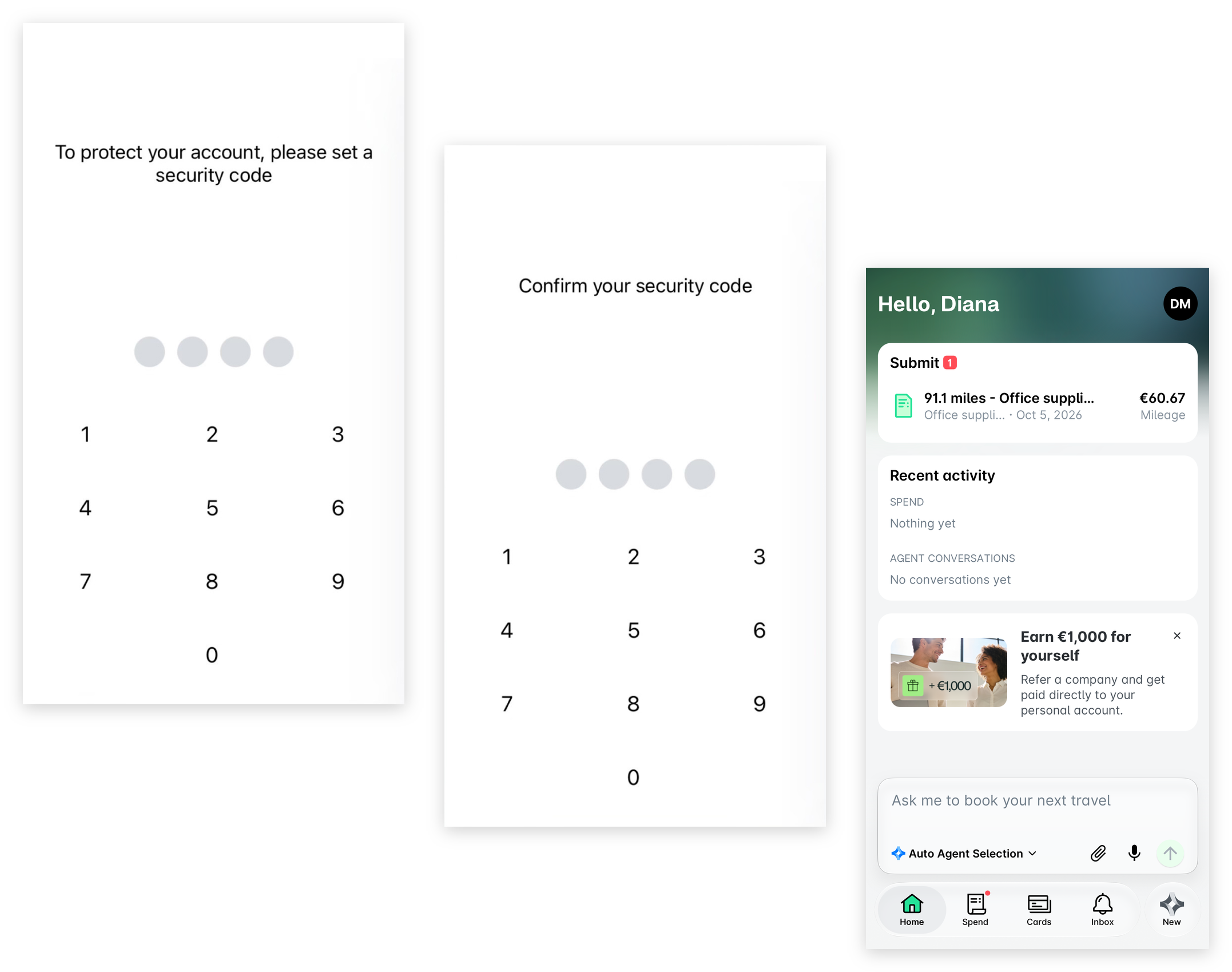
Ако вече имате присвоени карти Payhawk, на следващия екран ще трябва да създадете четирицифрен код за сигурност, който ще защити използването на виртуалните и физическите ви карти.
Автоматично ще бъдете пренасочени към следващия екран. Потвърдете (повторете) кода за сигурност. След това можете да започнете да използвате Payhawk.
Уверете се, че мобилният телефонен номер, свързан с акаунта ви в Payhawk, е винаги актуален – ако е необходимо, можете да актуализирате телефонния си номер.
Полезни ресурси