Error message
Please check that the selected tax code have tax account set in NetSuite.Affected ERP integrations
Oracle NetSuite
Cause
When exporting journals to Oracle NetSuite, if a tax code is selected on the expense, the tax code must have a tax account configured in the ERP. The tax account is automatically set in the journal line during export.
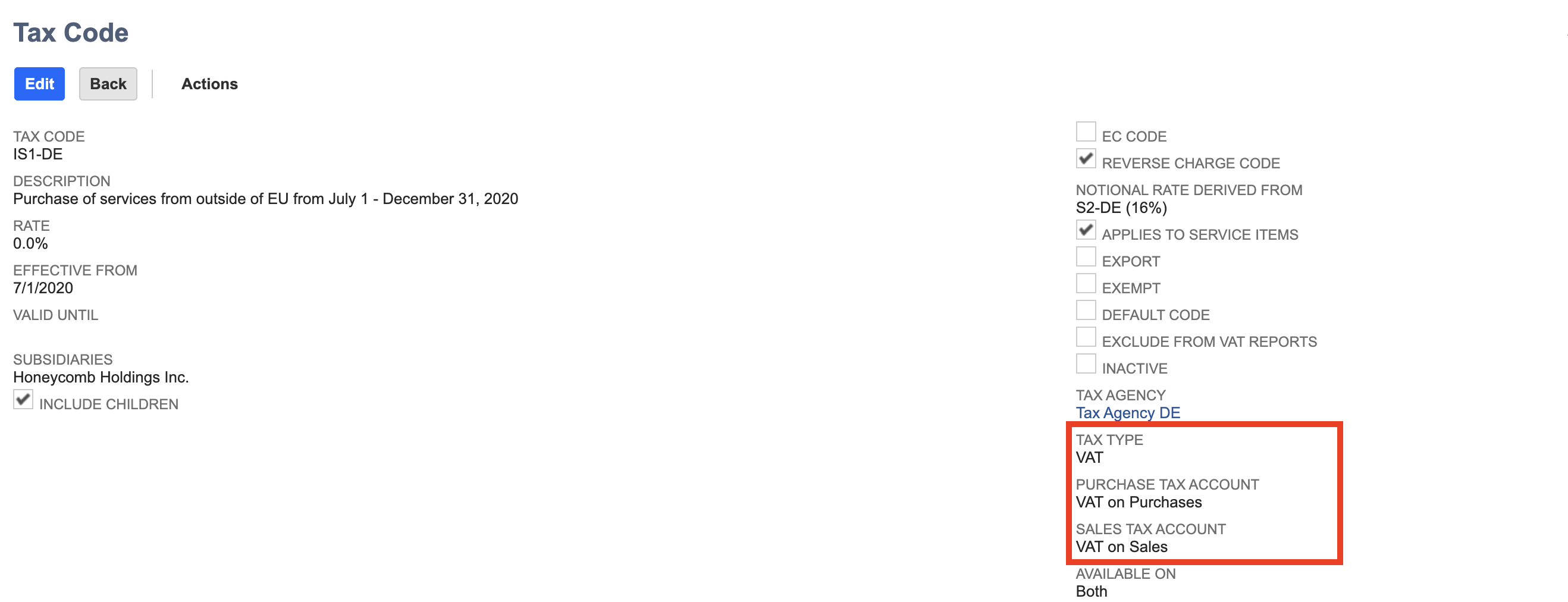
In Oracle NetSuite, the tax account is defined in the tax type associated with the tax code in Tax Code > Tax Type > Tax Account. This error occurs when the tax account is missing from the tax type configuration.
Solution
To resolve this issue, use either of the following approaches.
Set the tax account in Oracle NetSuite
Log in to the ERP.
Navigate to Setup > Accounting > Tax Codes.
Locate the tax code referenced in the error.
Open the associated tax type.
Verify that a tax account is set. If missing, add the appropriate tax account.
Save the changes.
Return to Payhawk and retry the export.
Remove the tax code and tax amount from the expense
In Payhawk, open the expense showing the error.
Remove the tax code and tax amount from the expense line item.
Click on Review to export the expense again.