The integration between the Payhawk and Microsoft Dynamics 365 Finance requires you to properly configure the extension and make sure you are aware of how your data is pushed to the ERP.
Payhawk Parameters page
You set the journals and posting settings on the Payhawk Parameters page in Microsoft Dynamics 365 Finance, not in the Payhawk connection wizard:
Vendor payment journal
General and ledger journals
Deposit journal
Default payment method
Fee account
Tax group
Bank transaction types
You can connect Payhawk before these settings are filled in, but exports to Microsoft Dynamics 365 Finance fail until they are.
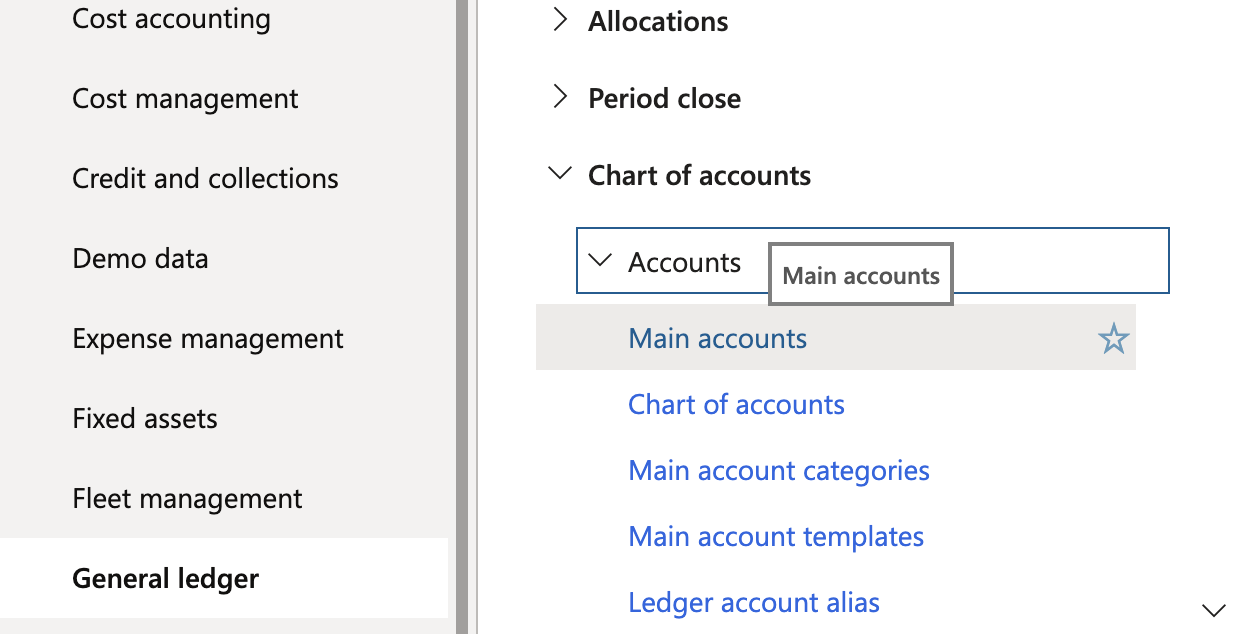
Main accounts
Microsoft Dynamics 365 Finance supports using more than one Chart of Accounts instead of only one static Chart of Accounts. This provides more flexibility as each country can have its own legal and operation requirements. The Chart of Accounts used by a specific entity in Microsoft Dynamics 365 Finance is defined under General Ledger > Ledger setup > Ledger.
The integration between Payhawk and Microsoft Dynamics 365 Finance is set up on an entity level. Payhawk will retrieve the Main Accounts from General Ledger > Chart of Accounts > Accounts > Main Accounts from that respective Chart of Accounts setup for the entity Microsoft Dynamics 365 Finance.
All G/L accounts of all types are synced except for Asset, Liability, and Total.
Purchase journals
The Invoice Journals in Microsoft Dynamics 365 Finance correspond to the purchase journals in other ERPs. The Payhawk extension, deployed in the test environment, includes a configuration that abstracts this for integration. On the Configuration tab of the Payhawk Parameters page, select the Invoice Journal to which the vendor bills will be pushed.
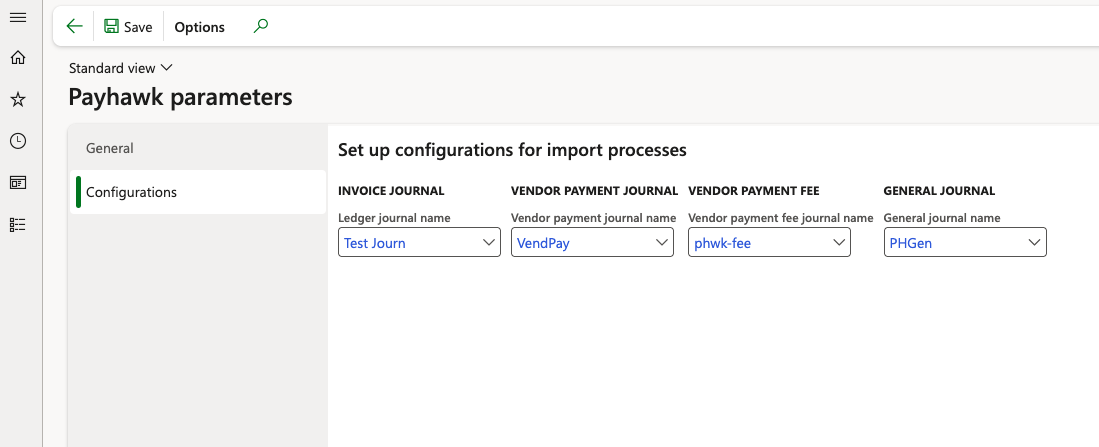
The journals from this menu are filtered out from the Invoice Journals set to the ones with a Journal Type that will be Vendor invoice recording. Amounts include a Sales Tax set to Yes and a Ledger Account Type that is Ledger.
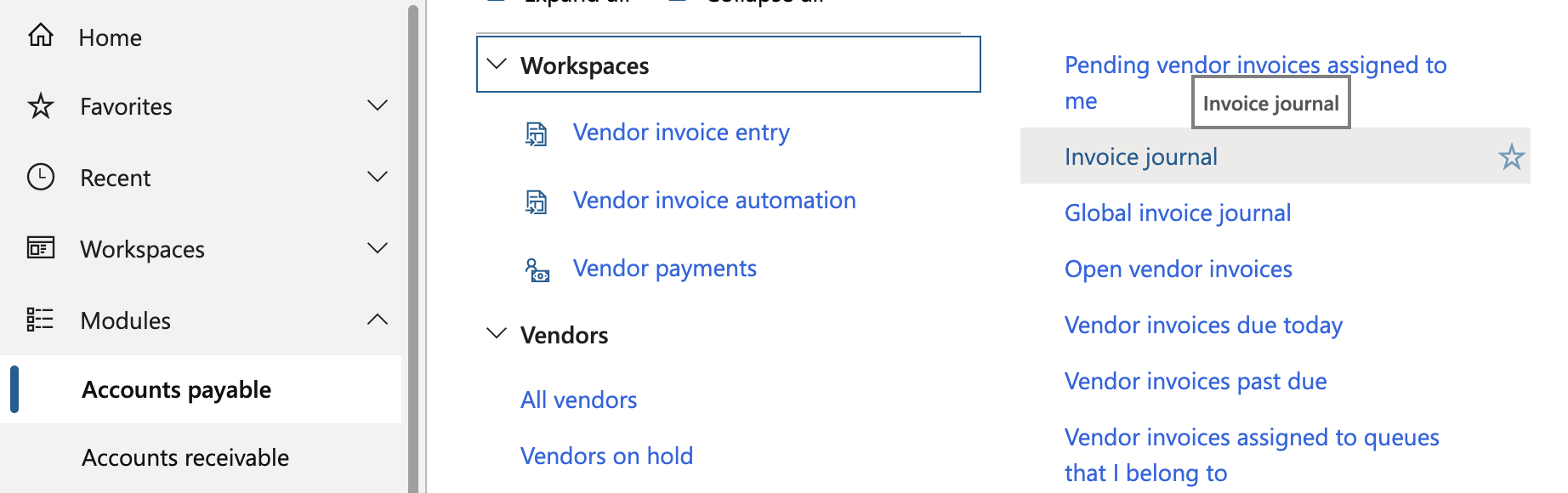
Selecting a journal in the menu is optional, as the extension does not enforce it. The journal can be accessed via Modules > Accounts payable > Invoices > Invoice Journal.
General Ledger journals
Depending on the setup, if you are using the General Ledger, you can post items inside of it as well. When you choose a General Ledger Journal, it will be used for all expenses, payments, and deposits that are coming in Payhawk.
Bank accounts
In the Map Account section of the wizard, you can select bank accounts. If no bank account is chosen, you must select a valid G/L account of type Bank, which will be used to create the actual bank accounts during the initial connection.
Accounts automatically created by Payhawk on behalf of your company have this setting enabled by default. If you select an account without this setting enabled, Payhawk will display an error for you to resolve.
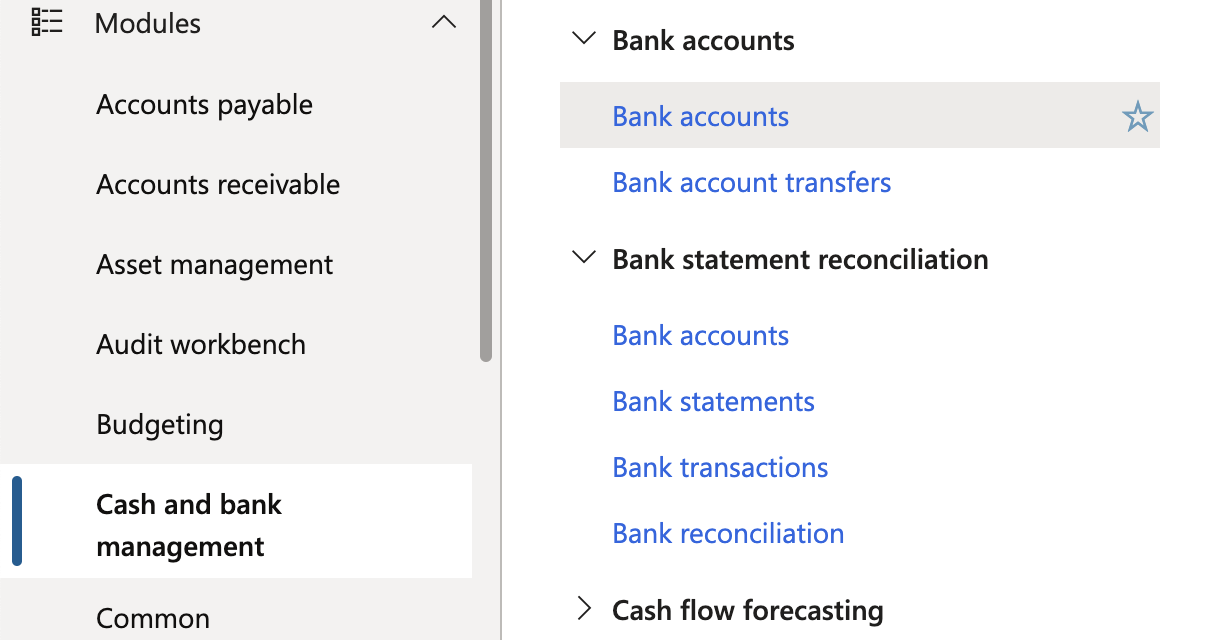
You can view the list of bank accounts under Cash and Bank Management > Bank Accounts.
Purchase invoices
Purchase invoices are pushed to two custom endpoints exposed by the Payhawk extension:
data/DGT_VendInvJournHeadersdata/DGT_VendInvJournLines
The data/DGT_VendInvJournHeaders endpoint generates a journal batch number, which is then used to link expense line items to a single record.
The MainAccount contains information about the category to which the purchase is allocated. The vendor’s A/P G/L account is automatically determined by the extension based on the VendorName property in the payload.
Financial Dimensions in Microsoft Dynamics 365 Finance, which correspond to custom classifications in other ERPs, are applied to line items by using the DefaultDimensionDisplayValue, formatted as a dash-separated sequence. This sequence is configured in the extension under General > Dimensions, with the default order being Business Unit > Cost Center > Department.
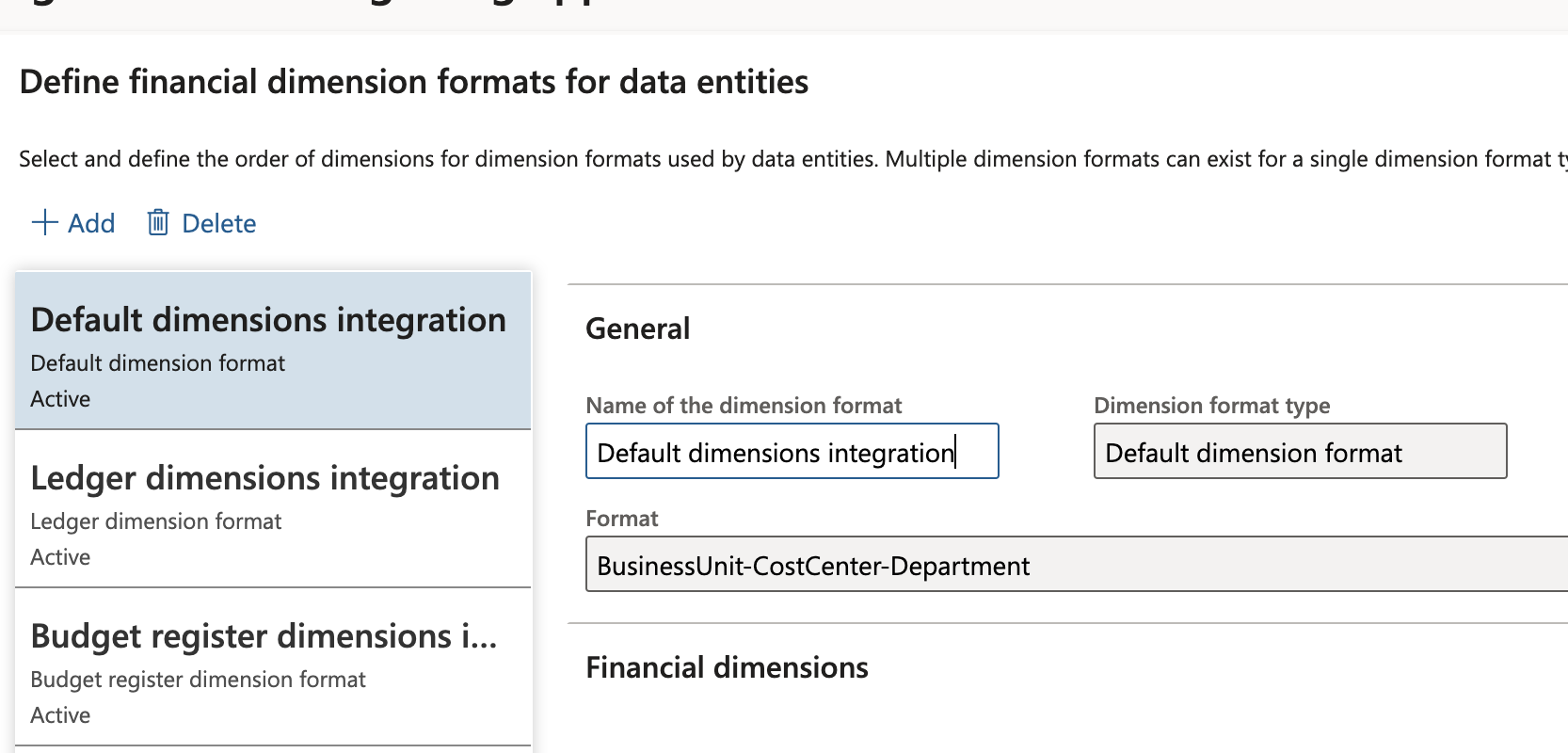
The integration service does not dynamically resolve the dimension sequence. Modifying this sequence in the system will result in an error.
The pushed entries can be found in the Invoice Journal under Modules > Accounts payable > Invoices > Invoice Journal.
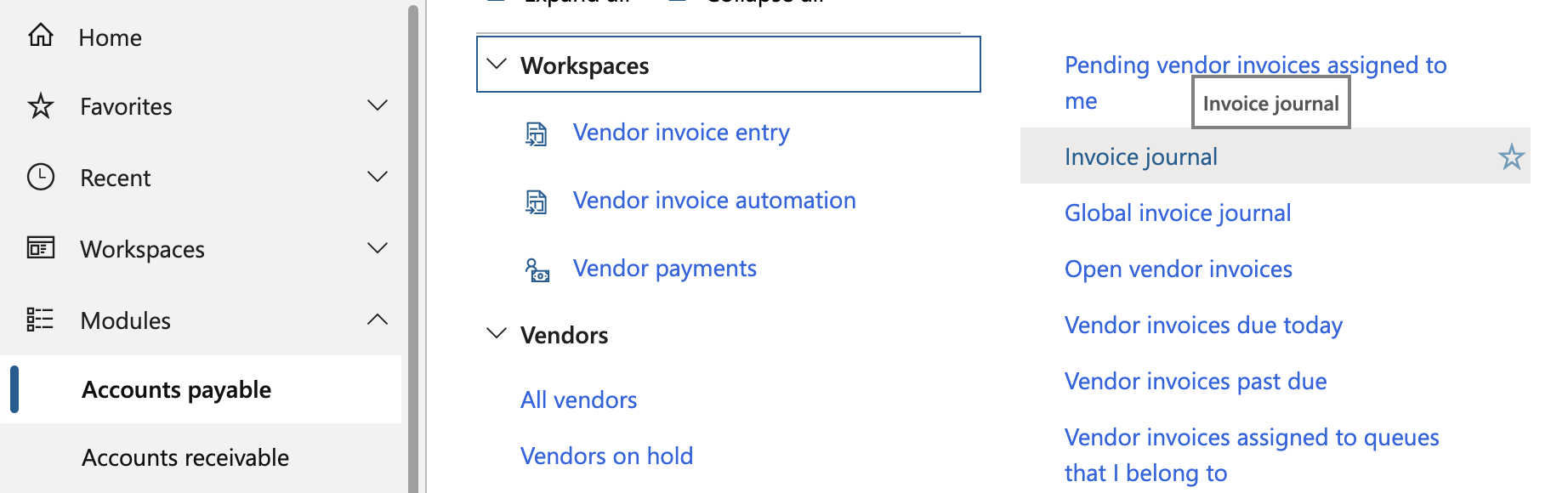
The purchase invoice record does not support binary uploads of attached invoice documents. Instead, you can specify a reference URL for the document using the
DocuUrlproperty in the payload.
Payments
Depending on your setup, payments can be pushed to the Payment Journal or to the General Ledger Journal, which are selected in the Payhawk extension under Configuration. Fees aren't recorded in a separate journal. Payhawk books them to the fee account, using the bank transaction type set on the Payhawk Parameters page.
Similar to expense entries, payment records are processed through two endpoints:
DGT_VendPaymJournHeaders- Generates a journal batch number used as a reference for the payment.DGT_VendPaymJournLines- Records the payment details.
The BankAccount field specifies the bank account using its code. The supplier is identified by using the VendName and/or TaxExemptNumber (the supplier VAT number in Payhawk). The extension automatically resolves the supplier’s A/P G/L account and applies it to the record.
VAT (tax) rates
Typically, tax is applied in Payhawk by selecting the appropriate VAT code from the drop-down menu in Spend.
However, in Microsoft Dynamics 365 Finance, the actual tax rate (Tax Code) is determined by the intersection of the Sales Tax Group and Item Sales Tax Group values. In most cases, only one tax code is available in both groups, and that code is applied. If multiple tax codes exist, the system selects the first one from the list.
If Microsoft Dynamics 365 Finance is properly configured, the system will automatically apply the following values:
Sales Tax Group - Set based on the selected supplier.
Item Sales Tax Group - Determined by the Offset account or G/L account group associated with the G/L account mapped to the category.
Next steps