Before connecting Payhawk to Microsoft Dynamics 365 Finance, the deployable extension package has to be installed on the ERP test environment by the Microsoft team. Payhawk provides the deployable package (.zip file). Install it on your sandbox environment first, then on production.
Installing the extension
To deploy the Payhawk extension for Microsoft Dynamics 365 Finance in a live environment, you can install it over Microsoft Lifecycle Services.
Select the project to which the Payhawk extension will be deployed.
Open the contextual menu and click on Asset Library.
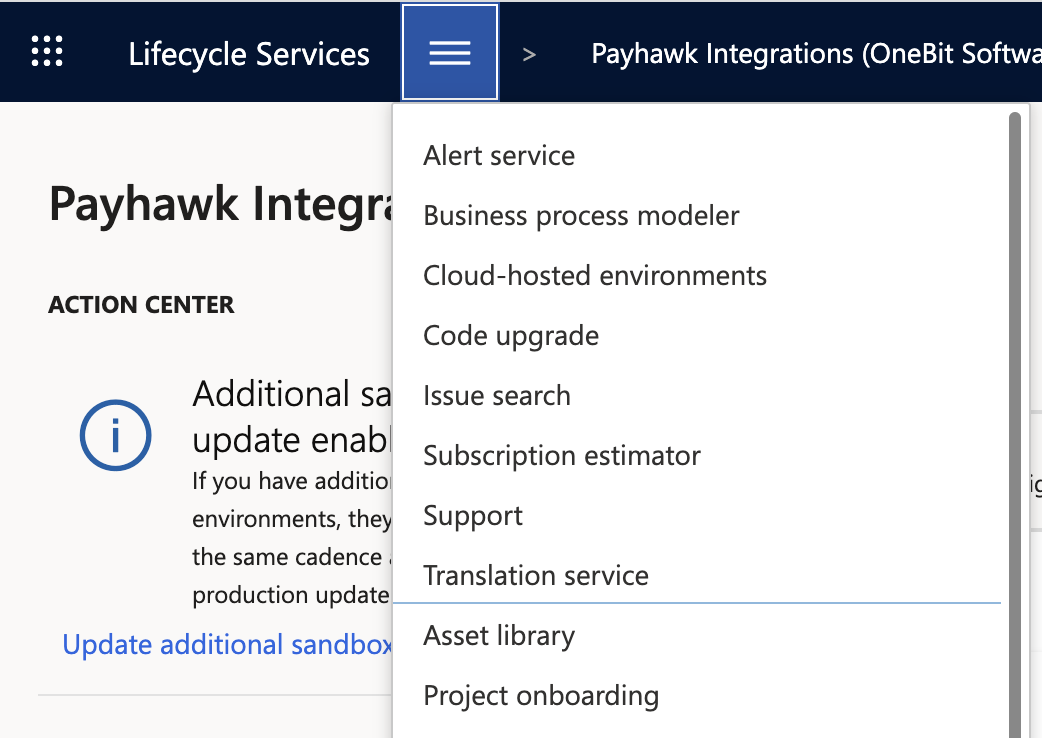
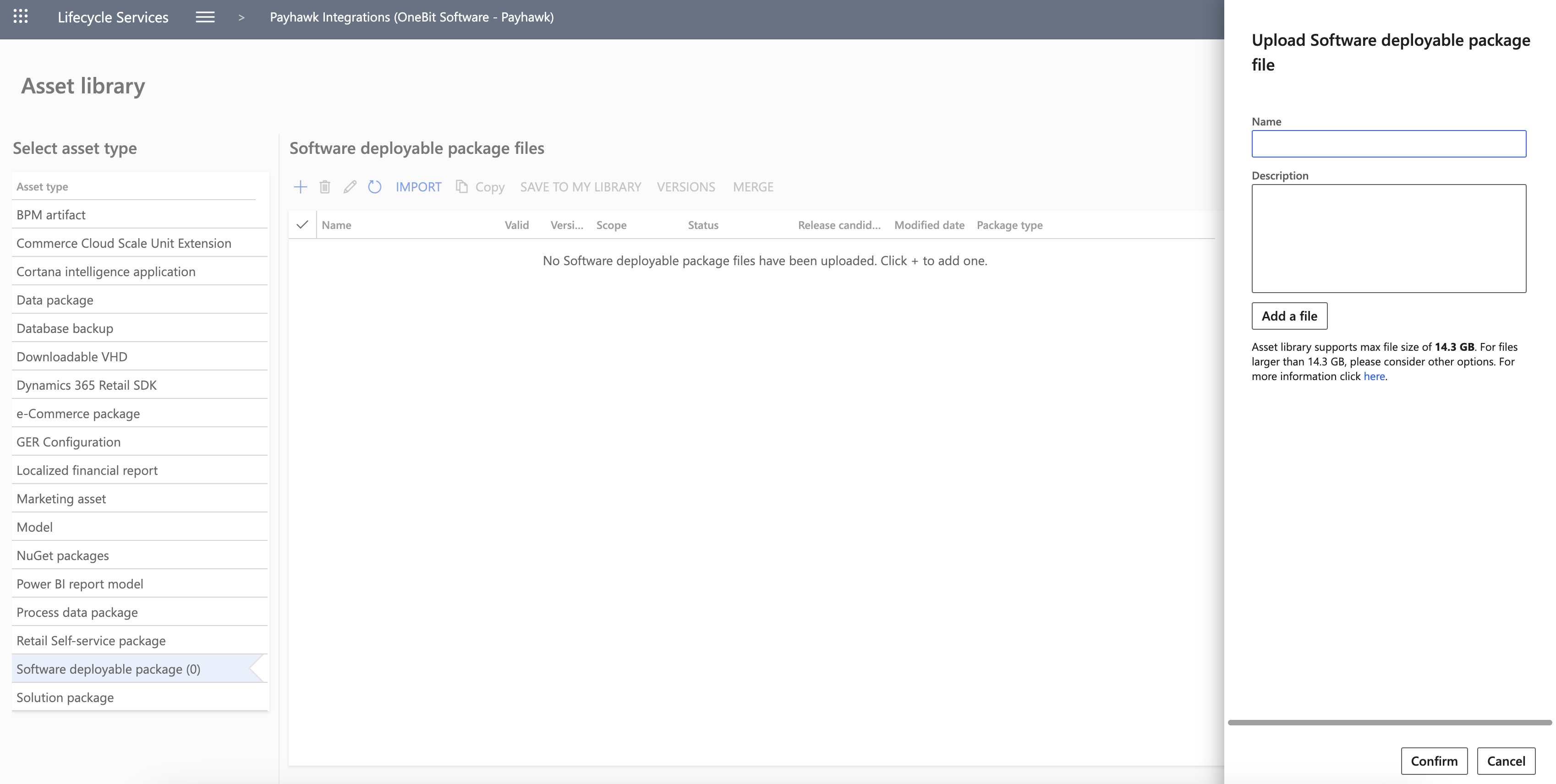
In Asset Library, select the Software Deployable Packages option. On the next screen, you will see a list of the deployable packages that can be loaded into the Microsoft Dynamics 365 Finance instance.
If the package is missing, click on the + (plus) sign, fill in the name of the package you want to install, add a brief description, and click on Add a file. In the dialog that opens, upload the deployable (.zip) package into Asset Library.
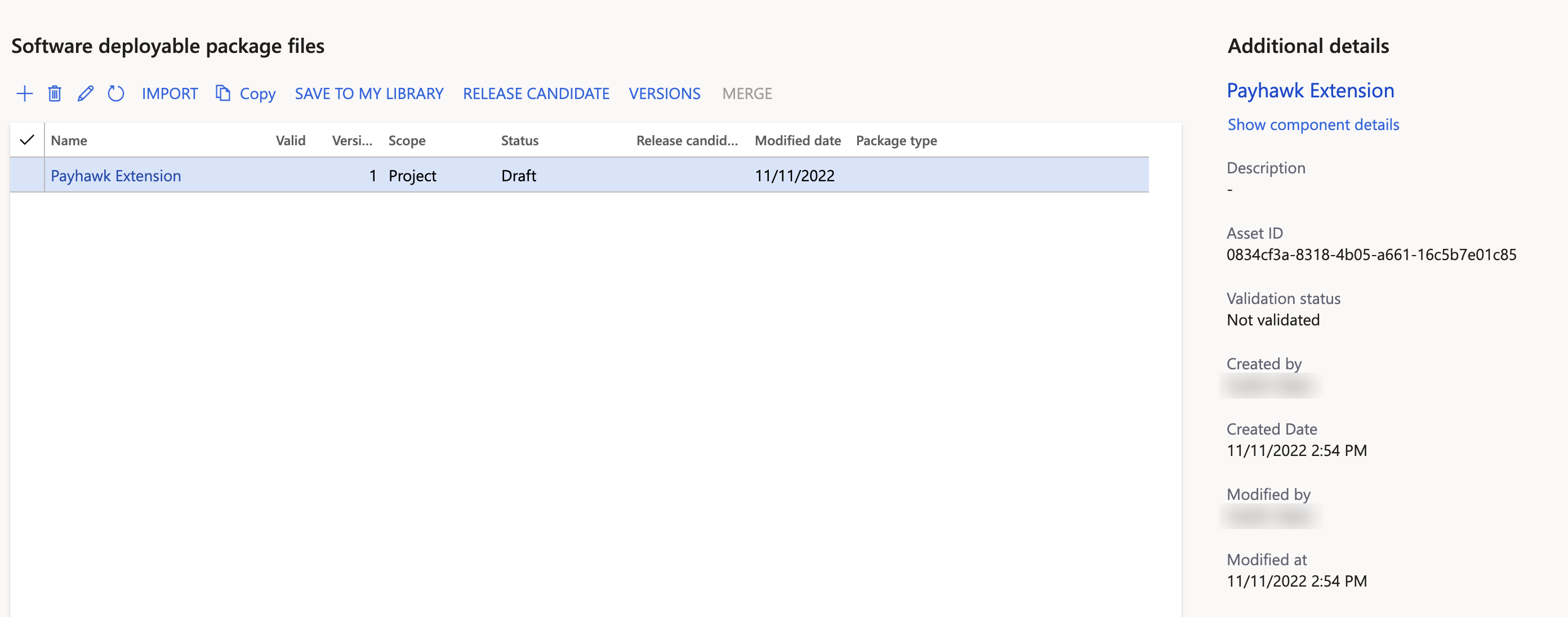
Once the deployable package of the extension is uploaded, it will appear in the list of deployable package files under a Draft status. Select the package by checking the checkbox next to the package name and click on Release Candidate. As a result, the status of the package will be changed, and it will become available for installation in the Microsoft Dynamics 365 Finance instance.
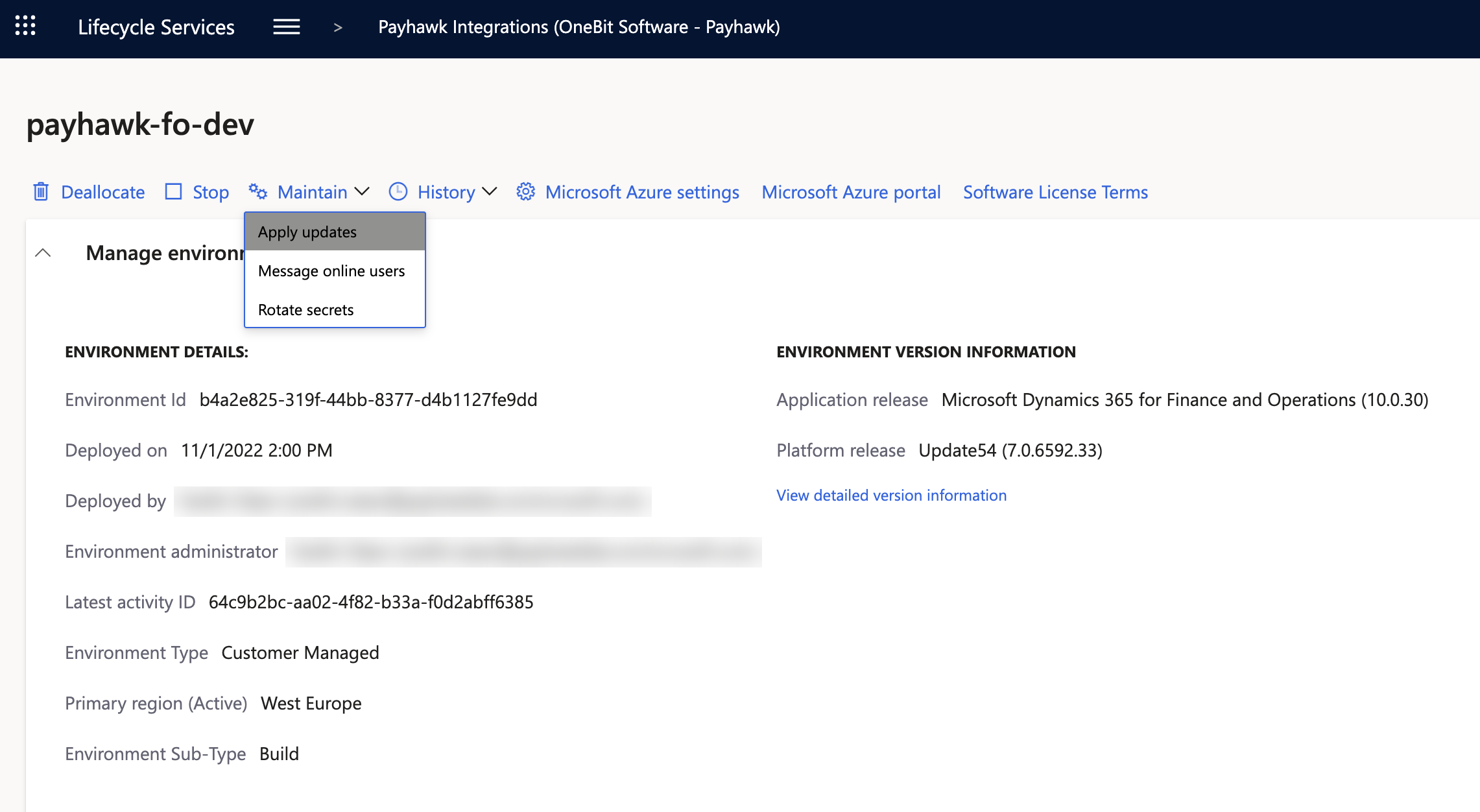
From the top menu, select Cloud-hosted Environments, choose the machine on which the Microsoft Dynamics 365 Finance instance is located, and click on Full Details.
On the next screen, select Maintain > Apply Updates. As a result, a list of the available updates for the instance will appear in an overlay to the right.
Select the Payhawk extension. If the list is too long, use the Filter option. Click on Apply and wait for the installation of the extension to be completed.
To check whether the extension is loaded, go to the Payhawk Parameters page in the Microsoft Dynamics 365 Finance URL as follows:
https://[TENANT_ID].axcloud.dynamics.com/?cmp=[DIVISION]&mi=DGT_PayhawkParametersAs a result, you'll see the following options form:
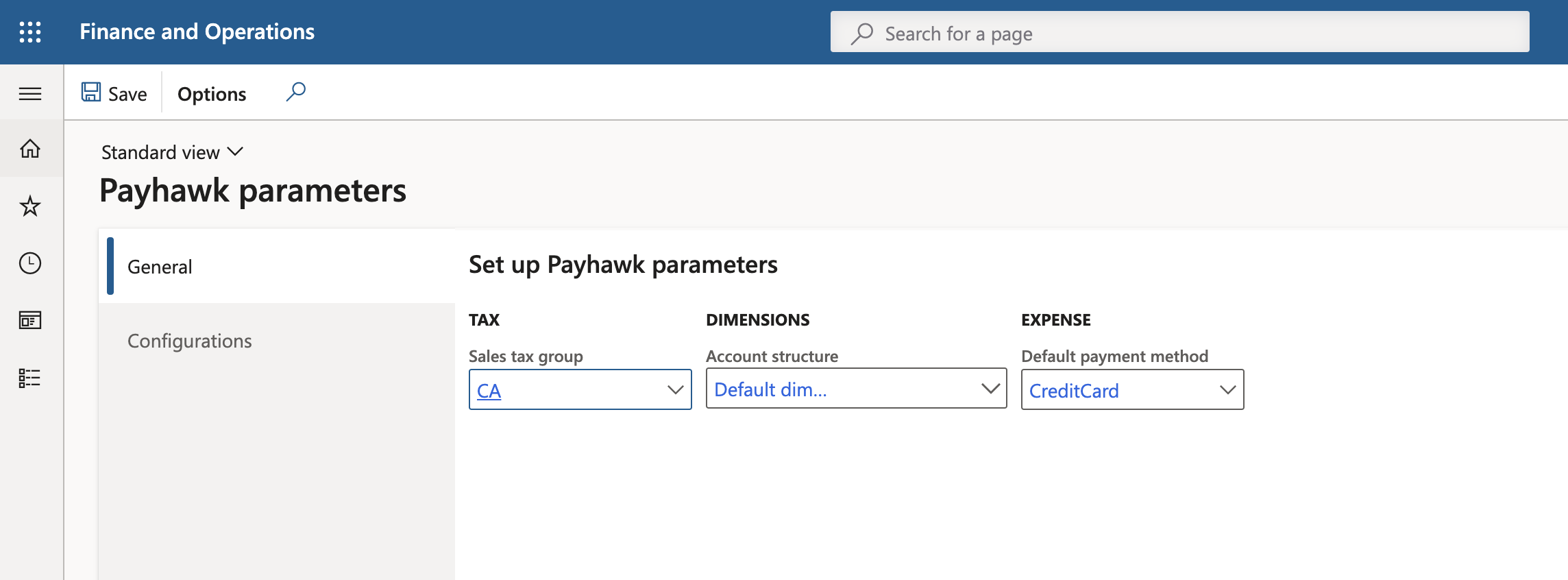
Fill in the journals and posting settings on this page before you export from Payhawk. Exports to Microsoft Dynamics 365 Finance fail until you do. For more information, see configuring the Payhawk extension.
Deploying the extension for the test environment
The deployment of the Payhawk extension in a test environment is performed directly onto the VirtualBox that has been provisioned with Microsoft Dynamics 365 Finance.
Copy the source code of the extension in the Microsoft Dynamics 365 Finance PackagesLocalDirectory folder in AosService in the service volume of the box.
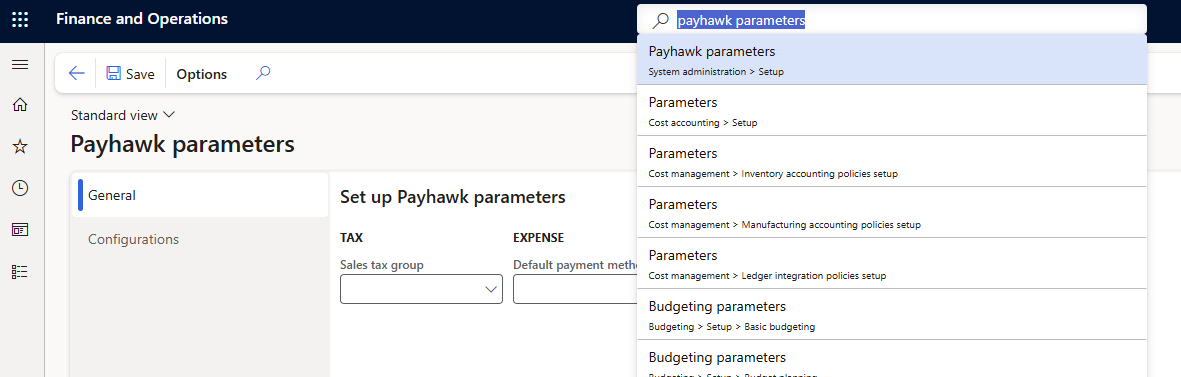
After the source code is added as a subfolder in the Models folder, copy the Solution Project into the Documents folder of the box and launch it with Visual Studio as an Administrator.
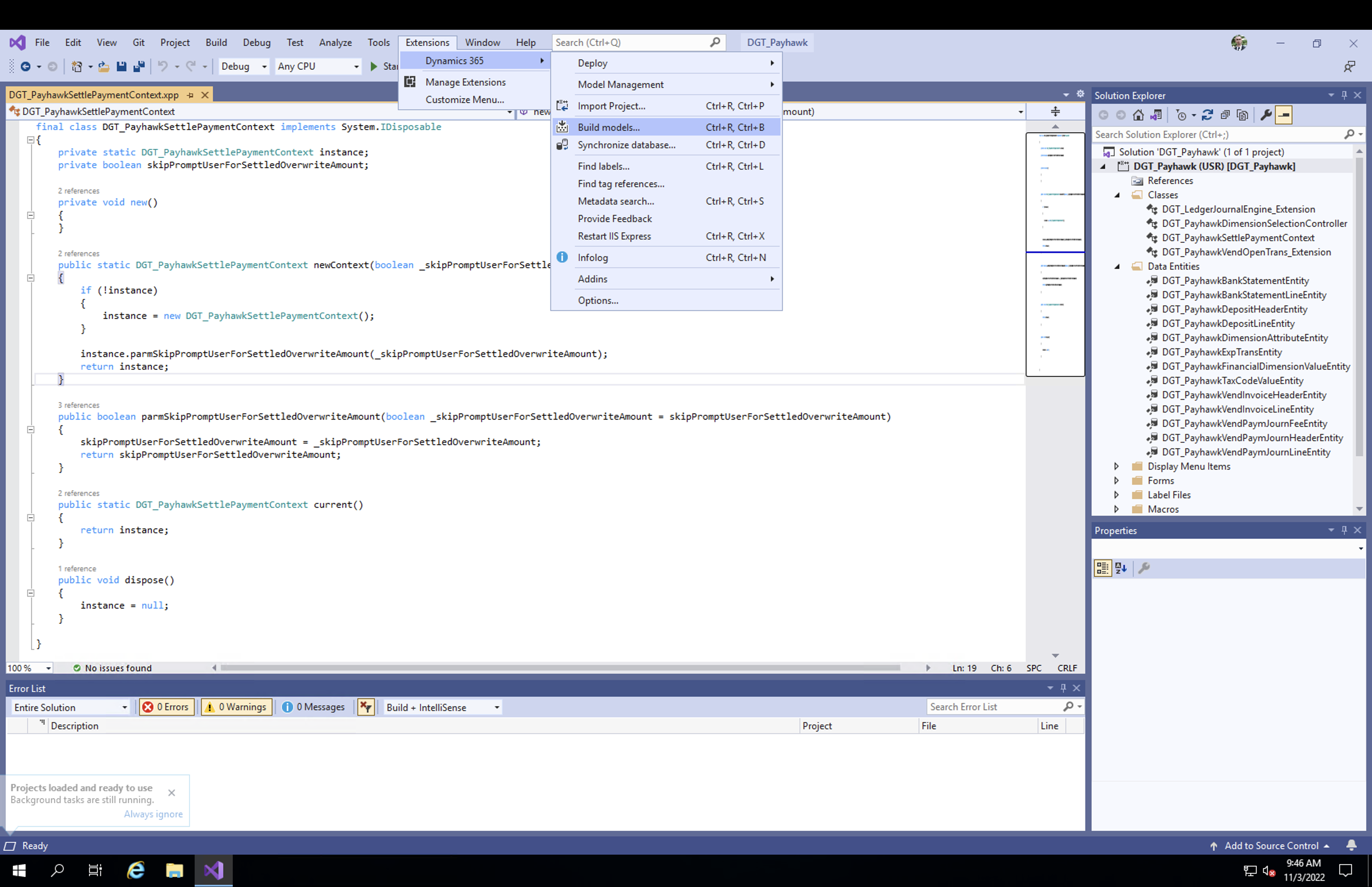
Once the project is launched, compile the models from Extensions > Dynamics 365 > Build Models. After the project is compiled, the service will be automatically restarted, and the Payhawk extension will be available in Microsoft Dynamics 365 Finance.
Your IT team doesn't need to create an app registration in Azure. Payhawk connects through its own Azure application. If your tenant doesn't allow users to consent to third-party apps, a Microsoft Entra administrator approves the Payhawk application once, when the account signs in during the connection. For more details, see configuring roles and permissions for the Payhawk-D365 Finance integration.
Next steps