As a Payhawk administrator, you can enable or disable expense reports for your employees and also edit the settings of the expense report type from the Payhawk Web Portal.
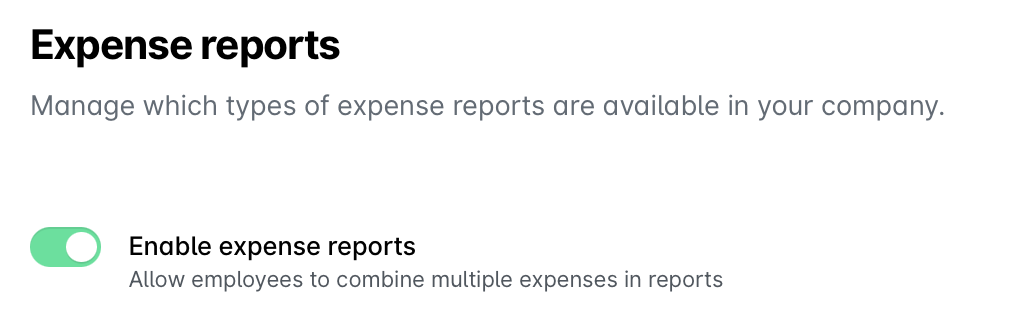
Enabling expense reports
To allow your employees to submit expense reports:
In the Payhawk Web Portal, open the app switcher in the top-left corner and go to Settings, then select Expense reports.
Switch on the toggle.
Editing report type settings
You can edit the report type settings in the following way:
Open the app switcher in the top-left corner and go to Settings, then select Expense reports, and select the desired report type.
Under Report fields, you can:
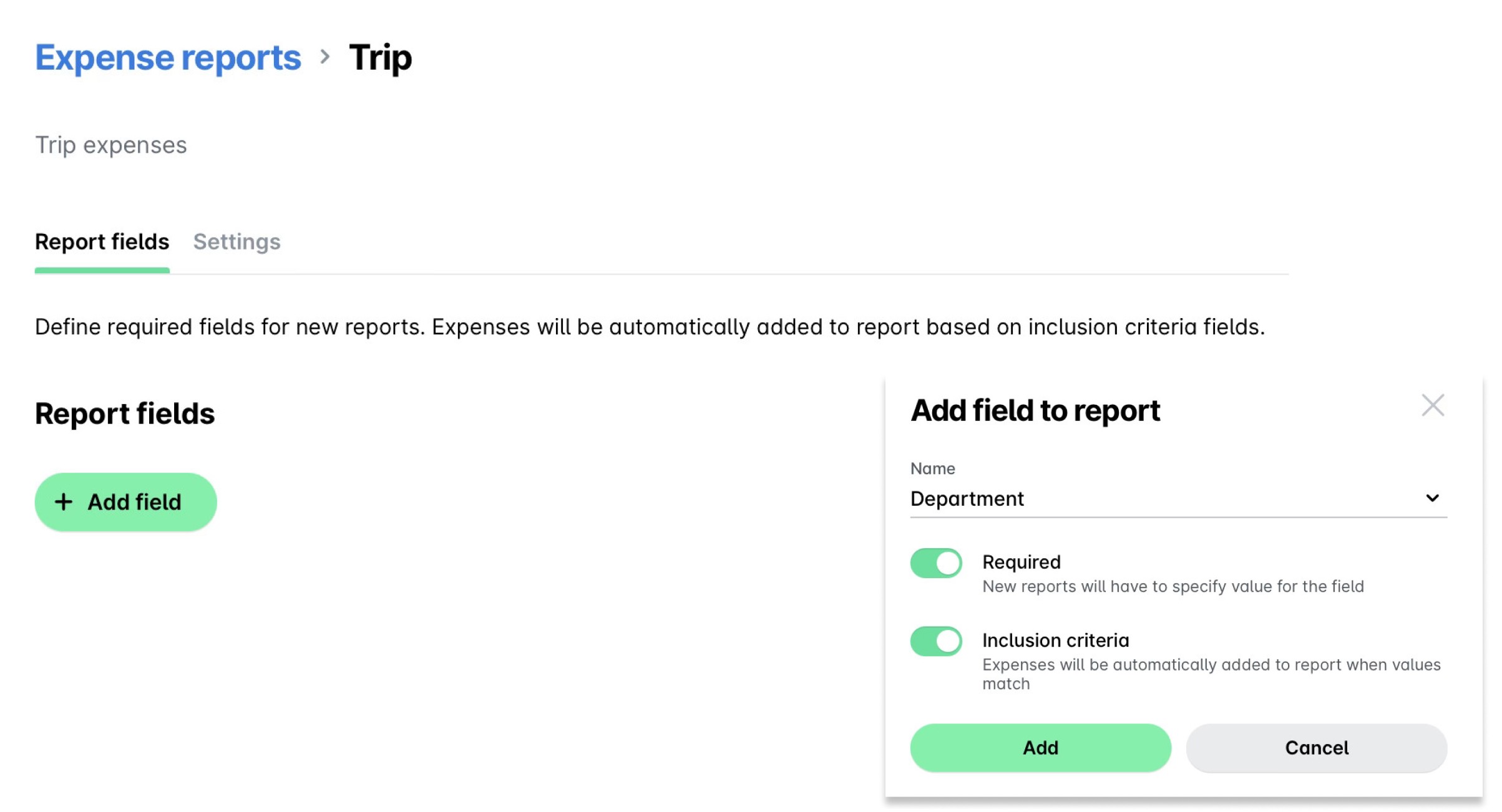
Add a new field:
Click on Add field.
Select a name.
Configure which roles can create expense reports.
Define the fields that Payhawk will use to automatically match expenses to the report.
Click on Add.
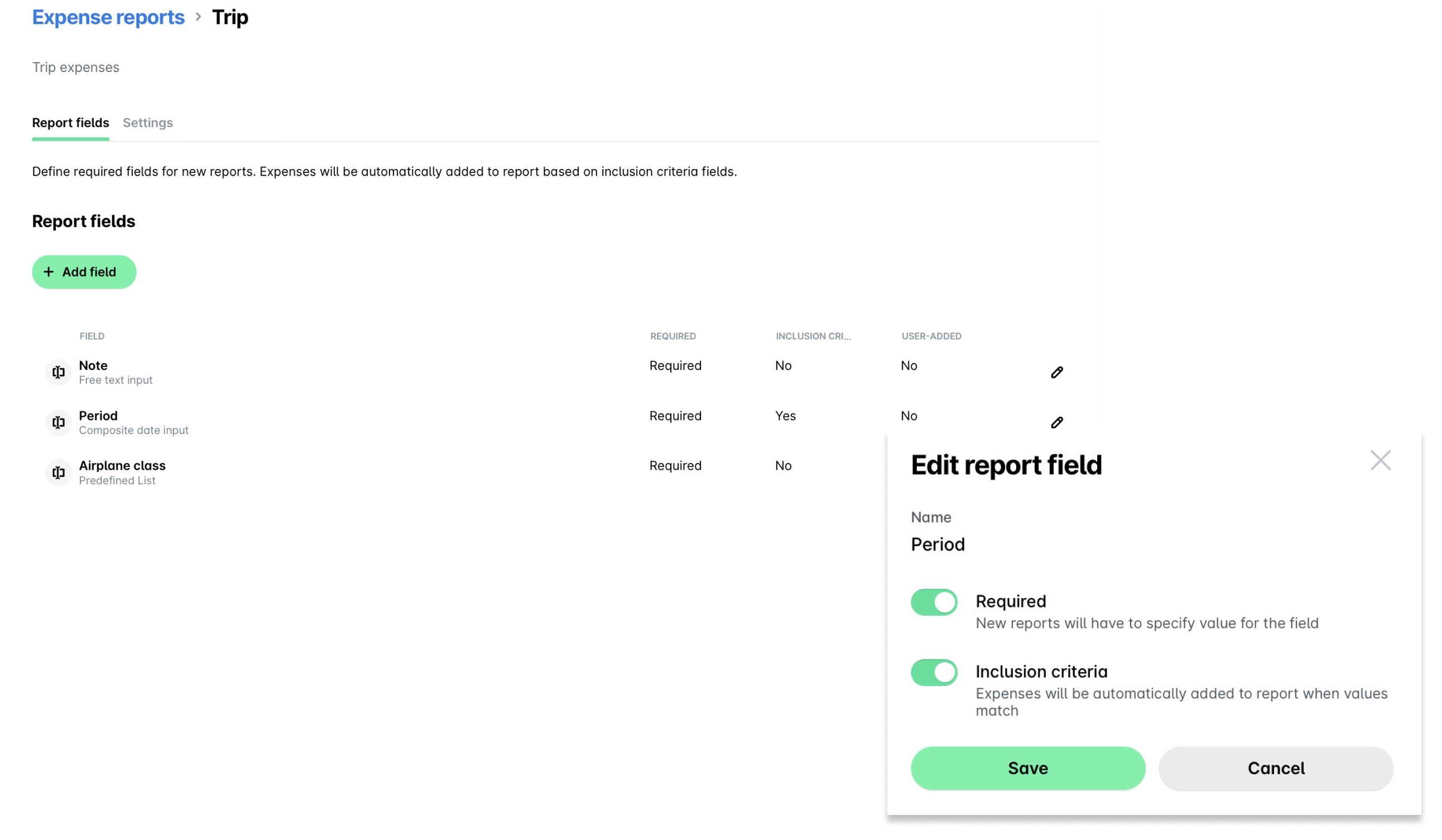
Edit an existing field:
Click on the Edit icon (pencil) of the desired field.
Update the available options.
Click on Save.
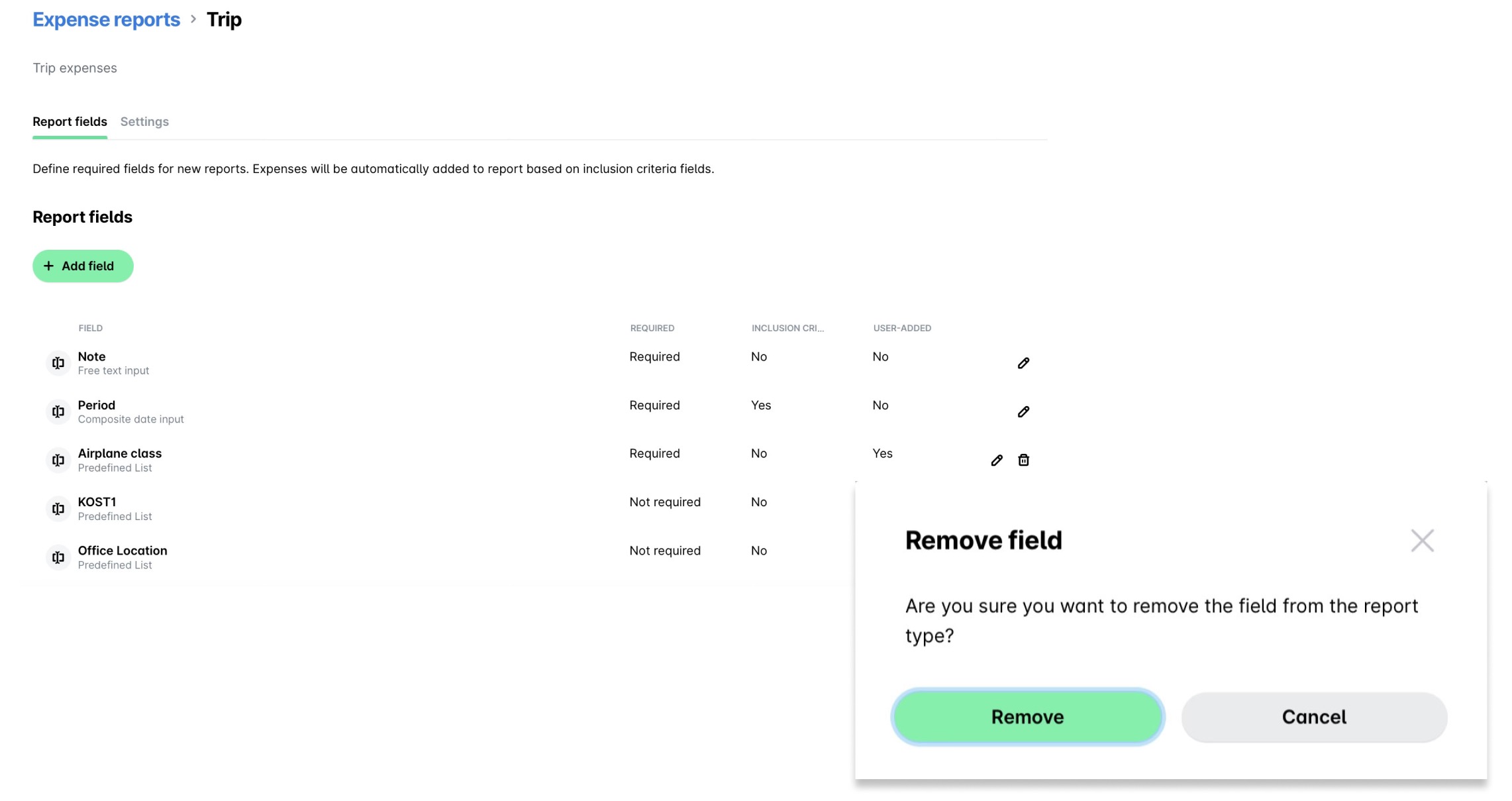
Remove a field:
Click on the Delete icon (trash) of the desired field.
In the dialog that opens, click on Remove to confirm the deletion.
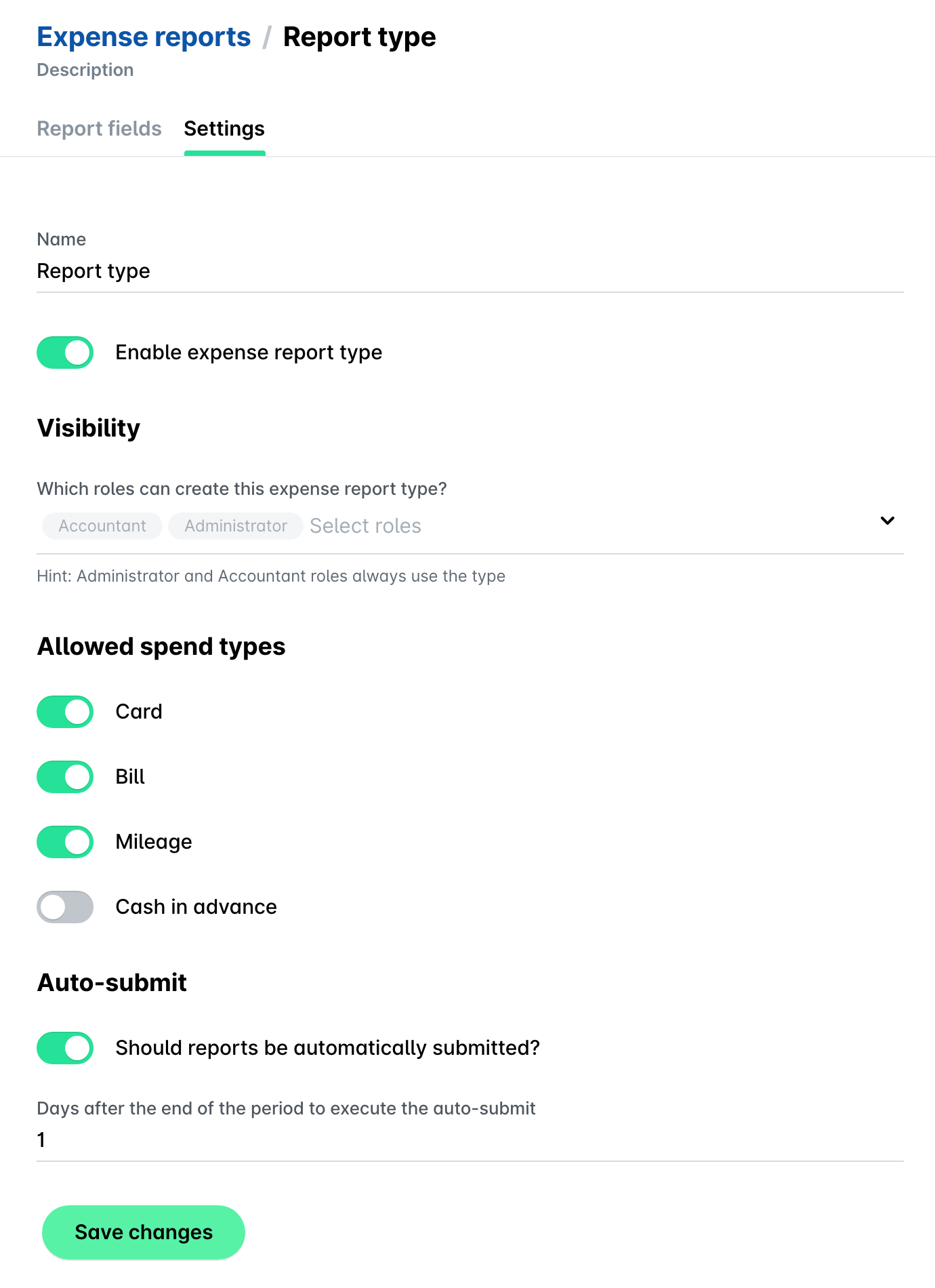
Under Settings, you can:
Update the report visibility:
Under Visibility, select from the drop-down list the desired roles which can create the chosen expense report type.
Enable the allowed spend types:
Under Allowed spend types, switch on the toggle buttons for the spend types that employees can add to the report.
Configure the automated report submission:
Under Auto-submit, use the toggle button to enable or disable automatic submission of expense reports and enter the number of days after the end of the reporting period when the report must be automatically submitted.
Click on Save changes.
Adding expense report types
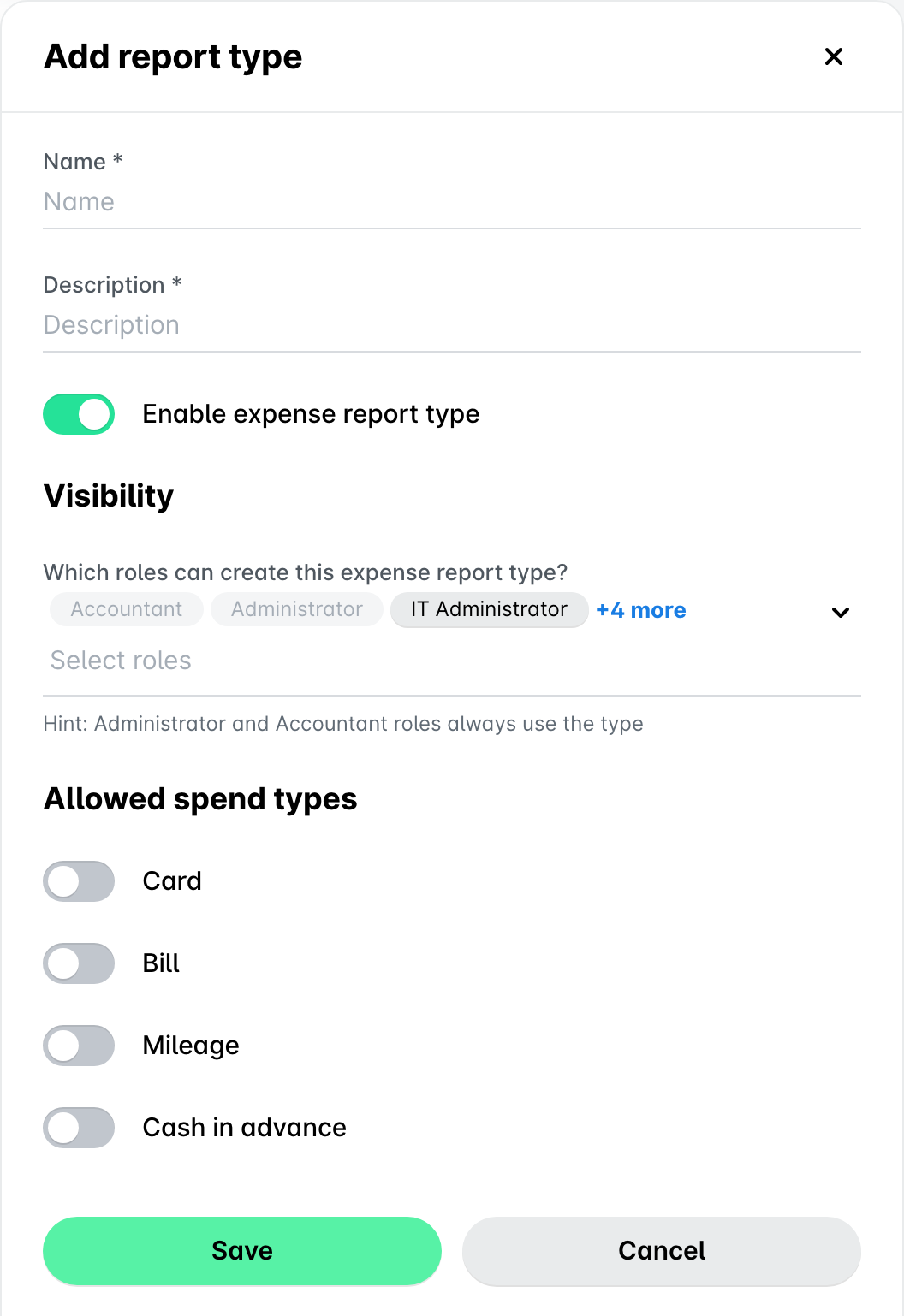
As a Payhawk Administrator, you can add expense report types in the following way:
Open the app switcher in the top-left corner and go to Settings, then select Expense reports.
Click on + Add type.
In the dialog that opens, define the following report settings:
Name
Description
Visibility
Allowed spend types
Click on Save to add.
Deleting expense report types
An expense report type can only be deleted if no expense reports have been created for that type.
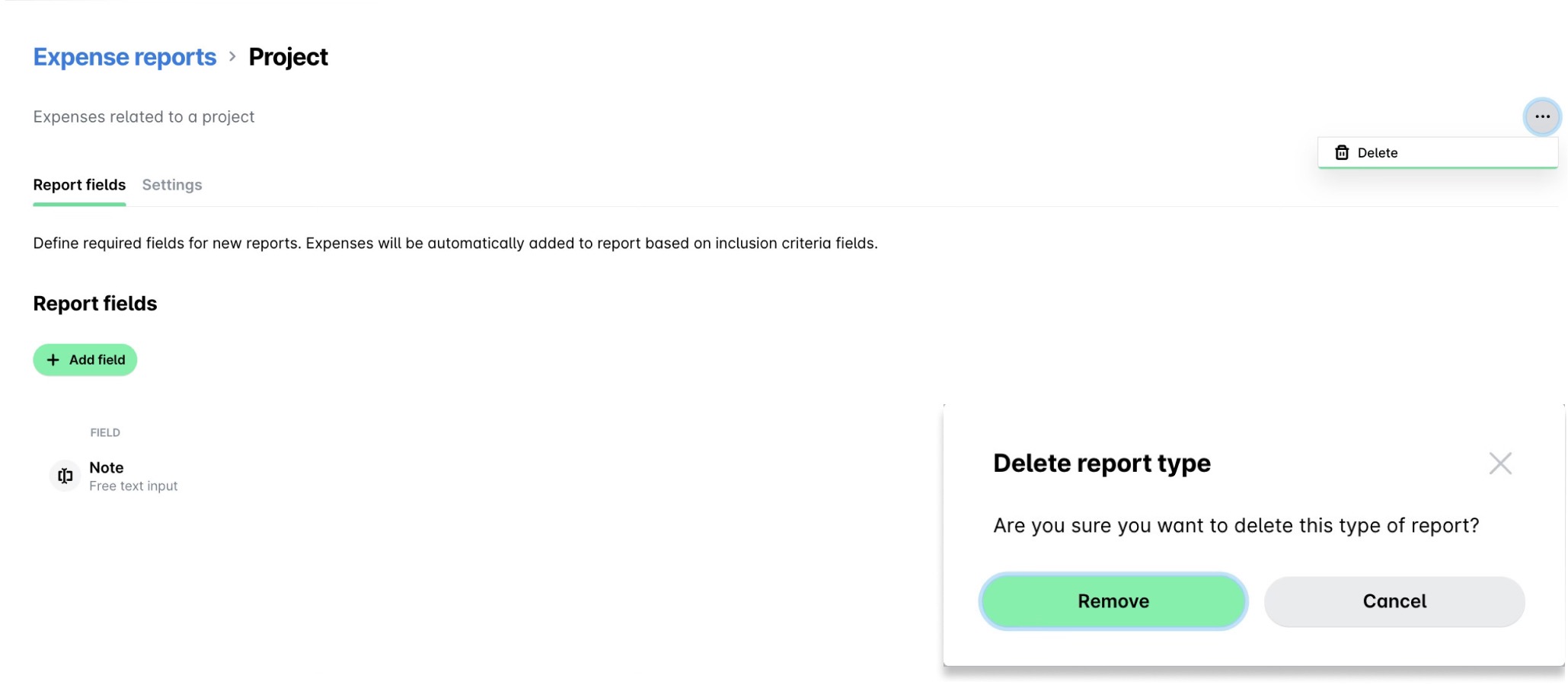
As a Payhawk Administrator, you can remove an expense report type:
Open the app switcher in the top-left corner and go to Settings, then select Expense reports.
Select the report.
Click on its three-dot menu and select Delete.
In the dialog that opens, click on Remove to confirm the deletion.
Useful resources