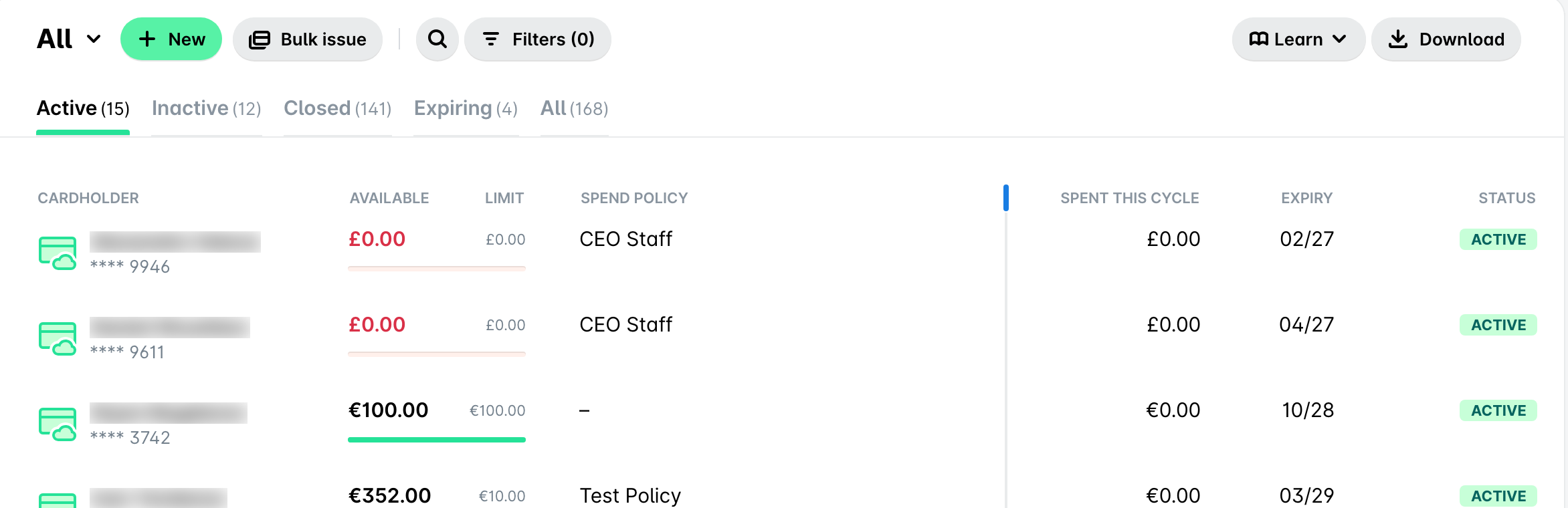
El portal web de Payhawk muestra las tarjetas de tu empresa en la aplicación Tarjetas mediante una tabla de datos que puedes adaptar a tus necesidades. Puedes ordenar las tarjetas por cualquier columna, añadir o eliminar columnas, cambiar su tamaño y reordenarlas, así como guardar tu diseño preferido como una vista para volver a utilizarlo la próxima vez que abras la aplicación.
Ordenar las tarjetas
Para ordenar las tarjetas por una columna:
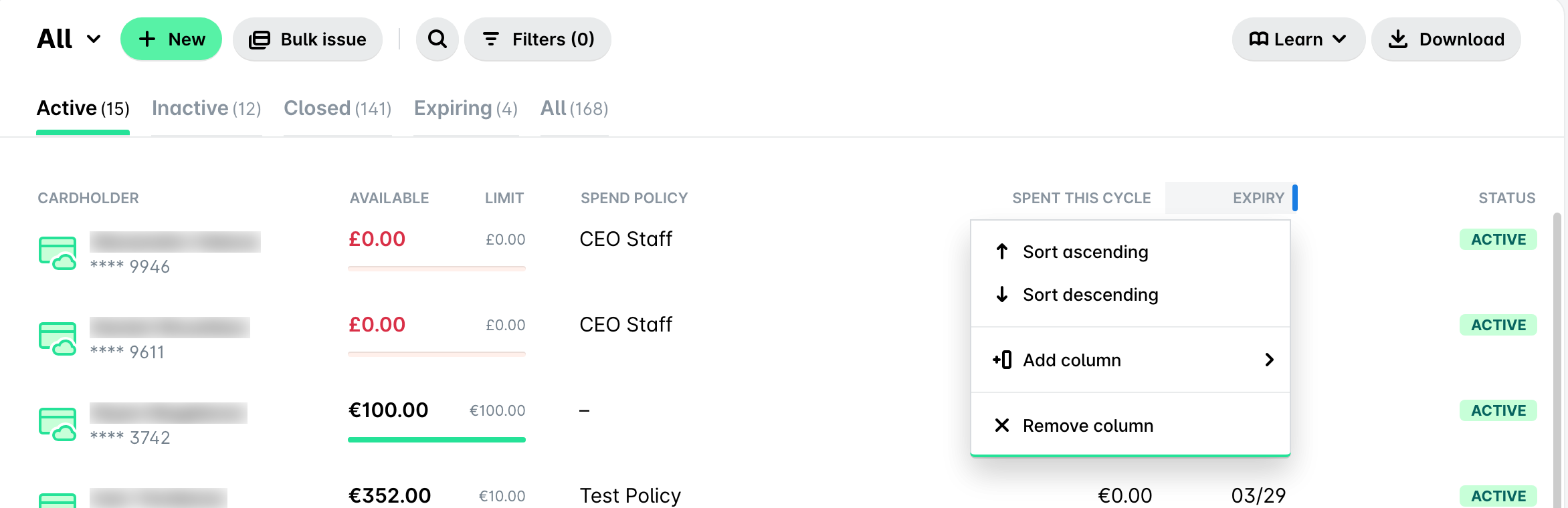
Haz clic en el encabezado de la columna por la que quieras ordenar las tarjetas, por ejemplo, Caducidad.
Selecciona Ordenar ascendentemente u Orden descendente.
Para quitar la ordenación, haz clic en el encabezado de la columna y selecciona Borrar ordenación.
Añadir columnas
Para añadir una columna:
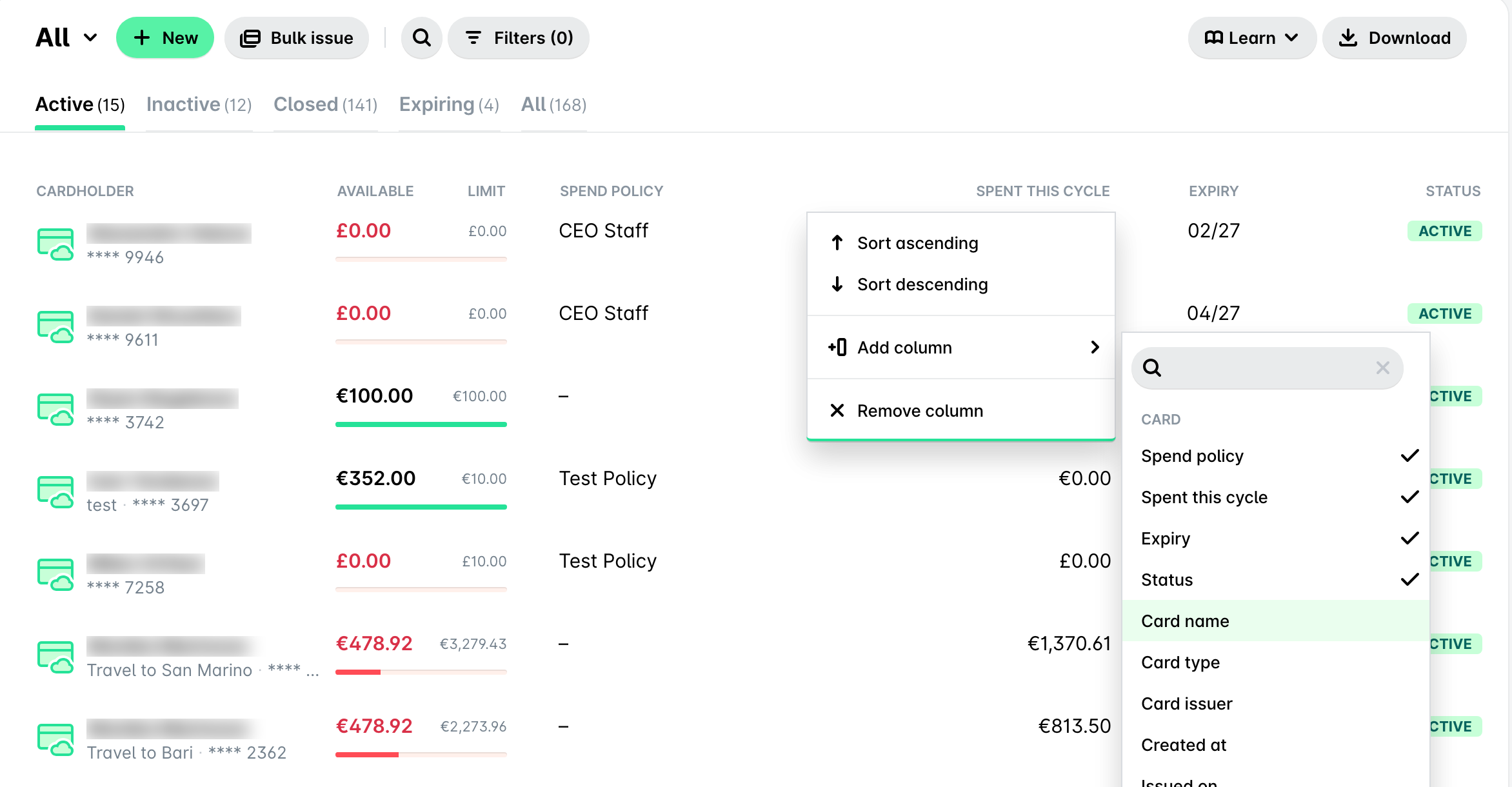
Haz clic en el encabezado de una columna existente, por ejemplo, Estado.
Selecciona Add column.
Elige la columna que quieras añadir. Para encontrar una columna rápidamente, escribe su nombre en el cuadro de búsqueda.
Eliminar columnas
Para eliminar una columna:
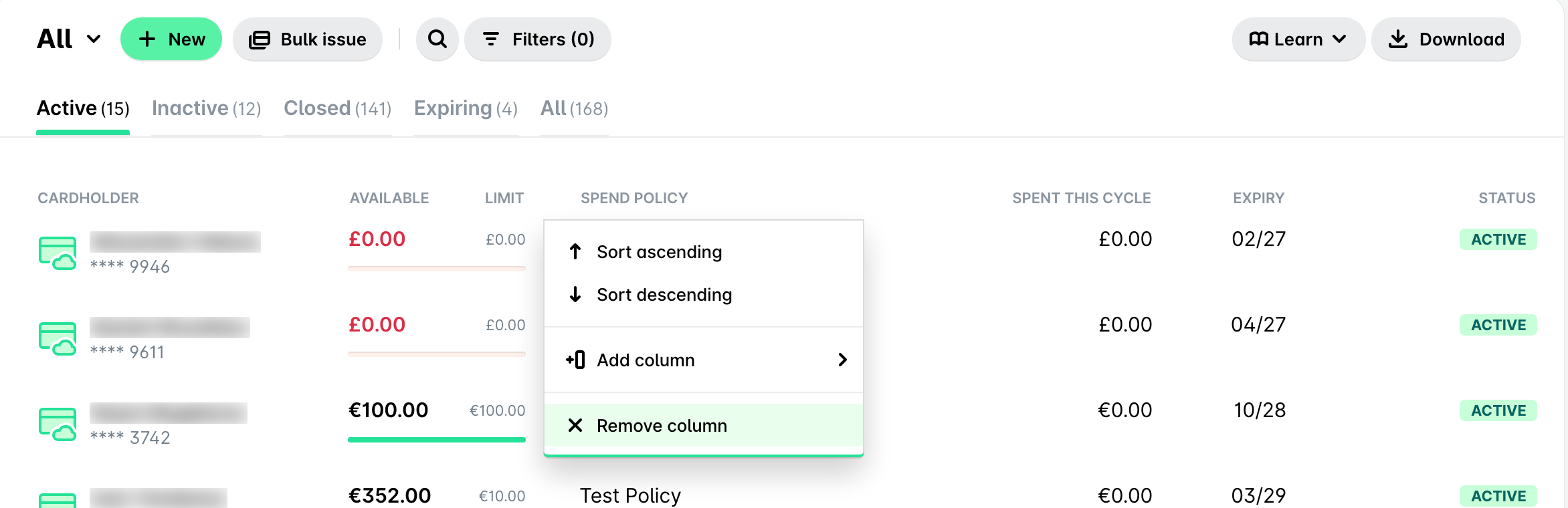
Haz clic en el encabezado de la columna que quieras eliminar, por ejemplo, Política de gastos.
Selecciona Remove column.
Reordenar columnas
Para reordenar las columnas:
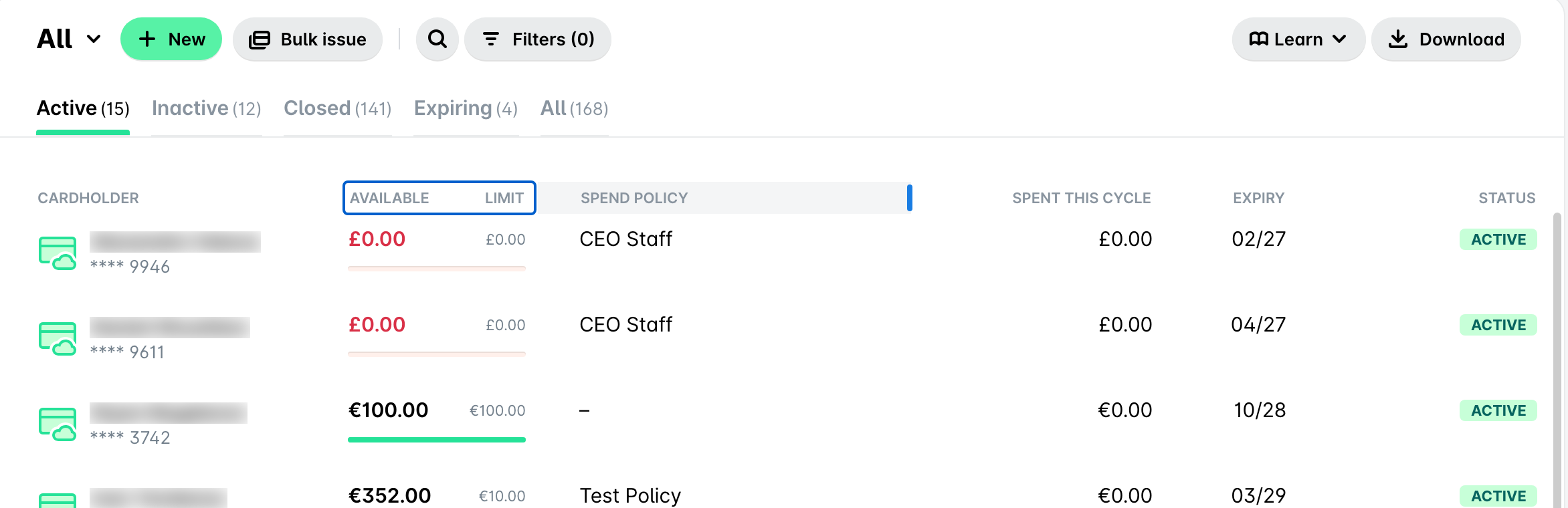
Haz clic y mantén pulsado el encabezado de la columna que quieras mover, por ejemplo, Límite.
Arrástralo hacia la izquierda o hacia la derecha hasta la posición que quieras.
Cambiar el tamaño de las columnas
Para cambiar el tamaño de las columnas:
Pasa el cursor sobre el borde del encabezado de la columna cuyo tamaño quieras cambiar.
Mantén pulsado el separador y arrástralo hasta que la columna tenga el ancho que quieras.
Guardar una vista de las tarjetas
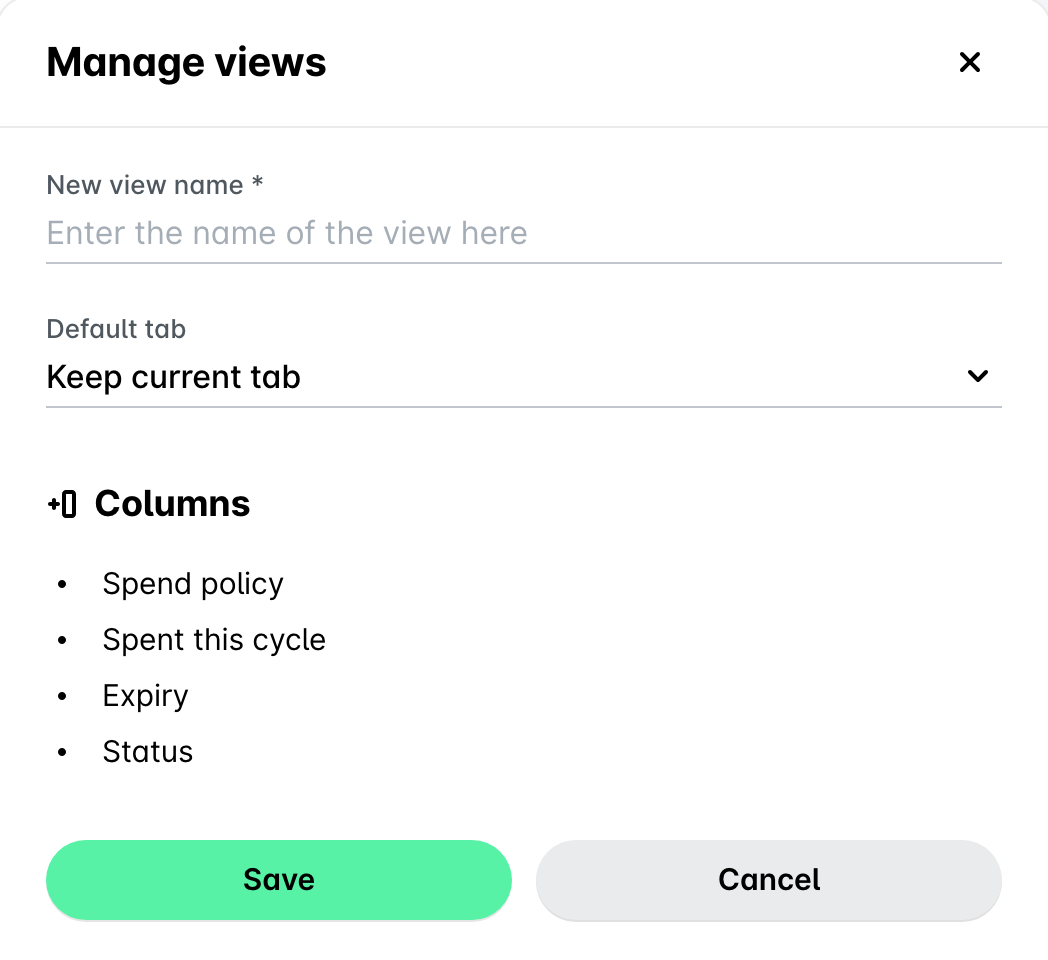
Después de ordenar las tarjetas y configurar las columnas, puedes guardar la distribución como una vista y volver a usarla más adelante.
Para guardar una vista:
Haz clic en Save view.
Introduce un nombre para la vista.
En el menú desplegable Default tab, elige la pestaña en la que se abrirá la vista o mantén la pestaña actual.
Revisa las columnas incluidas en la vista.
Haz clic en Guardar.
Recursos útiles