By default, Payhawk exports every reviewed expense to QuickBooks Online as a bill, then adds a separate bill payment once the card transaction settles. You can choose to export card expenses as expenses instead.
An expense is a single QuickBooks Online transaction booked straight against the bank or credit card account that paid it. There is no bill, no bill payment and no Accounts Payable entry.
Before you start
Make sure you have connected Payhawk to QuickBooks Online.
Map every card currency, or every linked card, to a bank or credit card account in QuickBooks Online. Payhawk books the expense against that account.
Change how card expenses are exported
To change the way card expenses are exported to QuickBooks Online:
In the Payhawk Web Portal, go to Settings > Integrations.
Click the three-dot menu of the QuickBooks Online integration and select Edit configuration.
On the Data mapping screen, under Card expenses, set Export as to Expenses.
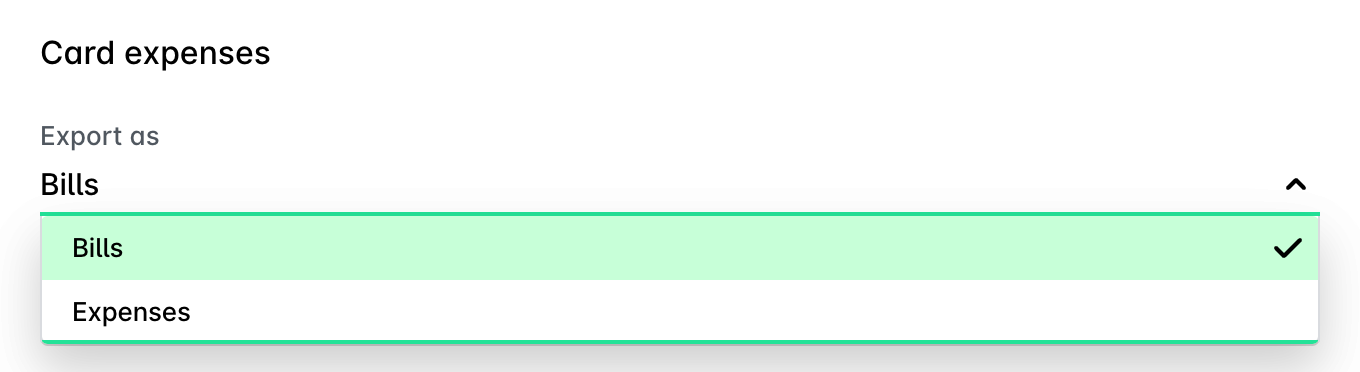
Save your changes.
From now on, each reviewed card expense is exported as an expense. Expenses already in QuickBooks Online stay as they are.
What gets exported
The following table lists the fields that get exported to QuickBooks Online.
QuickBooks Online field | Value from Payhawk |
|---|---|
Payment account | The bank or credit card account mapped to the card's currency or to the linked card |
Payment type | Credit card if the mapped account is a credit card account. Otherwise Cash |
Payee | The supplier (vendor) of the expense |
Date | The bookkeeping date of the expense |
Reference number | The expense's document number (21 characters max) |
Memo | The expense note |
Lines | Same as for a bill: category or item, tax code, class, customer/project, location, billable status |
Currency | The payment currency, with its exchange rate |
Attachments | The expense receipts |
Any FX, POS or bank fees are exported as a separate journal entry against the same card account.
What stays the same
Refunds and negative card expenses still go through Accounts Payable, as a vendor credit, a journal entry or a card refund.
Bill expenses and reimbursable expenses are always exported as bills.
A card expense is exported only after its card transaction has settled. Until then the export waits, and Payhawk retries it automatically after settlement.
Limitations
A card expense linked to more than one card transaction can't be exported as an expense. Export it as a bill instead.
Changing the setting doesn't convert expenses that are already exported. To export one the other way, undo the export, then export it again.
When you undo the export, Payhawk deletes both the expense and its fees journal entry from QuickBooks Online.
Troubleshooting
When exporting card expenses as expenses to QuickBooks Online, you may encounter some issues. The following table lists error messages and the solutions you can apply to resolve them.
Error message | What to do |
|---|---|
This card expense has no settled card transaction to book against, so it can't be exported as an expense. Change the card expenses export type to bills to export it | Wait until the transaction settles. If you can't wait, set Export as back to Bills. |
Card expenses with more than one card transaction can't be exported as expenses. | Export this expense as a bill. |
This expense is already exported to QuickBooks Online with a different export type. Undo the export before changing how card expenses are exported | Undo the export, then export it again. |
Configuration for linked card bank accounts mapping is missing. | Map the linked card, or its currency, to a bank or credit card account in the integration configuration. |
Document number exceeds the limit of 21 characters. | Shorten the document number on the expense. |