This article provides answers to some of the most frequently asked questions (FAQ) related to the Mailbox in Payhawk.
Can I set forwarding rules for the Mailbox?
If you regularly receive invoices from a supplier, you can create forwarding rules in your Inbox so that Payhawk can automatically receive all these invoices. For more information, see the articles about setting up forwarding rules for the Payhawk Mailbox on Gmail and Outlook.
What can I do if the expense document is not successfully processed?
If your expense document was not successfully processed, you can manually process it.
To manually process your pending Mailbox request and expense document:
In the Payhawk Web Portal, open the app switcher in the top-left corner and go to Inbox. In the Payhawk Mobile App, open your Inbox.
Find the Mailbox request with the document that you need to process. Click on Attach to expense.
Select the entity on whose behalf the expense was made. Click on + Add as a new expense or attach to an existing expense from the list.
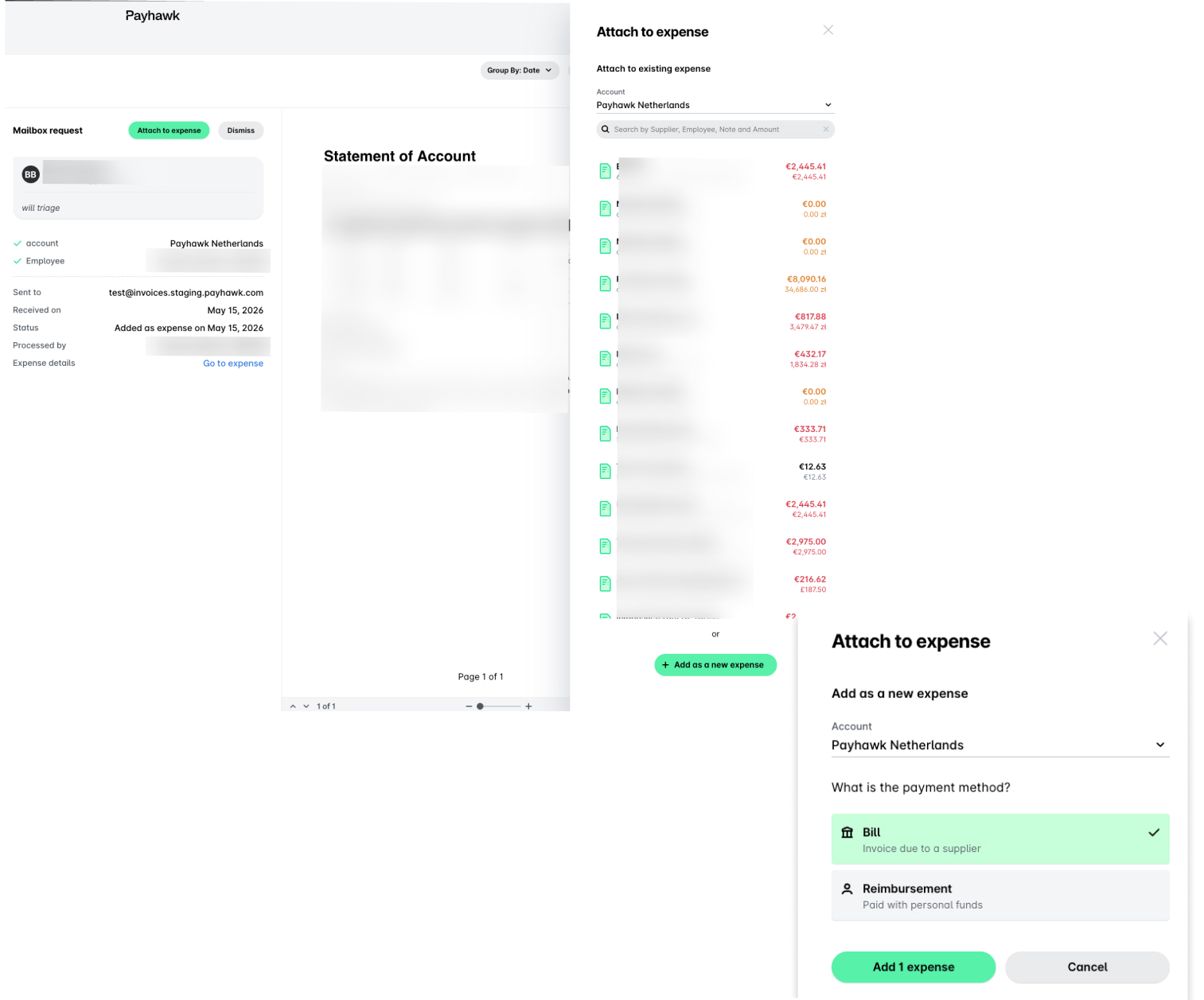
Select the payment method of the expense, for example, if paid with employee's money, mark Reimbursement, and click on Add [number] expense.
As a result, the document is processed and appears under the All tab where you can find all automatically processed documents.
How can I identify if there's an issue with my forwarding rule?
To identify an issue with the forwarding to the Mailbox, test by sending two emails to the Mailbox:
An email message sent from your invoices@yourcompany.com email directly to the Mailbox.
An email message sent from your invoices@yourcompany.com email to the Mailbox through your current forwarding rule.
If only the direct email is received and creates an expense in the Payhawk system, the issue lies with the automatic forwarding. In this case, contact your internal IT team to check the DKIM, SPF, and mailbox configurations.
How does the Mailbox handle contractor invoices sent with multiple attachments?
When you forward an email with multiple attachments to the Mailbox, the system treats each attachment as a separate document and the attachments are not automatically merged into a single file.
While this doesn't necessarily confuse Payhawk's data extraction tool, it can lead to a fragmented workflow and increased manual effort during the review and approval stages.
For optimal efficiency and cost-effectiveness, it's recommended to:
Use a single invoice, in which contractors add a summary line item for all their expenses rather than sending separate documents for each expense.
Combine supporting documents into a single PDF file, which serves as the backing documentation for the expense line item on the main invoice.