If you have a mass of expense categories you need to import from your existing system directly to Payhawk or if you need to export all your expense categories from Payhawk, you can do it quickly with the automated options for bulk import and export.
Bulk import of expense categories to Payhawk
To import multiple categories in Payhawk at once by uploading an Excel file:
Log in to the Payhawk Web Portal.
Go to Settings > Fields library.
Click on Category.
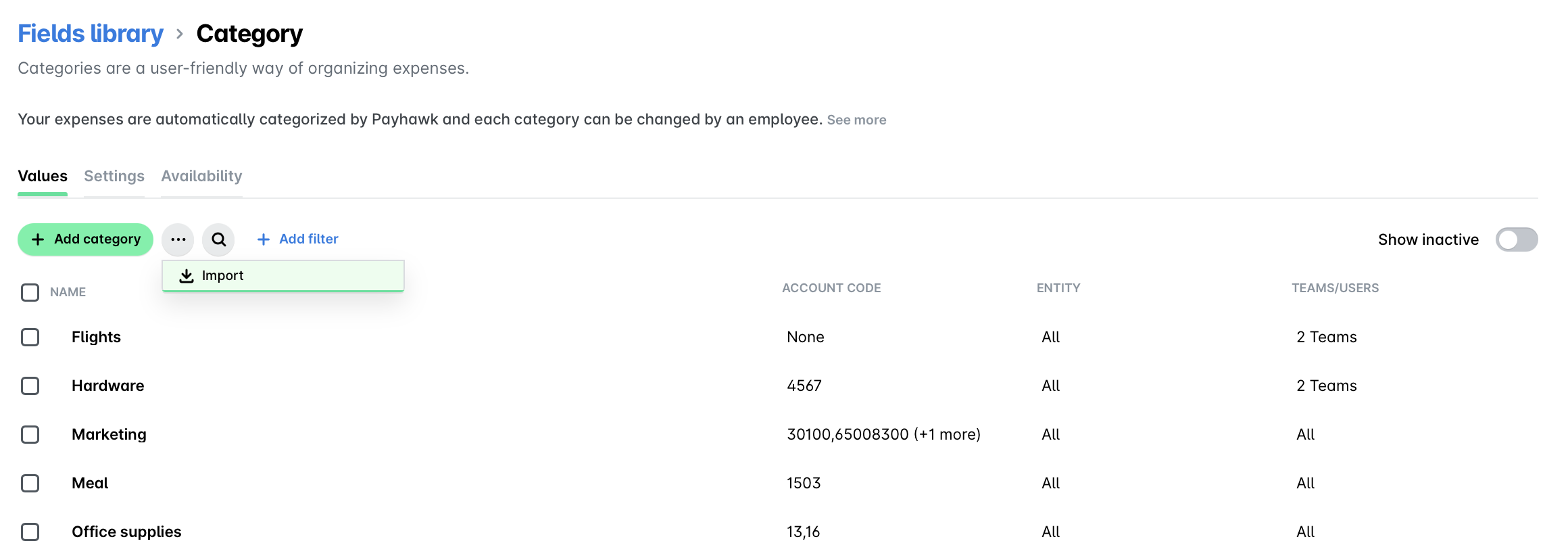
Click on the three dots menu and select Import.
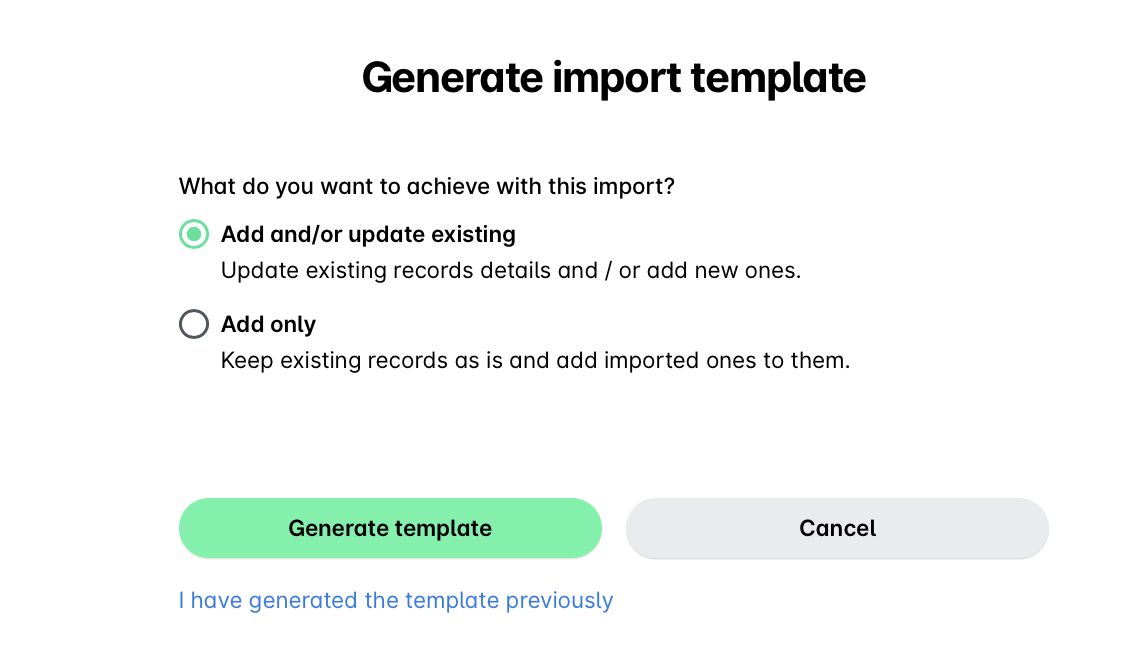
On the screen that opens, click on Generate template link to download the template Excel file. Enter your categories and sub-categories in the required format and save the file locally:
To keep your existing expense categories and/or add new ones from the file, select the Add and/or update existing option.
To keep your existing expense categories and only add imported ones to them, select the Add only option.
Go back to the Payhawk screen and click on the Click to upload link to upload your locally saved Excel file.
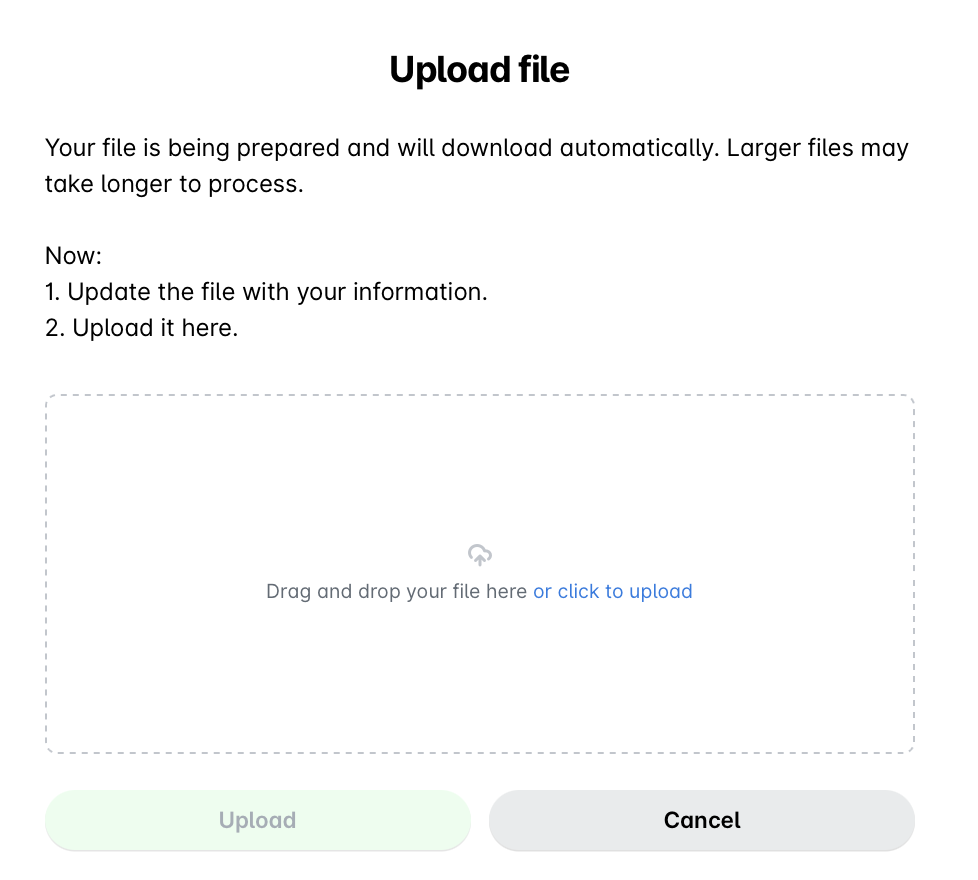
Click on Upload.
On the next screen, confirm your choice and click on Import.
Click on Done.
Bulk export of expense categories from Payhawk
To export your expense categories from Payhawk at once in an Excel format:
Log in to the Payhawk Web Portal.
Go to Dashboard > Settings > Fields library.
Click on Category.
Click on the three dots menu and select Import.
On the screen that opens, click on the Generate template link to download the template Excel file. As a result, the Excel file with the exported expense categories will automatically be downloaded locally on your machine.