Line Managers let you record who each employee reports to and use that reporting line for permissions and approvals. You can sync Line Managers from your HR system or set them in Payhawk.
Line Managers are available in Payhawk Labs as part of the new HR system connection. Turning off the Line Managers and the Org chart features in Payhawk Labs will result in your needing to change back any workflow steps that use Line Managers.
Line Managers in Payhawk
Each employee can have one Line Manager, and a Line Manager can have any number of direct reports.
A reporting line can't loop back on itself - for example, if Anna reports to Ben, Ben can't report to Anna, so Payhawk hides anyone who would create a loop from the list.
When you connect your HR system, Payhawk syncs each employee's Line Manager and keeps it up to date.
You can also set or change a Line Manager in Payhawk.
Viewing and changing Line Managers
To view an employee's Line Manager:
Go to Employees and select the desired employee.
In the Line manager section. You have Reports to, which shows their Line Manager, None, and Direct reports, which lists the people who report to them.
To open and employees, click on their name.
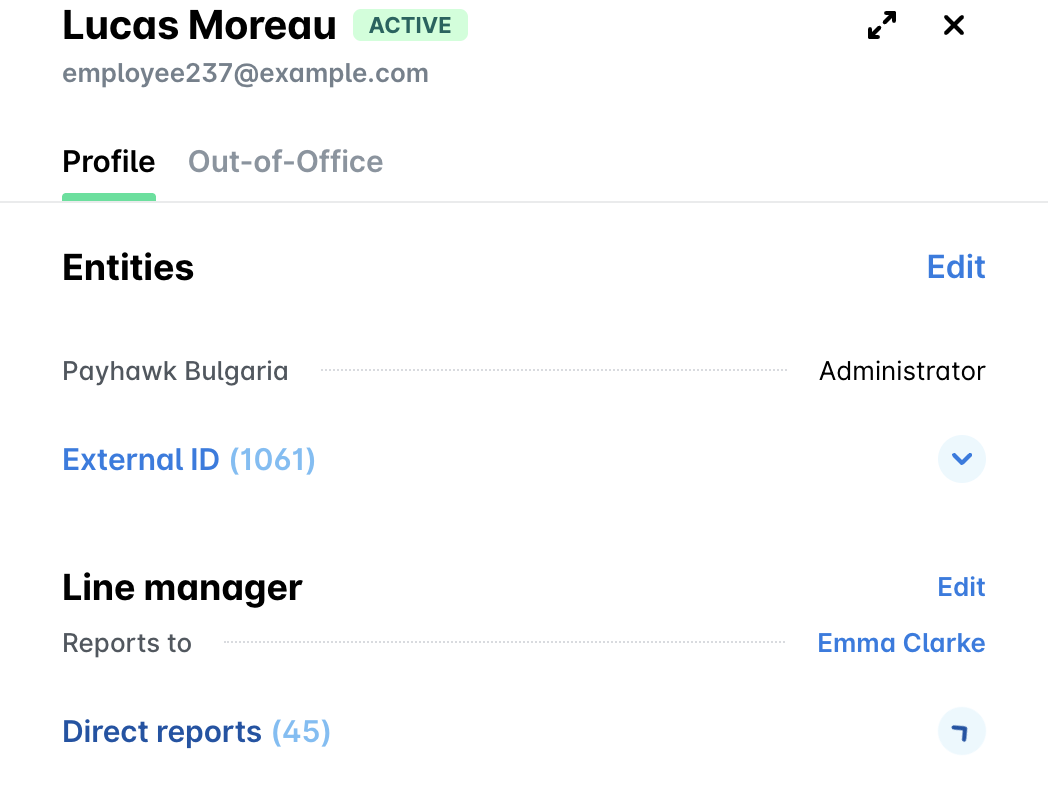
To update a Line Manager:
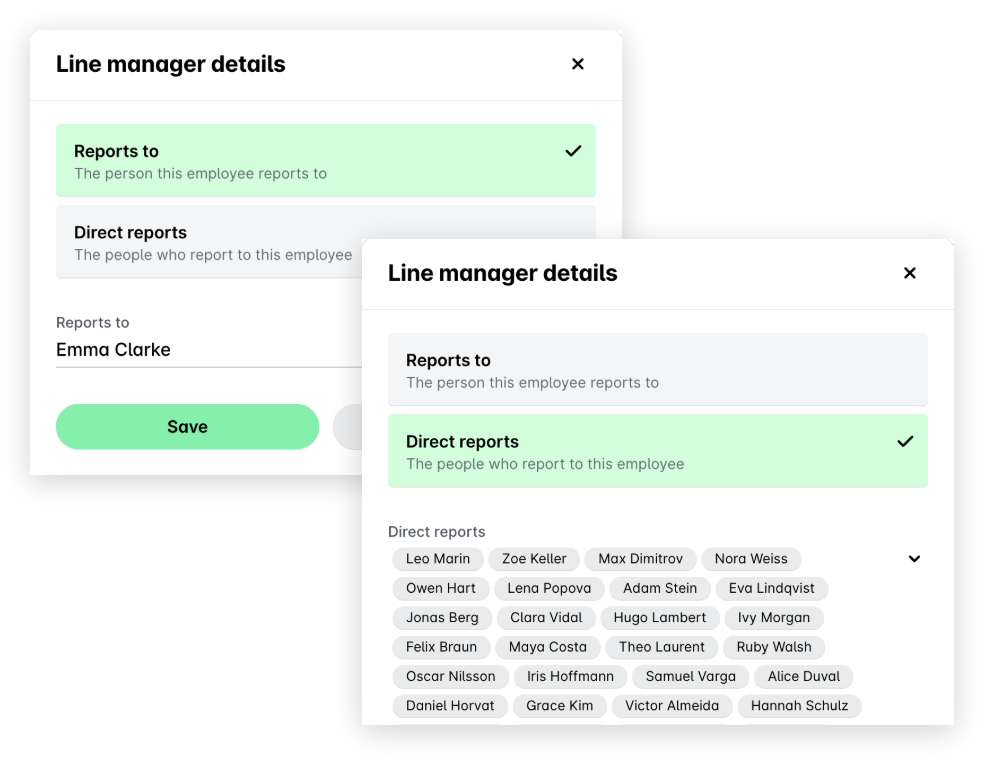
On the employee's profile, in the Line manager section, click on Edit.
In Line manager details, choose a tab:
Reports to selects the person this employee reports to.
Direct reports adds or removes the people who report to this employee.
Click on Save.
If you add someone who already has a Line Manager, Payhawk will warn you that they move from their current Line Manager.
If you remove someone from Direct reports, they will no longer have a Line Manager.
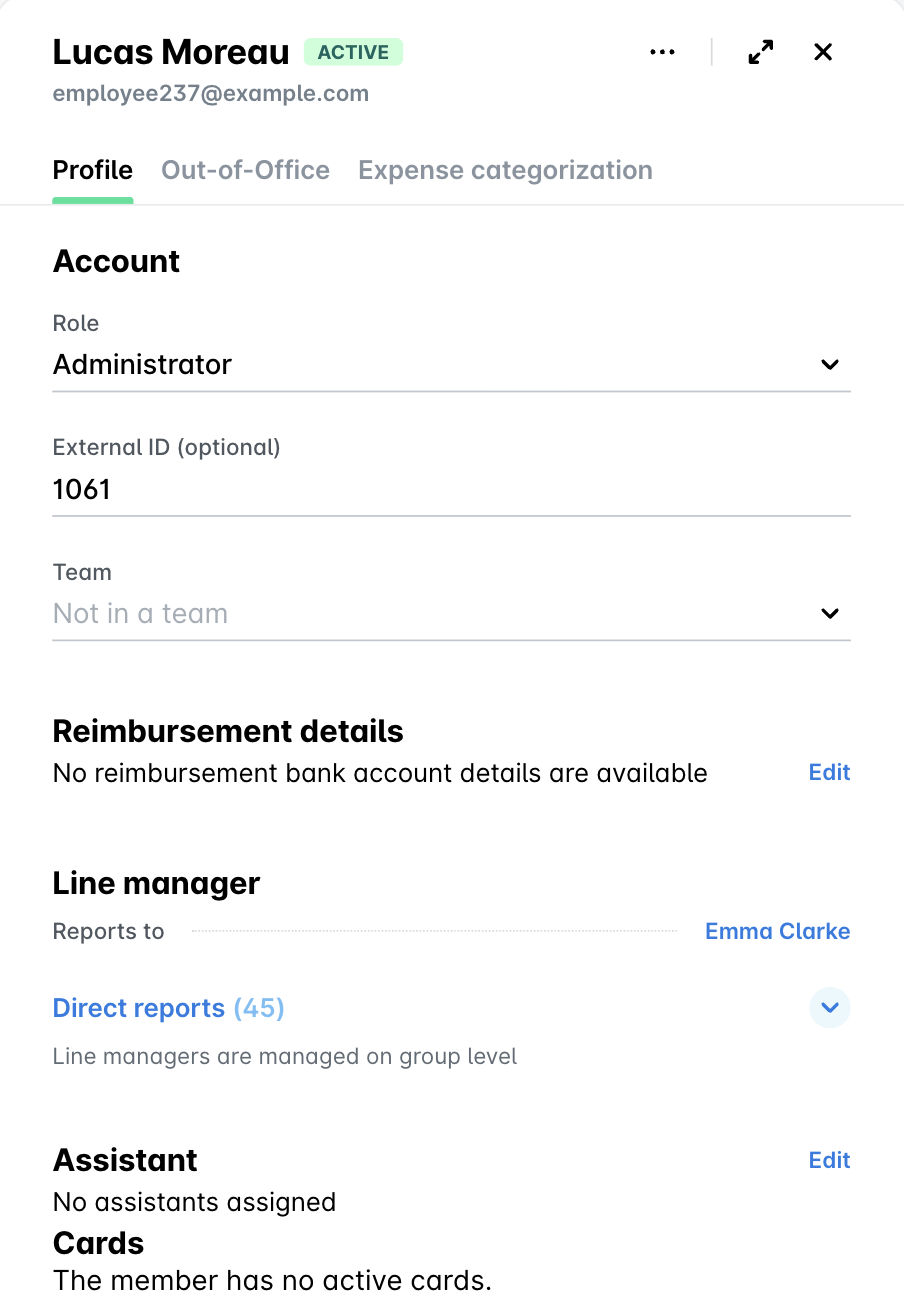
If your company is set up as a group, Line Managers are managed by Payhawk Administrators at the group level. In such cases, at the entity level, the employee profile will display Line managers are managed on group level and won’t have an Edit button.
Permissions of Line Managers
Employees with direct reports get the Line Manager role. With it, they can view and manage the expenses, requests and cards of their direct reports.
They can also manage their own teams through the following actions:
The Add as my direct report option is available for employees who don't have a Line Manager yet.
The Remove from my direct reports option removes the employee from their direct reports.
Using Line Managers in approval workflows
You can add a Line Manager as an approver to any approval workflow step. To go further up the reporting line, choose Second level Line Managers or Third level Line Managers.
You can also use a Line Manager as a fallback approver.
Line Managers and Team Managers are separate roles, and you can use both in the same workflow.