By defining group settings to your expense categories, document, note, and other fields, you will avoid the need to specify identical options for each entity separately.
Setting default field configurations for the group
To apply group settings to the fields:
In the Payhawk Web Portal, on the Group dashboard, open the app switcher in the top-left corner and go to Settings > Fields library.
Define the group settings by following the steps for configuring the field settings for individual entities.
The notable exception is that on the group level you can select the entities for which the custom fields will be displayed.
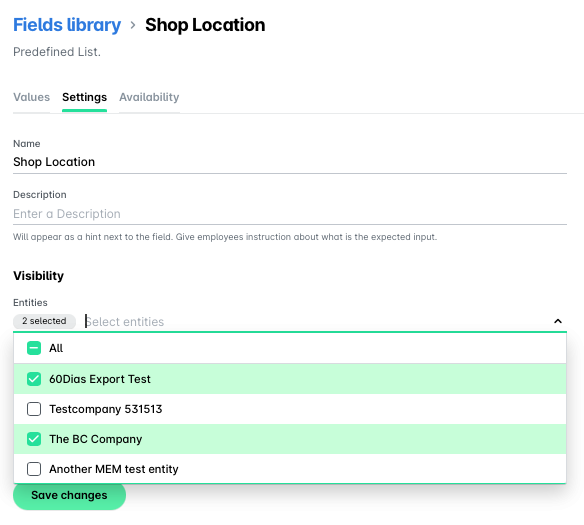
Click on Save changes.
Applying group settings cannot be reverted.
Pulling field settings from an entity
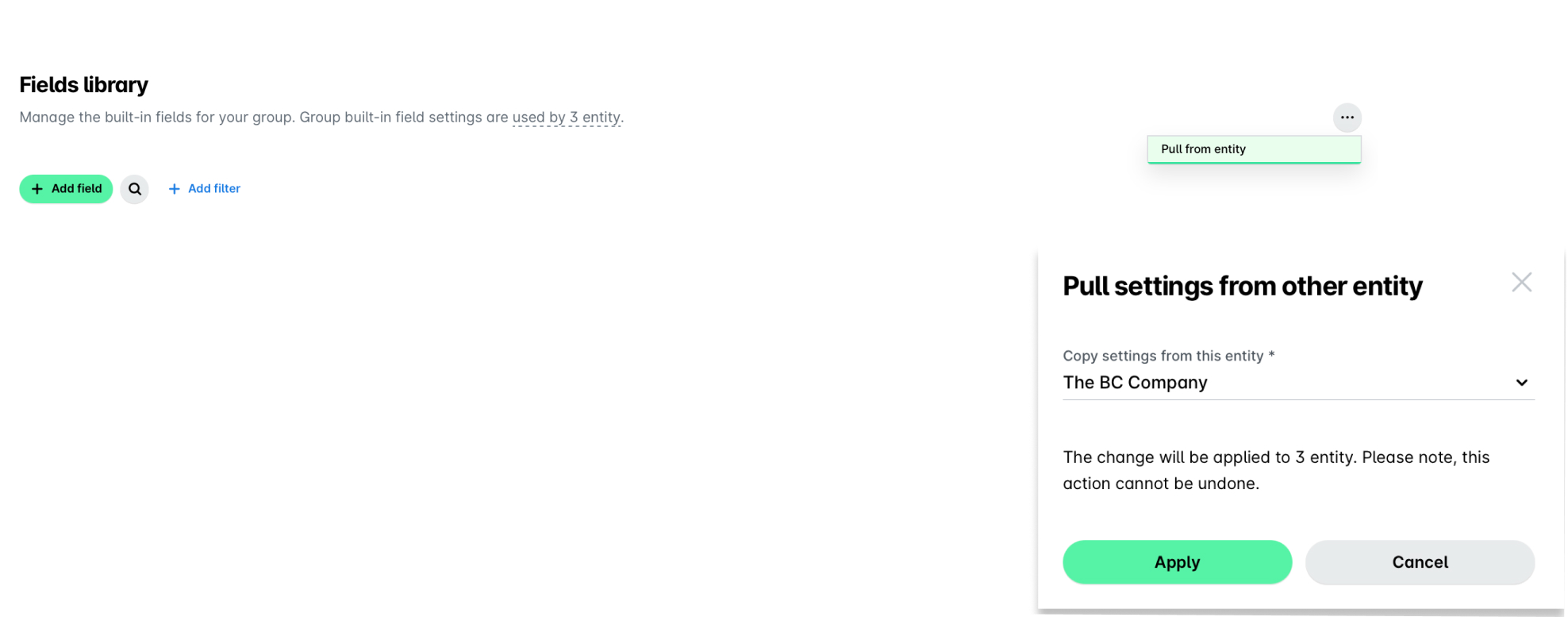
You can copy fields from an entity and apply them to the group by pulling the relevant settings.
Open the app switcher in the top-left corner and go to Group Dashboard > Settings > Fields library.
Click on the three-dot menu and select Pull from entity.
In the dialog that opens, select the desired entity from the drop-down list and click on Apply.