You can define accounting categories, manage their account codes and managers, and apply their settings to the whole group of entities or individual entities.
Creating accounting categories and subcategories
In the group dashboard:
Go to Settings > Fields library > Category.
Under Values, click on Add category.
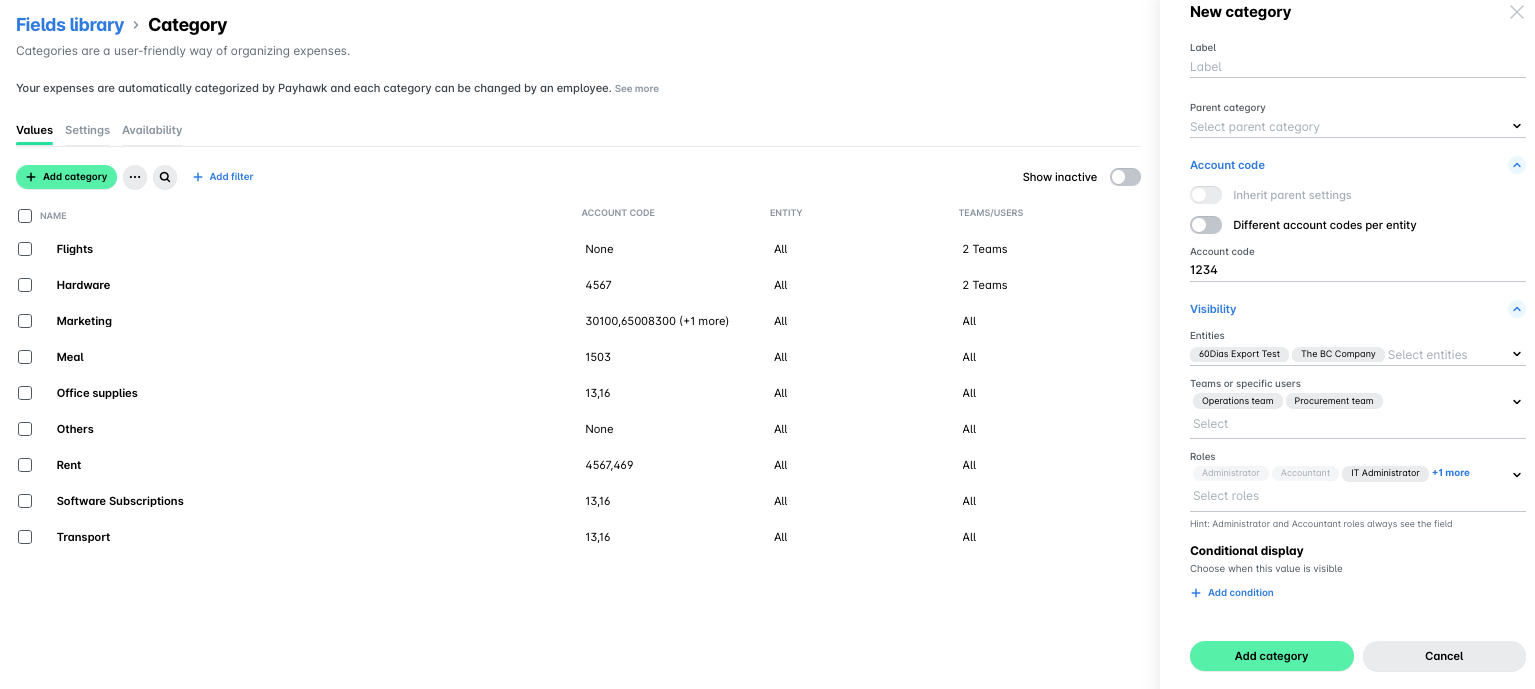
In the dialog that opens, fill in a name for your category:
To create a new category, leave the New parent category field empty.
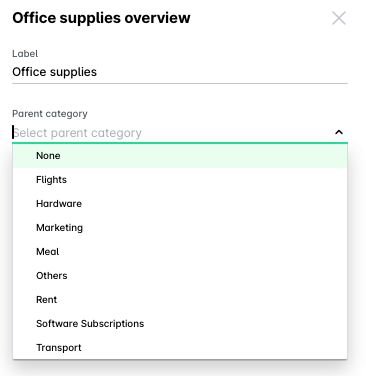
To create a subcategory, select the parent category for it from the drop-down list.
Under Account code, enter the account code for your category:
Switch on the Inherit parent settings toggle button to enable the category to inherit the settings from the group.
Switch on the Different account codes per entity toggle button to enable different settings per entity for your category. Once enabled, enter the respective account codes next to the correspending entities.
Under Visibility, select from the drop-down menus, which entities, teams or specific users will use this value, and which roles can see and change the the value of this field.
Under Conditional display, click on + Add condition to choose when this value will be visible.
Click on Add category.
Visibility, configuration, and operations settings for categories and subcategories
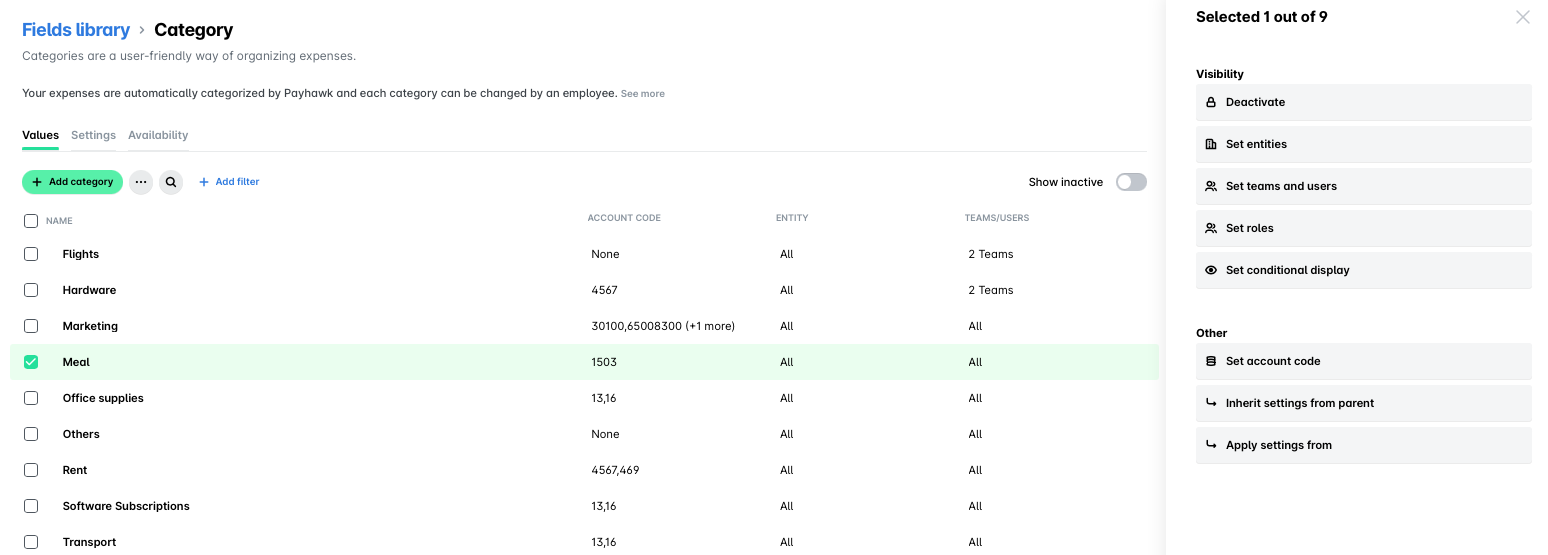
You can select group categories and subcategories and apply various actions to them such as:
Deactivate a category or subcategory.
Reactivate an inactive category.
Delete categories and subcategories.
The following actions can also be done from the settings of the parent categories and subcategories.
Set the visibility of the category or subcategory for the entities within the group.
Set the account code of the category or subcategory for the entities within the group.
Set the category or subcategory manager for the entities within the group.
For subcategories, inherit parent settings.
Bulk visibility, configuration, and operations settings
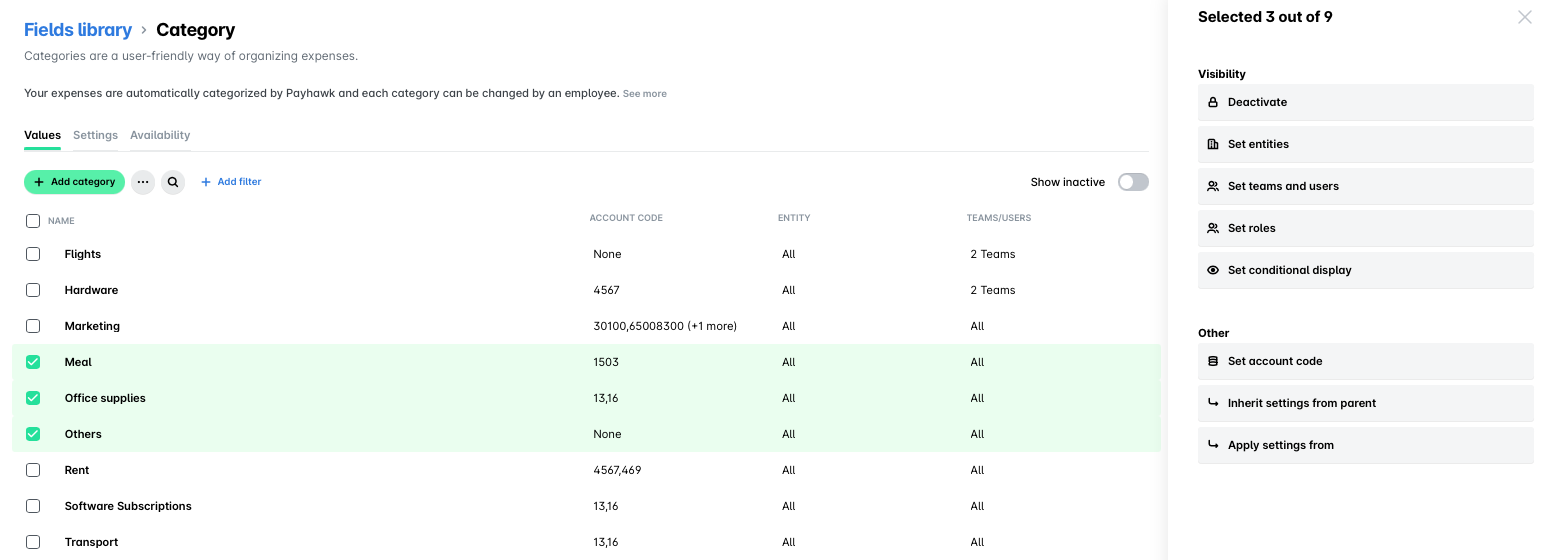
You can apply the visibility, configuration, and operations settings to two or more group categories and subcategories by selecting them.
Turning categories into subcategories and vice versa
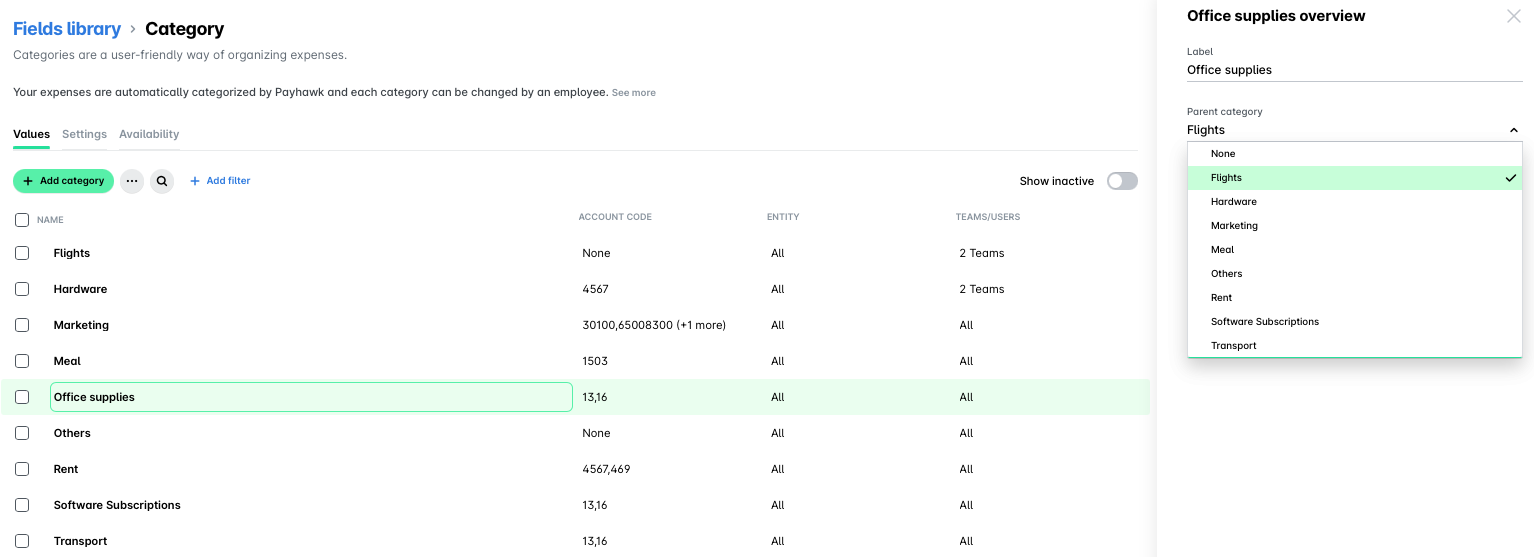
You may need to add a category as a subcategory for another category. To do so:
Click on the desired category.
In the dialog that opens, select a parent category from the drop-down list.
Click on Save. As a result, your former category will be visible as a subcategory under the parent category you've selected.
To set a subcategory as a category:
Click on the desired category.
In the dialog that opens, set the parent category to None.
Click on Save. As a result, your former subcategory will be visible as a category.