This article explains how to complete your teams' expense categorization template correctly.
Adding and updating data in the teams' expense categorization template
To ensure accurate data entry, refer to the information in the following table.
Column name | Description | Notes |
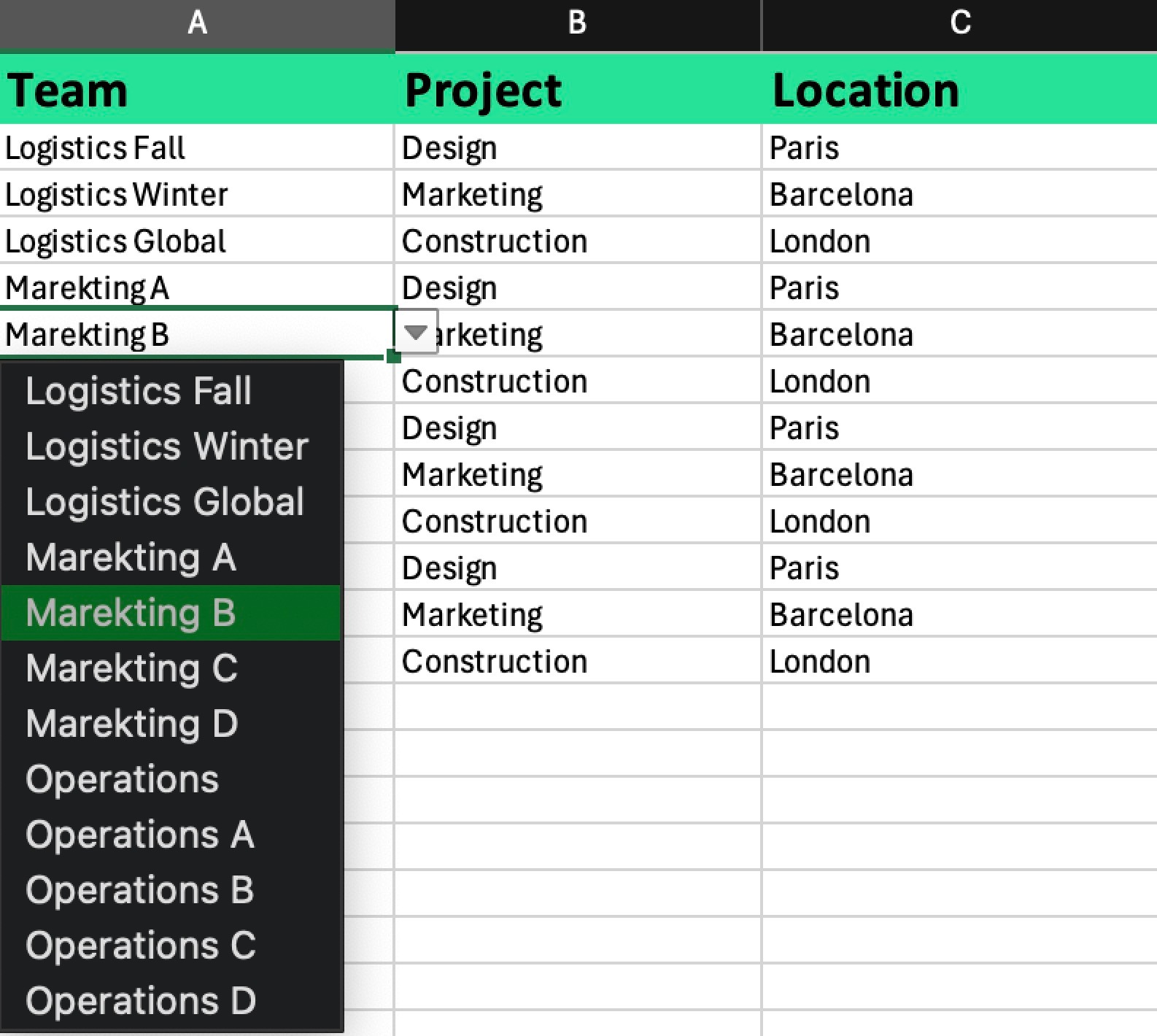
Team | A drop-down menu with existing teams in the entity. | |
Custom fields | These columns:
|
|
The following example shows what the teams' expense categorization template looks like.
Bulk import and export of teams' expense categorization
As a Payhawk administrator, you can import your teams' expense categorization in bulk in the following way:
In the Payhawk Web Portal, open the app switcher in the top-left corner and go to Employees > Teams.
Click on the three-dot menu and select Import.
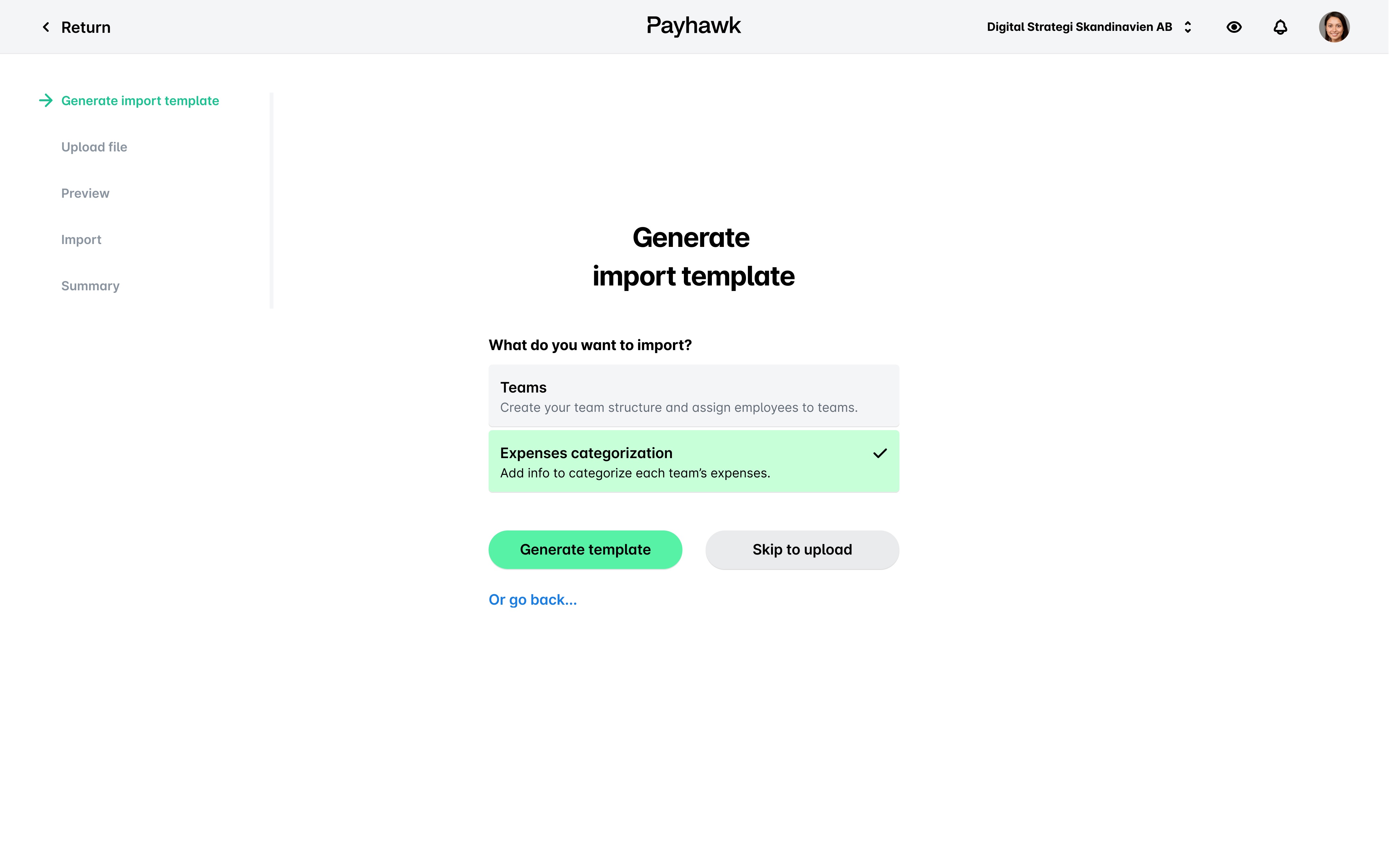
On the next screen, select Expenses categorization.
Click on Generate template to download the template file.
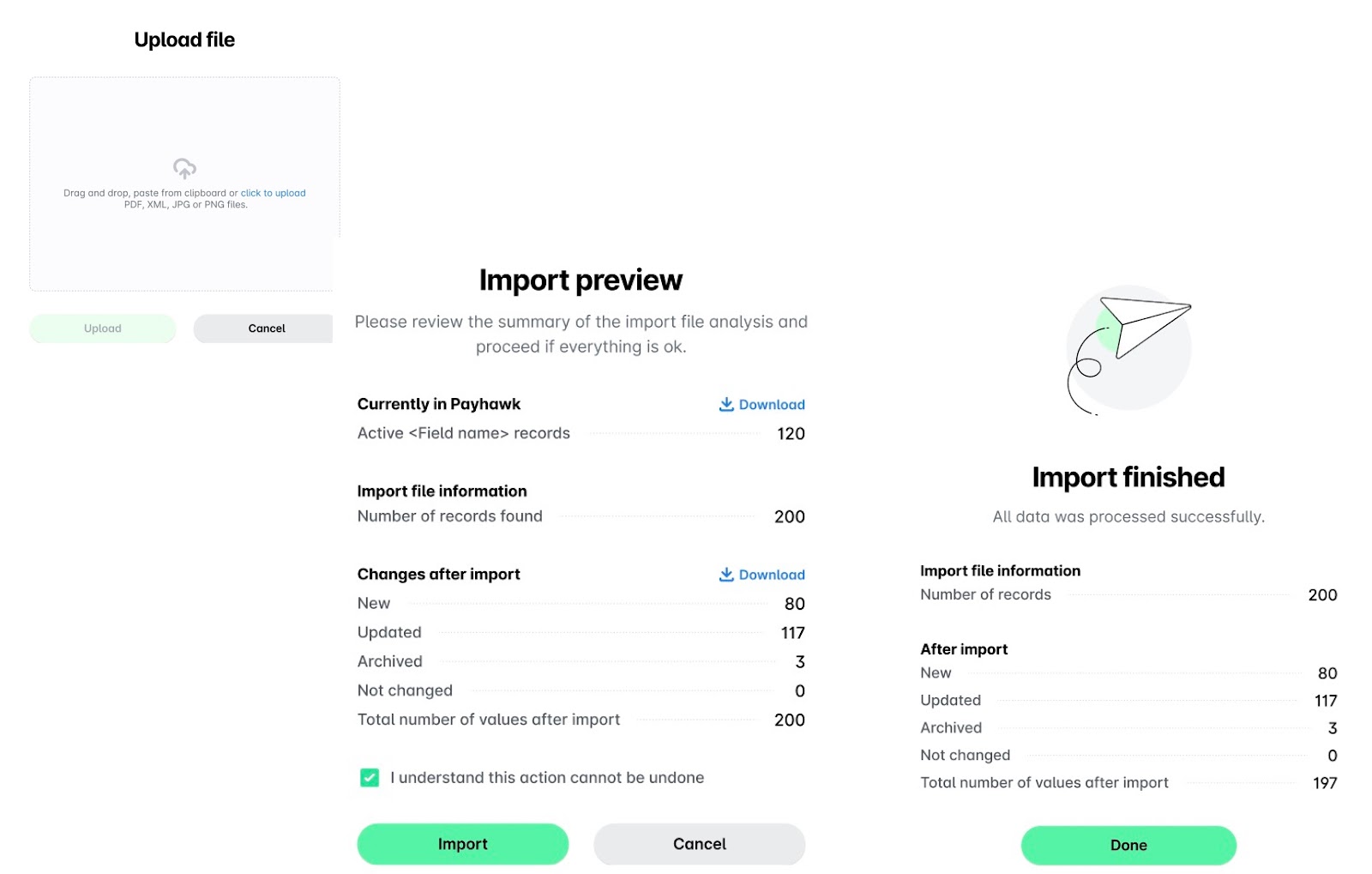
Enter the required data in the template file, then return to the wizard and upload the file. Click on Upload.
On the Preview screen:
Review the data to be added or updated.
Select the confirmation checkbox.
Click on Import.
Click on Done.
To export your teams' expense categorization data and download it as a ZIP folder, select the Export option from the three-dot menu.
Notes on managing teams' expense categorization
To select values that have already been imported or configured in the system, use the drop-down lists.
If a value is missing from the drop-down list but exists in the Payhawk system, the template may have been generated before the value was created.
Make sure that the team and entity names match your existing records.