Once you've linked your Visa cards in Payhawk, you can use the available Payhawk options to manage it.
Viewing all settled card transactions
You can view all expenses that have been paid with your linked Visa card:
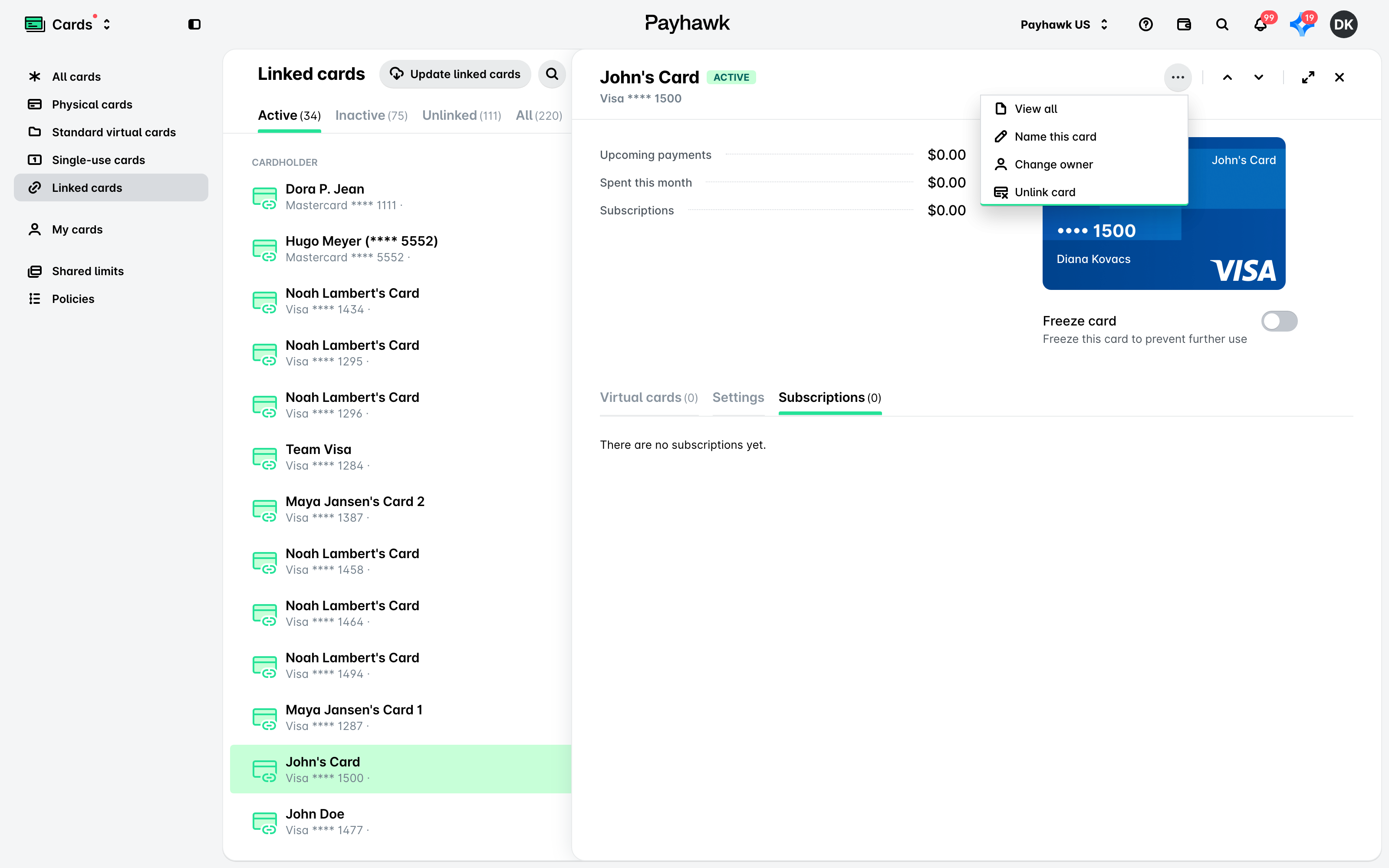
In the Payhawk Web Portal, open the app switcher in the top-left corner and go to Cards > Linked cards.
Select the desired card by clicking on it.
Click on its three-dot menu and select the View all option. As a result, you'll be redirected to the Spend > All tab.
Naming and renaming linked cards
You can name or rename your linked Visa card:
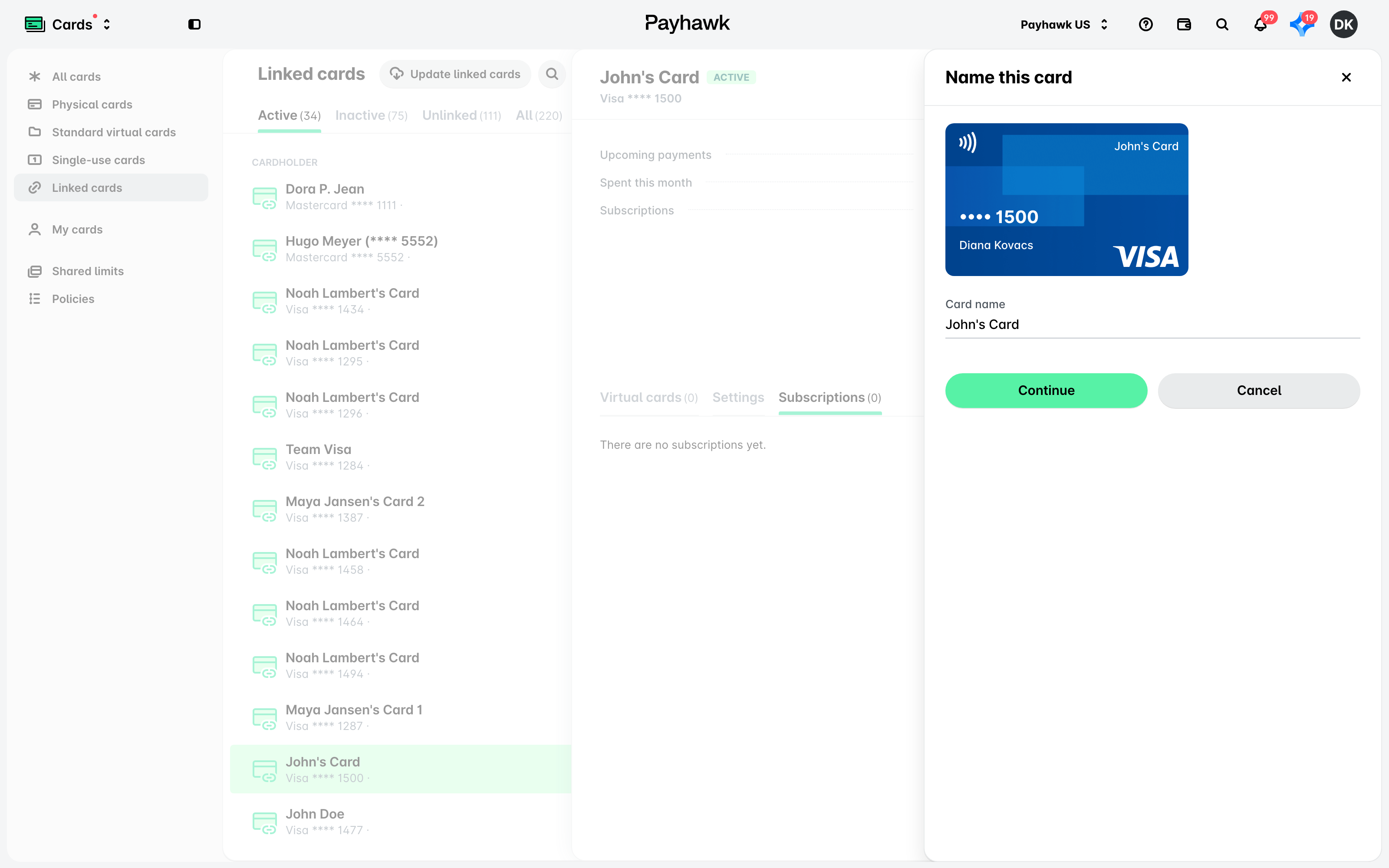
Open the app switcher in the top-left corner and go to Cards > Linked cards, then select the desired card by clicking on it.
Click on its three-dot menu and select the Name this card option.
In the dialog that opens, enter the desired name and click on Save.
Unlinking Visa cards from Payhawk
Unlinking a Visa card from Payhawk will automatically close that card and you'll stop receiving related authorization and settlement data.
To unlink your Visa card from Payhawk:
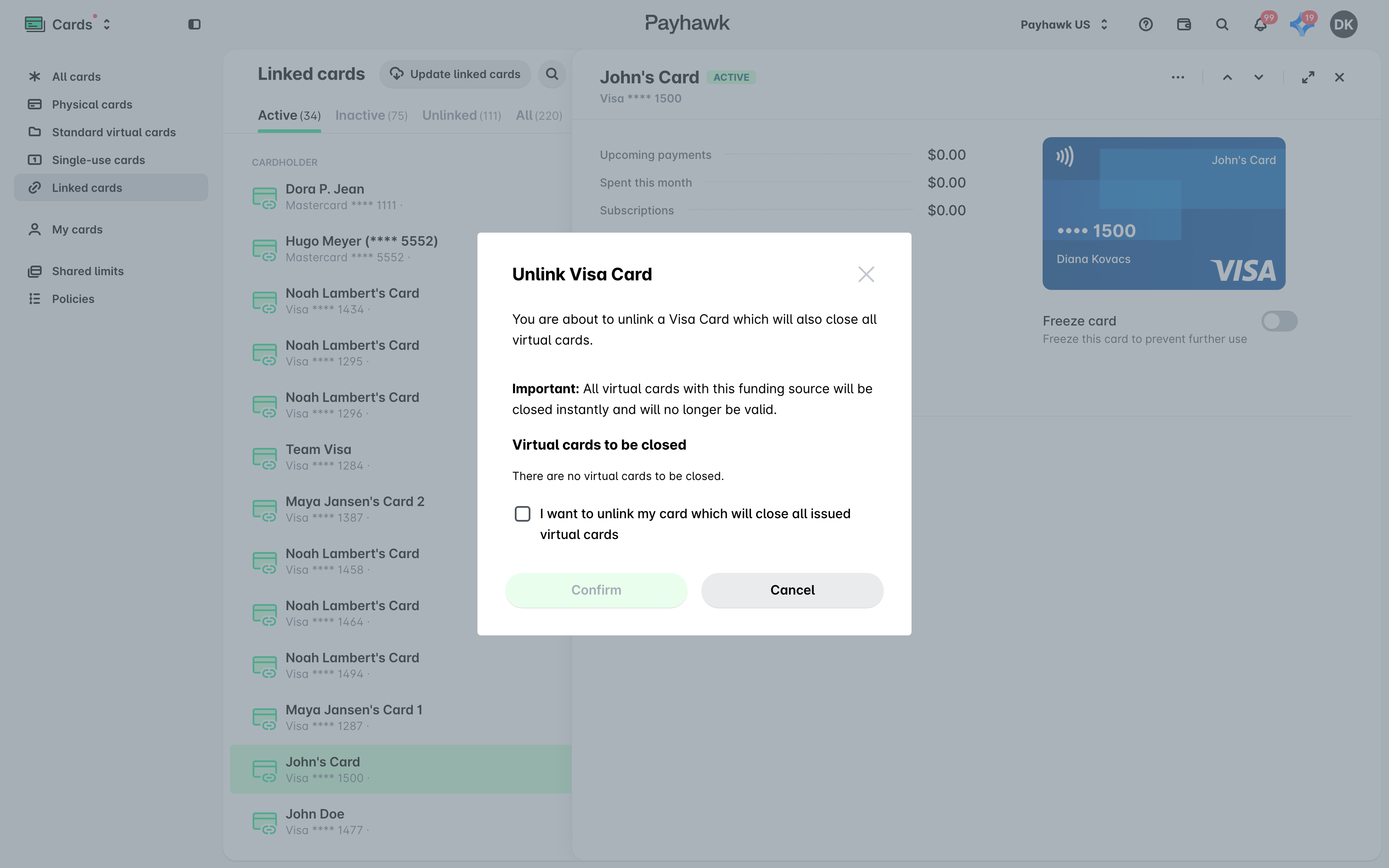
In the Payhawk Web Portal, open the app switcher in the top-left corner and go to Cards > Linked cards, then select the Visa card you want to unlink.
Click on its three-dot menu and select the Unlink card option.
In the dialog that opens, click on Confirm.
Changing the card owner
You can also change the owner of the linked card and assign a new employee as the cardholder:
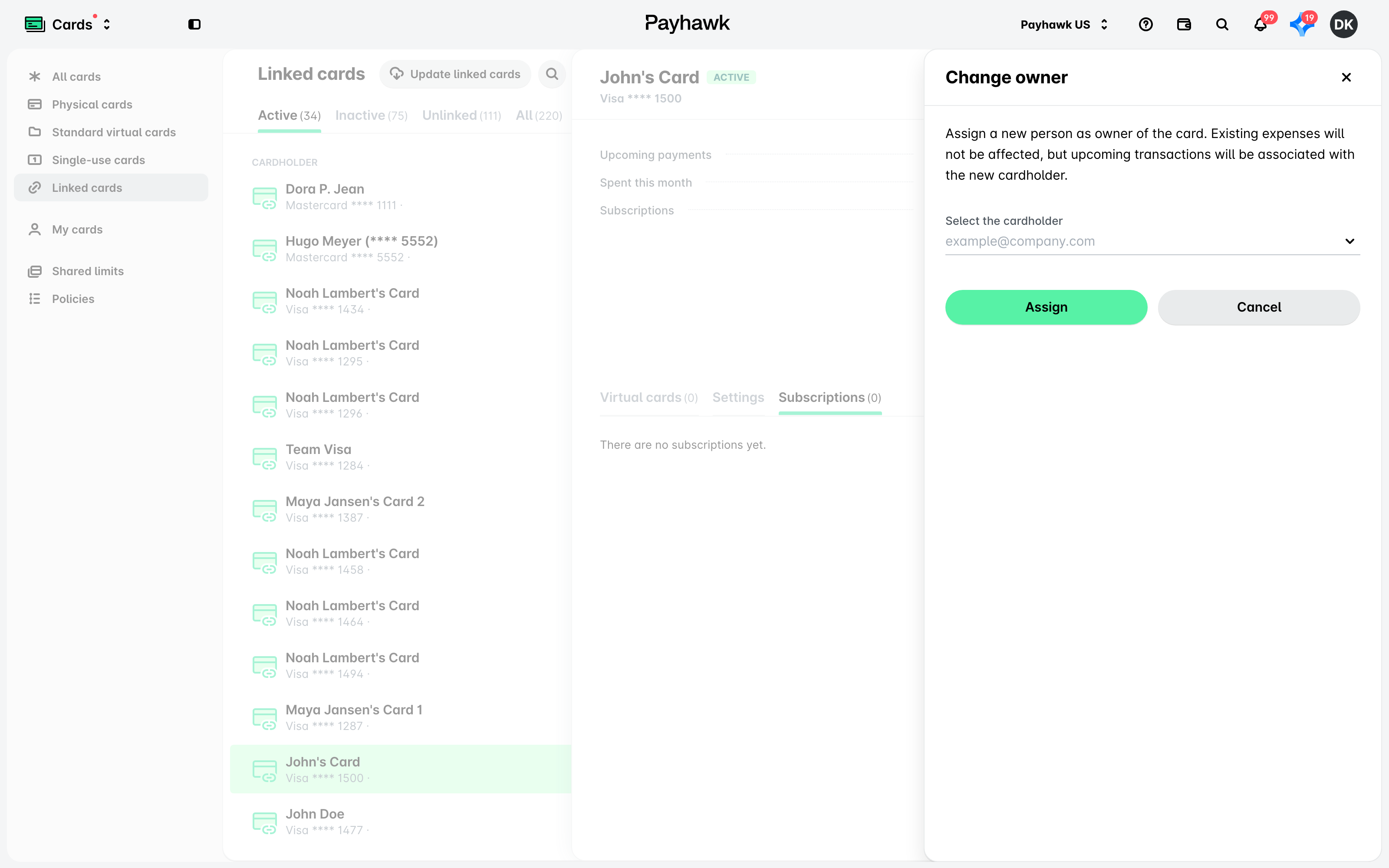
In the Payhawk Web Portal, open the app switcher in the top-left corner and go to Cards > Linked cards, then select the Visa card whose owner you want to update.
Click on its three-dot menu and select the Change owner option.
In the dialog that opens, enter the name of the new card owner and click on Assign.
What happens when your Visa card expires
Linked Visa cards are issued by your bank, not by Payhawk, so Payhawk cannot reissue them. A linked card does not carry over automatically when your bank reissues it. When the card expires, the cardholder has to link the reissued card again, and this is required even if the card number stays the same. Re-linking is what updates the card to the new expiry date.
Payhawk does not send advance notice that a linked card is about to expire. In practice, the cardholder finds out when a payment on the expired card is declined with a message saying the card has expired and needs to be added again.
To move to a reissued card:
Wait until the old card has no pending transactions.
Unlink the old card, as described above.
Link the reissued card in the same way you linked the original one.
Both cards can be linked at the same time, and transactions route to the newer card, but unlinking the old one first keeps your card list clean.
Your existing transaction history stays in Payhawk. Re-linking affects only the transactions made from that point on.
If your company has a large number of linked Visa cards, bulk enrollment can remove the need for each cardholder to re-link at renewal. Eligibility depends on your Visa program, so contact your Payhawk Administrator first to check whether it is available to you.
Viewing the activity of linked Visa cards
Payhawk logs the changes made to your linked Visa card, such as unlinking it or changing its owner, in its Activity tab, together with who made each change and when. To view them, open the app switcher in the top-left corner, go to Cards > Linked cards, select the Visa card, and go to its Activity tab. For more information, see viewing the activity of linked cards.
Useful resources