Linked American Express, Mastercard, and Visa cards, and the virtual cards issued on top of them, have an Activity tab in the Payhawk Web Portal. Each entry shows who made the change and when.
Payhawk Administrators can view the activity of every linked card. Cardholders and their Team Managers can view the activity of their own cards.
Viewing the activity of a linked card
To view the activity of a linked card:
In the Payhawk Web Portal, open the app switcher in the top-left corner and go to Cards > Linked cards.
Select the desired card and go to its Activity tab.
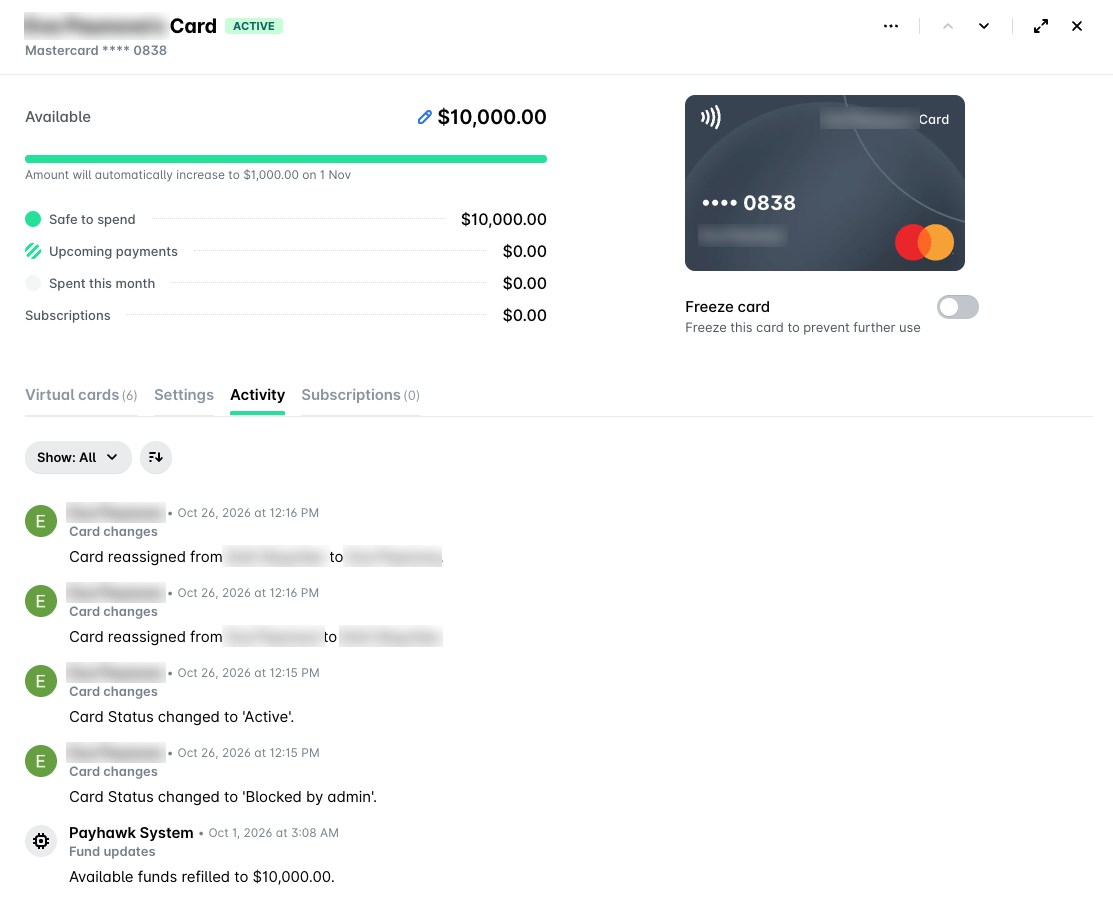
To view the activity of a virtual card issued on top of a linked card, open the app switcher in the top-left corner, go to Cards, select the virtual card, and go to its Activity tab.
What the Activity tab shows
The Activity tab of a linked card shows the following updates:
Card changes - The card being linked or unlinked, status changes, the card being assigned to an employee, reassigned from one employee to another, or unassigned, and the spend policy assigned to the card.
Fund updates - Changes to the refill amount and the limit of the card.
Policy updates - Changes to the spend policy of the card, such as its budget.
Failed transactions - Declined payments with the card.
Fund updates and Policy updates appear in the Show menu only when the card has a spend policy. To sort the activity, click on the sort icon next to the Show menu.
Useful resources