In Payhawk, you can mark expense reports that have been paid outside of the system as paid, generate payment run files with expense details, and upload them to your bank.
Expense reports can be marked as paid individually or in bulk. If SEPA XML payment run files are enabled for your bank account, Payhawk will generate one file including all selected expense reports.
These expense reports are also exported to your ERP system (for supported integrations) or included in the export file (for on-demand exports).
Specifics
An expense report can be marked as paid when the following criteria have been satisfied:
The expense report has been reviewed.
The expense report contains at least one payable expense that has not yet been paid.
If you have a linked external bank account that uses SEPA XML files, you must first confirm the report's payment details before you can mark the expense report as paid.
For more information:
Marking single expense reports as paid
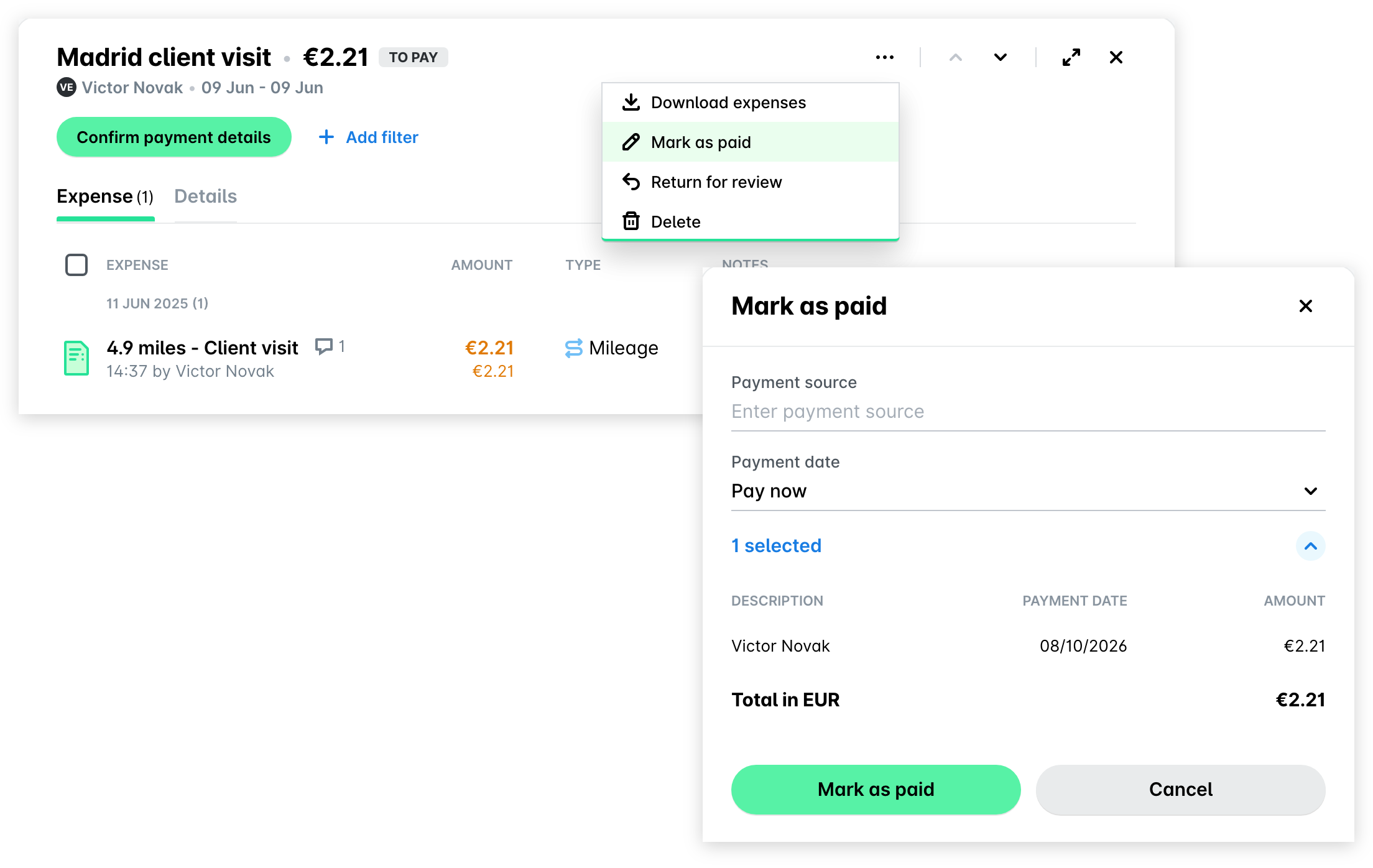
Marking expense reports as paid follows the same guidelines as marking single expenses as paid:
In the Payhawk Web Portal, open the app switcher in the top-left corner and go to Spend > Expense reports, then select the Confirm Details or Authorize tab.
Select the checkbox against the expense report you want to mark as paid.
In the dialog that opens:
Select the Mark as paid option.
Fill in any required details.
Click on Mark as paid.
Marking expense reports as paid in bulk
Marking expense reports as paid follows the same guidelines as marking expenses as paid in bulk.
In the Payhawk Web Portal, open the app switcher in the top-left corner and go to Spend > Expense reports, then select the Confirm Details or Authorize tab.
Select the checkboxes against the expense reports you want to mark as paid.
In the dialog that opens:
Click on the Mark as paid option.
Fill in any required details.
Click on Mark as paid.
Useful resources