Employees with access to the Funds app can transfer funds between their company's Payhawk currency accounts - both in the same currency and across different currencies (FX payments).
Each internal transfer generates a unique reference code used to match the outgoing and incoming transactions. Both an outgoing (negative) and an incoming (positive) transaction appear with the same reference number for easy reconciliation.
Types of transfers
Payhawk supports two types of internal fund transfers:
Same-currency transfers - Move funds between Payhawk accounts in the same currency (for example, EUR debit to EUR credit).
FX payments - Move funds between Payhawk accounts in different currencies (for example, from your GBP account to your EUR account), with real-time currency conversion.
Supported currencies
You can make internal transfers in the currencies in which you can also open Payhawk currency accounts and issue Payhawk cards, namely, EUR, GBP, USD, PLN, DKK, and CHF.
Supported directions
You can make internal same-currency transfers:
From debit to debit Payhawk balances
From debit to credit Payhawk balances
You can make internal FX transfers from debit to debit Payhawk balances.
You can top up your Payhawk credit balance by transferring funds from a Payhawk debit balance held in the same currency.
Payhawk credit balances are designed for card spend and are topped up through transfers from your other Payhawk balances.
FX rates
For FX payments between own currency accounts, the exchange rate is live and sourced from J.P. Morgan.
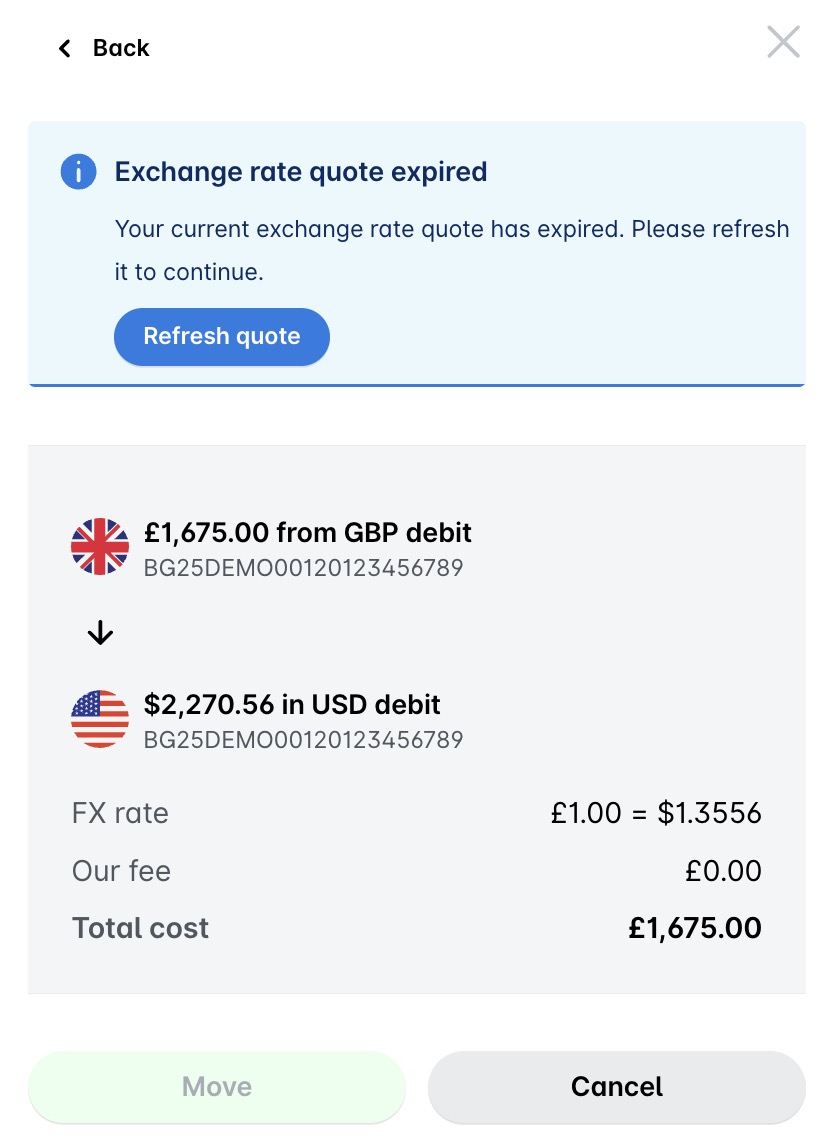
The FX rate shown on the review screen is valid for 3 minutes. If the quote expires before you confirm the transfer, you can click on Refresh quote to get a new rate (valid for another 3 minutes), or cancel the operation.
Once you click Move to confirm the transfer, the rate is locked and the transfer will be executed at that value.
The FX rates for internal transfers between own currency accounts (live from J.P. Morgan) are different from the FX calculations used for expense reporting relative to your base currency, which are calculated using central bank rates.
Error messages
If any limitations apply or another issue occurs, Payhawk will display an error message explaining the reason, for example: Insufficient funds, Invalid transfer amount, Invalid payment details, or Something went wrong.
Transferring funds
To transfer funds between your Payhawk currency accounts:
In the Payhawk Web Portal, navigate to Funds and select the source Payhawk currency account.
Click on Move.
In the dialog that appears:
Choose the target account from the drop-down. This can be an account in the same currency or a different currency.
Enter the transfer amount.
Click on Review order.
On the review screen:
For same-currency transfers, verify the transfer details and any applicable fees.
For FX payments, review the transfer details including the live FX rate and the amount the recipient account will receive. The rate is valid for 3 minutes. If it expires, click on Refresh quote to get an updated rate, or cancel the operation.
Click on Move to confirm.
On the success screen, click on Close.
