To simplify the payment process, Payhawk allows you to define discrepancy rules for request-related spend types that allow for deviations in the amounts stated in the request and in the invoice.
Payhawk triggers a two-way matching process for requests based on the request data and the invoice. If, during the matching, Payhawk identifies a discrepancy between the amounts, the system will trigger an approval process for the payment according to the pre-defined workflows for the spend type linked to the request.
Notes on discrepancy rules
To streamline the payment process, Payhawk allows Payhawk Administrators to define discrepancy rules for request-related expenses. These rules determine how much deviation from the approved amount is acceptable before the system triggers a discrepancy approval workflow.
Payhawk will trigger a discrepancy approval workflow for the expenses related to the requests if the invoiced amount is higher than the amount on the request, with more than the allowed discrepancy threshold.
Discrepancy rules can only be set in your base account currency. If a request is received in a different currency, Payhawk uses the current exchange rate to calculate the discrepancy. For example, if you set a discrepancy rule of GBP 20 and receive a request exceeding the approved amount by EUR 21, no discrepancy will be triggered.
If an expense is associated with a purchase order, purchase order categories configured to require receipt notes will trigger a 3-way matching process (between the purchase order, invoice, and receipt note). In contrast, purchase order categories that do not require receipt notes for purchase orders will trigger a 2-way matching process (between the purchase order and invoice).
If during the matching, Payhawk identifies a discrepancy between the amounts in the documents, the system will trigger an approval process for the payment according to the pre-defined workflows for the request type.
Payhawk will trigger a discrepancy approval workflow for the expenses related to the requests and purchase orders in the following cases:
If the invoiced amount is higher than the amount on the purchase by more than the allowed discrepancy threshold.
If the received items exceed the purchased quantity and a 3-way matching process is triggered.
If the received items are fewer than the purchased ones.
Defining discrepancy thresholds
To define discrepancy thresholds for requests:
Go to Settings > Requests > Types.
Select the desired request type, for example, Hardware.
Go to its Workflow tab and click on Edit workflow.
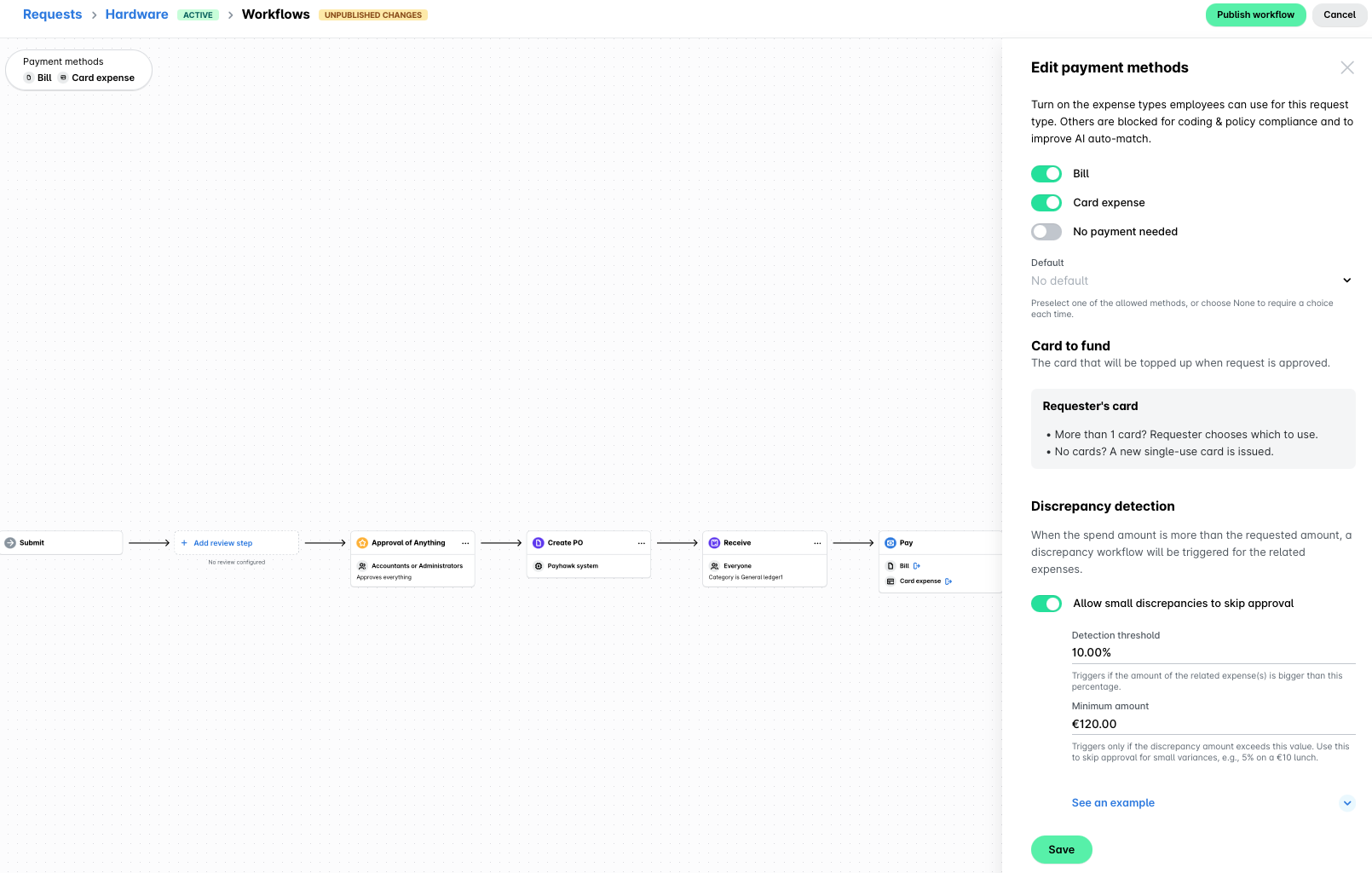
Click on the Pay step:
Under Discrepancy detection, enable the Allow small discrepancies to skip approval toggle button, if you want to trigger a discrepancy workflow for the related expenses when the spend amount is more than the requested amount.
Set a percentage and/or specific amount as the acceptable threshold.
Click on Save.
Click on Publish workflow.
Useful resources