Purchase orders (POs) add an extra layer of control and visibility to your company's spend management process. When enabled in Payhawk, requests can automatically generate PO documents and unique PO numbers, and support 3-way matching with receipt notes to ensure accuracy between the order, delivery, and invoice.
As a Payhawk Administrator, you can configure PO settings and define discrepancy rules to align with your company's internal policies.
To control which roles can view specific fields on purchase orders, go to Settings > Fields library, select the field, and add the required roles under its Visibility settings. Fields not visible to a role on expenses are also not visible on Purchase orders for that role.
General purchase order settings
From the Settings > Requests > Purchase orders tab, you can define the basic settings for purchase orders, such as specifying who can submit purchase requests for approval and defining the numbering convention applied to purchase orders.
To configure the basic purchase order settings for your company:
Go to the Purchase orders tab:
In the Roles section, use the drop-down menu to select which employees in your company can submit purchase requests for approval.
In the Customization section, define the number prefix and format for auto-generated purchase order numbers, such as PO-[auto-generated number].
(Optional) You can specify a central invoicing email address to be automatically linked to purchase orders, allowing suppliers to send invoices directly.
(Optional) Add your company logo to have it automatically displayed on all purchase orders.

(Optional) You can add extra invoicing details to purchase orders by enabling the Additional information toggle. Enter a title for the section and provide the information you want to appear on the purchase orders.
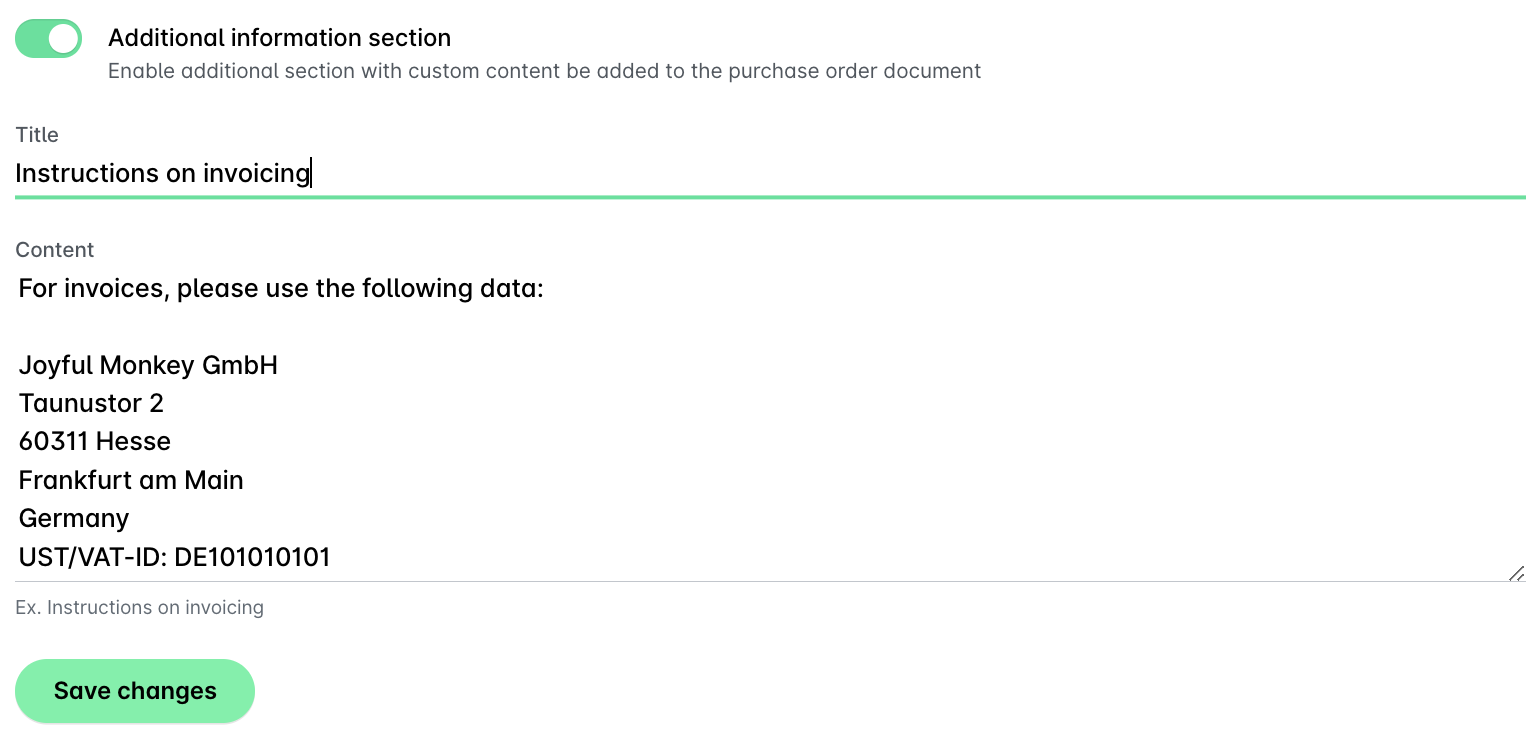
Click on Save changes to confirm your settings.
Configuring receipt note settings for purchase orders
When purchase orders are enabled, you can require receipt notes for requests for specific expense category from the relevant request type's workflow.
The expense categories are defined in Settings > Fields library, and can be managed from Settings > Fields library.
Requiring a receipt note for an expense category will trigger the three-way matching process for that category and will require the Finance team to check the details of the purchase order, the supplier's invoice, and the receipt note before the payment is executed.
Useful resources