In Payhawk, you can configure the fields for the request types used at your company.
This functionality allows you to customize what information is collected during the request submission process and ensures that you gather all necessary data from employees.
Any field added within a request from the Fields library, brings its settings from the Fields library.
Creating fields for request types
You can add different types of fields for request types, depending on the purpose you want those fields to serve for the request.
Creating additional information fields for request types
You can add additional information fields to help you gather more context about the request and ensure it follows the correct workflow.
To create additional information fields:
In the Payhawk Web Portal, go to Settings > Requests and open the Types tab.
Select the desired request type by clicking on it, for example, Hardware.
In the Fields tab, under Additional information, click on + Add field.
In the dialog that opens:
Select a type for the field by clicking on one of the available options: Dropdown list, Date or Short text.
Fill in the required data depending on the field type. For example, for all field types you’ll need to enter a name and a short description for the field. For the drop-down field type, you’ll also need to provide the values from which employees will select.
To enable the field, switch on the Enable field toggle. As a result, you’ll now need to define:
The visibility settings for the field (that is, which roles will be able to see it). You can also set conditions based on which the field will be displayed,. For example, you can display it for specific expense categories only.
If the field will be required for request submission.
Click on Save.
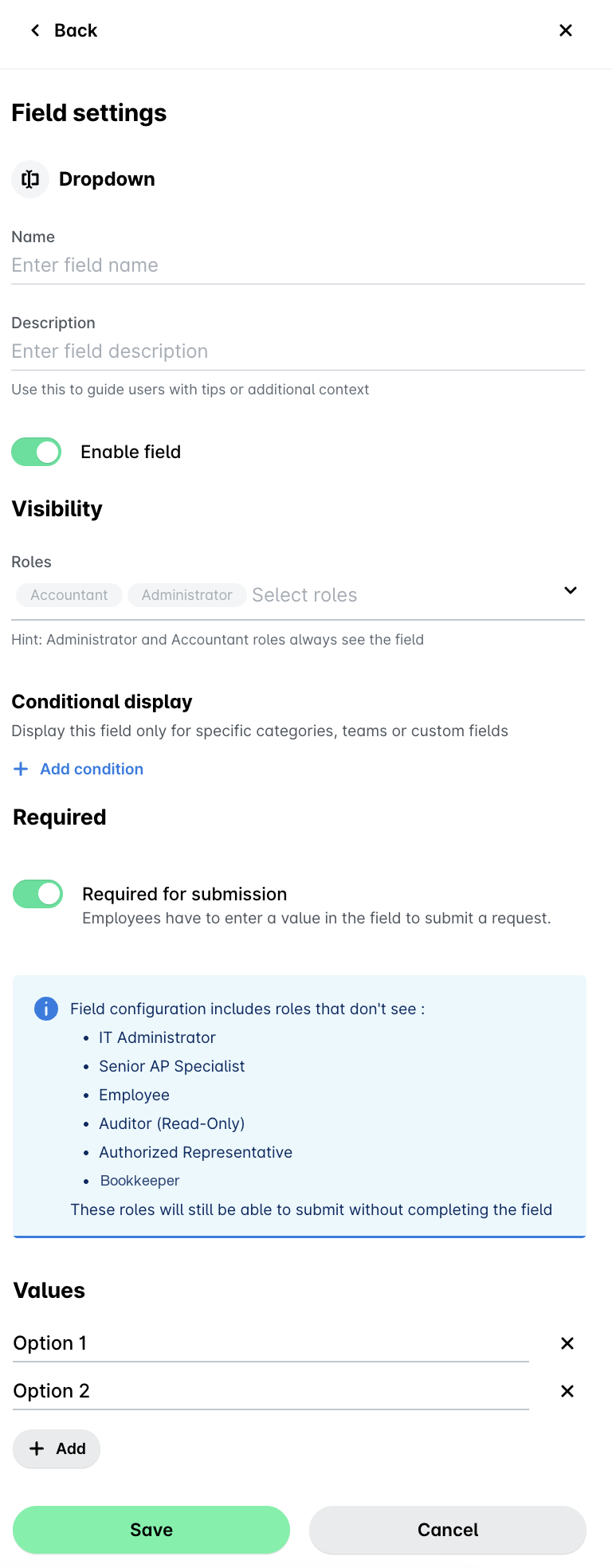
Additional fields are present within the request itself and are not shared across the fields in the Fields library.
Adding categorization fields for request types
You can add categorization fields which you can use for accounting and reporting categorization as long as they are available in the Fields library.
To add categorization fields:
In the Payhawk Web Portal, go to Settings > Requests and open the Types tab.
Select the desired request type by clicking on it, for example, Hardware.
In the Fields tab, under Categorization, click on + Add field.
In the dialog that opens:
Choose which field from the Fields library will be added, for example, Cost center.
Define its visibility settings, that is, which roles can see this field.
Define if the field will be required from request owners during request submission.
Click on Save.
To remove a categorization field, click on its three-dot menu and select Remove field.
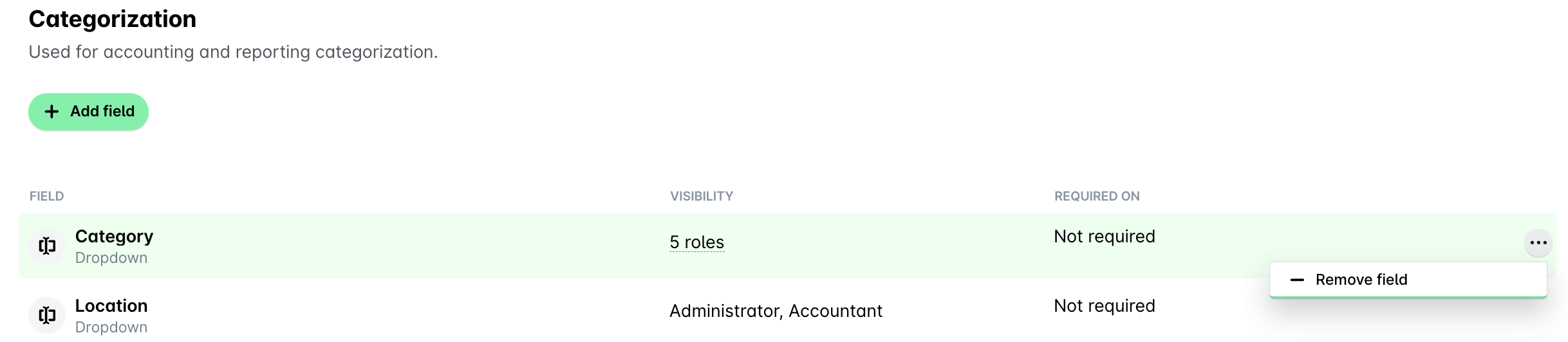
Categorization fields for request types are included in and managed from the Fields library. For group Payhawk accounts, the management of the request type categorization fields is centralized and happens in Fields library on the group-account level.
Setting workflows for request types
You can set approval workflows for request types from the Workflow tab of the respective request type. For example, to configure the workflow for the Hardware request type, navigate to Settings > Requests > Types > Hardware > Workflow > Edit workflow.
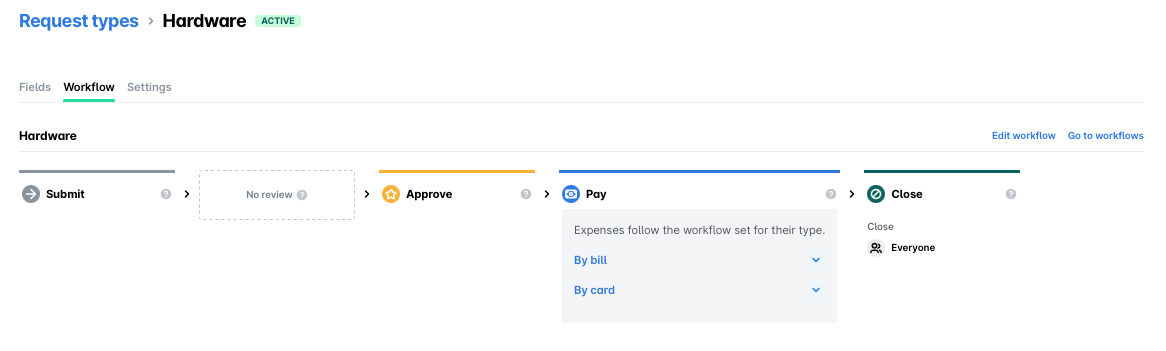
Alternatively, you can set approval workflows for request types from the Workflow tab in Settings. For example, to configure the workflow for the Hardware request type, navigate to Settings > Workflows > Requests > Hardware > Edit workflow.