Before connecting Payhawk to SAP S/4HANA® Cloud, Public Edition, you need to prepare SAP S/4HANA Cloud, Public Edition for the integration.
Activating services
You need to activate two sets of services before connecting Payhawk to SAP S/4HANA Cloud, Public Edition.
Activating SOAP services
To activate SOAP services:
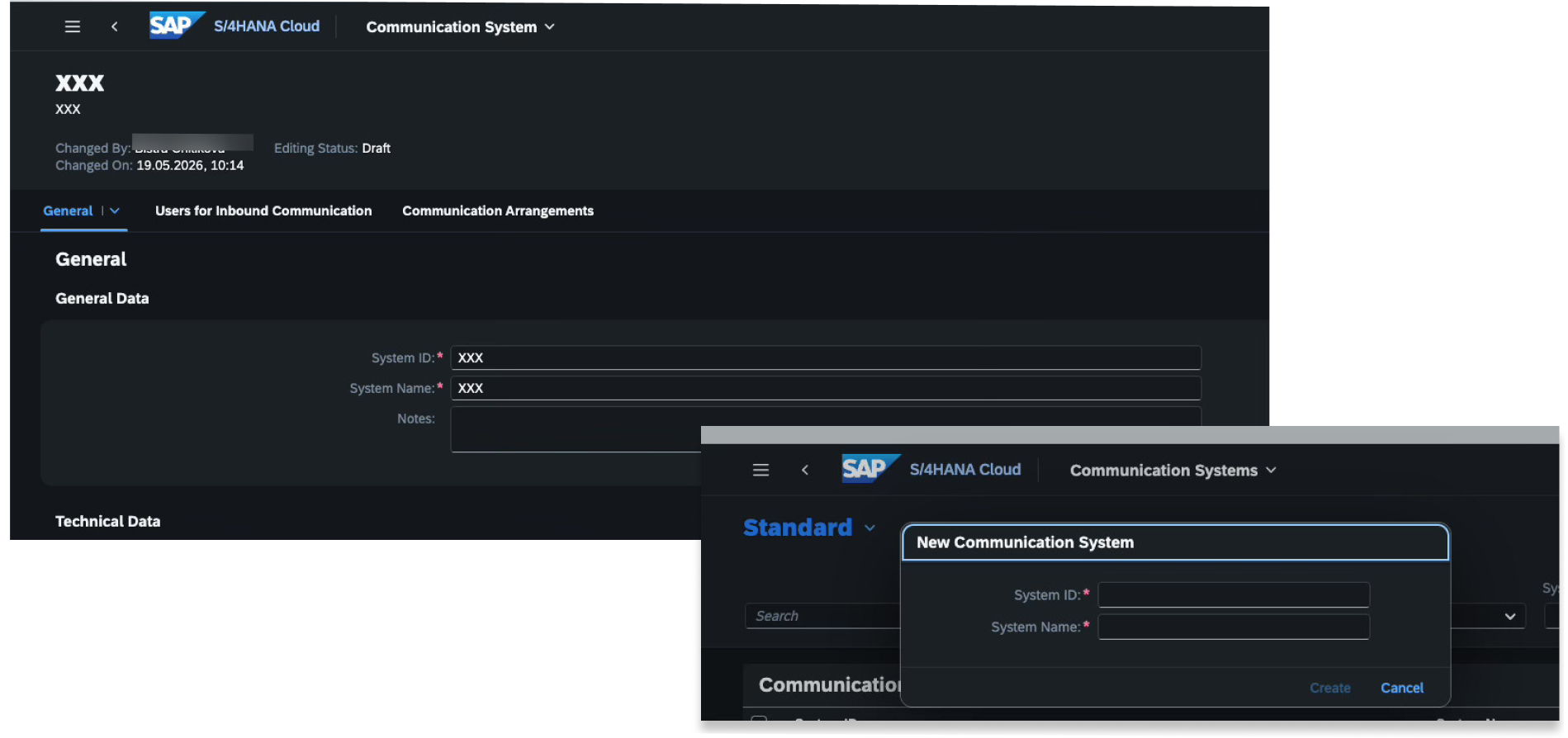
Navigate to Communication Systems and click on New.
Enter System ID and System Name and click on Create.
In the new Communication Systems overview, enter the Host Name or System ID.
Navigate to the Users for Inbound Communication tab.
Click on the plus sign (+) and select New User in the dialog that opens.
Enter the User name, Description and password.
Click on Create. In case of Client Certificate authentication:
Click Upload and choose the file you've downloaded from the Payhawk wizard.
For Authentication Method, choose SSL Certificate.
Click on Save.

Then, follow the next steps:
Navigate to Communication Arrangements and click on NEW.
Create arrangements with each of these scenarios:
Scenarios:
SAP_COM_0002SAP_COM_0008SAP_COM_0057SAP_COM_0087SAP_COM_0303SAP_COM_0308SAP_COM_0316SAP_COM_0368SAP_COM_0943/PHWK/PAYHAWK_SCENARIO
For each of these scenarios, create it and assign it to the communication system and user you just created.
For each of these scenarios, go to Outbound services and deselect all Service Status checkboxes.
Click on Save to activate the OData services.
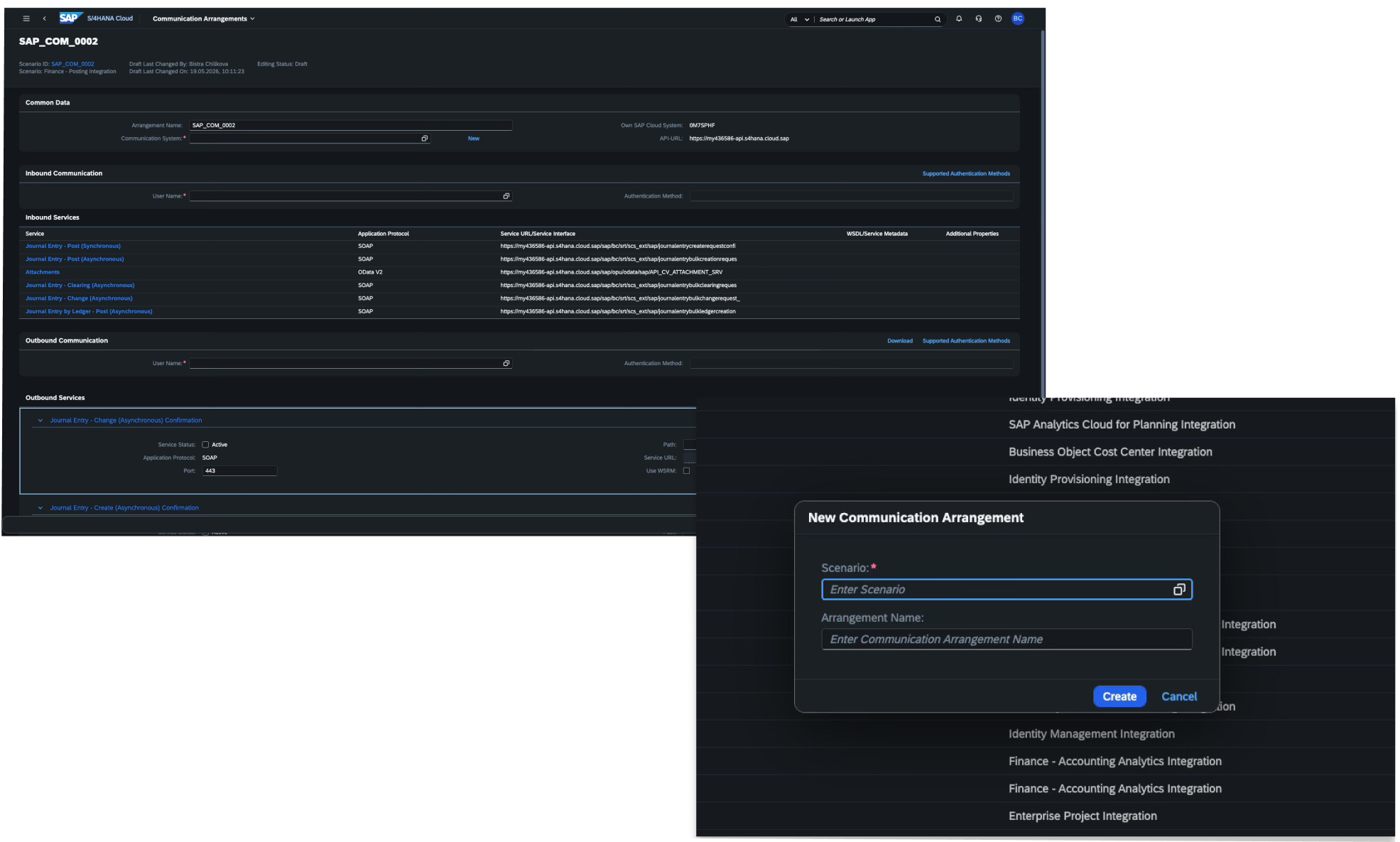
To find your SAP instance URL, open a communication arrangement and go to Inbound Services. Copy the URL displayed there, using only the part before
/sap/(for example,https://your-tenant.s4hana.ondemand.com). This is the URL to enter in the Payhawk wizard.
After starting the setup integration wizard on Payhawk, you will download a certificate from the wizard. You then need to upload the provided certificate in SAP S/4HANA, in the Certificate section of the communication user.