Payhawk supports direct integration to SAP S/4HANA®, providing you with the flexibility to effortlessly export and sync your expenses between the two systems.
For more information, go to the article about exported data between SAP S/4HANA and Payhawk.
Before you begin
To connect the two systems, make sure you have:
An SAP S/4HANA Public Cloud tenant.
Administrator access to set up communication system and communication user with the appropriate arrangements in SAP S/4HANA.
An SAP S/4HANA user account with the appropriate permissions.
Connecting to SAP S/4HANA
To start connecting your Payhawk account to SAP S/4HANA, follow the steps:
In the Payhawk Web Portal, go to Settings > Integrations > SAP S/4HANA.
Click on Connect.
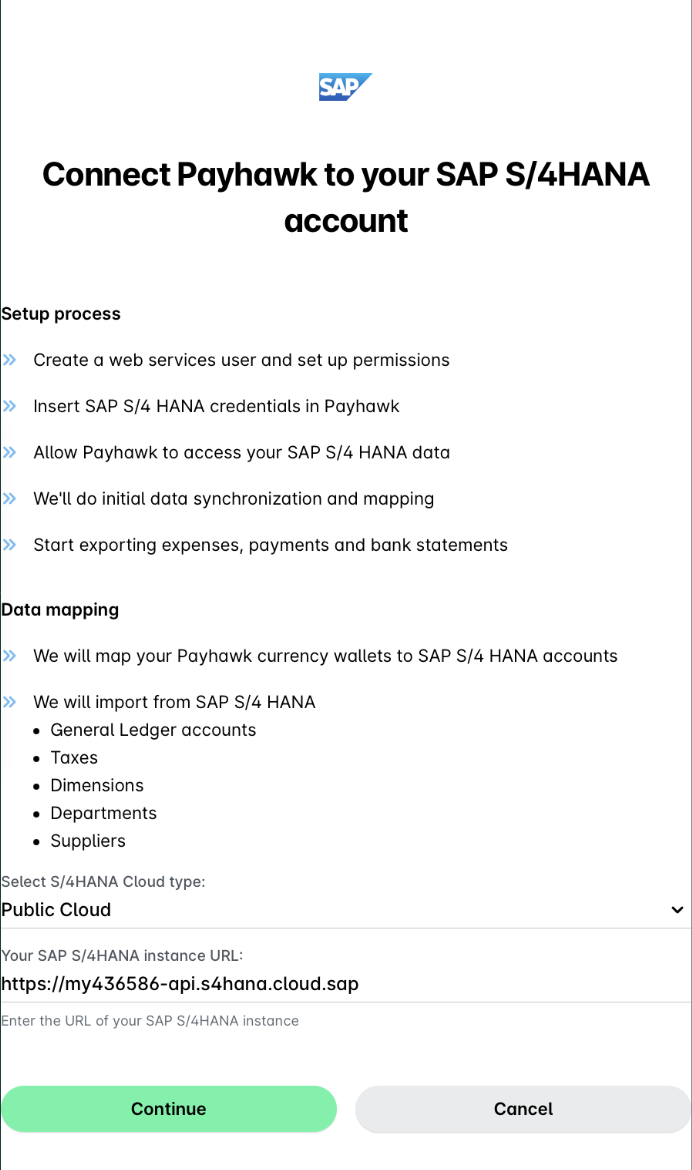
On the next screen, from the drop-down list, select Public Cloud, and enter the URL of your SAP S/4HANA instance. Click on Continue.
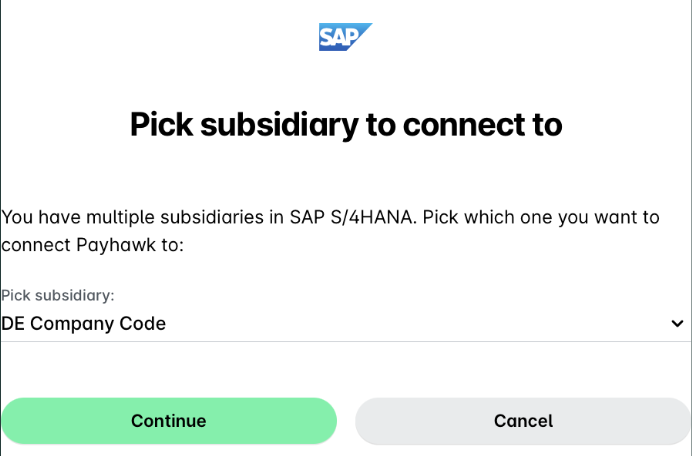
In the Pick subsidiary to connect dialog, from the drop-down list, select which one of your subsidiaries in SAP S/4HANA you want to connect Payhawk to. Click on Continue.
In the Map accounts dialog, choose which parameters to map when exporting expense data. Note the you can adjust these at any time.
Click on Continue.
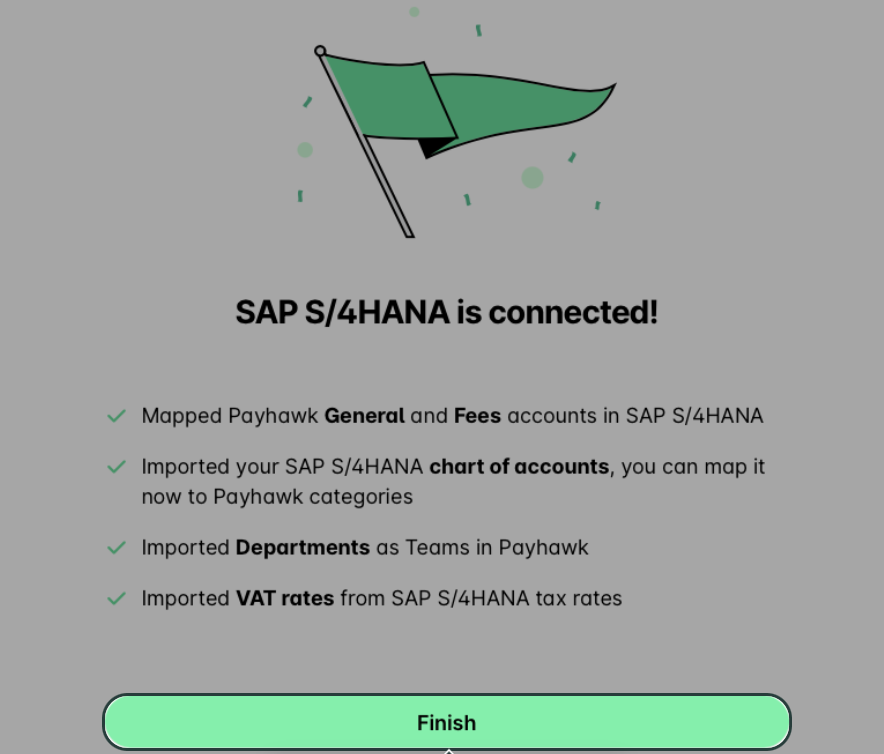
The Payhawk system will automatically fetch the SAP S/4HANA data. After the data process has finished, click on Finish.
Notes on configuration
The integration setup from the last time Payhawk and your accounting system were connected will be automatically re-applied the next time you connect.
You can edit the current integration setup without disconnecting from your accounting system. In Payhawk, go to Settings > Integrations, click on the three dots menu of the desired ERP system, and select Edit configuration.
You can disconnect the integration, if you go to Settings > Integrations, click on the three dots menu of the desired ERP system, and select Disconnect. For group accounts, disconnecting the parent also unlinks all child accounts.