The Payhawk AI Agents help you complete common tasks in Payhawk by chatting with an AI assistant, instead of doing everything manually.
You can describe what you need in your own words, run a ready-made skill or playbook, or create your own custom playbooks for the tasks you repeat most often.
Conversing with the AI Agent in the Web Portal
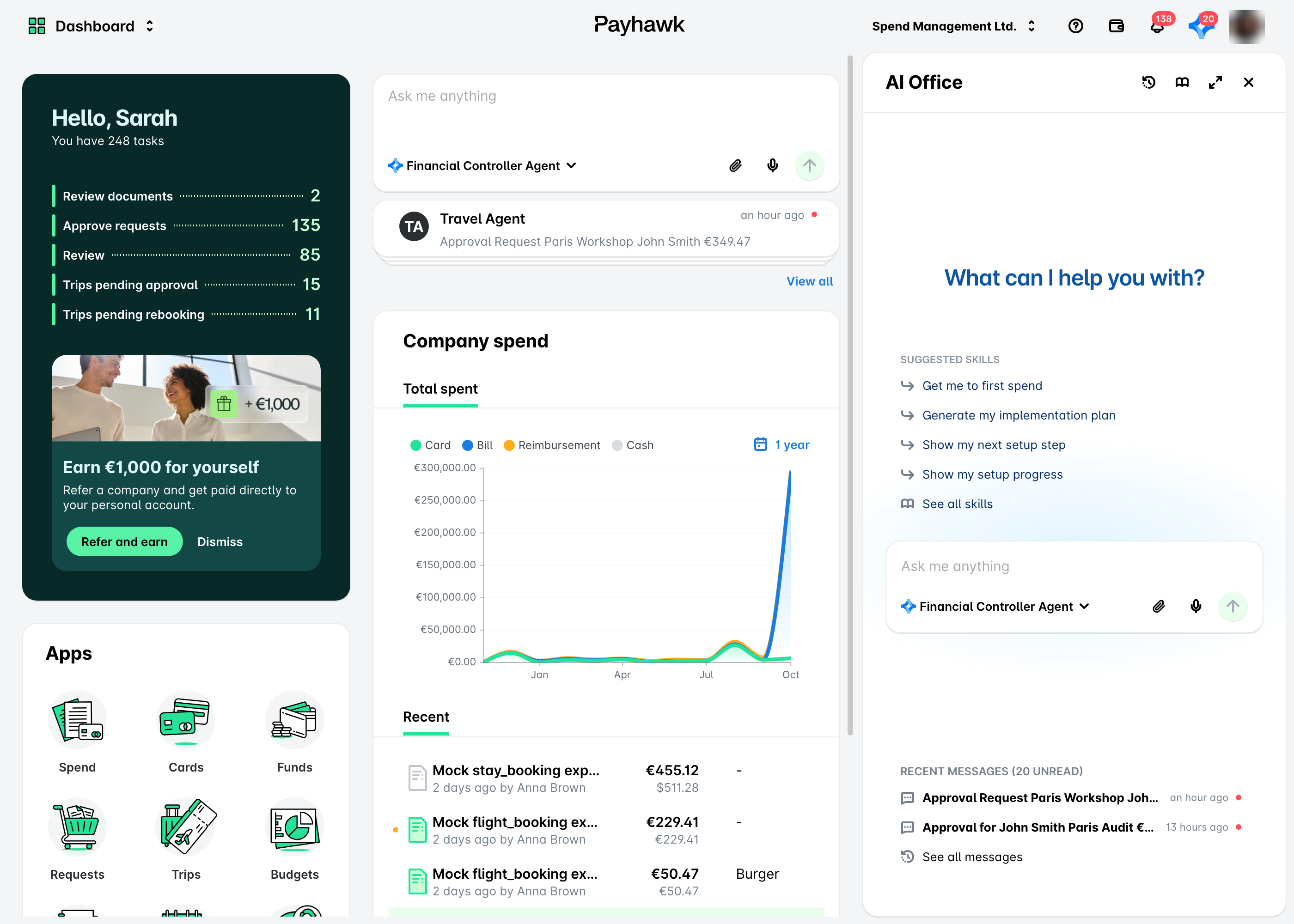
You can directly start conversing with the AI Agent in the Payhawk Web Portal in any of the following ways:
By starting a chat from the Dashboard screen.
By clicking the AI Office icon in the upper right-hand corner next to your profile picture, which opens the AI Office as a side panel on the Dashboard.
By clicking the expand icon in the AI Office side panel, which opens the AI Office in a full-screen view.
In any case, you can continue your communication with the AI Agent.
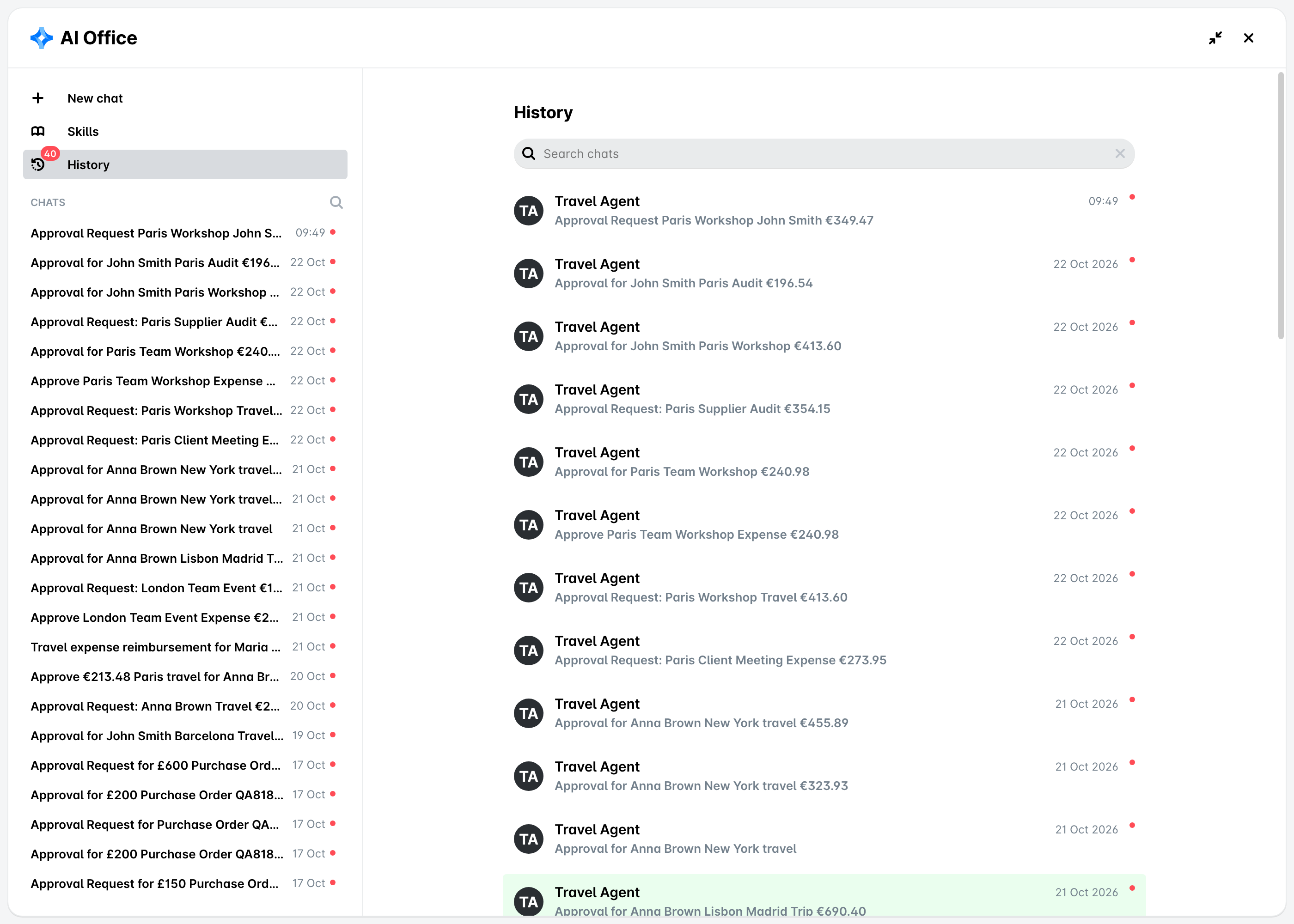
You can also view the history of your conversations with the AI Agent from the AI Office screen by clicking on History.
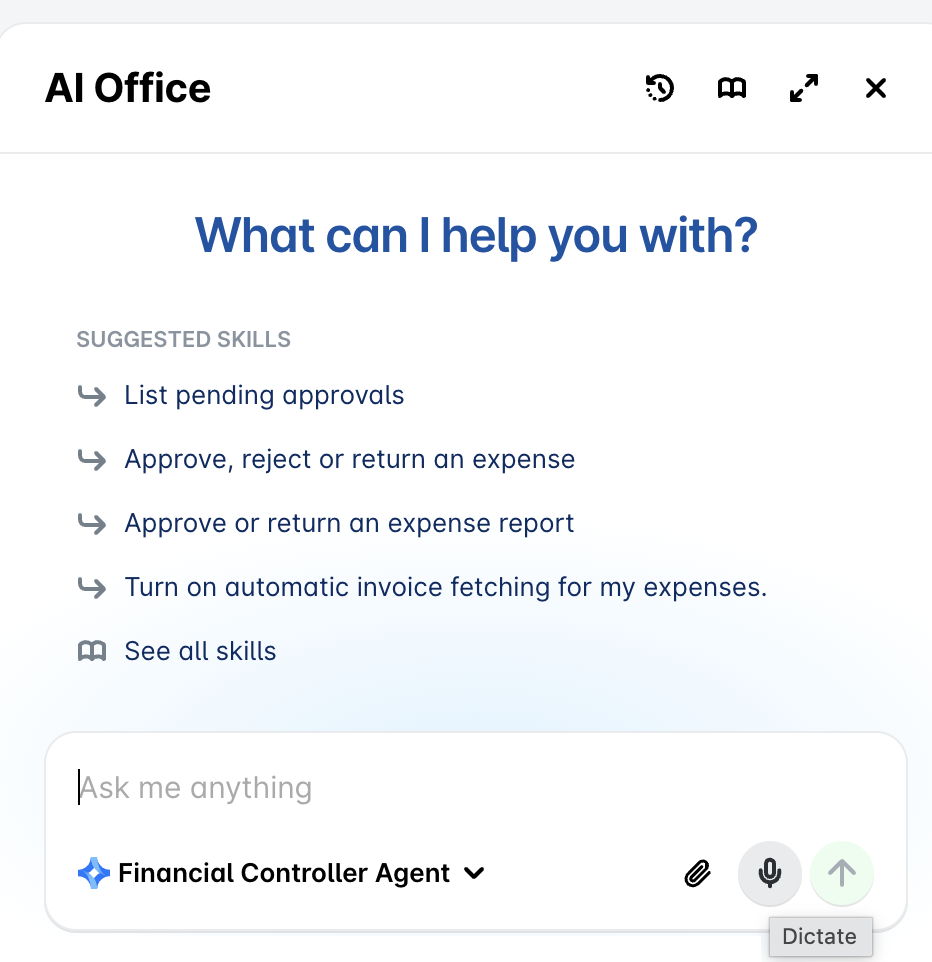
Instead of typing, you can also dictate your message to the AI Agent in any of the languages supported in Payhawk:
In the chat box, click on the microphone icon (Dictate) and start speaking. A waveform shows that the AI Agent is listening, and your words appear as text in the chat box.
When you finish speaking, click on the Stop icon.
Review the text and click on the Send arrow.
Conversing with the AI Agent in the Mobile App
You can also directly access the AI Agent from the Payhawk Mobile App by starting a chat on the Dashboard screen or by tapping the AI Office icon. Either way, the AI Office screen will load and you can continue your communication.
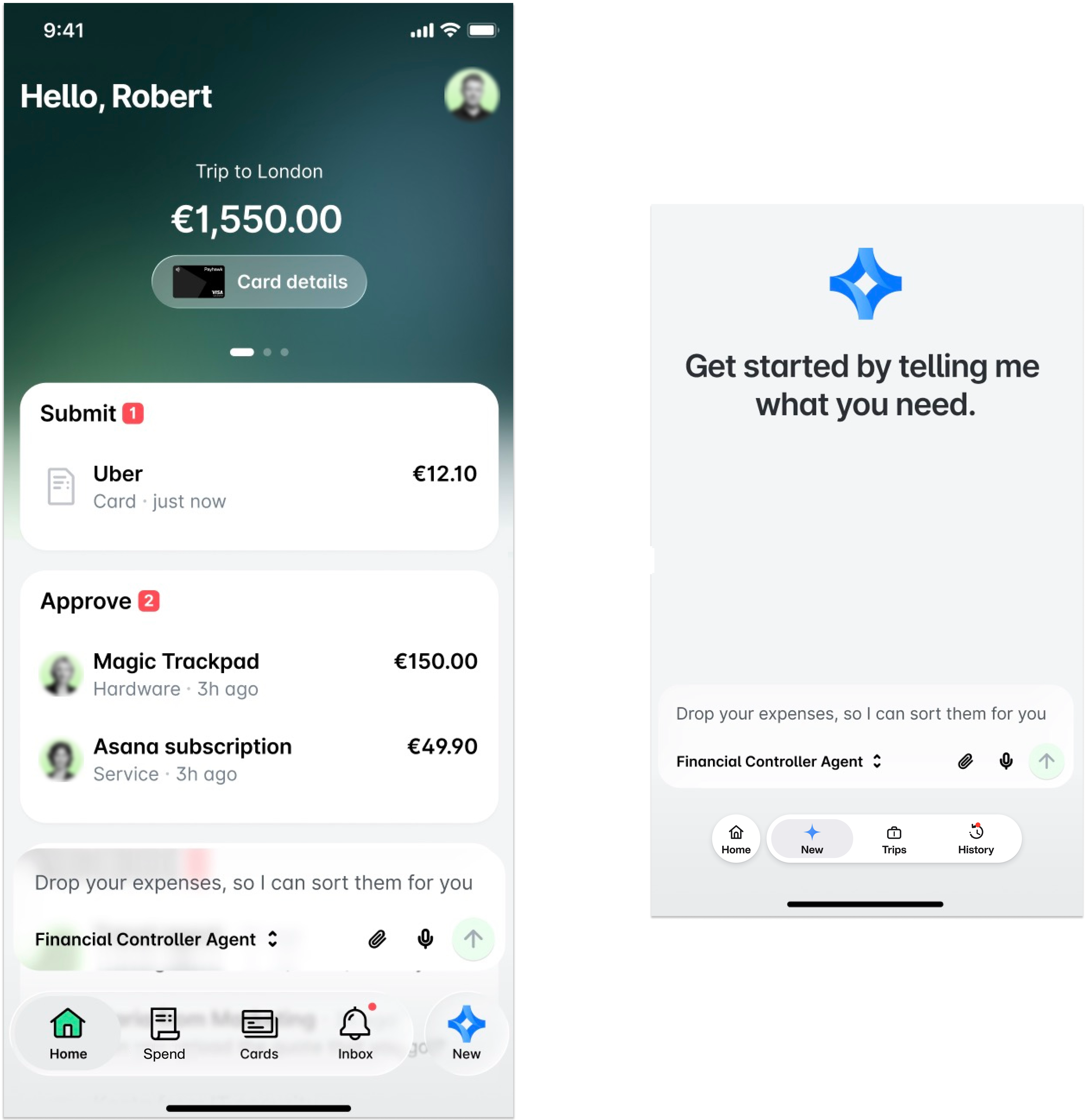
You can also view the history of your conversations with the AI Agent from the AI Office screen by clicking on History.
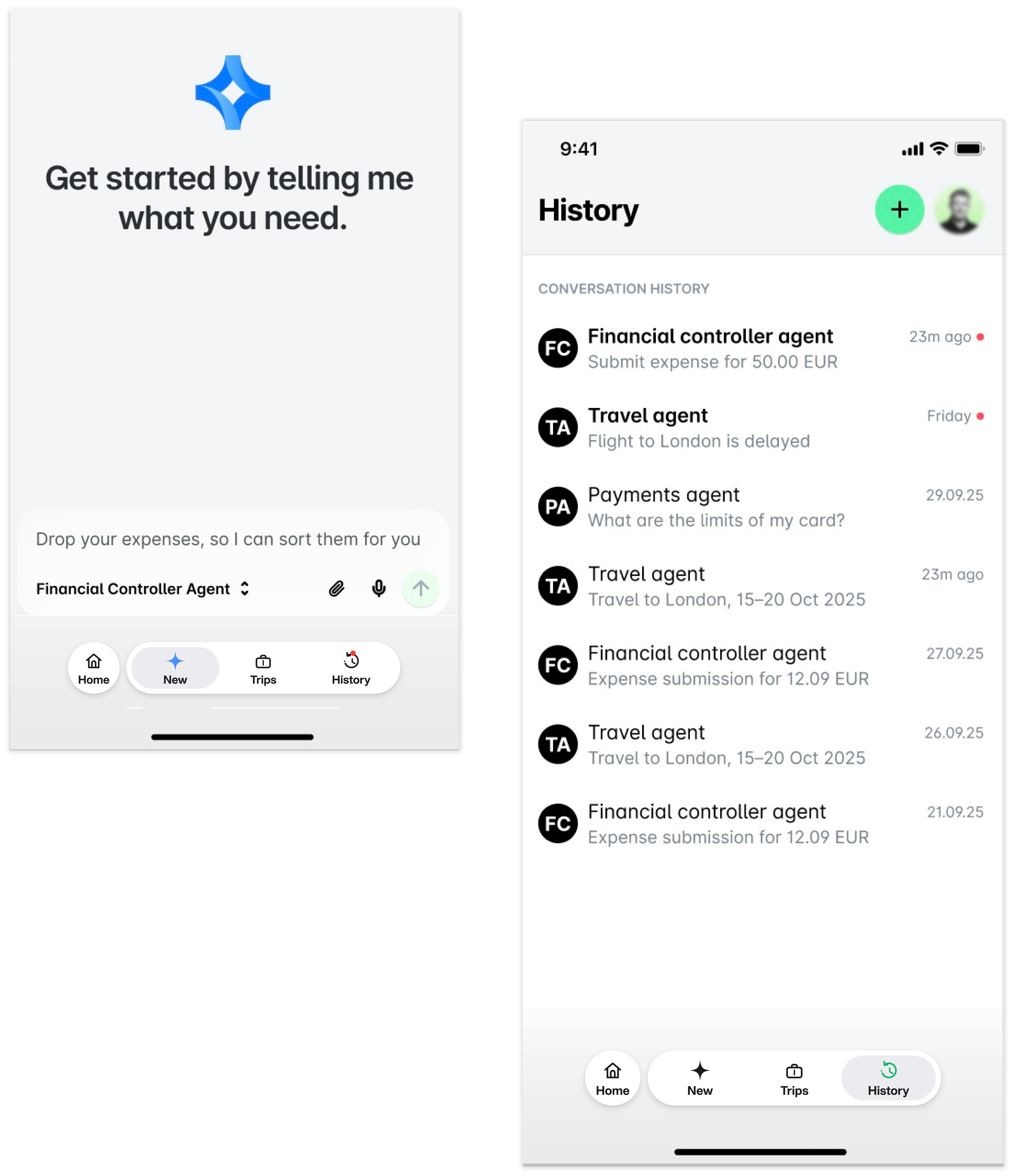
You can also dictate your message instead of typing it. In the chat box, tap the microphone icon and start speaking. Your words appear as text in the chat box. When you finish speaking, tap the stop icon, review the text, and tap the send arrow.
From the bottom navigation of the AI Office screen in the Payhawk Mobile App, you can also tap Trips to view all your past and upcoming trips. For details, see the article on viewing and updating existing trips and itineraries.
Using the AI Agents in Slack
You can ask questions or complete tasks with the AI Agents in Slack, provided your company’s Payhawk Administrator has enabled this communication channel.
The AI Agents work with all Slack plans, including the free one.
For detailed information on using the Slack channel to interact with Payhawk AI Agents, refer to the following guides:
Employee guide for using the Payhawk Travel AI Agent in Slack
Employee guide for using the Payhawk Financial Controller AI Agent in Slack
Employee guide for using the Payhawk Procurement AI Agent in Slack
Employee guide for using the Payhawk Payments AI Agent in Slack
Using the AI Agents in MS Teams
Currently, the MS Teams integration is available for the Financial Controller AI Agent only. For more information, see the employee guide for using the Payhawk Financial Controller AI Agent in MS Teams.
Running a playbook
A playbook is a ready-made, multi-step procedure that an AI Agent follows in the right order, so you don’t have to remember or repeat each step yourself. Playbooks handle end-to-end finance tasks, such as chasing your missing receipts, running an expense review, or closing the month.
To run a playbook:
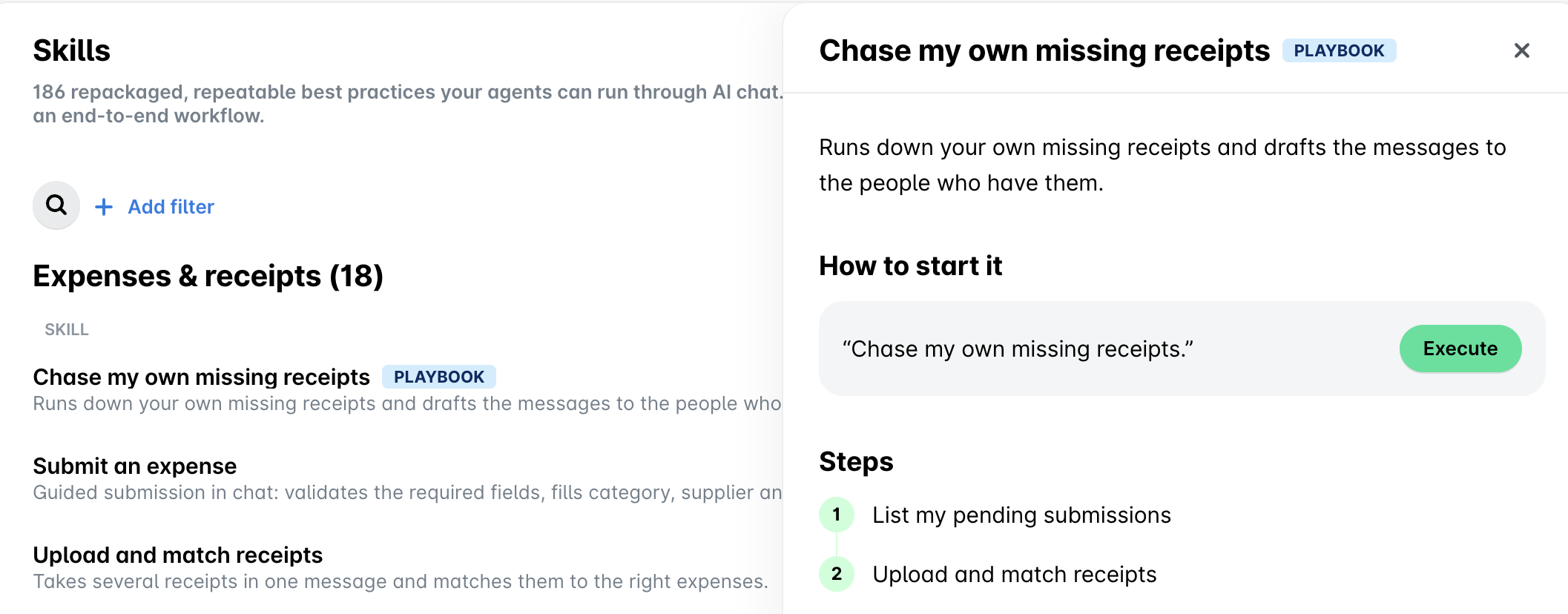
In the AI Office, open the list of available skills and playbooks. They are grouped by AI Agent (for example, Financial Controller AI Agent), and each playbook is marked with a PLAYBOOK tag. Use the search or Add filter option to find the one you need.
Select a playbook to open its details. You’ll see a short description, the numbered Steps it will perform, and, under How to start it, the phrase you can use to launch it.
Click Execute to run the playbook, or type the suggested phrase (for example, “Chase my own missing receipts”) to the AI Agent in the chat.
You only see the playbooks you have permission to run, based on the actions each of their steps performs.
Running a skill
A skill is a single, focused action that an AI Agent can perform, such as listing your pending submissions, fetching an invoice from a vendor, or submitting an expense report. Unlike a playbook, a skill completes one specific task rather than a full multi-step procedure.
To run a skill:
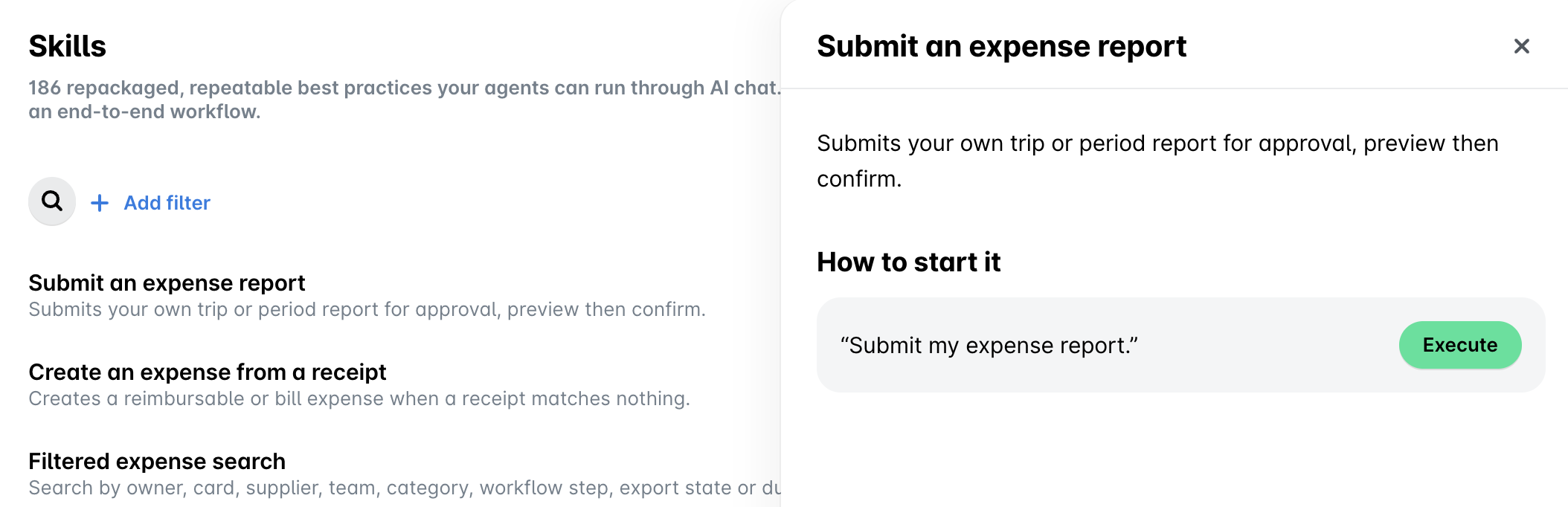
In the AI Office, open the list of skills and playbooks and find the skill you need. A skill is marked with a SKILL tag. You can search or filter by AI Agent.
Select a skill to see its description and, under How to start it, the phrase that launches it.
Click Execute, or type the suggested phrase (for example, “What do I still have to submit?”) to the AI Agent in the chat.
Skills and playbooks provided by Payhawk are marked as Payhawk, while the ones you or your team create are marked as Custom.
Creating custom playbooks
If none of the ready-made skills or playbooks covers a task you do regularly, you can ask the AI Agent to create a custom playbook for you. You describe the task in your own words, and the assistant drafts a structured playbook that it will then follow every time you run it.
To create a custom playbook:
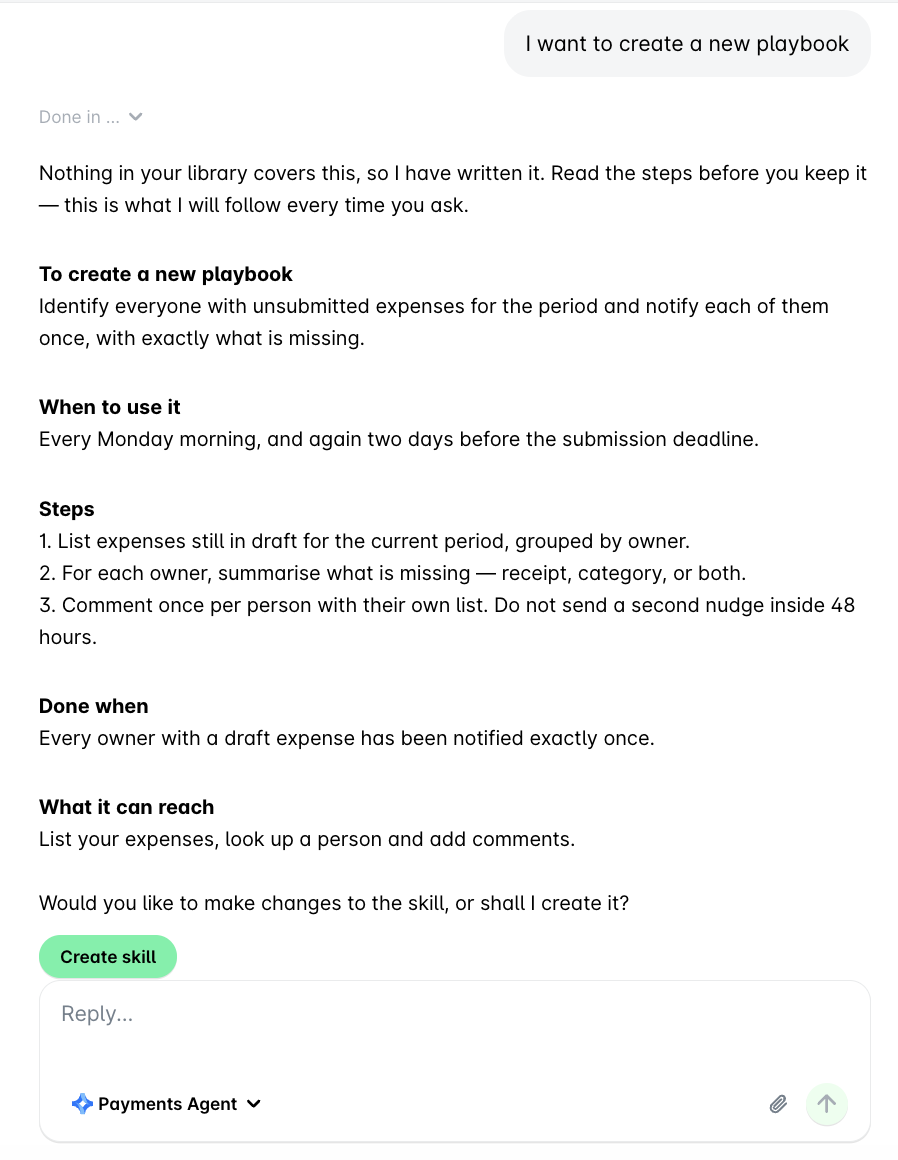
In the chat, tell the AI Agent what you want to automate (for example, “I want to create a new playbook”) and describe the task and when it should run.
The assistant checks your existing library and, if nothing covers it, drafts a new playbook. Review the proposed details, including its description, When to use it, the Steps it will follow, the Done when condition, and What it can reach (the actions and data it will use).
If you want changes, tell the assistant what to adjust. When you’re happy with it, select Create skill to save the playbook.
Your custom playbook is then added to your library, marked as Custom, and you can run it at any time, just like any other playbook.