You can add bank details for all your synced suppliers at once from one spreadsheet, without disconnecting your ERP system.
Your ERP system stays in charge of the supplier record, and Payhawk keeps the bank details. The next ERP sync doesn't overwrite or clear the bank details you import.
Payhawk doesn't send these bank details to your ERP system. The exception is DATEV: with a DATEVconnect master data connection, Payhawk sends the SEPA bank details to the DATEV creditor.
Before you start
You can find the necessary prerequisites in the following table:
What you need | Details |
Payhawk role | Payhawk Administrator, Senior AP Specialist, or a custom role that can both bulk import data and change supplier bank accounts. |
ERP system | A connected ERP system that syncs suppliers into Payhawk. |
Level | A single entity. You can't run this import on the group level. |
Currencies | EUR (SEPA), GBP (Faster Payments), and USD (ACH) |
Suppliers not included in the template
The template doesn't include the following suppliers:
Suppliers you created in Payhawk rather than synced from your ERP system. Add their bank details on the supplier itself.
Suppliers that are archived or under review.
Suppliers paid through Wise or the Dynamic payment scheme.
Importing bank details
To import bank details for your synced suppliers, you generate a template, fill in the bank details, and upload the file to Payhawk.
Generating the template
To generate the payment details template:
In the Payhawk Web Portal, open the app switcher in the top-left corner and go to Suppliers.
Click on the three-dot menu and select Update suppliers.
Under What do you want to import?, select Payment details.
Click on Generate template.
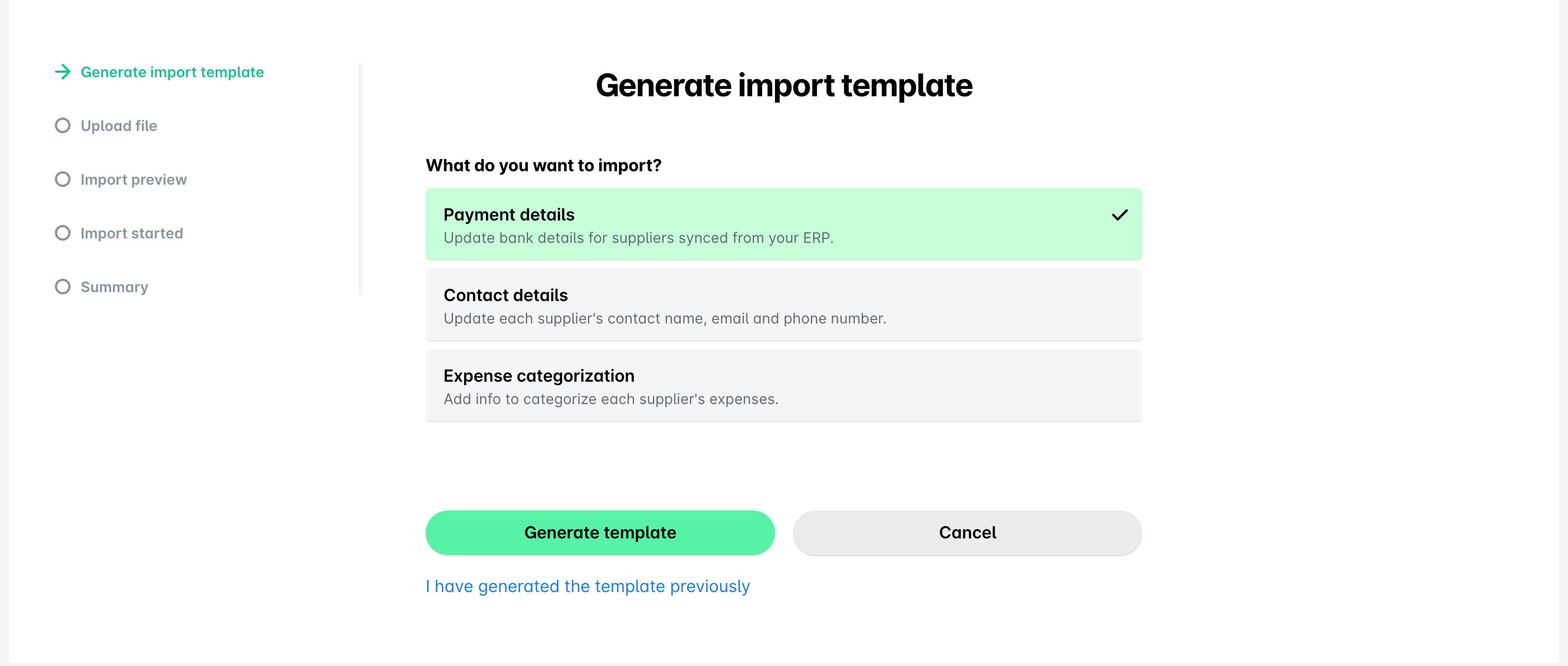
Payhawk downloads an Excel file named SupplierPaymentDetails-<account id>.xlsx. The file has one row for each active supplier synced from your ERP system, with any bank details the supplier already has filled in.
Filling in the bank details
Don't change the first four columns. Payhawk uses the External ID to find each supplier, so if you change it, Payhawk can't find the supplier. If you change the Supplier name, VAT / Tax ID or Country, Payhawk rejects the row.
You can find a summary of the columns in the template and whether each of the columns can be edited in the following table:
Column | Editable status |
Supplier name | No |
VAT / Tax ID | No |
Country | No |
External ID | No. This is the supplier ID in your ERP system. |
Currency | Yes. Select EUR, GBP, or USD. |
Account holder, IBAN, BIC / SWIFT, Account number, Sort code, Routing number, Account type, Bank country, Bank city, Bank postal code, and Bank address | Yes. Fill in the columns for your currency. |
You can find what details each currency requires in the following table:
Currency | Required | Optional |
EUR | Account holder, IBAN, BIC / SWIFT, and Bank country | Bank city, Bank postal code, and Bank address. Fill in all three or none of them. |
GBP | Account holder, Account number, and Sort code | N/A |
USD | Account holder, Account number, Routing number, and Account type | N/A |
You only need to fill in the suppliers you want to update. Rows for suppliers without bank details can stay blank.
You can upload one .xlsx or .xlsm file at a time. There is no limit on the number of rows in the payment details file.
Uploading and importing the file
To import the bank details:
Go back to Suppliers, click on the three-dot menu, select Update suppliers, and upload your file.
Check the Import preview. It shows which suppliers will change and which won't.
Select I understand this action cannot be undone and click on Import.
Review the summary. If any rows failed, download the file with the errors marked on each row, fix them, and upload the file again.
Click on Done.
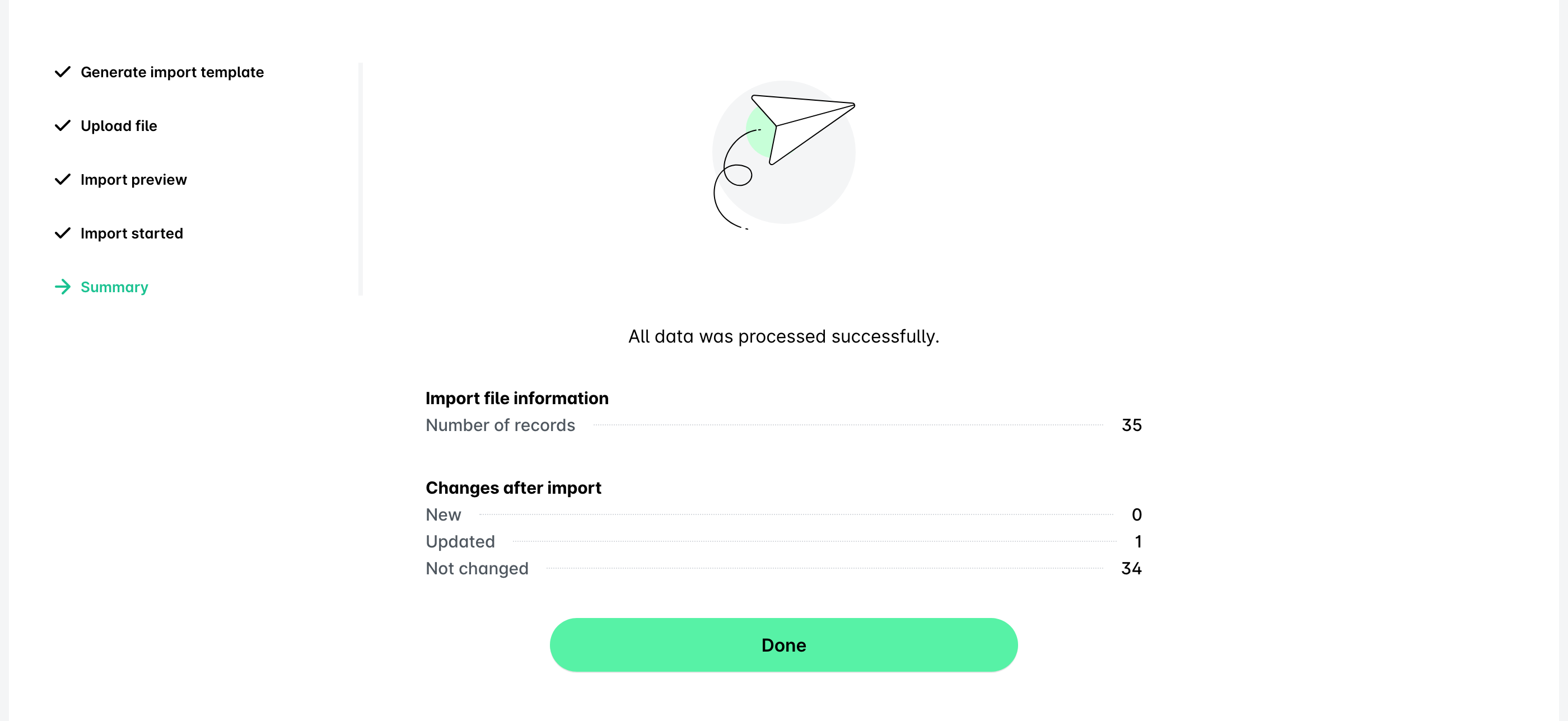
Reviewing the import results
After the import, you can check how Payhawk handled each row in your file and whether any of the changes need approval.
Handling the import of each row
You can see how Payhawk handles the import of each row in your file in the following table:
Row in your file | What happens |
A new row with bank details | Payhawk adds the details to the supplier as another bank account. |
Changed bank details in an existing row | The new details replace the bank details in that row. |
The same details as before | Payhawk marks the row as Not changed. |
Blank bank columns, and the supplier has no bank details | Payhawk marks the row as Not changed. |
Blank bank columns, but the supplier already has bank details | Payhawk displays an error. You can't remove bank details by import. Remove them from the supplier in Payhawk instead. |
The import doesn't create, archive, or delete suppliers, but only updates bank details.
Approving bank detail changes
If you have segregation of duties turned on for supplier bank detail changes, each imported change waits for approval. The import summary tells you that some changes require approval. Approvers find the changes in their Inbox, and the changes take effect once approved.
Payhawk records every change in the audit log as a supplier bank account change, with the note Payment details import.
Troubleshooting
You can find the most commonly displayed errors, their meaning, and solution in the following table:
Error | What it means | Solution |
Supplier with external id '…' was not found. Only active suppliers synced from your ERP can be updated. | The External ID doesn't match an active supplier synced from your ERP system. | Generate a fresh template and copy the details across. |
Identity columns … do not match the exported values. Only bank detail fields can be edited. | The supplier name, VAT / Tax ID, or country has changed. | Undo the change or generate a fresh template. |
Supplier with external id '…' was not found | The External ID in the file was changed. | Restore the original External ID and import the file again. |
Duplicate row for supplier with external id '…'. Each supplier can appear only once. | The same supplier appears twice in the file. | Keep one row. Each row holds one bank account, and each supplier can appear only once in the file. |
Payment details cannot be removed by import. Remove them from the supplier in Payhawk. | The bank columns are blank for a supplier that has bank details. | Fill in the details again, or remove them from the supplier in Payhawk. |
Currency must be one of: EUR, GBP, USD | The row uses another currency. | Use EUR, GBP, or USD. Add other currencies on the supplier itself. |
IBAN is invalid or BIC / SWIFT is invalid. | The bank details failed validation. | Check the details with the supplier. |
A payment-details change for this supplier is already pending approval. | An earlier change is waiting for approval. | Ask an approver to approve or decline the change, then import the file again. |
Payment details for this supplier are managed via a payment provider and cannot be updated by import. | The supplier is paid through Wise or Dynamic. | Update the bank details on the supplier itself. |
You don't see Update suppliers or Payment details. | Your role is missing a permission, you're on the group level, or no ERP system that syncs suppliers is connected. | Check your role, the entity, and the ERP connection. |