When you set the travel policy for a trip to per diem mode, Payhawk works out the traveler's per diem entitlement for the trip and creates a draft per diem expense as soon as the trip request is approved. The traveler reviews the draft, adjusts it, if needed, and submits it, instead of filling in a per diem claim from scratch.
Understanding automated per diems
When a trip is requested, Payhawk adds a per diem to the trip request in place of the allowance. It prices the per diem from the itinerary, and the amount updates on every edit before approval, so approvers always see the current figure. The amount comes from your per diem rate policy and follows the rules of the policy's country.
Calculating per diems
Payhawk shows the per diem as a total with one line for each day of the trip. The traveler can review these lines in the request summary before submitting.
The first and last days of a trip are travel days and can use a reduced rate. The days in between use the full daily rate. Each line uses the matching rate from your per diem policy, so the amounts depend on the destination and the policy's country.
A trip counts one per-diem day for each calendar day it covers, including the first and last travel days. For example, a trip from August 13 to August 17 has five per-diem days. Payhawk reimburses the per diem after the trip ends.
For how the rates are structured, see the articles on daily-based per diem rates and hourly-based per diem rates.
Deducting meals
When a meal is provided during the trip, Payhawk lowers the per diem for that day. If you book a room with breakfast included, Payhawk adds a breakfast deduction for each night of the stay automatically.
You can also mark provided meals for each day, or apply the same deduction to every day. The deduction amounts come from your per diem policy.
Reviewing and submitting per diems
When the trip request is approved, Payhawk creates the per diem as a draft expense in the trip's expense report and notifies the traveler.
The traveler can open the draft to check the route, the per-day rates, and the meal deductions, adjust them if needed, and submit it. If no one submits it, Payhawk submits the report automatically after a set number of days, as long as the required fields and receipts are complete.
If the submitted amount is higher than the approved per diem, the expense goes through a per diem discrepancy approval before payout. A Payhawk Accountant reviews the expense before payout.
If the trip request is deleted or the booking is cancelled before payout, Payhawk voids the draft automatically. If the itinerary cannot be priced, the request still goes through with a per diem of zero and a warning in the request details, and the traveler can create a manual per diem instead.
Prerequisites for automated per diems for travel
Per diem mode for travel requires an active per diem rate policy. This is the same per diem policy used for manual per diems which you can set up in Settings > Spend > Spend types > Per Diem.
For more information, see configuring the per diem spend type.
Setting travel policies to per diem mode
To enable the per diem mode for travel:
In the Payhawk Web Portal, go to Settings > Trips.
Open the selected trip type by clicking on it.
Navigate to the Policy tab.
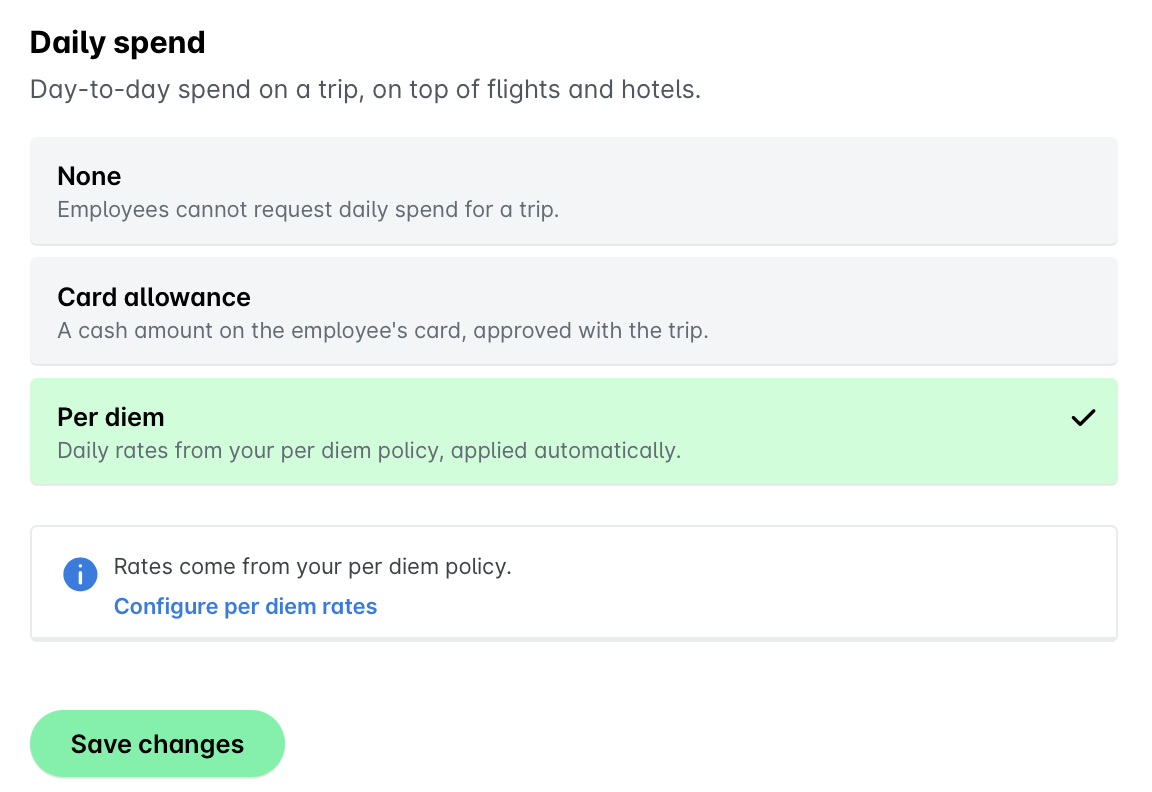
Under Daily spend, select Per diem.
Click on Save changes.
If you switch away from the per diem mode, the system stops adding new per diem lines, but requests that were already approved still produce their draft.
Useful resources