You can configure the settings for the per diem spend type in Payhawk according to the requirements of your company.
Enabling and disabling per diems
To enable (or disable) per diem spend types for your company:
Log in to the Payhawk Web Portal.
Open the app switcher in the top-left corner and go to Settings > Spend types.
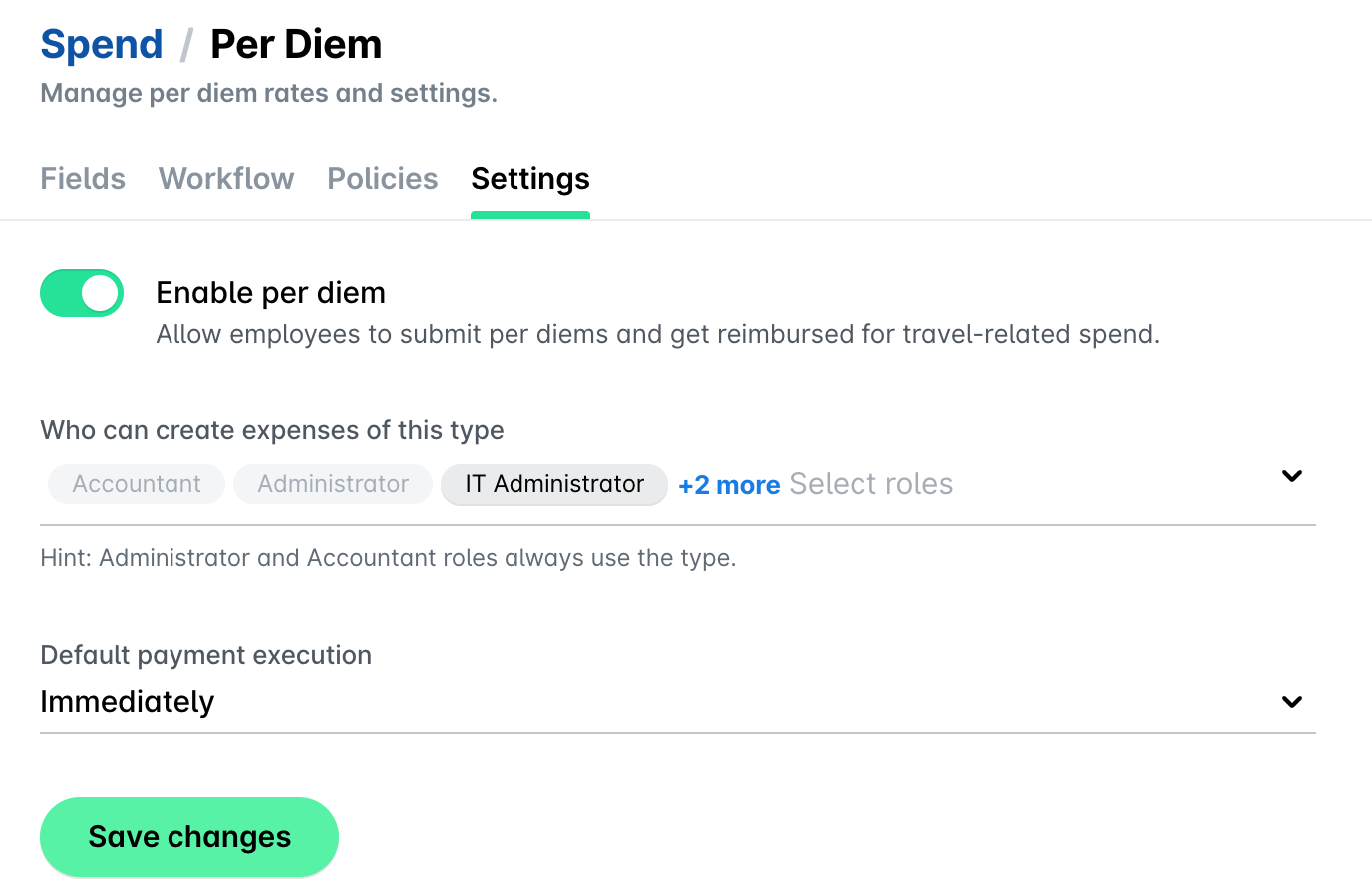
Go to Per Diem > Settings tab.
To allow employees at your company to create per diem expenses, switch on the toggle button. For this example, the per diem expenses will be enabled.
Alternatively, to disable per diems for your company, switch off the toggle button.
Click on Save changes to confirm your settings.
Creating per diem policies
The per diem policies you set up here apply to both manual per diems and automated per diems for travel. When a trip type uses per diem mode, Payhawk calculates the trip per diem from the active policy and its rates. For details, see the article on automated per diems for travel.
You can create a per diem policy for a specific duration based on the needs of your company.
To create a per diem policy:
Open the app switcher in the top-left corner and go to Settings > Spend types > Per Diem.
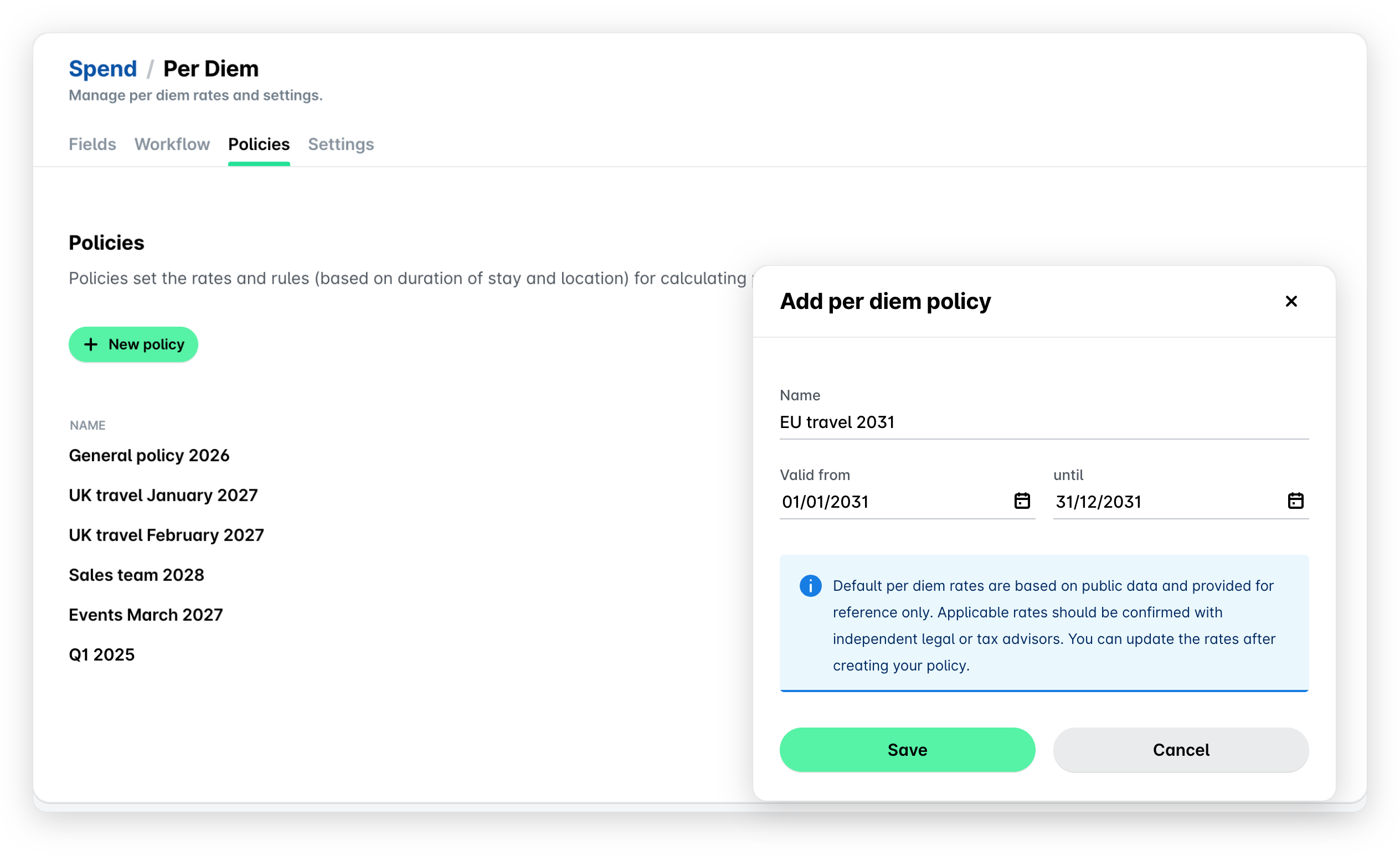
In the Policies tab, click on + New policy.
In the panel that opens, enter the name and duration of the new policy. As a result, expenses that match those time intervals will reflect the rates that you define in the given policy.
Note that you will not be able to create the per diem policy if there is already an existing one with overlapping dates.
Click on Save to create the per diem policy.
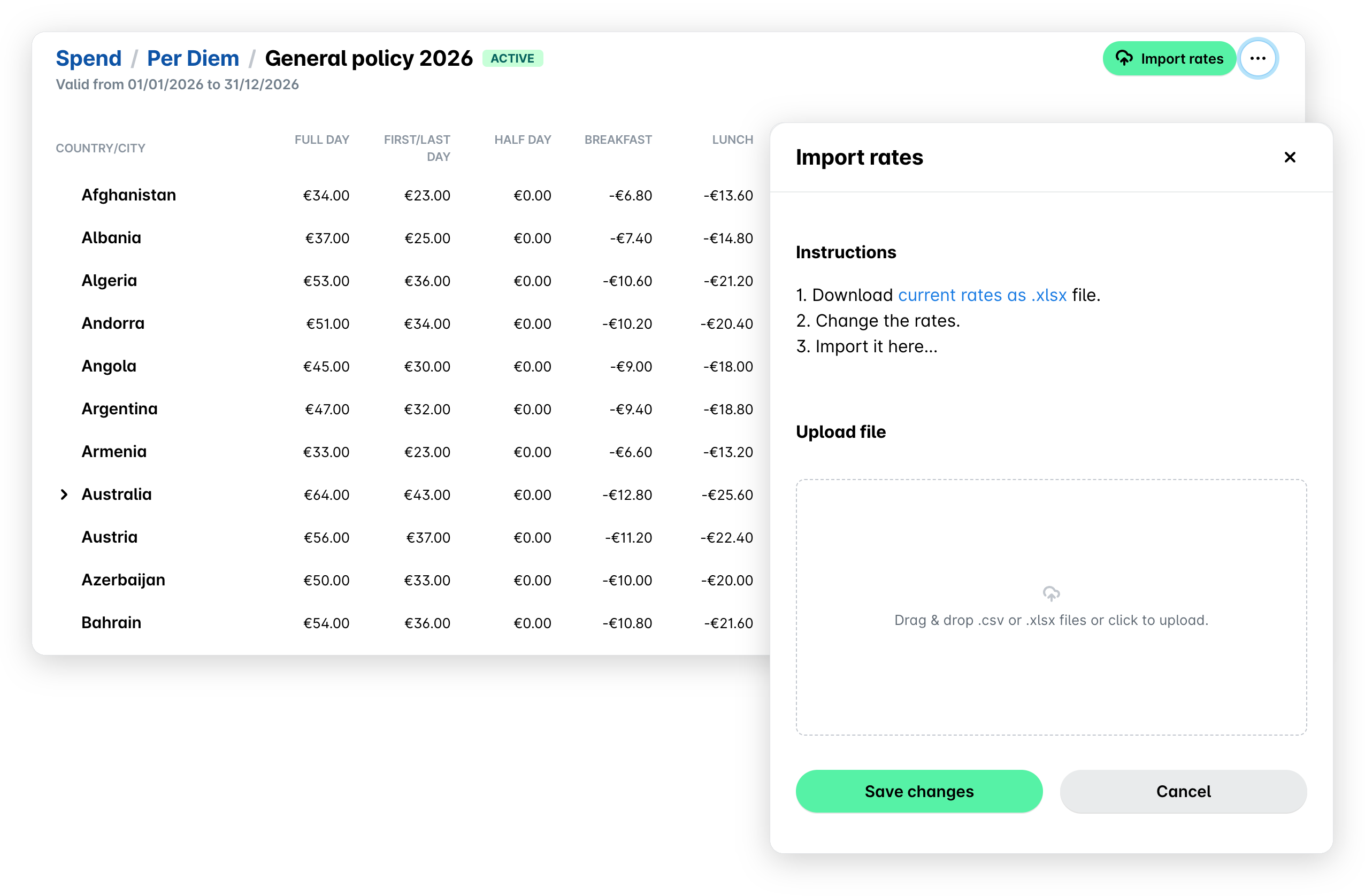
Click on the new policy in the list to open it, and then click on Import rates. In the panel that opens, download the Excel file with the per diem rates by clicking on the current rates as .xlsx link. For more information on the default calculations included in the template file, see the overview of the per diem policies.
Open the Excel file locally and edit the information based on your specific requirements. Save the file.
Back in the Import rates panel, upload your locally updated Excel file.
Click on Save changes. As a result, the rates you've just uploaded will be distributed under the newly created per diem policy.
When the per diem policy expires, users will encounter an error when creating per diem expenses. To resolve this issue, either extend the duration of the existing per diem policy, or create a new policy with updated dates.
Editing and deleting per diem policies
To edit an existing per diem policy:
Open the app switcher in the top-left corner and go to Settings > Spend types > Per Diem.
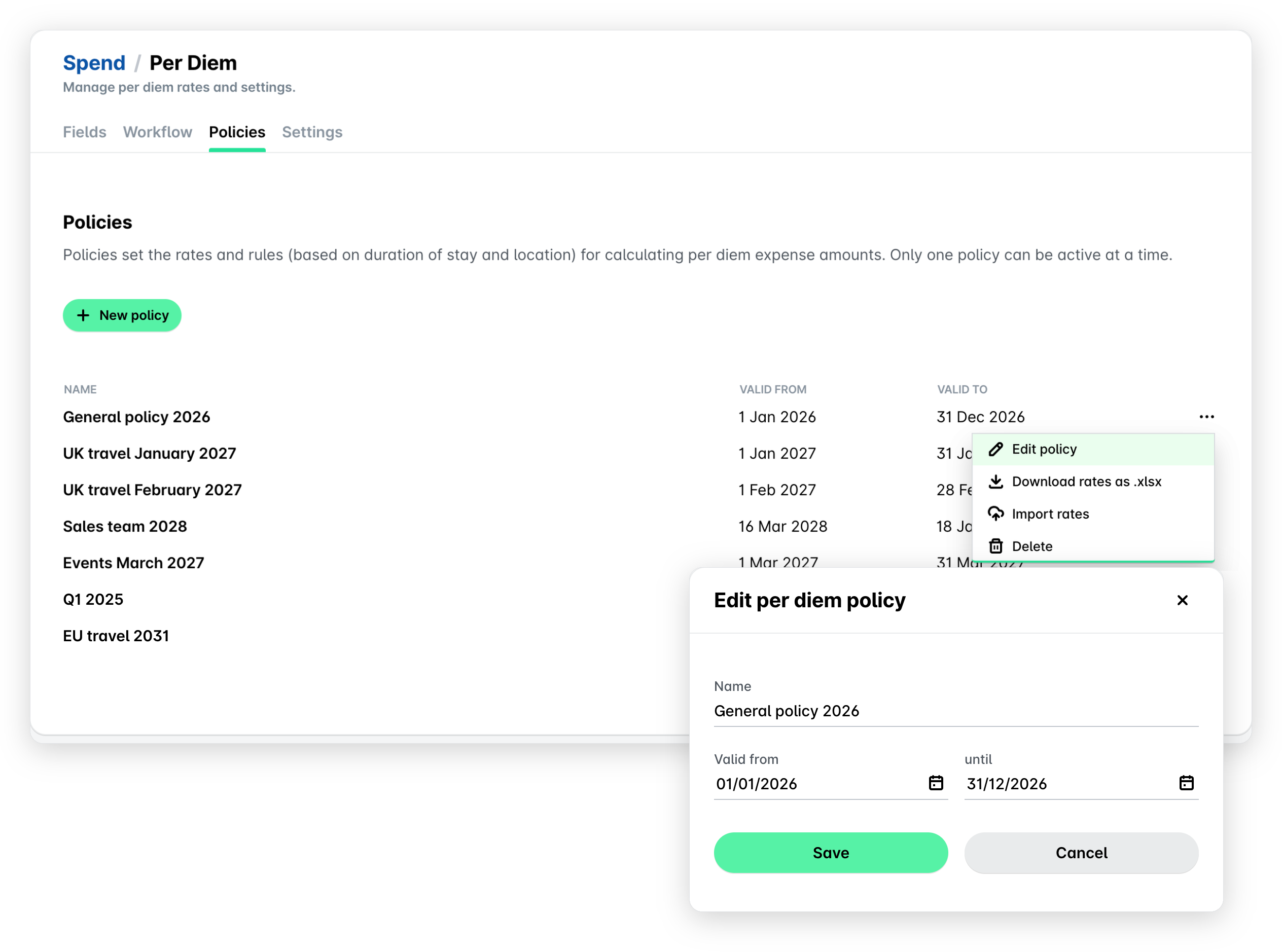
Go to the desired per diem policy and click on the three dots menu. Select the Edit policy option.
In the panel that opens, update the information and click on Save.
To delete an existing per diem policy:
Go to the desired per diem policy and click on the three dots menu. Select the Delete option.
In the dialog that opens, check the confirmation checkbox and click on Delete policy.
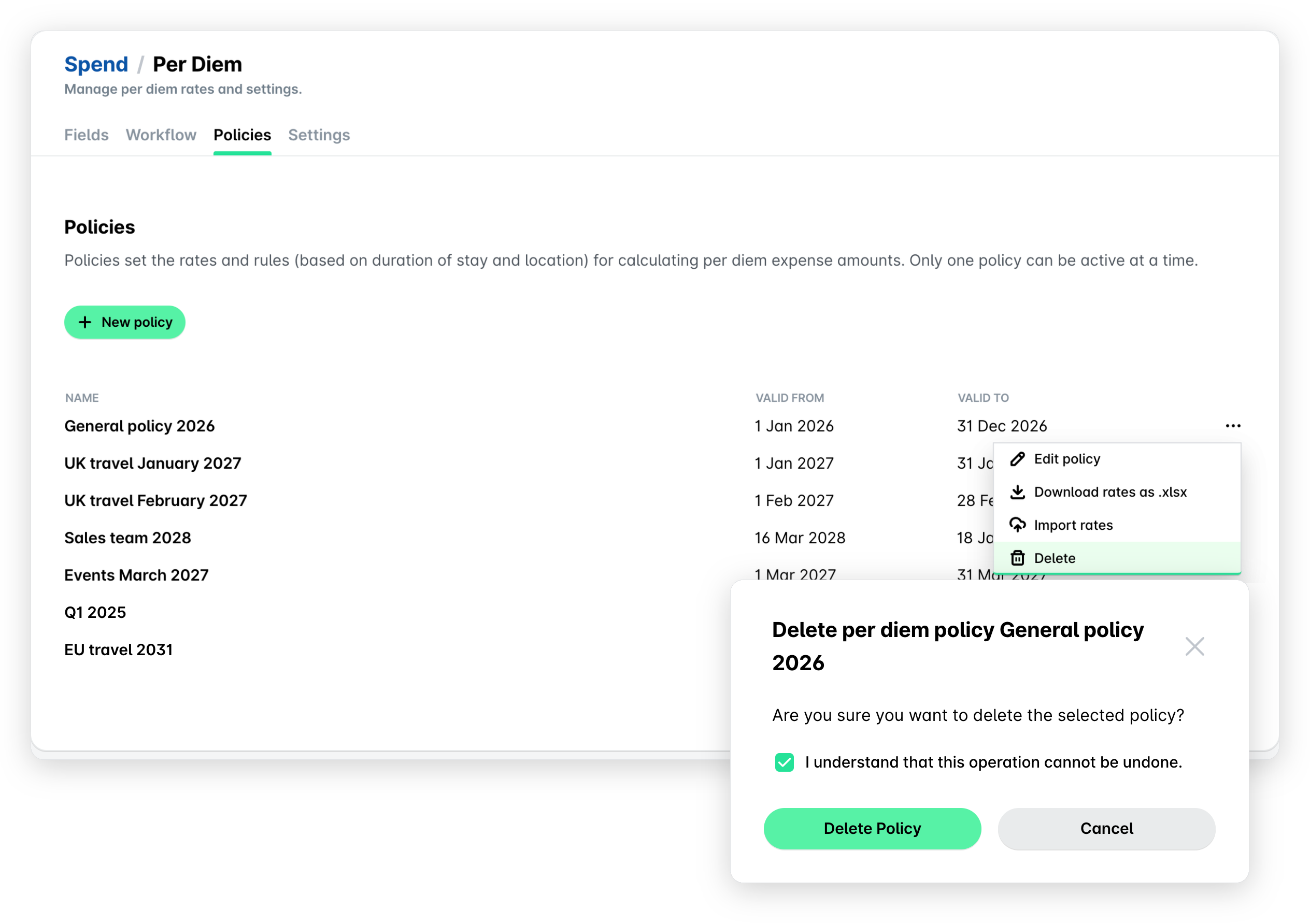
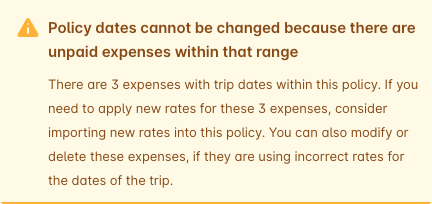
When you try to modify the effective period of a per diem policy or to delete a per diem policy while you still have outstanding expenses to which it applies, Payhawk will display a warning and will not let you proceed until these expenses are settled.
Updating existing per diem rates
To update your existing per diem rates applied for a per diem policy, you can download them in Excel, update them, and make a new import.
Go to the desired per diem policy and click on the three dots menu. Select the Download rates as .xlsx option. As a result, the Excel file with your current per diem rates for the policy will be stored locally.
Update the details and save the file.
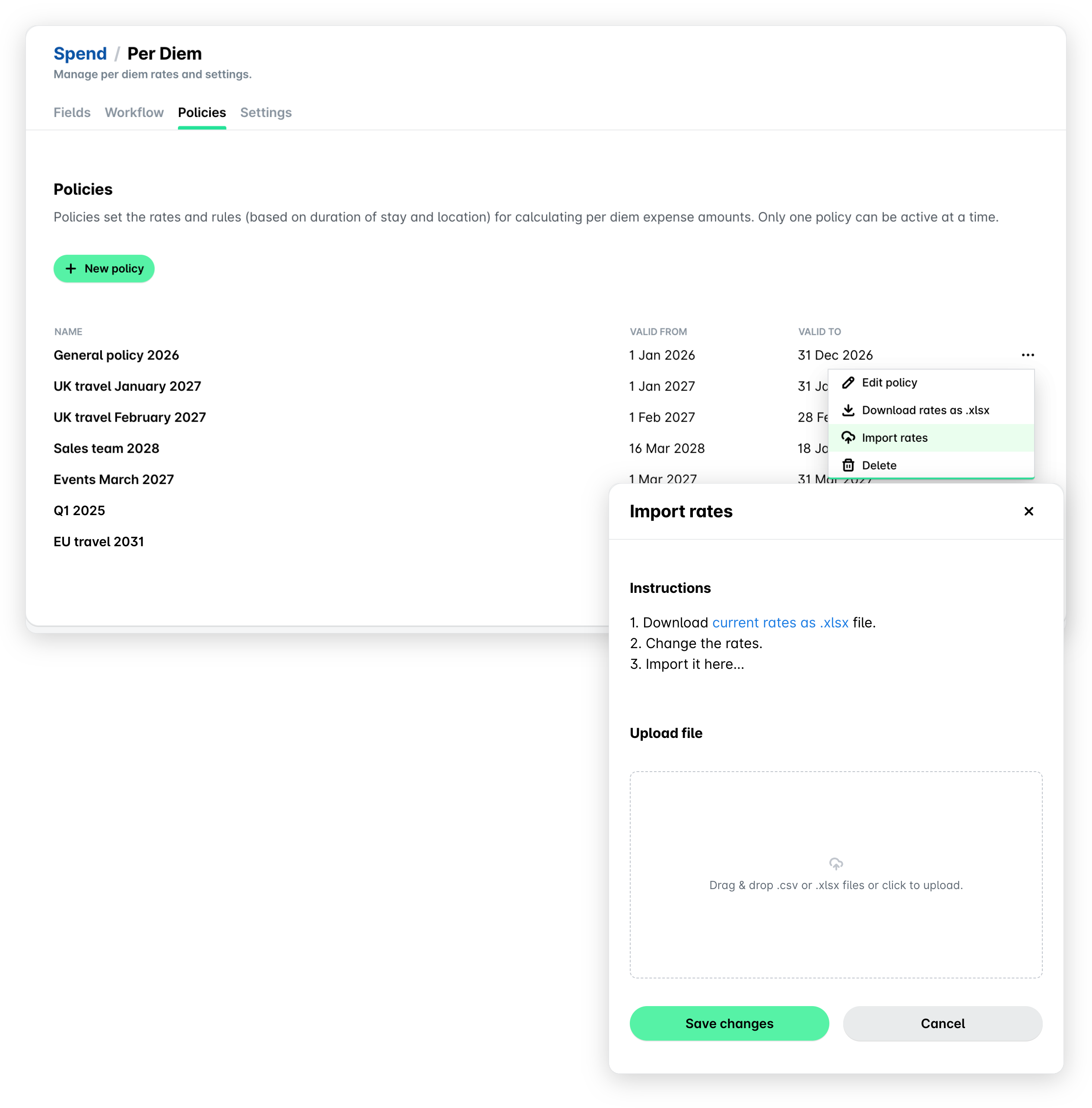
Back in Payhawk, click on the three dots menu. Select the Import rates option.
In the panel that opens, upload your local file and click on Save changes.
Note that if there are existing unpaid per diem expenses with the old rates, Payhawk will automatically update them.
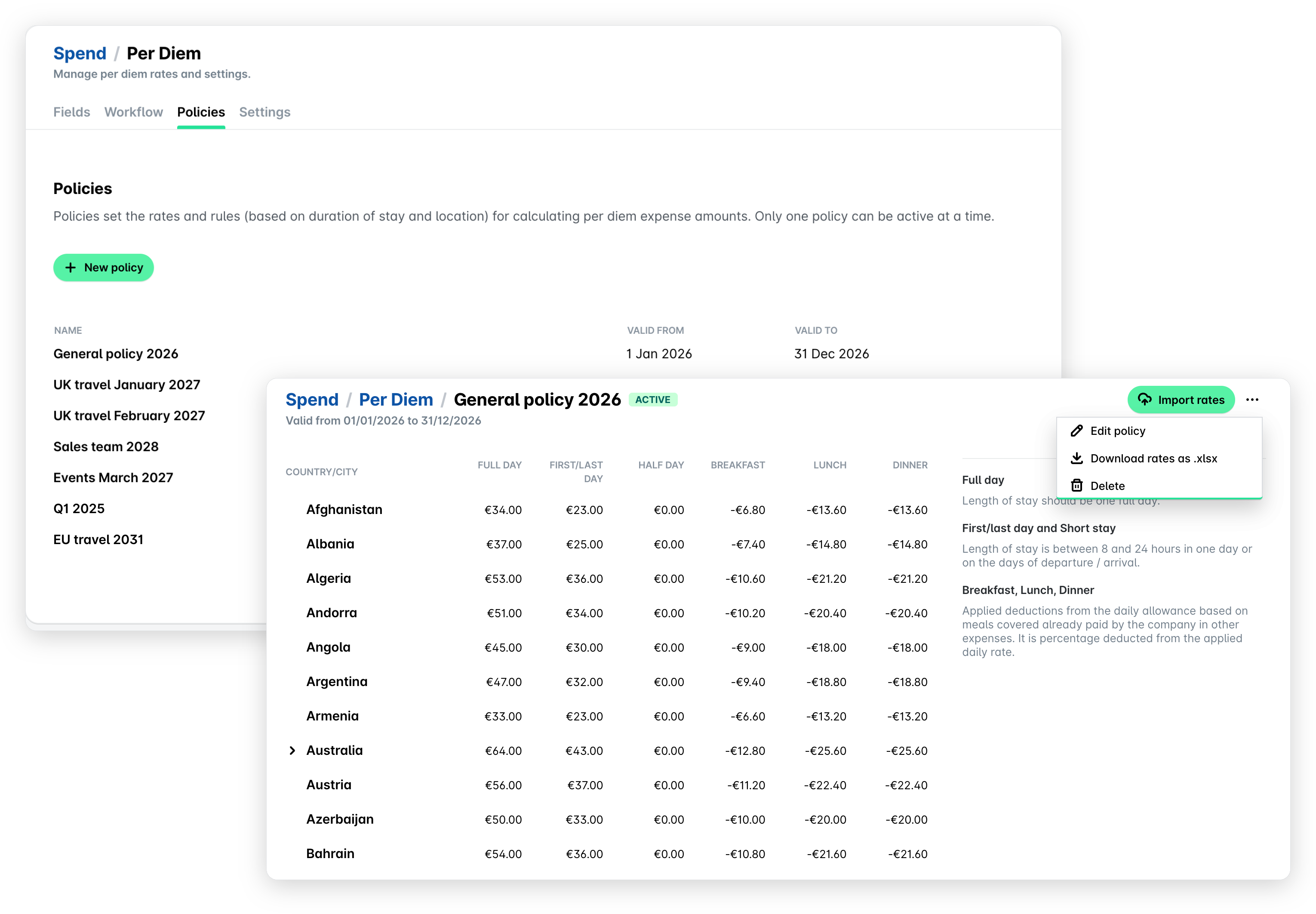
Alternatively, you can edit, delete, and download the existing per diem rates when you click on the policy to open it, click on the three-dots menu, and then select the option you need.
Useful resources