След като сте създали политика за разходи, можете да я присвоите на картата на всеки картодържател в организацията си.
Ако не можете да присвоите политика за разходи на дадена карта, картата може да е част от екипна карта (споделен бюджет). За да направите промени, актуализирайте настройките на екипната карта или премахнете картата от екипа.
Присвояване на политика за разходи на карта
За да присвоите политика за разходи на корпоративна карта Payhawk:
В уеб портала на Payhawk отворете превключвателя на приложения в горния ляв ъгъл, отидете на Карти и изберете Всички карти в левия панел.
Изберете картата, на която искате да присвоите политика за разходи, като кликнете върху нея.
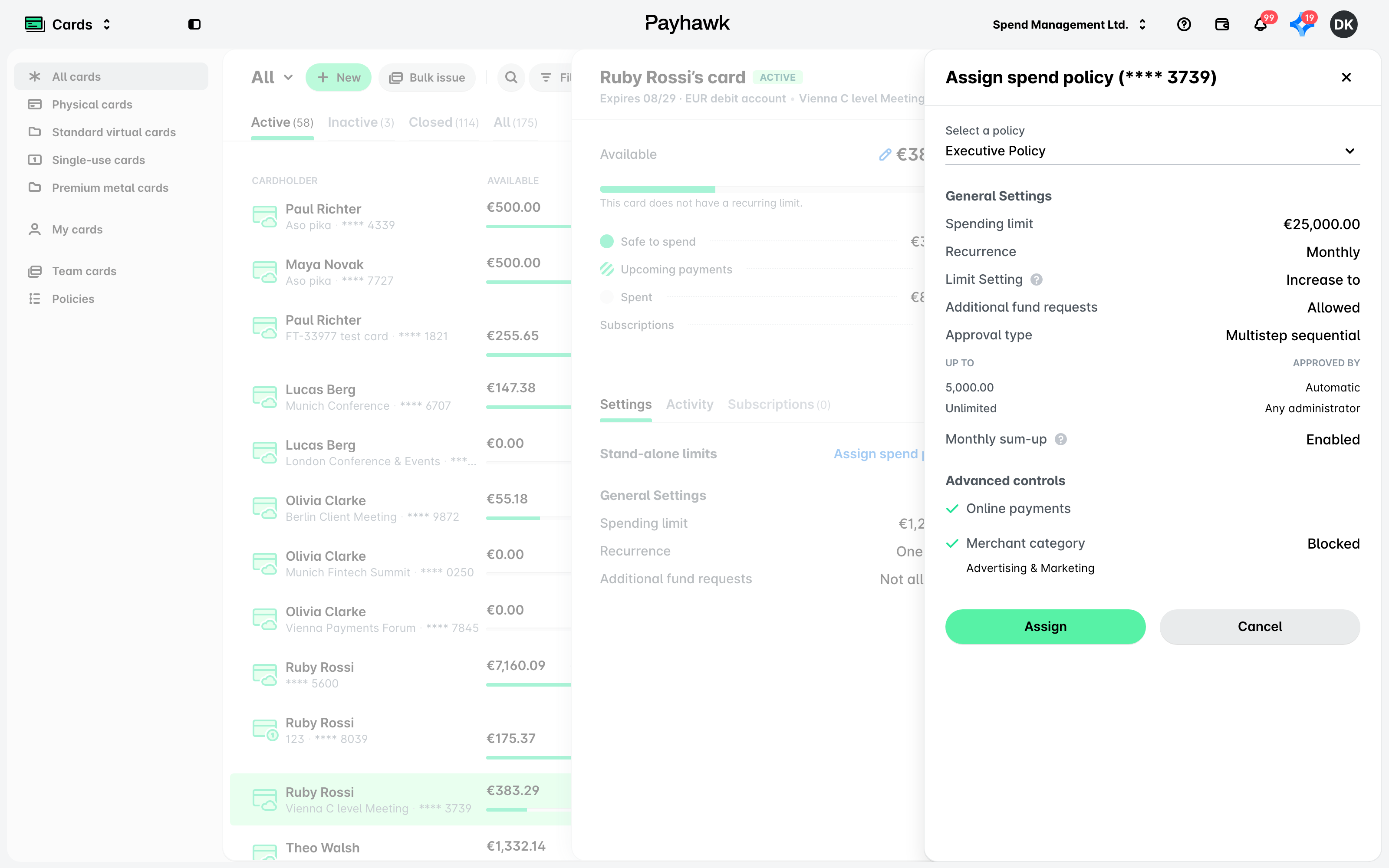
В раздела Настройки кликнете върху Присвояване на политика за разходи.
От падащото меню в отворилия се диалогов прозорец изберете желаната политика за разходи. В резултат се зареждат предварително зададените общи настройки и разширени лимити.
Кликнете върху Присвояване, за да потвърдите. В резултат политиката за разходи се прилага автоматично към картата и нейните параметри се виждат в раздела Настройки на картата.
Промяна на политика за разходи на карта
Може да се наложи да изключите карта от текущата политика за разходи на компанията и да я добавите към политиката за разходи на друга компания.
Отворете превключвателя на приложения в горния ляв ъгъл, отидете на Карти и изберете Всички карти в левия панел.
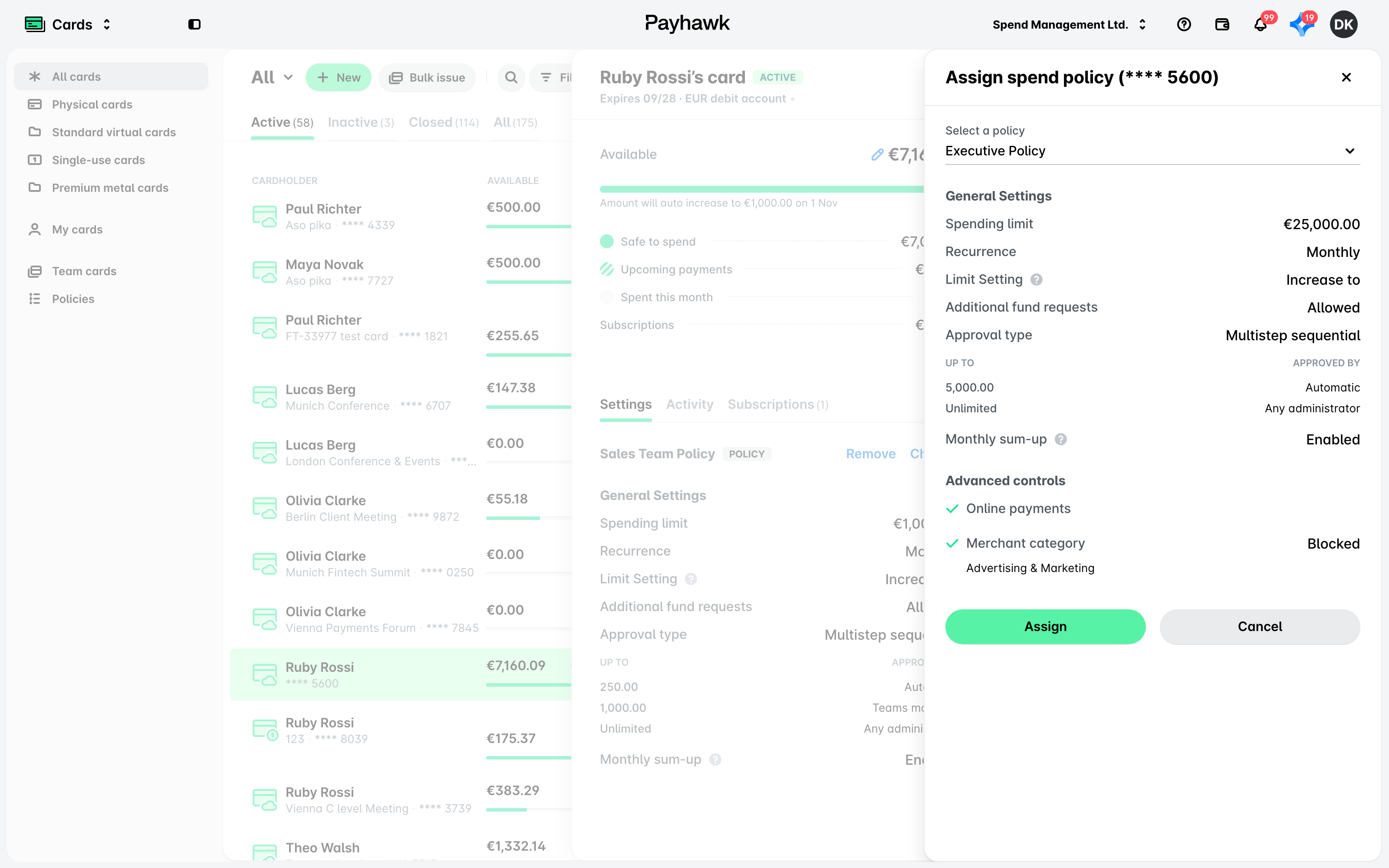
В раздела Настройки срещу текущата политика кликнете върху Промяна.
От падащото меню в отворилия се диалогов прозорец изберете желаната нова политика за разходи, която искате да присвоите на картата. В резултат ще се заредят предварително зададените общи настройки и разширени лимити.
Кликнете върху Присвояване, за да потвърдите. В резултат политиката за разходи се прилага автоматично към картата и нейните параметри се виждат в раздела Настройки на картата.
Премахване на карта от политика за разходи
Може да се наложи да премахнете карта от съществуваща политика за разходи в организацията ви и да върнете индивидуалните настройки на картата:
Отворете превключвателя на приложения в горния ляв ъгъл, отидете на Карти и изберете Всички карти в левия панел.
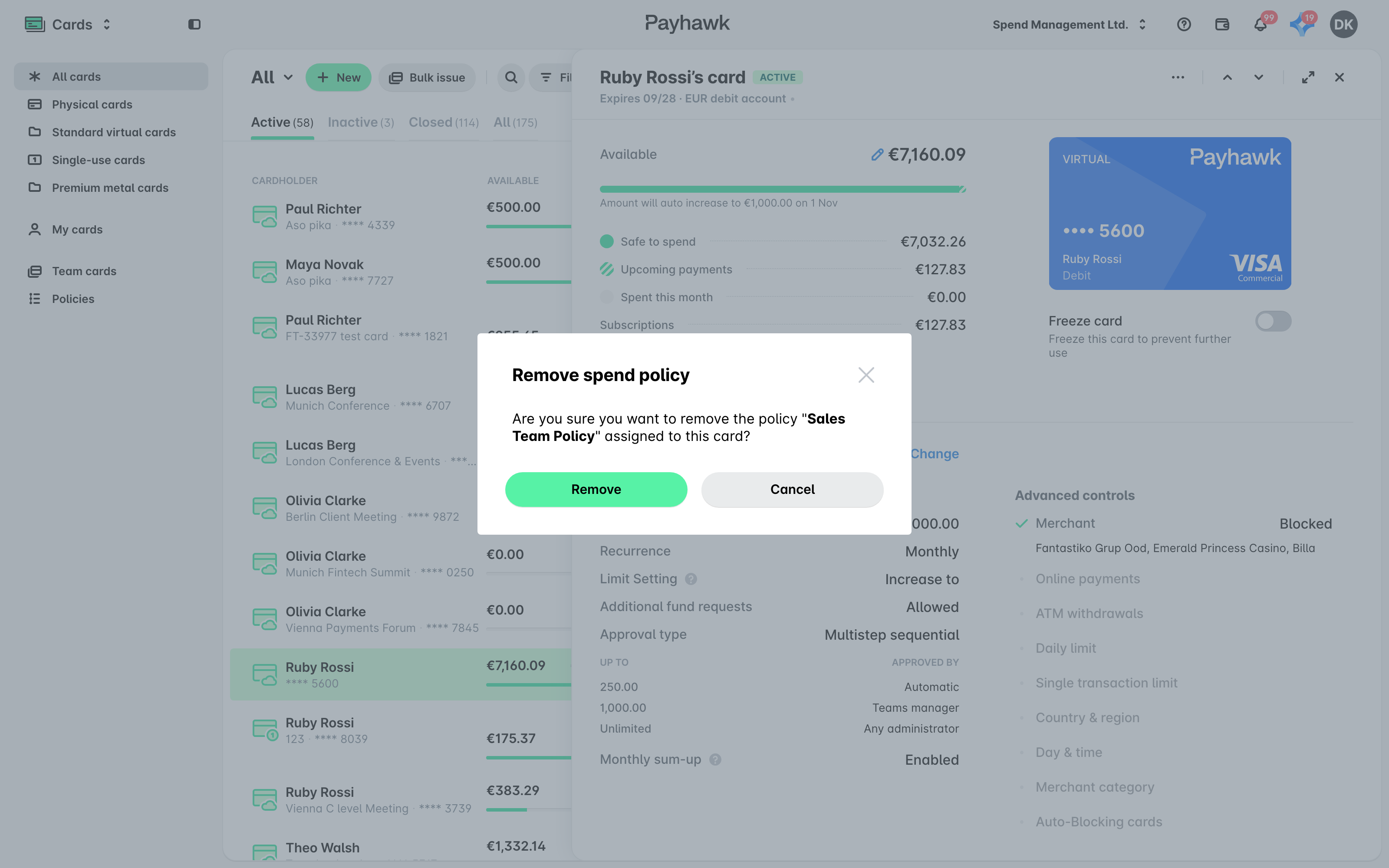
В раздела Настройки срещу текущата политика кликнете върху Премахване.
В отворилия се диалогов прозорец кликнете върху Премахване, за да потвърдите избора си. В резултат политиката за разходи се премахва от картата и вместо нея се прилагат индивидуалните настройки на картата.
Полезни ресурси
Задаване на лимити за разходите и функции за контрол на отделни карти
Задаване на лимити за разходите и функции за контрол на екипни карти